
How do I set salesman targets in Tazk POS?
Open Sales Target → Salesman Targets and click Add. Pick the month, optionally enter the company or branch commitment and a stretch buffer %, and fill the per-salesman template. The grid lists your salesmen; choose a Suggestion basis and press Auto-assign values, or type the figures. Click Create. The targets are final at once, salesmen see them in My Target, and achievement starts computing.
What does the Salesman Targets list show?
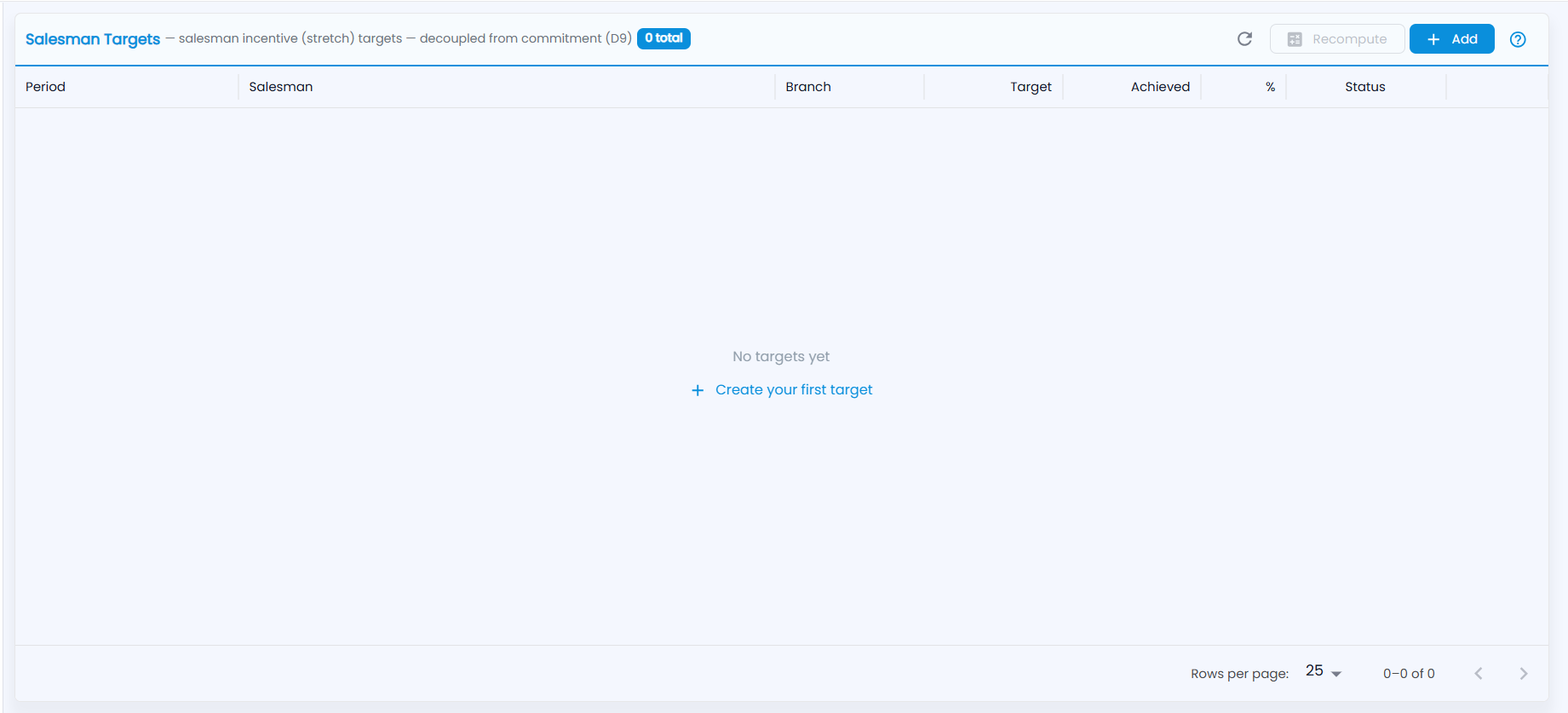
Open Sales Target → Salesman Targets ("salesman incentive (stretch) targets — decoupled from commitment"). It lists every salesman target across all periods, filtered by the branch in the header; the badge counts them.
| Column | What it shows |
|---|---|
| Period | The target period |
| Salesman | The salesman. A row labelled "salesman · N customers" is the total of that salesman's customer targets |
| Branch | The branch the target is for (a salesman in two branches has one target in each) |
| Target / Achieved / % | Target, achievement so far and percentage |
| Status | Draft, Published, Locked or Closed (Draft rows have a Publish button) |
Use Refresh, Recompute and Add in the title band, the pencil to edit and the bin to delete. With no targets yet, click Create your first target.
How do I give targets to all salesmen?
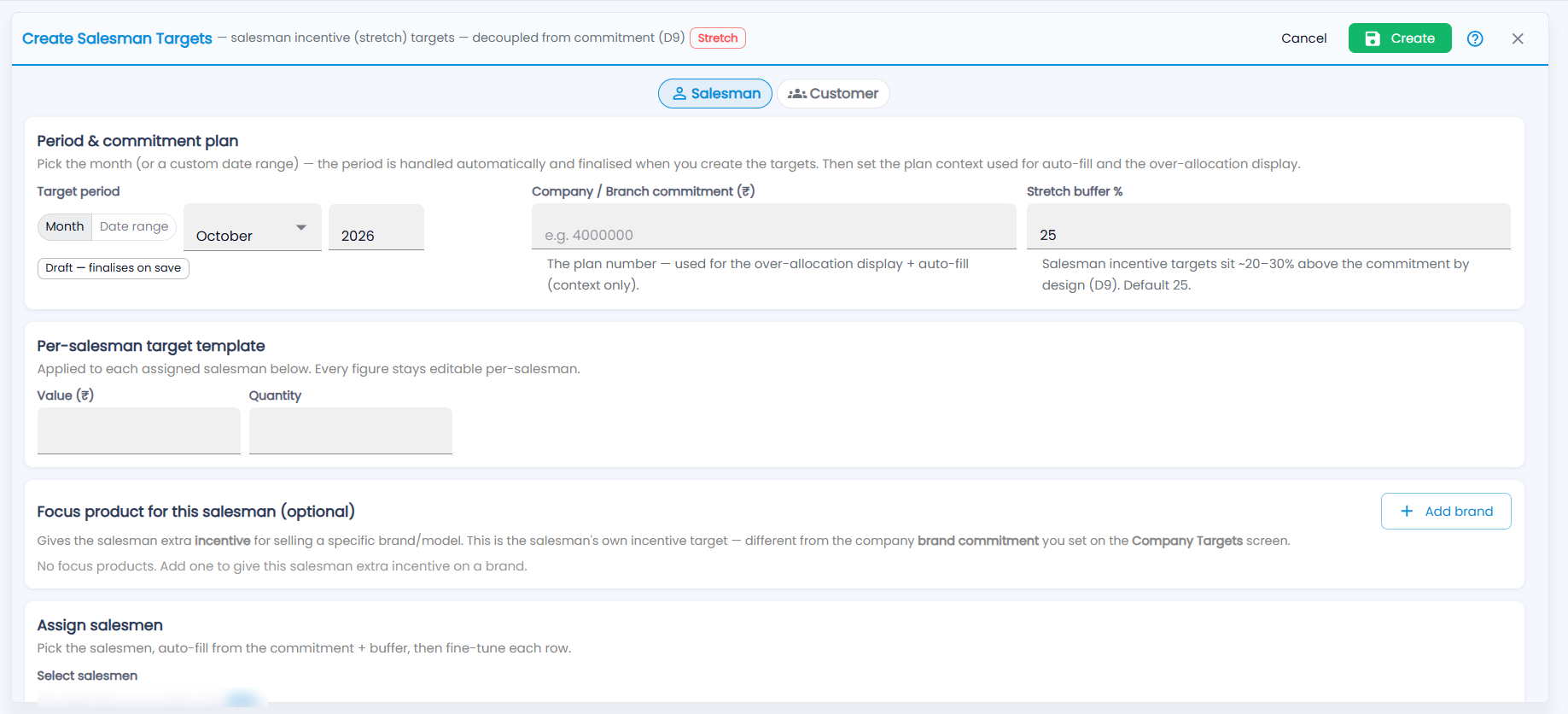
- Click Add. Create Salesman Targets opens with the Stretch badge; keep Salesman selected.
- In Period & commitment plan, pick the Target period (Month or Date range; Draft — finalises on save). Optionally enter the Company / Branch commitment (₹) — the plan number, used only for the over-allocation display and auto-fill — and the Stretch buffer %, 25 by default (salesman targets sit about 20–30% above the commitment).
- In Per-salesman target template, enter the figures every salesman should start with, for example Value (₹) and Quantity (the metrics on offer depend on your account). Every figure stays editable per salesman.
- Optionally add a Focus product for this salesman with Add brand: a brand with Target Value (₹) and Target Qty that earns extra incentive. This is the salesman's own incentive target, separate from the brand commitment on Company Targets.
- In Assign salesmen, use Select salesmen to change who is included (all are listed). Remove one with the bin icon.
- Choose a Suggestion basis and press Auto-assign values, or type into the grid.
- Click Create.
| Suggestion basis | How it fills each salesman's Value |
|---|---|
| Last 3 months average / Last 6 months average | Their average sales × (1 + Growth %) |
| Same month last year | Their sales in that month last year × (1 + Growth %) |
| Smart (weighted blend) | A weighted mix of their history |
| Commitment split | (Commitment ÷ number of salesmen) × (1 + stretch buffer %) |
The strip above the grid shows Σ Assigned value, Commitment and Over-allocation. Each salesman's Value and Collection are split across their mapped customers, weighted by last month's sales.
How do I set targets for a salesman's customers?
- Click Add and switch to Customer.
- Pick the period, then Select a salesman….
- For each mapped customer, read Last month (₹) and enter Target value (₹) and Collection (₹).
- Click Create.
Track progress on Achievement; the payout is worked out on Incentive.