
What does the Tazk POS calendar show?
The Calendar shows money that falls due, by date. Its views are Payables (vendor bills by due date), Receivables (customer invoices by due date), Manual Reminders (reminders you add yourself) and Company Loan Dues (loan EMIs). Pick a view on the left, move between months with Prev and Next, and click a day to see what is due.
Which calendar views are there?
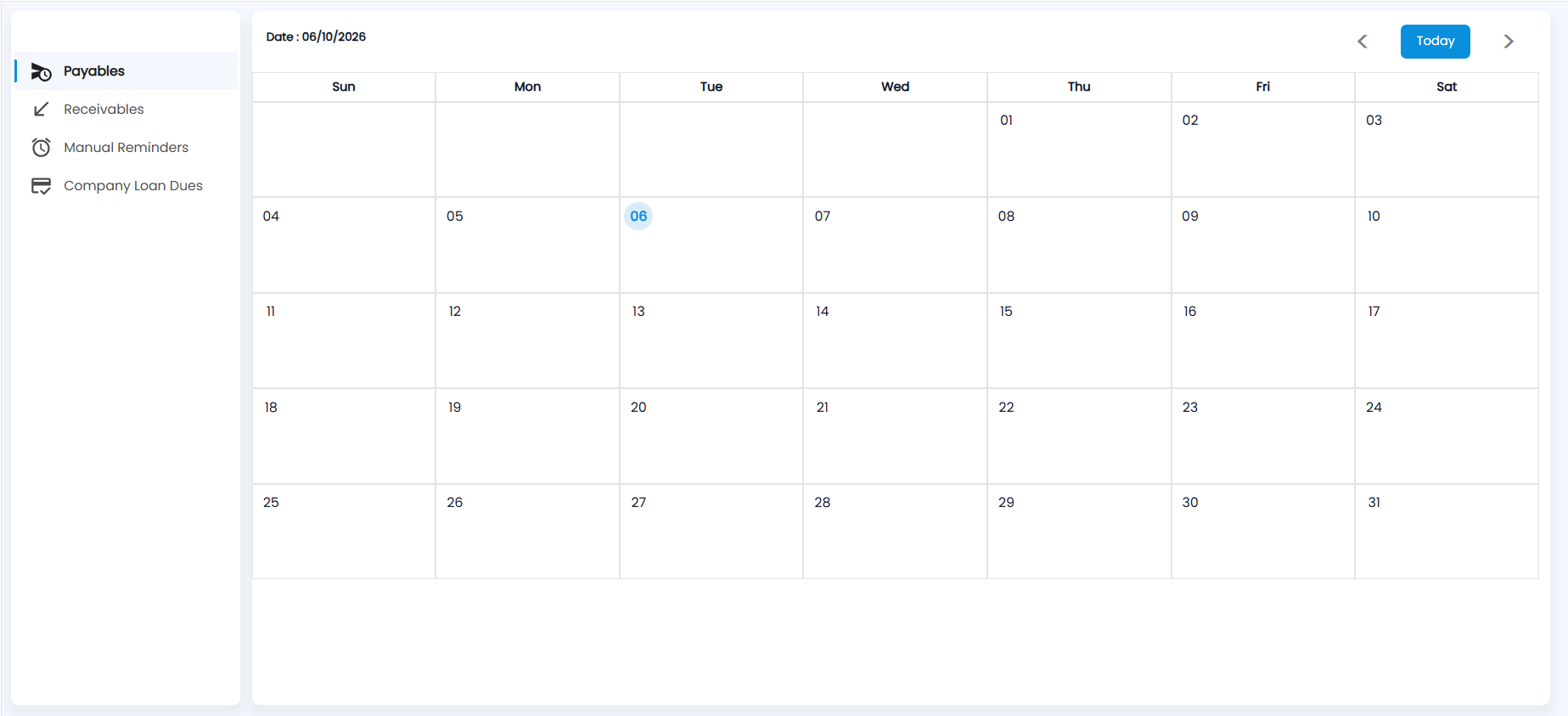
Click Calendar in the sidebar. The left panel has four views; the month grid on the right shows the selected date (for example Date : 06/10/2026), Sunday to Saturday, with today’s date circled.
| View | What it shows | Day details |
|---|---|---|
| Payables | Unpaid vendor bills on their due date (the bill date plus the vendor’s credit days) | Payables Due — Vendor, Bill#, Amount, Due, Due Date |
| Receivables | Unpaid customer invoices on their due date | Receivables Due — Customer, Invoice, amounts and Due Date |
| Manual Reminders | Reminders you have created | Each reminder, with edit and delete |
| Company Loan Dues | EMIs on your business loans, by loan number | Bank Name, Acc. Number, EMI Amount, Tenure |
Payables and Receivables follow the location chosen in the top bar. The calendar is a month view only. Which views you see depends on your role.
Payables
Shows each unpaid vendor bill on its due date — the bill date plus the vendor’s credit days. Click an entry or the day to open Payables Due (Vendor, Bill#, Amount, Due, Due Date). To pay, use Payables or Purchase Payments.
Receivables
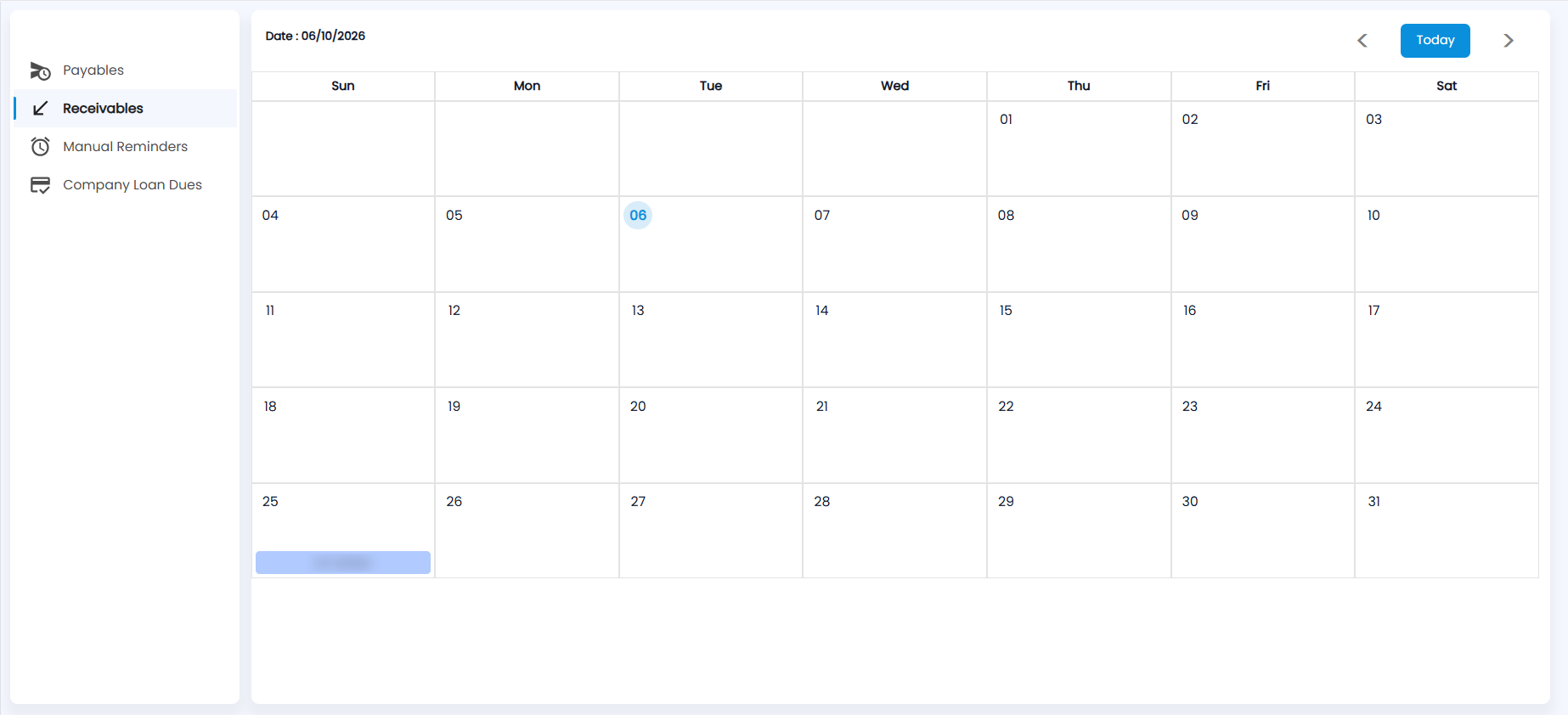
Shows each unpaid customer invoice on its due date, as a coloured bar with the customer’s name. Click it to open Receivables Due with the customer, invoice, amounts and due date. To collect, use Receivables or Receipts.
Manual Reminders
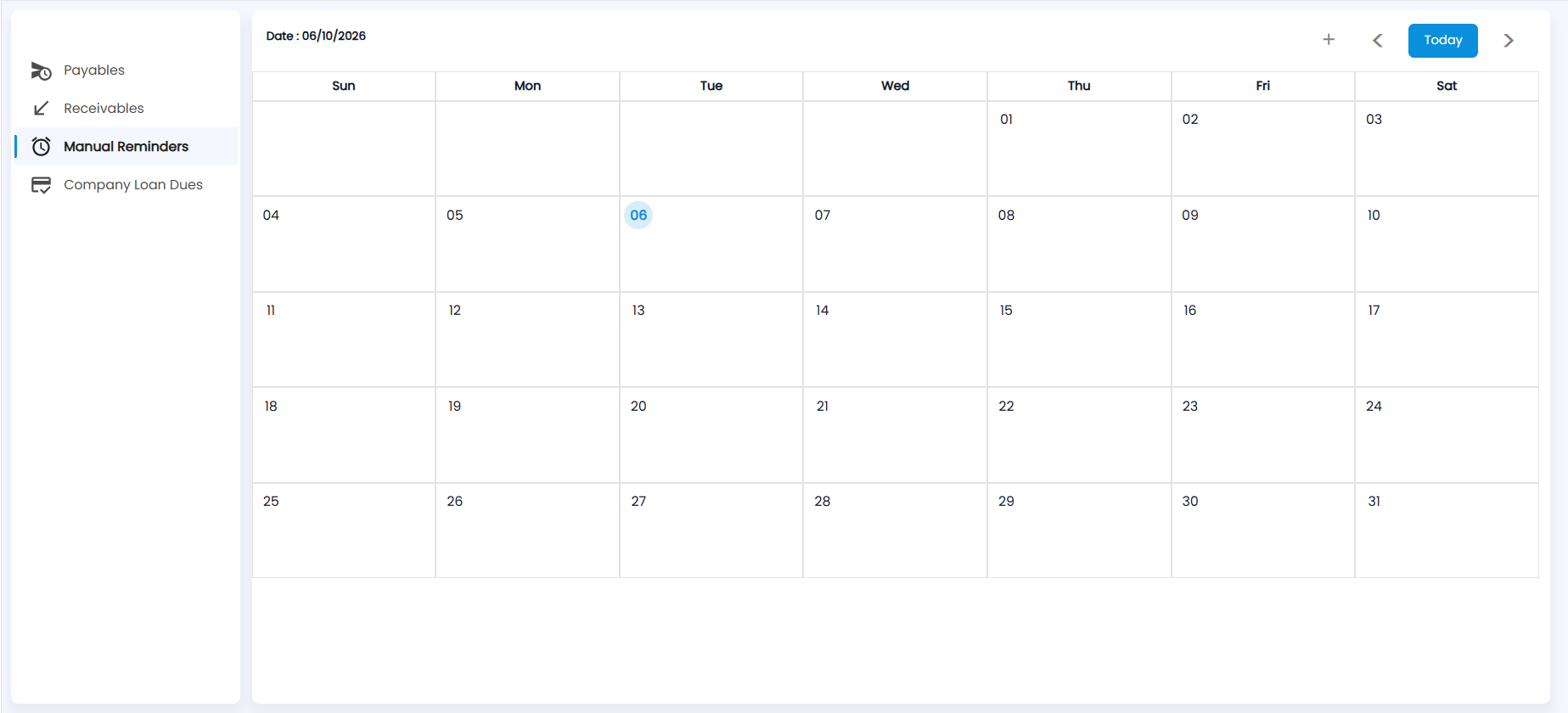
Shows reminders you add yourself — a call to make, a cheque to deposit, a follow-up. This is the only view with the + button at the top; see below to add one.
Company Loan Dues
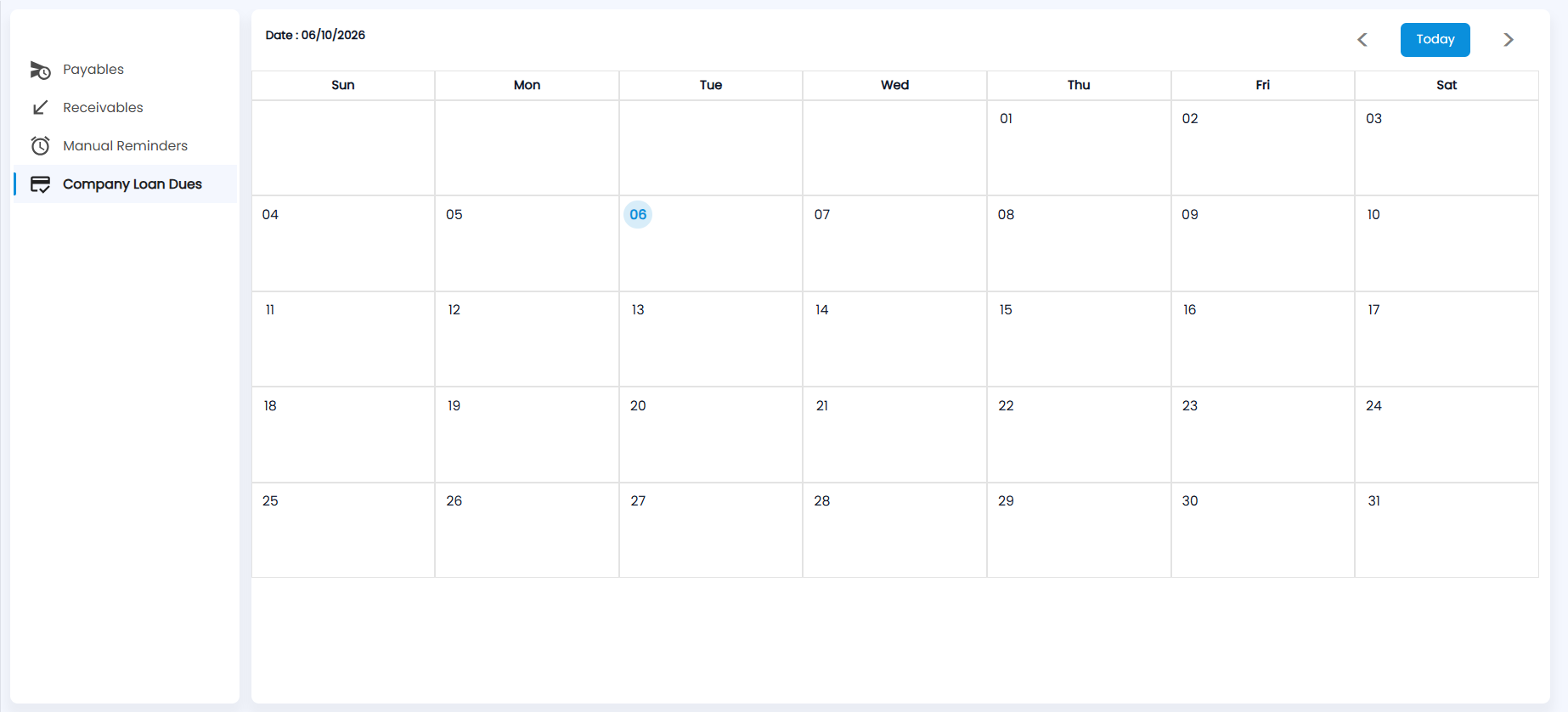
Shows the EMI dates of your business loans by loan number. Click one to see the Bank Name, Acc. Number, EMI Amount and Tenure. Loans are set up in Loan Accounts.
How do I use the calendar?
- Choose a view on the left.
- Use the < and > arrows beside Today to change month, and Today to come back to the current month.
- Each day shows its first entry by name — the vendor, customer or loan number. Point to it to see the full name. When a day has more entries, click +N more.
- Click an entry or a day to open the details table.
How do I add a reminder?
- Open Manual Reminders and click the + beside the arrows at the top right (tooltip Reminder).
- Enter the Title, Date, Time and Description.
- Click Save.
To change or remove a reminder, open its day and use Edit or Delete.