
What is a vendor price list?
A vendor price list records the prices a vendor has agreed with you — dealer price, selling price and MRP for each product — for a set period. When you create a purchase order or bill for that vendor, you can choose the list under Price List and the lines are priced from it. A list is Active until its end date and Expired after it.
What does the Vendor Price List page show?
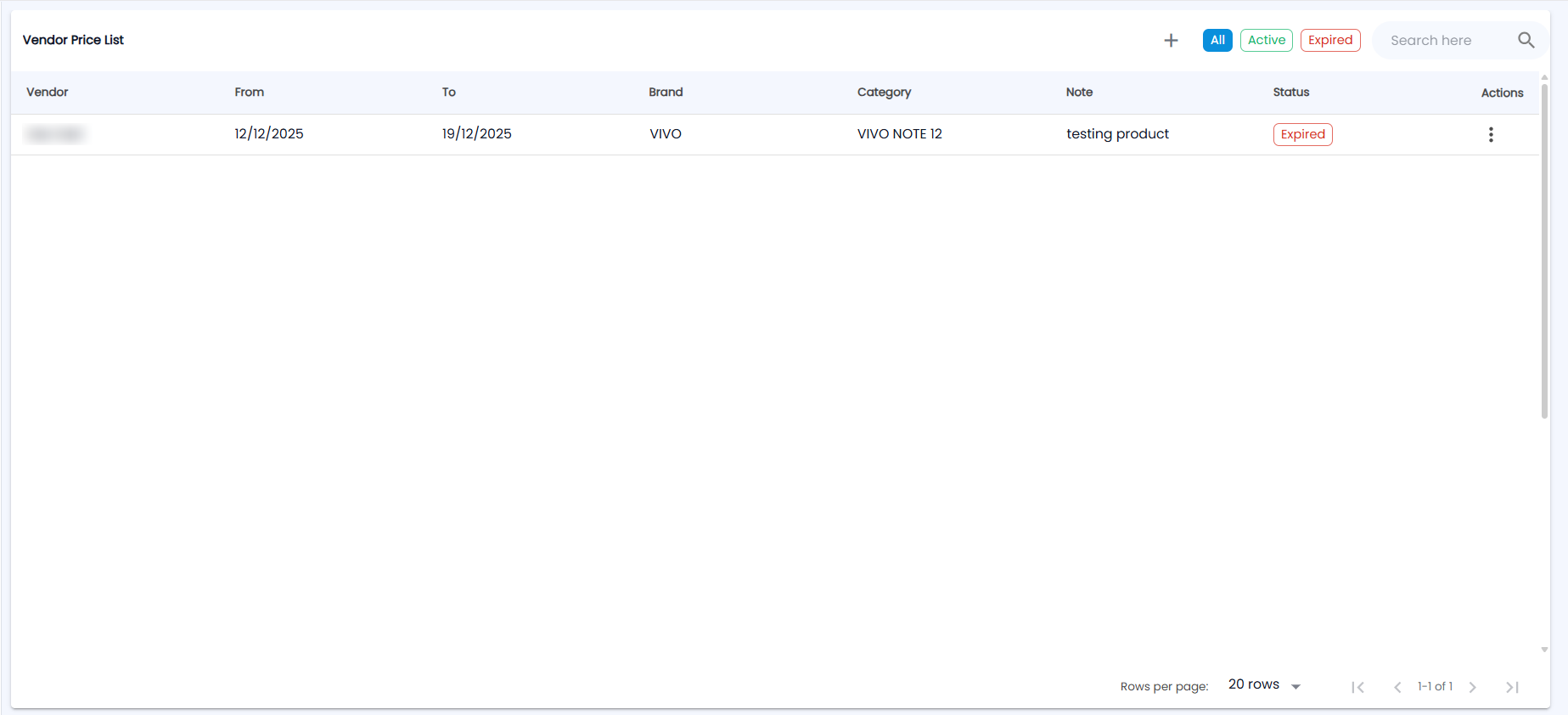
Go to Purchases → Vendor Price List. Next to +, chips filter the lists: All, Active and Expired; then comes Search here.
| Column | What it shows |
|---|---|
| Vendor | The vendor (or vendors) the list applies to |
| From / To | The period the prices are valid for |
| Brand / Category | The products covered |
| Note | Your note |
| Status | Active (green), or Expired (red) once the To date has passed |
| Actions | The ⋮ menu with View and Edit |
How do I create a vendor price list?
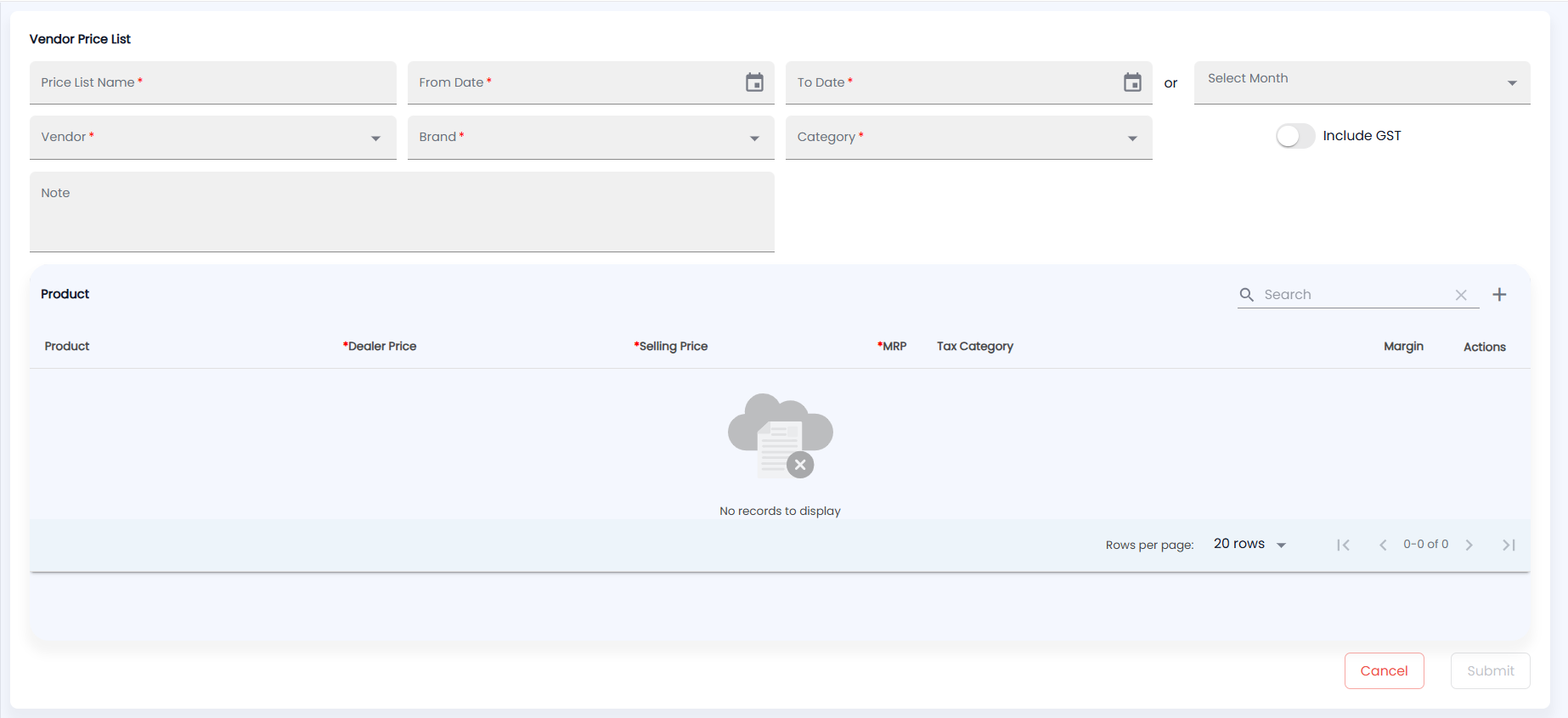
- Click +. The Vendor Price List form opens.
- Enter the Price List Name (required).
- Set the dates: a From Date (today or later) and a To Date (both required), or use Select Month to fill a whole month.
- Choose the Vendor (required) — one or more, or All Vendor — and the Brand and Category (both required) of the products the list covers.
- Turn on Include GST if the prices you are entering include GST, and add a Note if you like.
- In the Product section, use Search or click + to add products. For each, enter the Dealer Price, Selling Price and MRP (all required, no negative values); the Tax Category and Margin are shown for each row.
- Click Submit (or Cancel).
How is the price list used on a bill?
On a new purchase order or bill for that vendor, the Price List field lists the vendor's active lists (Default means the product's normal cost). Choose one and every line already on the form is re-priced from it. See Purchase Orders and Bills.
Note: You get a notification when a vendor price list is about to expire; opening it takes you to the Expired filter.