
What does Payments → Analytics show?
Analytics is a read-only dashboard of all money movement for the selected period and location: an overview with alerts, money in and money out by source and purpose, bank and cheque status, and (for POS businesses) counter collections. Most numbers link to the page they came from, so you can click through to act on them.
In the sidebar this page is Payments → Analytics. It is available to Administrators on the higher subscription plans.
How do I choose the period?
The page is titled Payments Analytics; under the title it says which period you are looking at, its dates and the “as on” time — for example Showing This Month (2026-10-01 to 2026-10-06) · as on 2026-10-06 16:54:59 IST. Use the period selector at the top right: This Month (default), Last Month, Last 3 Months, Last 6 Months, This Financial Year or Last Financial Year. The header shows the exact dates and the "as on" time. Figures follow the location selected in the app header.
What is on the Overview tab?
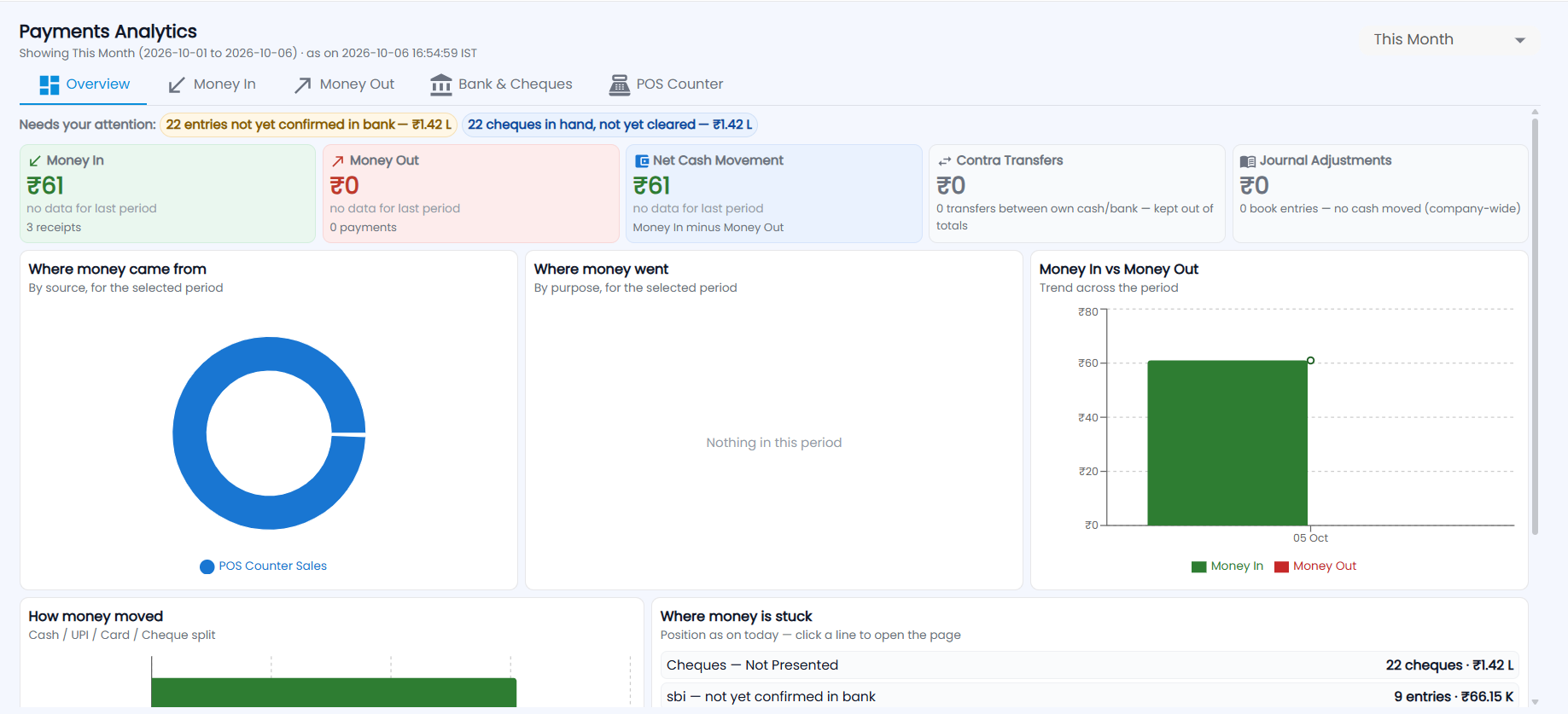
- Needs your attention — alert chips such as 22 entries not yet confirmed in bank — ₹1.42 L or 22 cheques in hand, not yet cleared, and bounced cheques or expense bills waiting for payment when there are any.
- Cards — Money In (with the number of receipts), Money Out (number of payments), Net Cash Movement (money in minus money out), Contra Transfers and Journal Adjustments. Each compares with the previous period, or says no data for last period.
- Charts — Where money came from (by source, for example POS Counter Sales), Where money went (by purpose), Money In vs Money Out (the trend across the period), How money moved (the cash / UPI / card / cheque split) and Where money is stuck — the position as on today, such as cheques not presented and entries per bank not yet confirmed; click a line to open the page behind it. A chart with no data says Nothing in this period.
What is on the Money In tab?
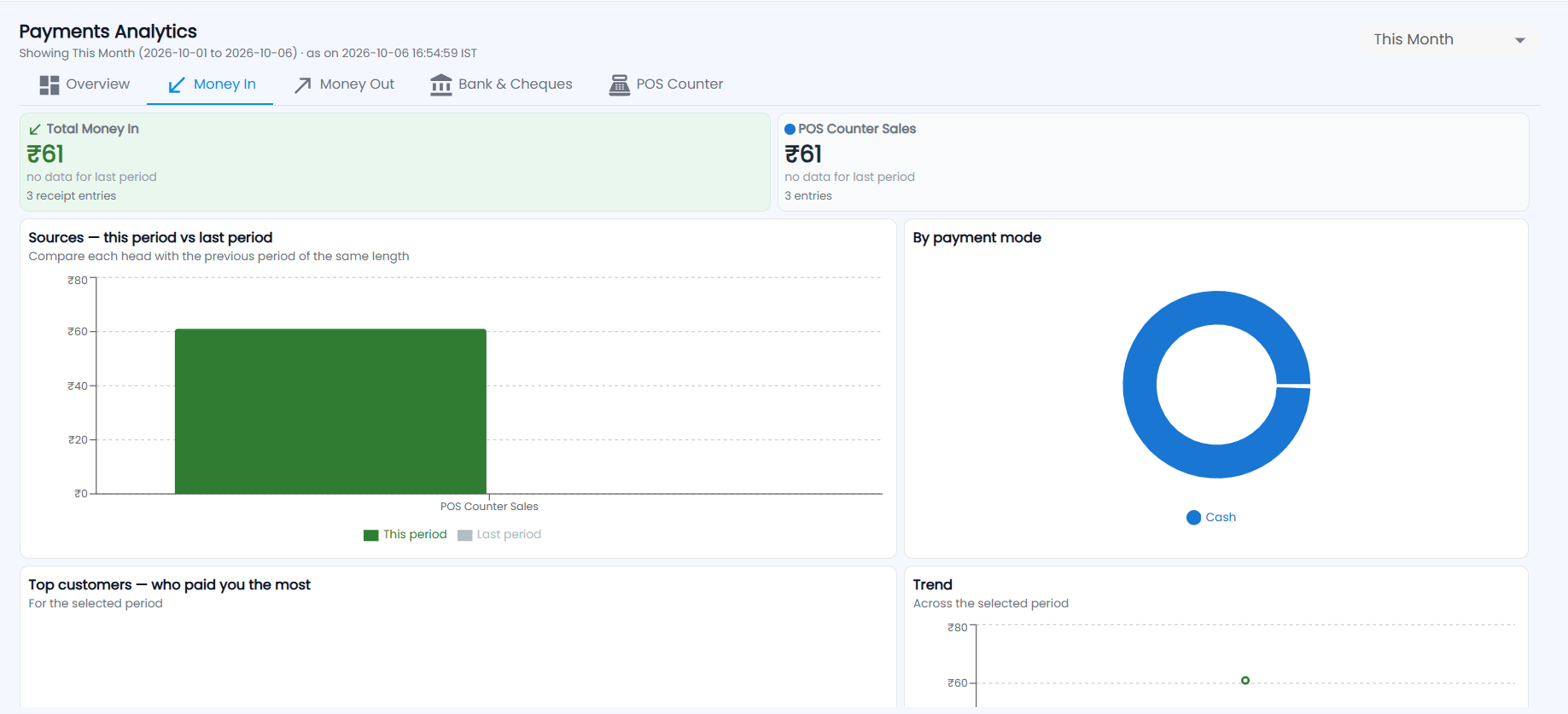
Total Money In and a card for each source (for example POS Counter Sales, with its number of entries); Sources — this period vs last period, a bar for each head compared with the previous period of the same length; By payment mode (for example Cash); Top customers — who paid you the most; and the Trend across the period.
What is on the Money Out tab?
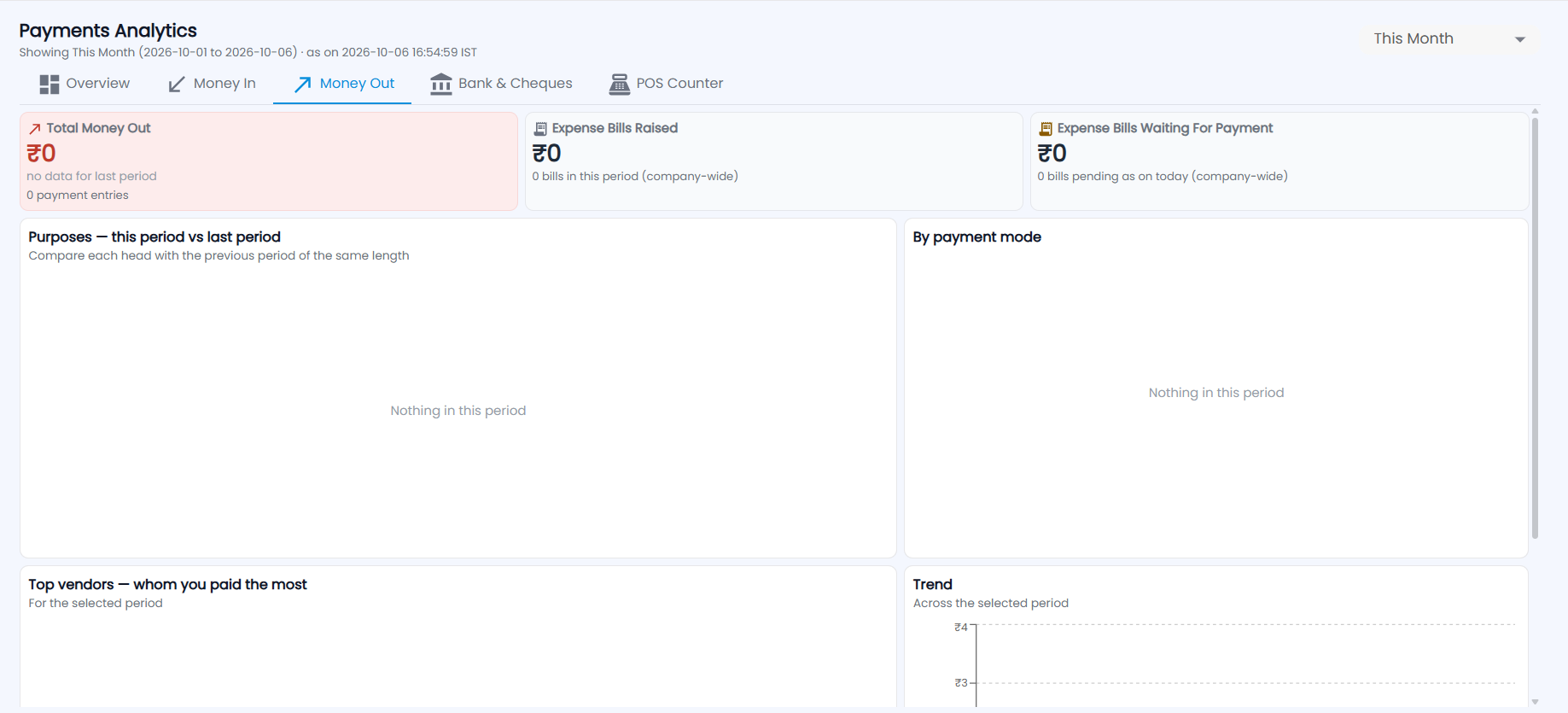
Total Money Out (with the number of payment entries), Expense Bills Raised in the period and Expense Bills Waiting For Payment as on today (both company-wide); Purposes — this period vs last period; By payment mode; Top vendors — whom you paid the most; and the Trend.
What is on the Bank & Cheques tab?
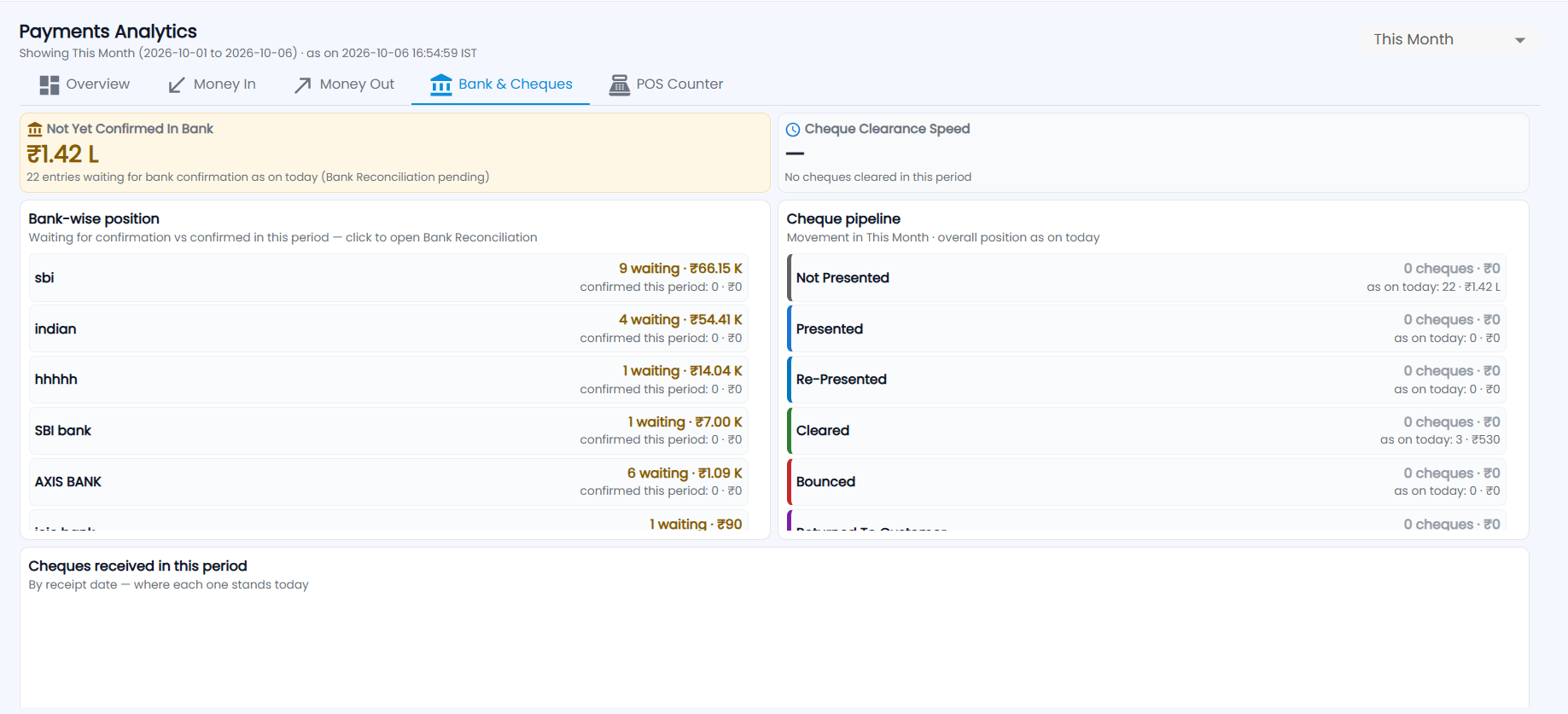
- Not Yet Confirmed In Bank — the amount and number of entries waiting for bank confirmation as on today (Bank Reconciliation pending).
- Cheque Clearance Speed — how fast cheques cleared in the period, or No cheques cleared in this period.
- Bank-wise position — for each bank, the entries waiting for confirmation and those confirmed in this period. Click a bank to open Bank Reconciliation.
- Cheque pipeline — cheques Not Presented, Presented, Re-Presented, Cleared, Bounced and Returned To Customer: the movement in this period, and the overall position as on today. See Cheques.
- Cheques received in this period — by receipt date, and where each one stands today.
What is on the POS Counter tab?
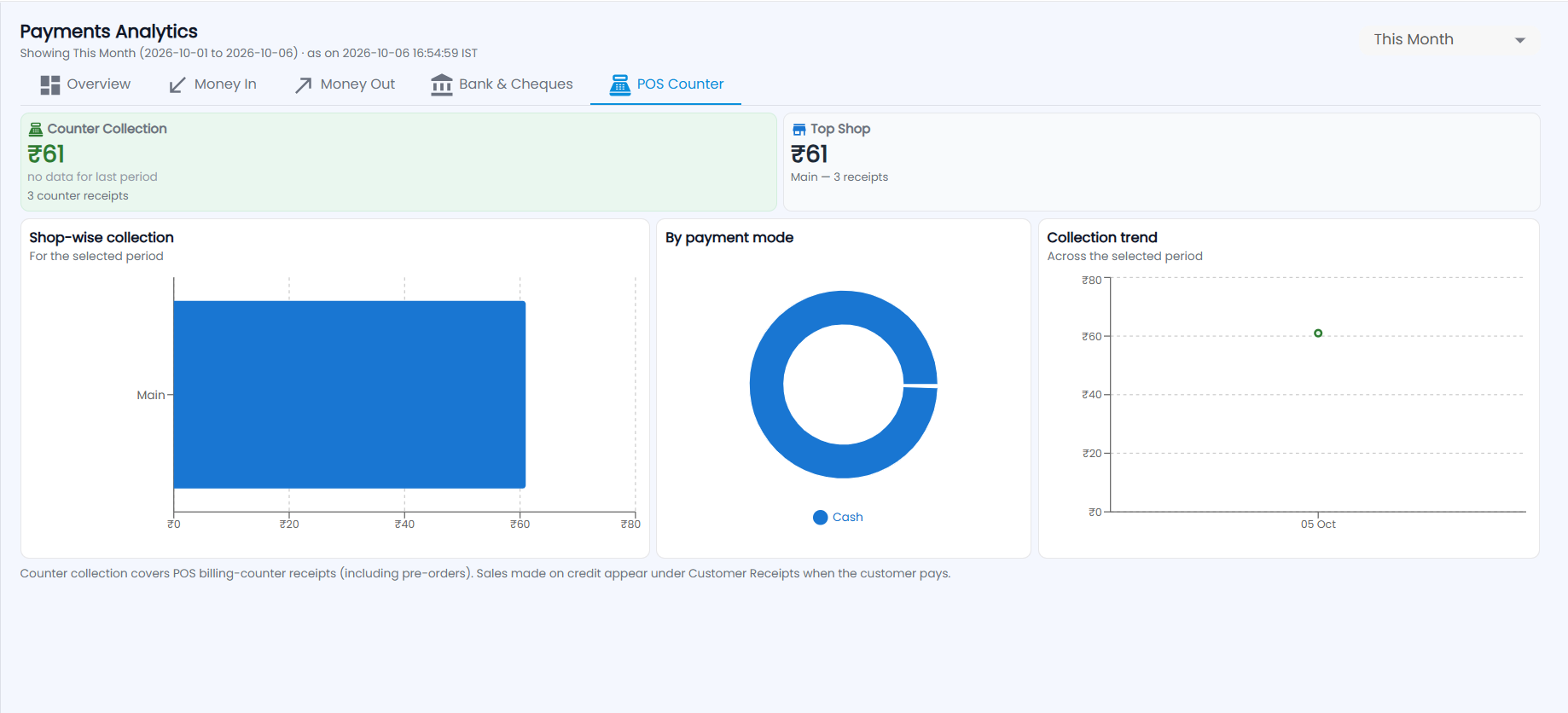
Shown for POS businesses: Counter Collection (with the number of counter receipts), Top Shop, Shop-wise collection, By payment mode and the Collection trend. Counter collection covers receipts from the POS billing counter, including pre-orders; sales made on credit appear under customer receipts when the customer pays. See Sales Counter.
How do I act on what I see?
Click an alert or a line to open the page behind it — for example, bounced cheques open Cheques, entries not confirmed in bank open Bank Reconciliation, and pending expense bills open Expenses. For cash, see Cash In Hand; for the overall business picture, see Dashboard Overview.