
Overview
Vendor Targets record the commitment you make to a vendor (distributor) in three tiers:
- Purchase — sell-in: what you buy from the vendor
- Sell-out: what you sell on to your dealers and customers
- Activation — sell-through: units activated by end customers

The List
The columns are Period, Vendor, Branch, Target, Achieved, %, and Status (for example Published), with edit and delete icons. The badges next to the title show how many targets there are and how many are live. Click Recompute to update the achieved figures, and + Add to create a target.
Creating a Vendor Target
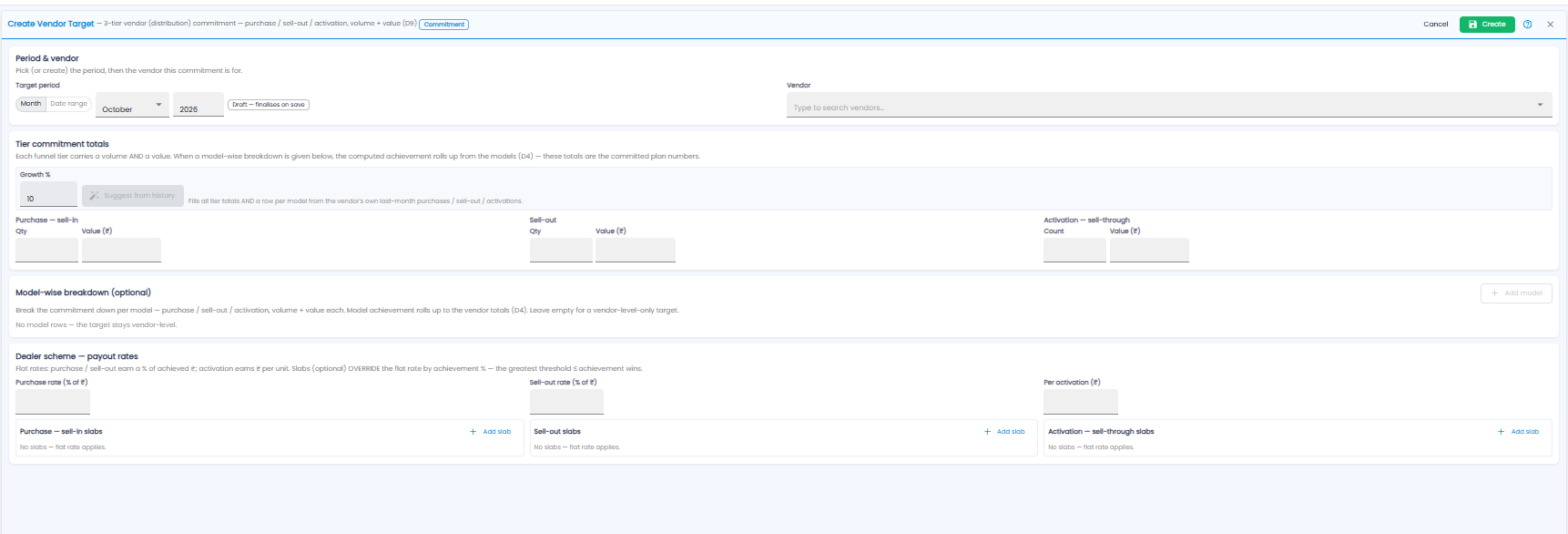
Click + Add. The form is marked Commitment.
Period & Vendor
Pick the Target period (Month or Date range), then type to search for the Vendor.
Tier Commitment Totals
Each tier has a volume and a value: Purchase — sell-in (Qty and Value), Sell-out (Qty and Value), and Activation — sell-through (Count and Value). To start from history, set a Growth % and click Suggest from history — it fills every tier, and a row per model, from the vendor's own last-month purchases, sell-out, and activations.
Model-wise Breakdown (Optional)
Click + Add model to split the commitment by model, with purchase, sell-out, and activation volume and value for each. Model achievement adds up to the vendor totals. Leave it empty for a vendor-level target only.
Dealer Scheme — Payout Rates
- Purchase rate (% of ₹) and Sell-out rate (% of ₹) — earn a percentage of the value achieved
- Per activation (₹) — earn a fixed amount for each unit activated
- Slabs (optional) — click + Add slab under a tier to pay a different rate by achievement %. A slab overrides the flat rate; the highest threshold that achievement has reached wins. With no slabs, the flat rate applies
Click Create, or Cancel.