
Overview
Salesman Targets are stretch targets used for salesmen's incentives. They are deliberately set above the company commitment, and kept separate from it.

The List
The badges next to the title show how many targets there are and how many are live.
| Column | What it shows |
|---|---|
| Period | For example August 2026, with its dates |
| Salesman / Branch | Who the target is for, and their branch |
| Target / Achieved / % | The target, what was achieved, and the percentage — red when it is low |
| Status | For example Published |
| Icons | Edit (pencil) or delete (bin) |
Click Recompute to update the achieved figures, the refresh icon to reload, + Add to create targets, and ? for help.
Creating Salesman Targets
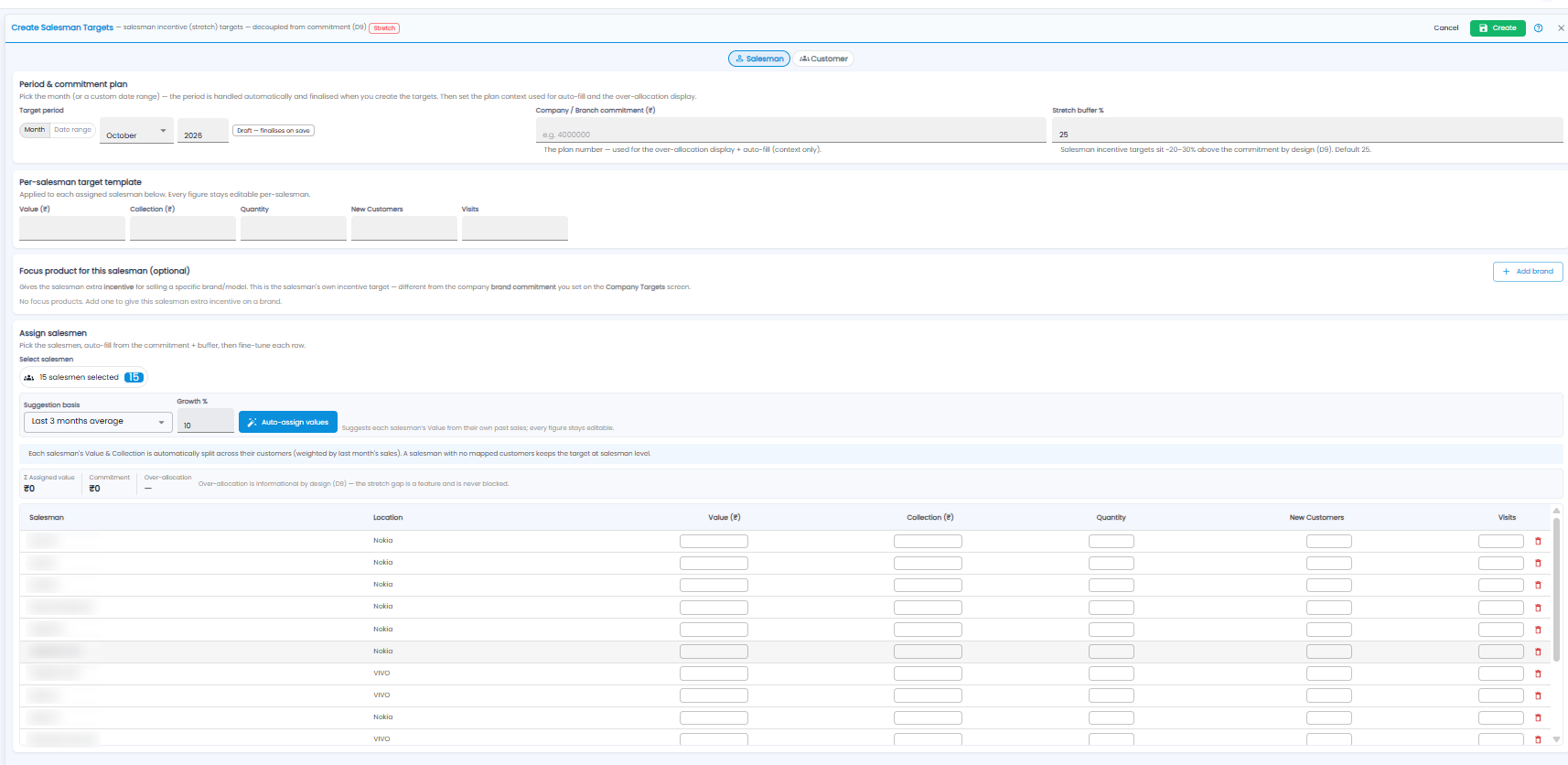
Click + Add. The form is marked Stretch. Choose Salesman or Customer targets at the top.
Period & Commitment Plan
- Target period — Month (pick month and year) or Date range. The period is Draft until you save
- Company / Branch commitment (₹) — the plan number. It is used only to auto-fill and to show over-allocation
- Stretch buffer % — how far above the commitment salesmen's targets sit. 25 by default; 20–30% is typical
Per-Salesman Target Template
Enter Value (₹), Collection (₹), Quantity, New Customers, and Visits. They apply to every salesman you assign, and stay editable per salesman.
Focus Product (Optional)
Click + Add brand to give a salesman extra incentive for selling a particular brand or model. This is the salesman's own target, separate from the brand commitment on Company Targets.
Assign Salesmen
- Pick the salesmen under Select salesmen — the badge shows how many are selected
- Choose the Suggestion basis (for example Last 3 months average) and a Growth %, then click Auto-assign values to suggest each salesman's value from their own past sales
- Fine-tune any row in the table — Value, Collection, Quantity, New Customers, Visits — or remove a salesman with the bin
- Click Create, or Cancel
Each salesman's value and collection are split across their mapped customers, weighted by last month's sales. A salesman with no mapped customers keeps the target at salesman level.
The bar above the table shows Σ Assigned value against the Commitment, and the Over-allocation. Over-allocation is for information only — the stretch gap is intended, and saving is never blocked.