
Overview
An incentive plan sets the rules that turn achievement into a payout. A Base Incentive plan defines the main slab-based payout. Add-on plans give bonus incentives for particular metrics — new customers, focus products, collection, or quality.

The Plans List
The badges next to the title show how many plans there are and how many are active. The columns are Plan name, Type (for example Base), Effective from, Effective to, and Active — a switch to turn the plan on or off — with edit and delete icons. Click + Add Plan to create one.
Creating an Incentive Plan
Click + Add Plan.
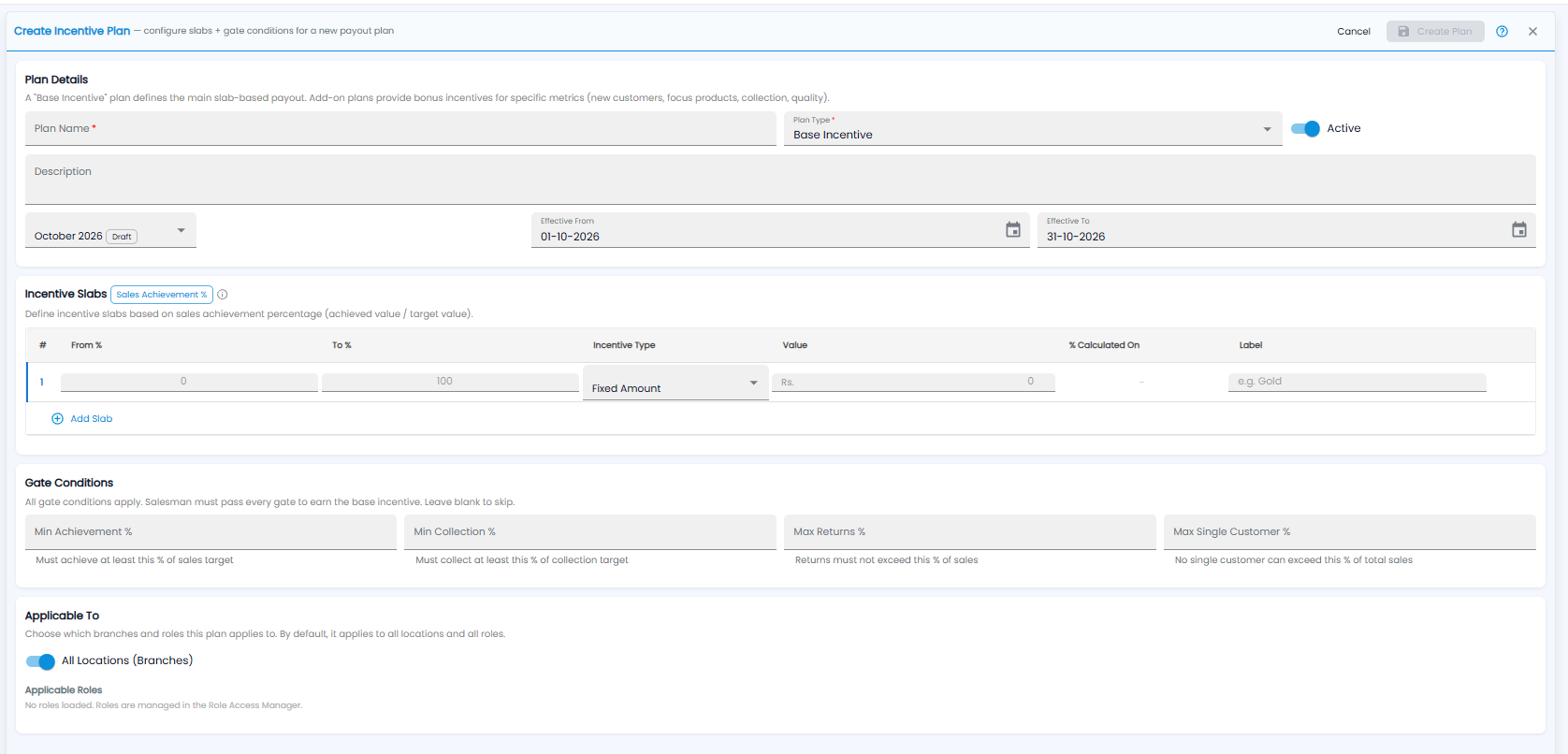
Plan Details
- Plan Name* and Plan Type* (for example Base Incentive), and the Active switch
- Description
- The period (for example October 2026), with Effective From and Effective To dates
Incentive Slabs
Slabs are based on Sales Achievement % — achieved value divided by target value. Each slab has:
| Field | Description |
|---|---|
| From % / To % | The achievement range the slab covers |
| Incentive Type | For example Fixed Amount |
| Value | The amount (or rate) paid |
| % Calculated On | What a percentage incentive is worked out on |
| Label | A name for the slab, for example Gold |
Click Add Slab for another range.
Gate Conditions
A salesman must pass every gate to earn the base incentive. Leave a gate blank to skip it.
| Gate | Rule |
|---|---|
| Min Achievement % | Must achieve at least this % of the sales target |
| Min Collection % | Must collect at least this % of the collection target |
| Max Returns % | Returns must not be more than this % of sales |
| Max Single Customer % | No single customer can be more than this % of total sales |
Applicable To
By default a plan applies to all locations and all roles. Turn off All Locations (Branches) to choose branches. Applicable Roles lists the roles from the Role Access Manager.
Click Create Plan — it stays greyed out until the required fields are filled in — or Cancel.