
The Inventory Menu
Click Inventory in the sidebar to expand it. It has seven sub-menus:
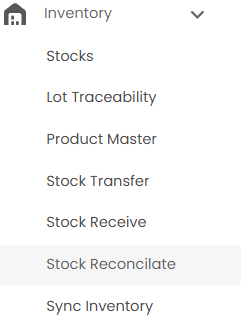
| Sub-menu | What it is for |
|---|---|
| Stocks | How much stock you have, and what it is worth (this article) |
| Lot Traceability | Following a lot from where it came in to where it went |
| Product Master | Your list of products |
| Stock Transfer | Sending stock from one location to another |
| Stock Receive | Receiving stock sent from another location |
| Stock Reconcilate | Matching the stock in Tazk with what you actually have |
| Sync Inventory | Bringing your stock figures up to date |
The Stocks Page
Open Inventory > Stocks to see the stock you have in hand and what it is worth. The buttons at the top left show the same stock in different ways: All, Lot, Model, Category, Brand, Vendor, Uploaded Stock, and DC Stock. The one you are on is blue.
The Toolbar
| Item | What it does |
|---|---|
| Total | The value of the stock, for example ₹12,919 |
| Qty | How many units you have |
| Count | How many products |
| Search here | Find a product |
| Filter icon | Narrow the list (see Filtering Stock) |
| ⋮ | More actions |
| List / grid icons | Switch between a list and a grid of cards |
The list is sorted by Total, highest first — the arrow next to the heading shows the sort. It shows 20 rows per page; change this at Rows per page and use the arrows at the bottom to move between pages.
All
One row per product at each location.
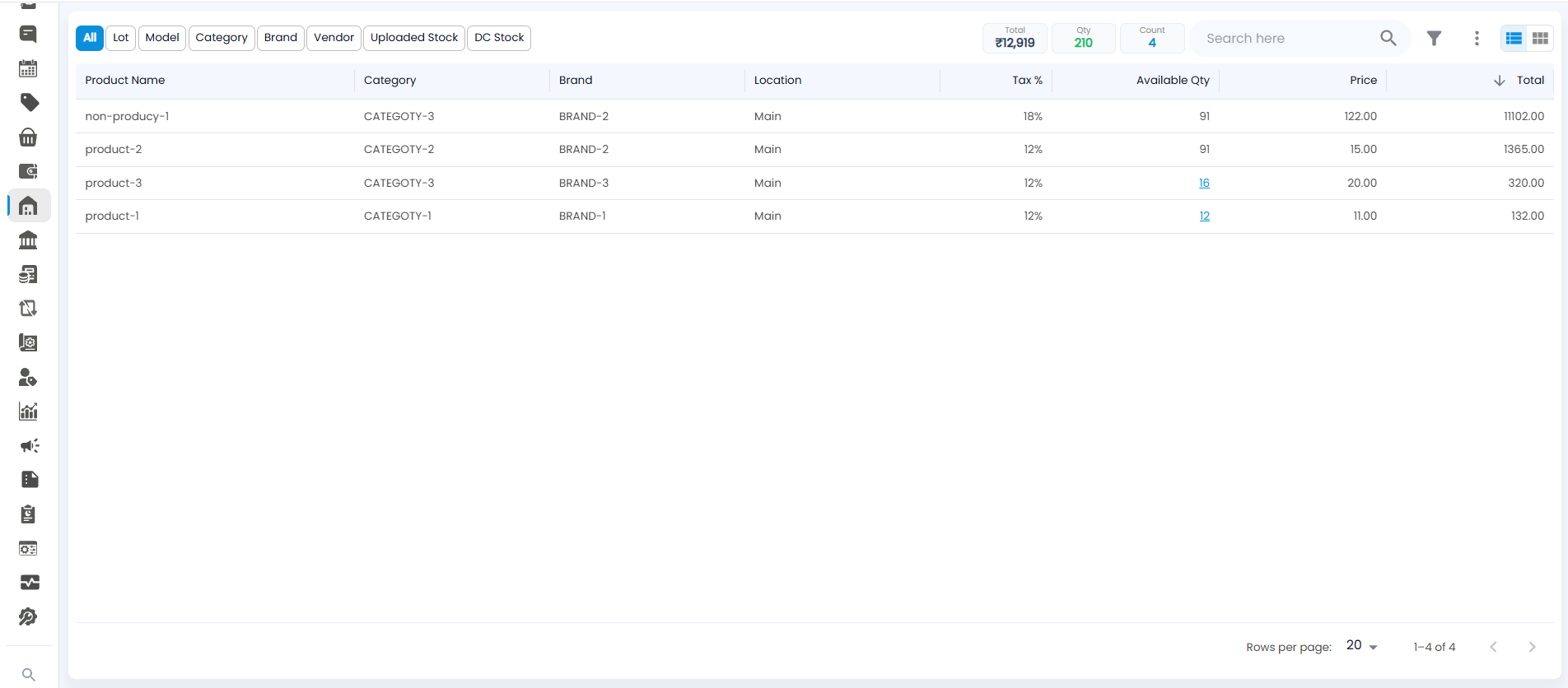
| Column | What it shows |
|---|---|
| Product Name | The product |
| Category / Brand | The category and brand it belongs to |
| Location | Where the stock is, for example Main |
| Tax % | The GST rate on the product |
| Available Qty | How many units you have |
| Price / Total | The price of one unit, and Available Qty × Price |
Lot
One row per lot, so a product bought in several lots appears several times.
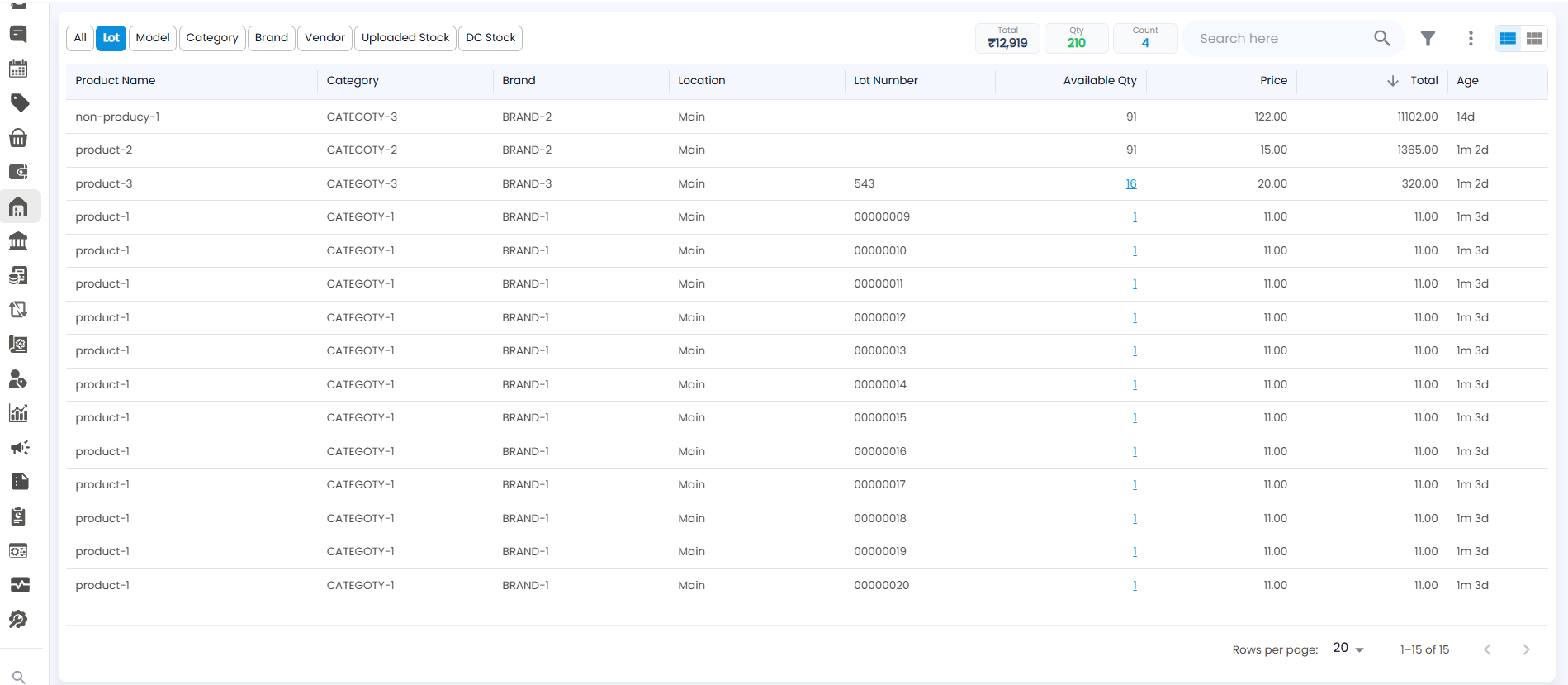
The columns are the same as on All, with two more:
- Lot Number — the lot or serial the stock came in under, for example 543 or 00000009. It is blank for products not tracked by lot.
- Age — how long the stock has been with you, for example 14d (14 days) or 1m 2d (1 month 2 days).
Model, Category, Brand, and Vendor
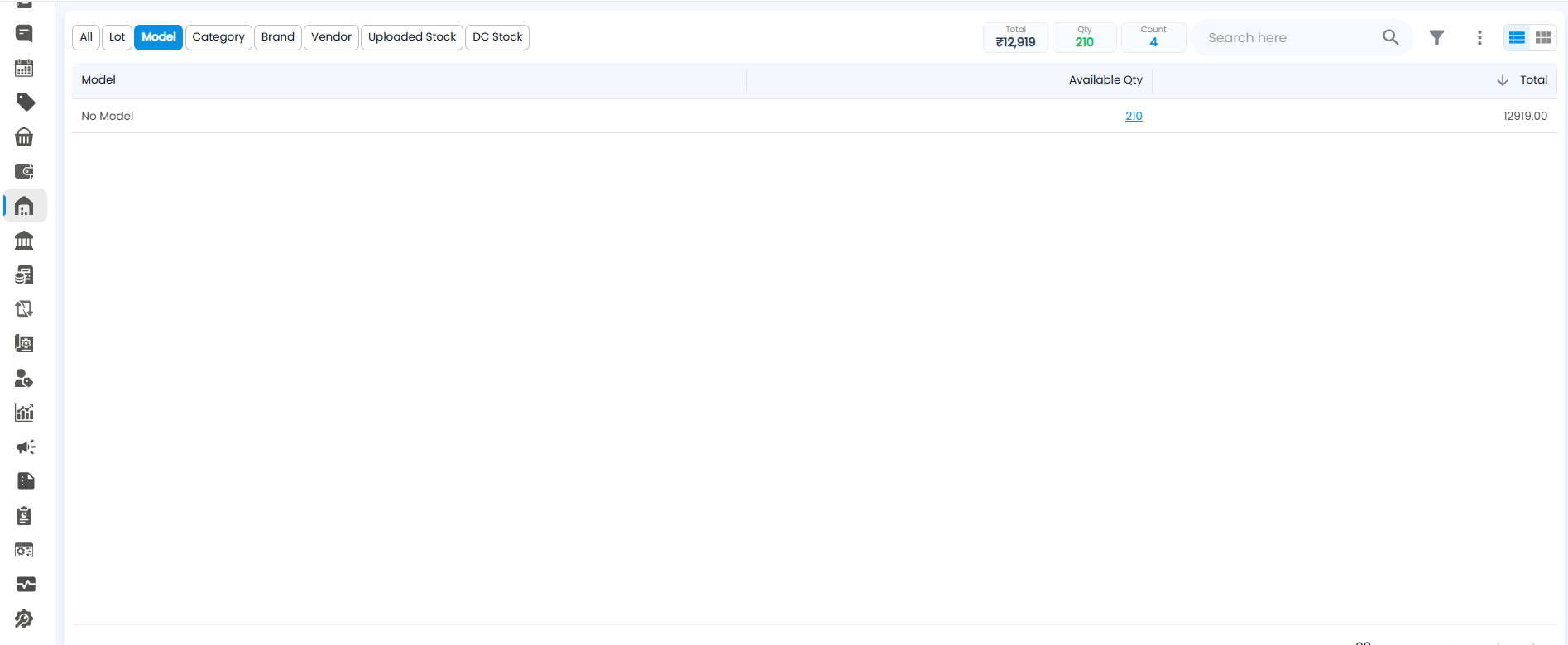
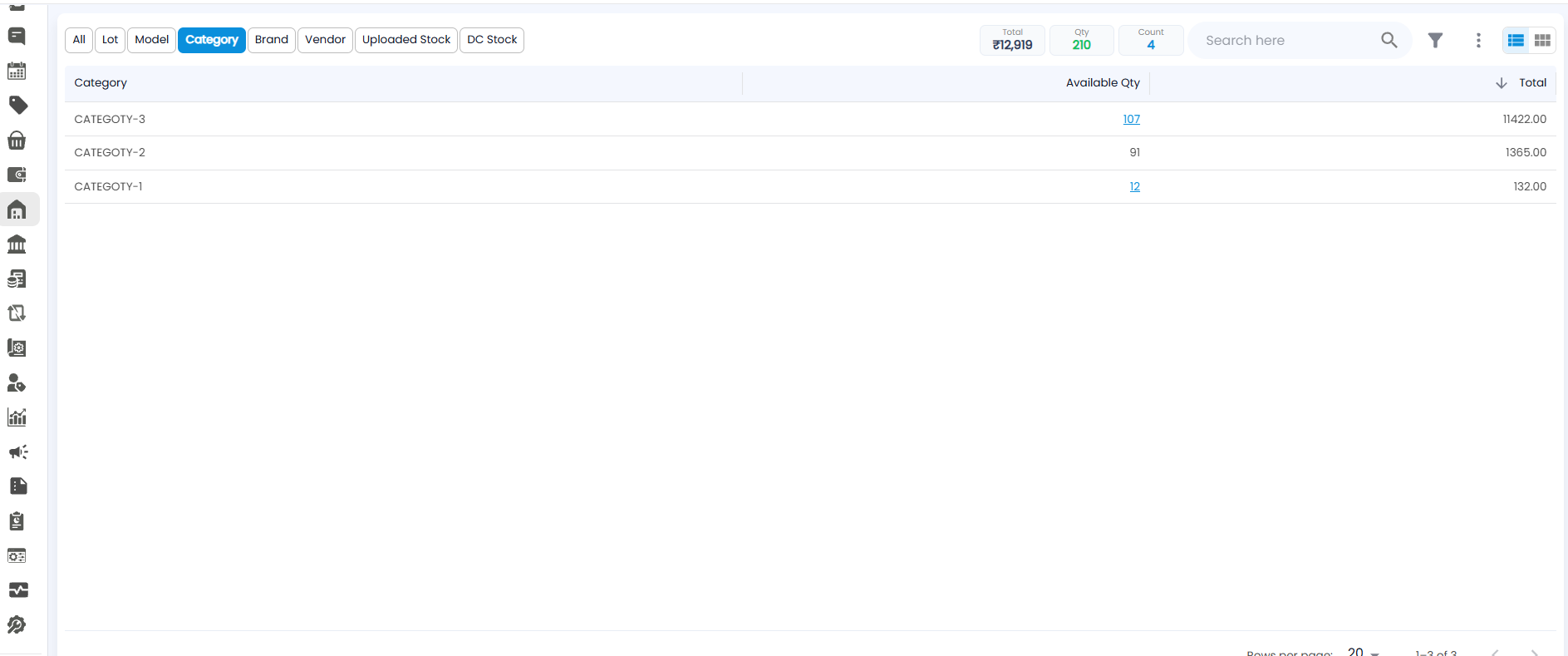
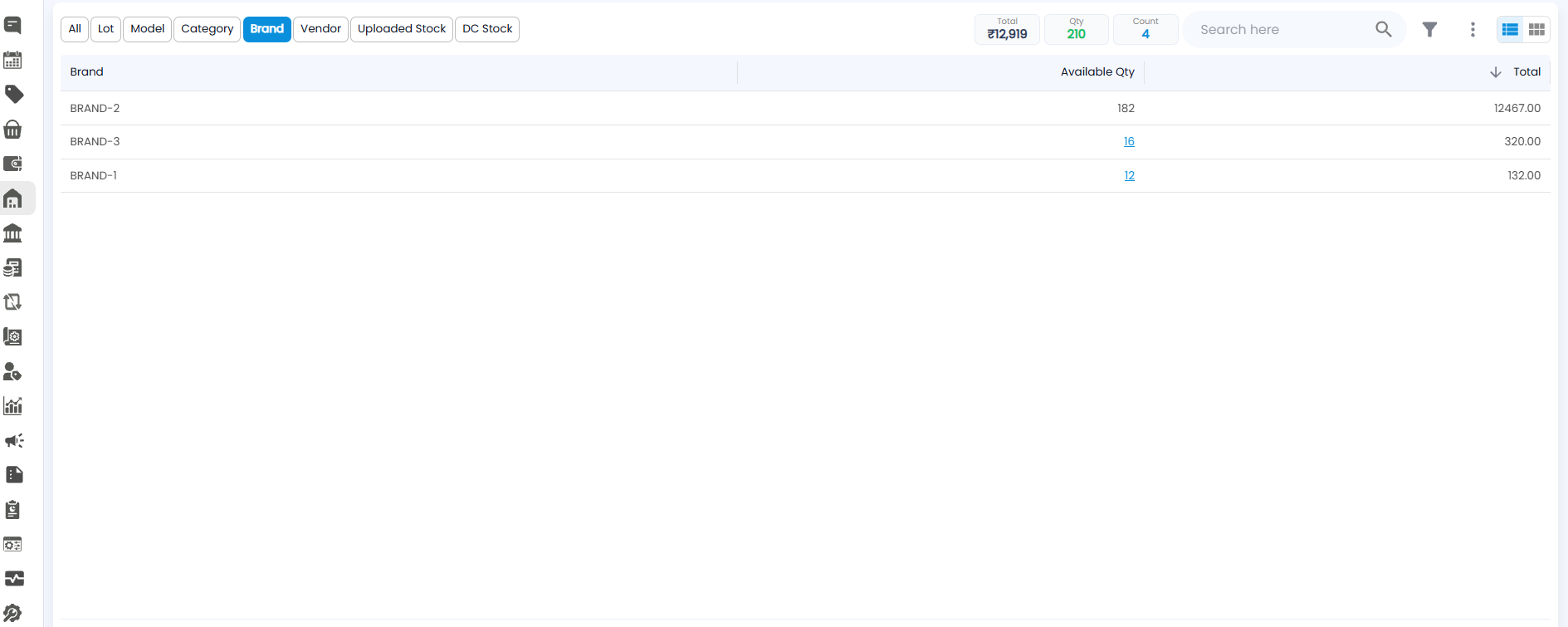
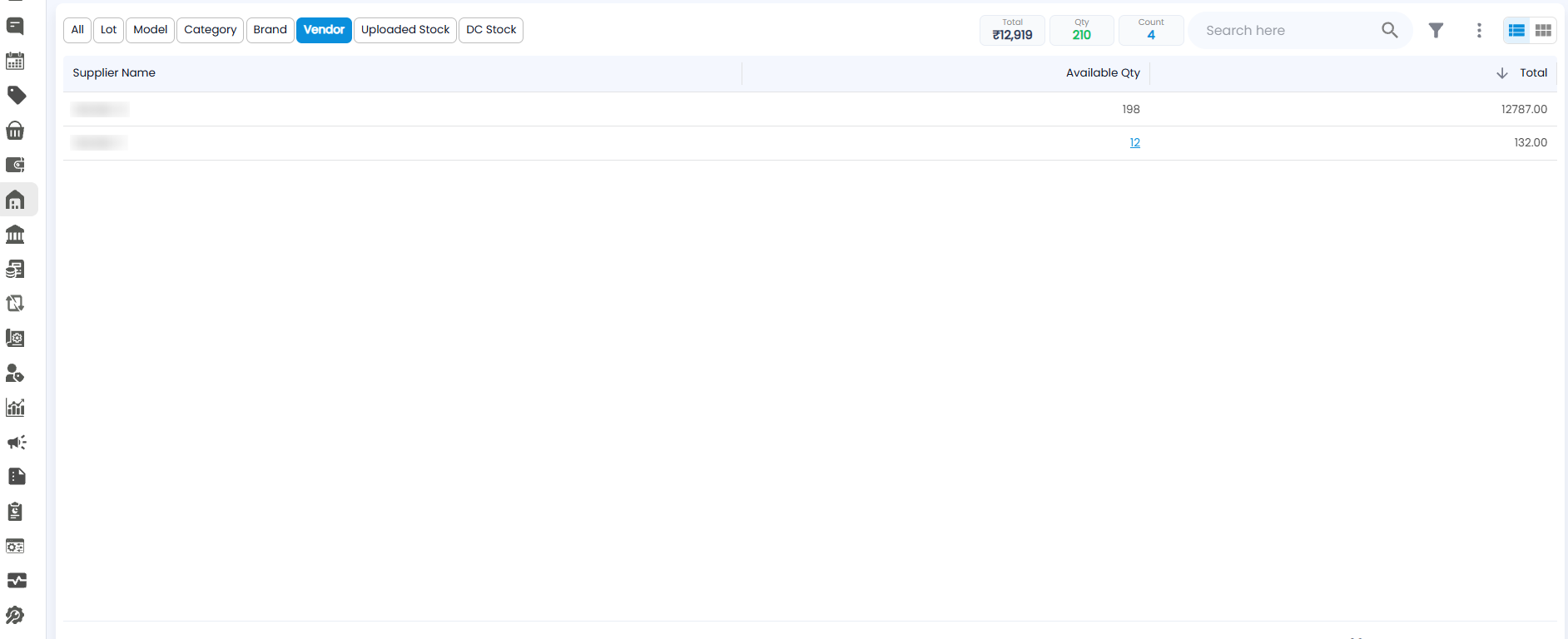
These four views add your stock up by one thing at a time. Each shows just three columns: the group, its Available Qty, and its Total value.
| View | Groups stock by |
|---|---|
| Model | Product model. Products without a model are added up under No Model |
| Category | Product category |
| Brand | Brand |
| Vendor | The vendor you bought the stock from, shown as Supplier Name |
Model
Category
Brand
Vendor
DC Stock
Stock that has gone out on a delivery challan and has not yet been invoiced. The toolbar figures change to DC Total, DC Qty, and DC Count — the value, units, and number of products out on challans.
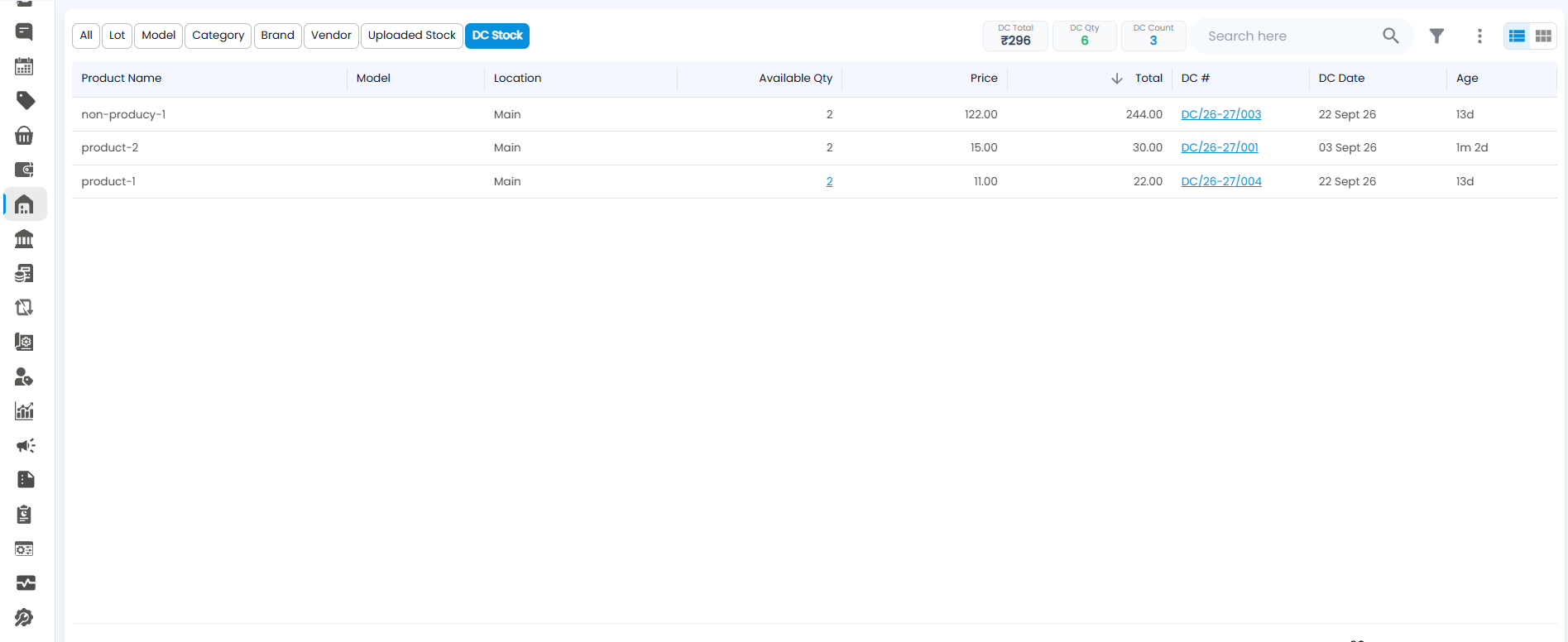
| Column | What it shows |
|---|---|
| Product Name / Model | The product and its model |
| Location | The location the goods went from |
| Available Qty | How many units are out on the challan |
| Price / Total | The price of one unit, and the value |
| DC # | The delivery challan, for example DC/26-27/003. Click it to open the challan |
| DC Date / Age | When the challan was raised, and how long the goods have been out |
Filtering Stock
Click the filter icon in the toolbar.
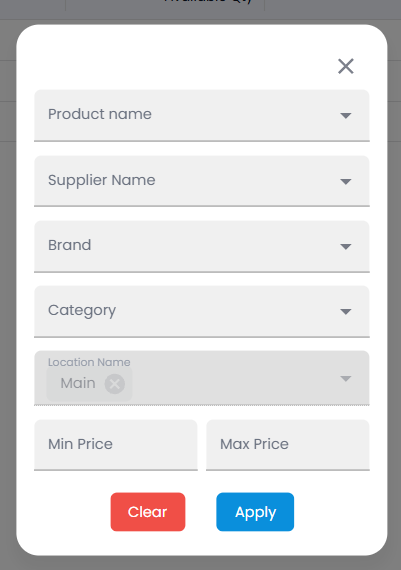
| Filter | Shows only |
|---|---|
| Product name | The products you pick |
| Supplier Name | Stock bought from the vendors you pick |
| Brand / Category | The brands or categories you pick |
| Location Name | Stock at a location. Your current location, for example Main, is already chosen |
| Min Price / Max Price | Products priced within that range |
Click Apply to filter the list, Clear to remove the filters, or × to close without changing anything.