
Overview
Stock reconciliation compares the stock Tazk expects you to have with what you actually find on the shelf. You scan every unit you have, and Tazk shows what is extra and what is missing. Open Inventory > Stock Reconcilate.
The Three Steps
The steps are shown at the top right. A tick marks each one you have finished.
- Select Filters — choose which stock you are counting
- Scan Barcodes — scan the barcode or lot number of every unit you find
- Review & Submit — check the result on the three tabs below, fill in what is missing, and submit
Review & Submit
The result is split into three tabs. The badge on each shows how many lines it has:
| Tab | What it lists |
|---|---|
| Scanned Stock (green) | Units you scanned that match what Tazk expected |
| Excess Stock (red) | Units you scanned that Tazk did not expect to find |
| Missing Stock (red) | Units Tazk expected that you did not scan |
The pencil at the top right lets you make changes, and Export downloads the result.
Excess Stock
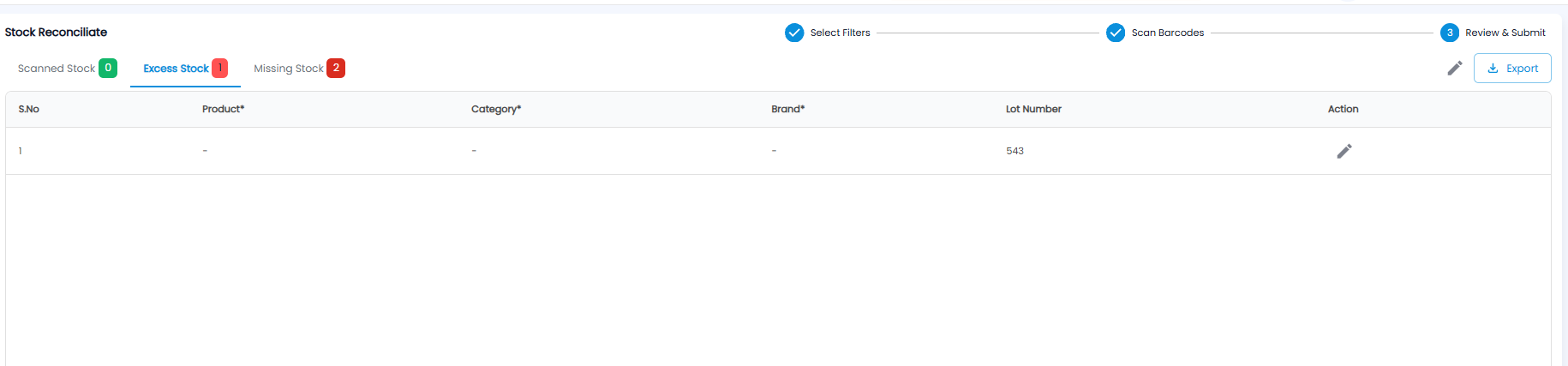
Each line shows the Lot Number you scanned, for example 543. Product*, Category*, and Brand* are required — where they show a dash, click the pencil in the Action column to fill them in.
Missing Stock
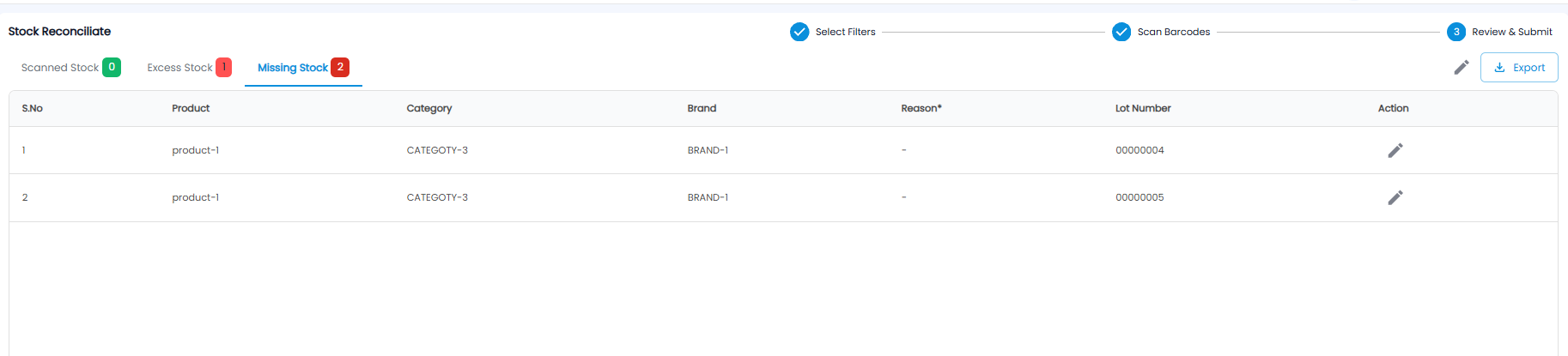
Each line shows the Product, Category, Brand, and Lot Number of a unit you did not scan, for example product-1 lot 00000004. A Reason* is required — click the pencil to say why it is missing.