
Epics
An epic is a large piece of work made up of many tasks — for example a new feature. Open a project and click the Epic tab.
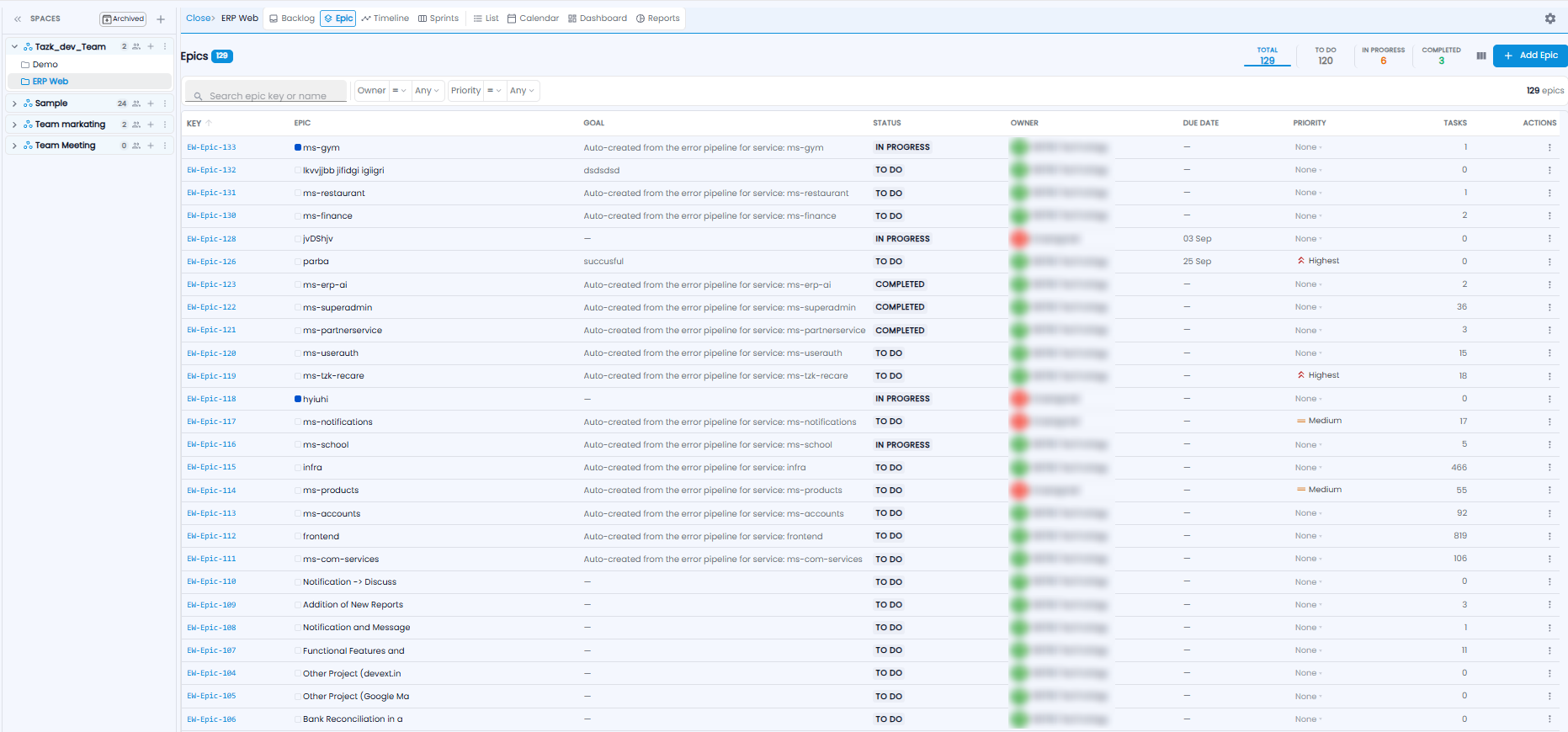
The figures at the top count the epics: Total, To Do, In Progress, and Completed. Search by epic key or name, and filter by Owner and Priority.
| Column | What it shows |
|---|---|
| Key | For example EW-Epic-133 |
| Epic | The name, with its colour |
| Goal | What the epic is for |
| Status / Owner | Where it stands, and who owns it |
| Due Date / Priority | When it is due, and how important it is |
| Tasks | How many tasks belong to it |
| Actions | ⋮ gives more actions |
Creating an Epic
Click + Add Epic.
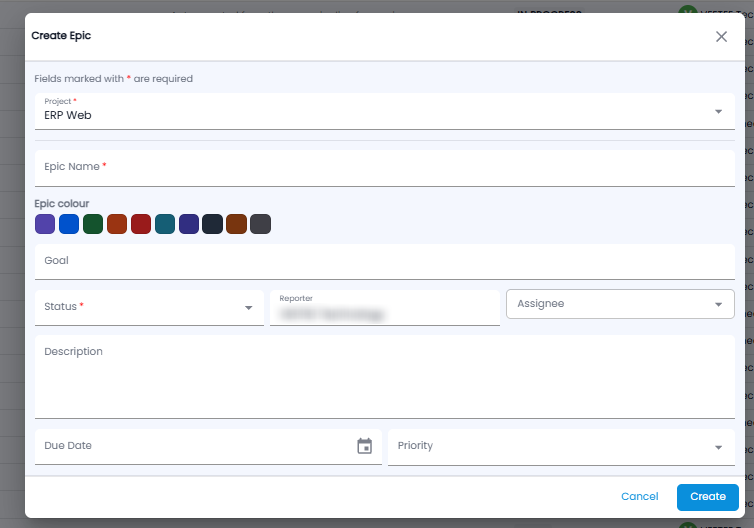
- Project* and Epic Name*
- Epic colour — pick a colour so the epic stands out on boards and the timeline
- Goal and Description
- Status*, Reporter, and Assignee
- Due Date and Priority
Click Create, or Cancel.
Timeline
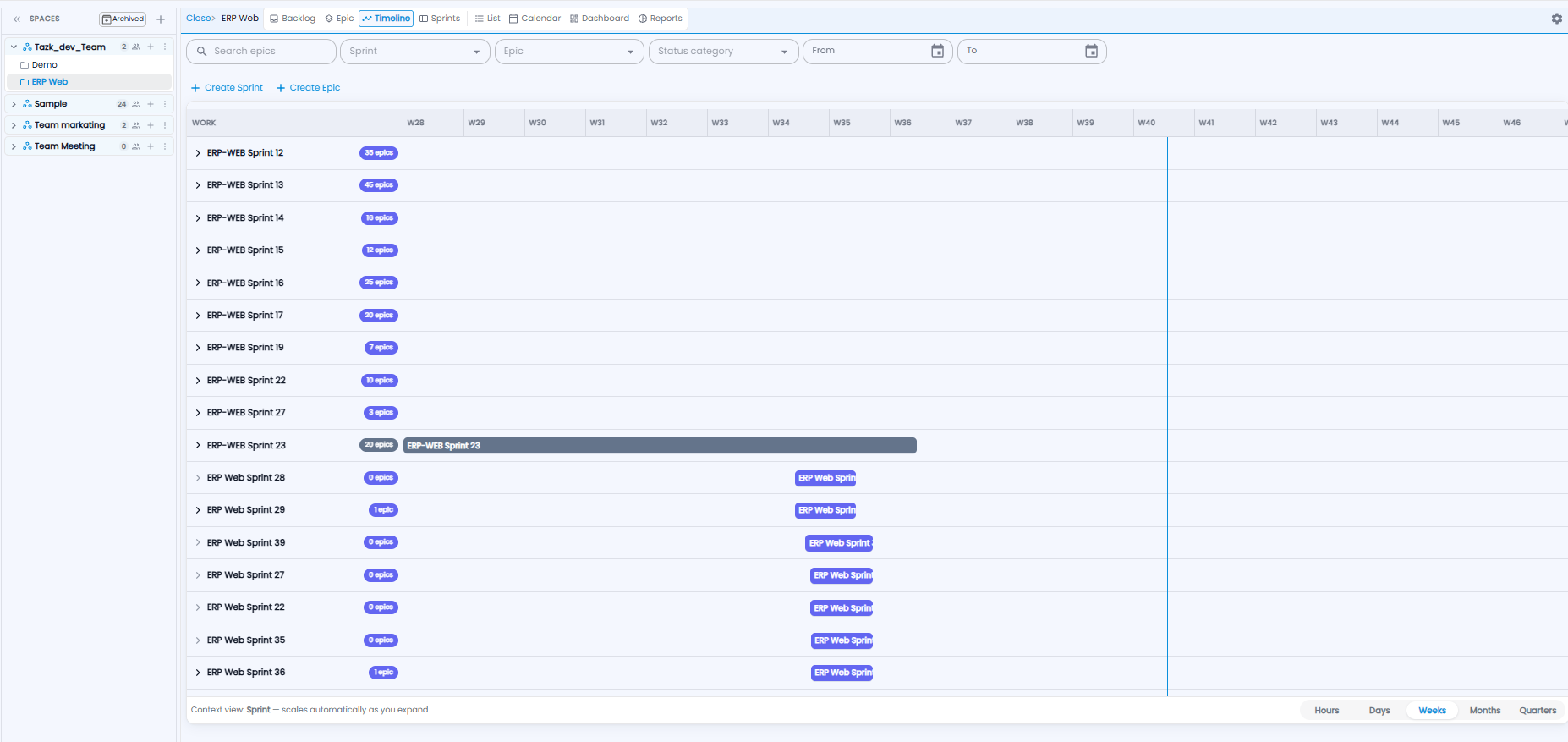
The Timeline tab shows sprints and their epics across time. Each row is a sprint, with the number of epics in it — click the arrow to open it and see its epics. Bars show when each one runs, and the blue line marks today.
- Filter with Search epics, Sprint, Epic, Status category, and From / To dates
- + Create Sprint and + Create Epic add new ones from here
- Choose the scale at the bottom right — Hours, Days, Weeks, Months, or Quarters. The scale adjusts as you open rows