
Inside a Project
Open a project from the Spaces panel. The tabs along the top are the different ways of working with it: Backlog, Epic, Timeline, Sprints, List, Calendar, Dashboard, and Reports. The gear at the top right opens the project's settings, and Close takes you back to the Spaces panel.
A sprint is a short, fixed period — usually one to four weeks — in which the team finishes a chosen set of work items. The backlog holds work not yet planned into a sprint.
The Backlog
Sprint List
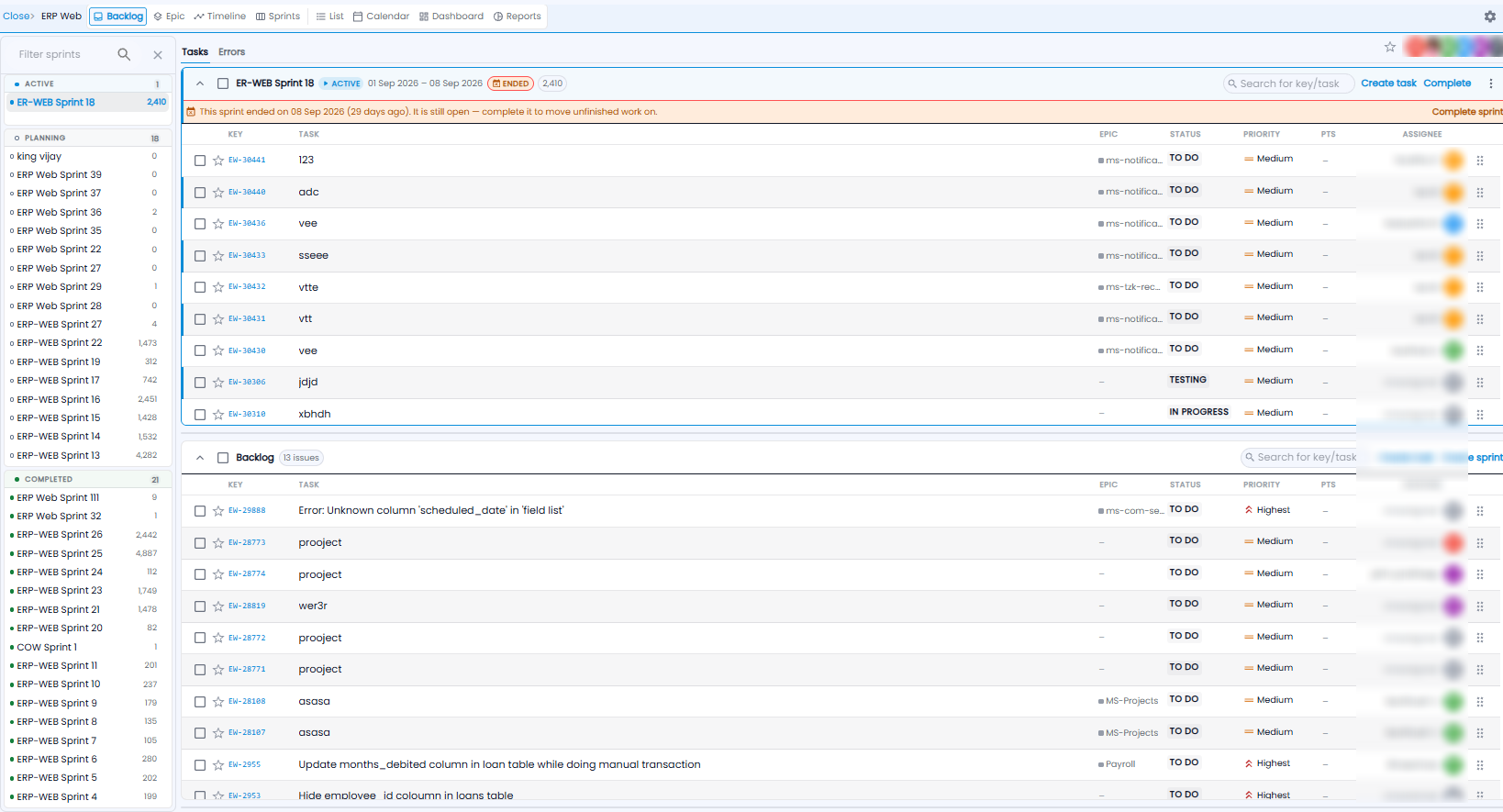
The left side lists every sprint, grouped as Active, Planning, and Completed, with the number of items in each. Use Filter sprints to find one.
The Sprint
The open sprint shows its name, an ACTIVE badge, its dates, and how many items it holds. If its end date has passed it is marked ENDED, with a reminder to complete it so unfinished work moves on.
- Search for key/task finds an item in the sprint
- Create task adds a work item (see below)
- Complete completes the sprint (see below)
- ⋮ gives more options, such as editing the sprint
The columns are Key, Task, Epic, Status, Priority, Pts (story points), and Assignee. The star marks an item as starred, and the handle at the end of each row is for dragging it.
The Tasks and Errors tabs above the sprint switch between work items and error reports.
Backlog
Below the sprint, Backlog lists items not in any sprint, with the count. Use Create task to add one, or Create sprint to start a new sprint.
Creating a Task
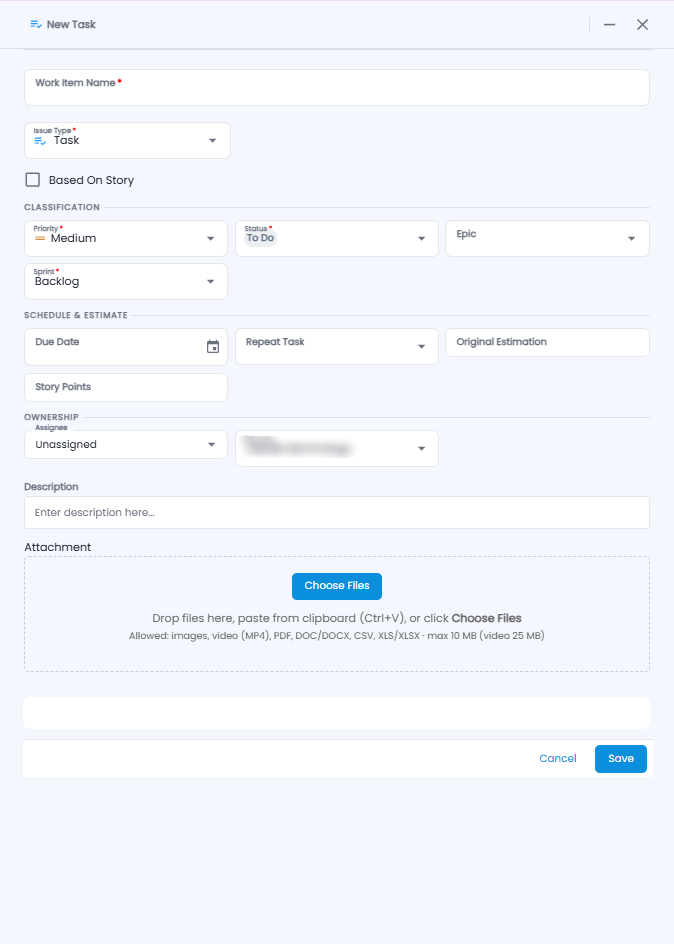
| Section | Fields |
|---|---|
| Basics | Work Item Name*, Issue Type* (for example Task), and Based On Story to link it to a story |
| Classification | Priority* (Medium by default), Status* (To Do by default), Epic, Sprint* (Backlog by default) |
| Schedule & Estimate | Due Date, Repeat Task, Original Estimation, Story Points |
| Ownership | Assignee (Unassigned by default) and Reporter |
| Description | What needs doing |
| Attachment | Click Choose Files, drop files, or paste with Ctrl+V. Images, MP4 video, PDF, DOC/DOCX, CSV, and XLS/XLSX — up to 10 MB (video 25 MB) |
Click Save, or Cancel. The – at the top right minimises the form so you can look at something else and come back.
Editing a Sprint
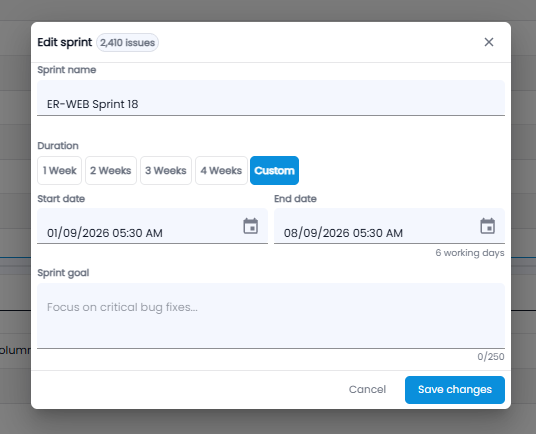
- Sprint name
- Duration — 1, 2, 3, or 4 Weeks, or Custom
- Start date and End date — the number of working days is shown under the end date
- Sprint goal — what the sprint should achieve, up to 250 characters
Click Save changes, or Cancel.
The Sprint Board
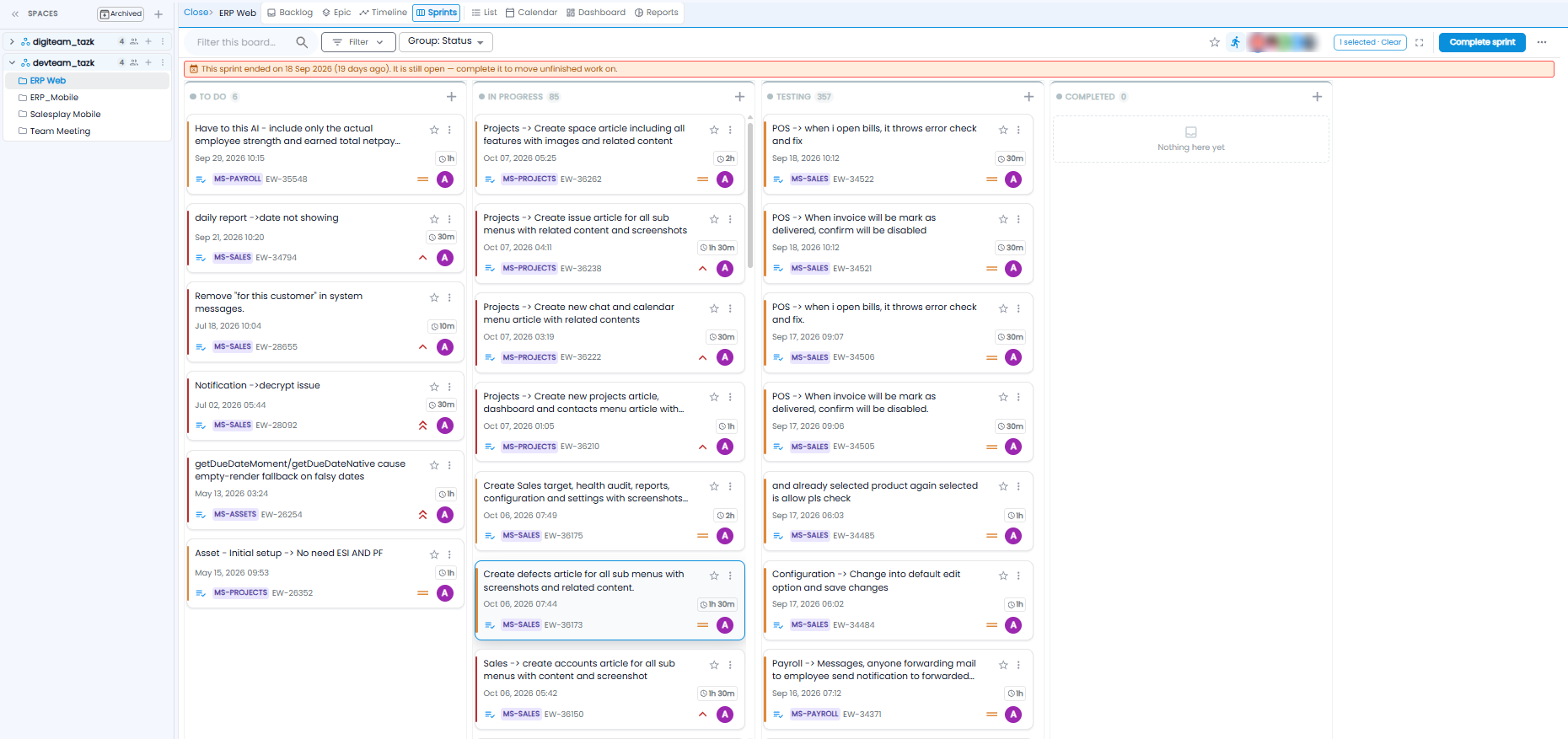
The Sprints tab shows the current sprint as a board, with a column for each status — To Do, In Progress, Testing, and Completed — and the number of cards in each. The + on a column adds an item to it.
Each card shows the title, date, time logged, type, project tag, key, priority, and assignee. Move a card to another column as the work progresses.
Use Filter this board, Filter, and Group: Status to change what you see, and the expand icon for full screen. Complete sprint is at the top right.
Completing a Sprint
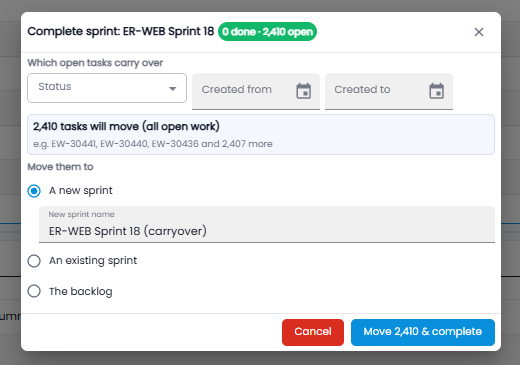
The heading shows how many items are done and how many are still open.
- Under Which open tasks carry over, narrow the open tasks by Status and Created from / Created to if needed. The box below shows how many will move, with examples
- Under Move them to, choose A new sprint (and give it a name — for example the old name with (carryover)), An existing sprint, or The backlog
- Click Move … & complete, or Cancel