
What is the Daily Report in Tazk POS?
The Daily Report (Point Of Sale → Daily Report) is the day-end summary for one location: opening and closing balance, POS sales split by payment mode, pay in, pay out and contra, plus the day’s sales, purchases, transfers, cash box adjustments, payment and receipt entries and the cash denomination count. Once all cash boxes are closed, staff click SUBMIT APPROVAL and a manager approves it.
What does the top of the report show?
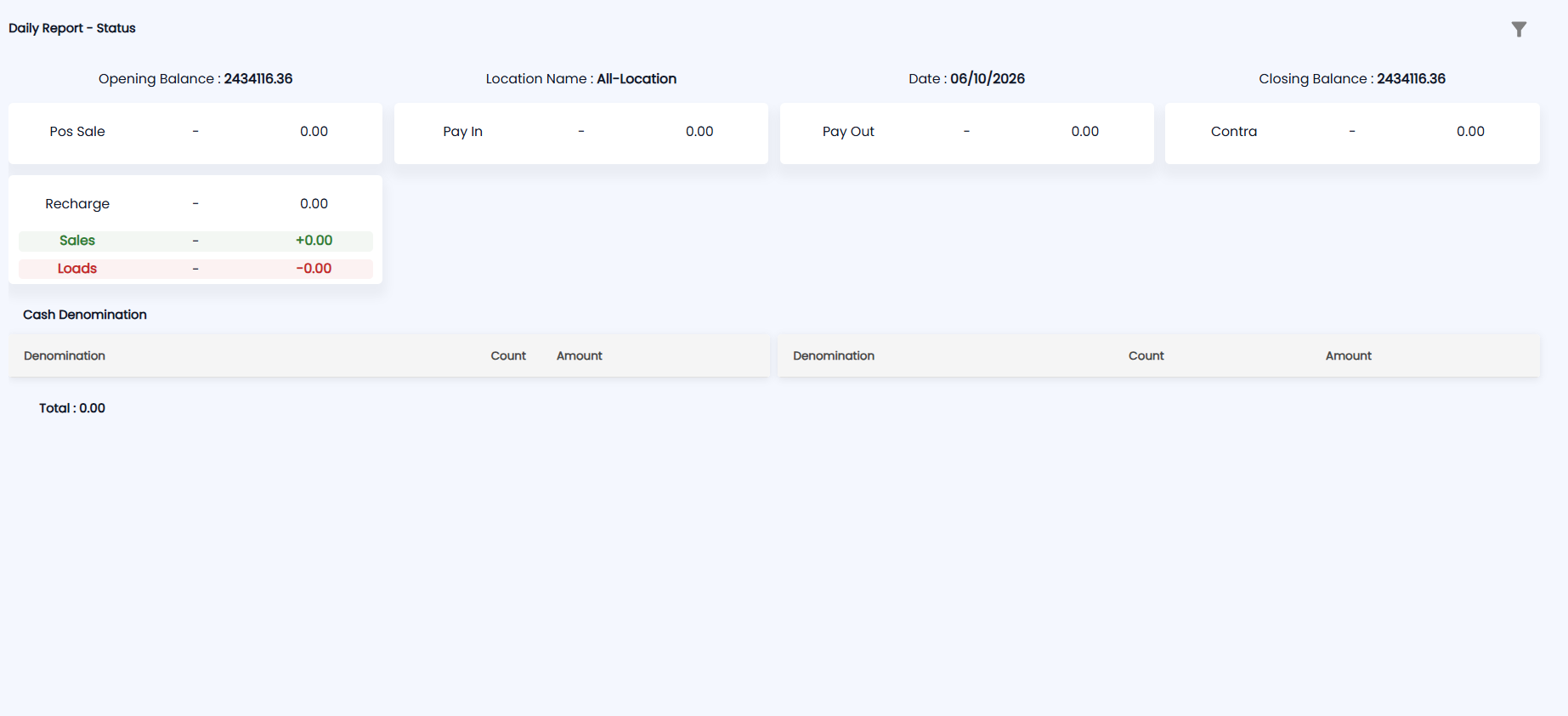
The title reads Daily Report - Status, followed by the report’s status once it is submitted (for example Pending or Approved). Below it are Opening Balance, Location Name, Date (today by default) and Closing Balance. With all locations selected in the top bar, the location shows as All-Location and the figures cover every location; select a single location to see — and submit — that location’s report.
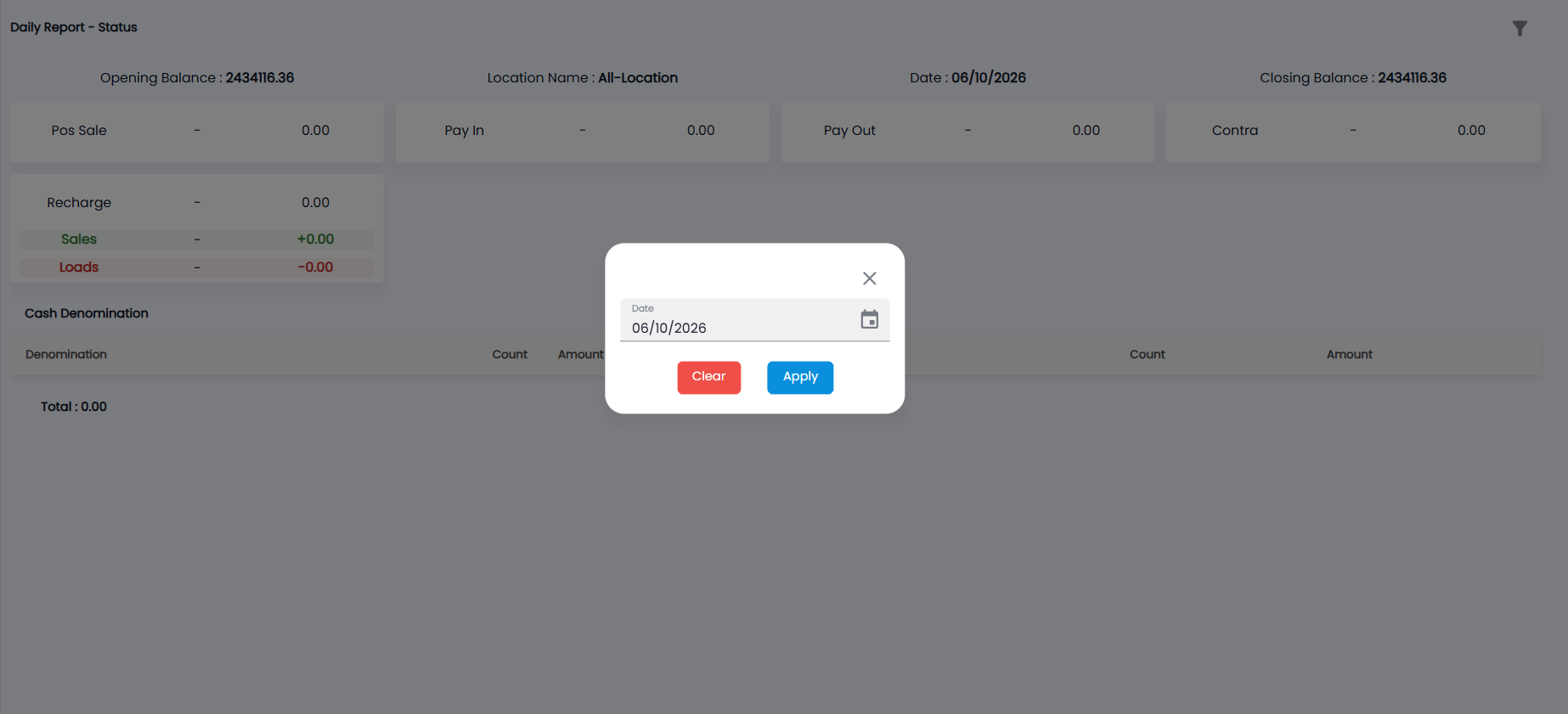
To see another day, click the filter icon at the top right, choose the Date and click Apply. Clear goes back to today.
What are the summary blocks?
| Block | What it shows |
|---|---|
| Pos Sale | Counter sales total, split by payment mode (Cash, Card, Online Trans and others) |
| Pay In | Money received into cash or bank, by mode |
| Pay Out | Money paid out, by mode |
| Contra | Transfers between cash and bank |
| Recharge | Recharge business, where it is used: Sales (green, money in) and Loads (red, money out) |
What tables are on the report?
| Table | Columns |
|---|---|
| Sale | Date, Invoice Number, Note, Payment Mode, Location Name, Amount |
| Purchase | Date, Invoice Number, Note, Payment Mode, Location Name, Amount |
| Transfer / Receiver | Date, Source Location, Destination Location, Status |
| Payin | Date, Ledger, Particular, Payment Mode, Location, Amount |
| CashBox Adjustment | Date, CashBox Name, Location Name, Amount |
| Payout | Date, Cashbox, Payment Mode, Location, Amount |
| Contra | Bank / Cashbox, Account Number, IFSC Code, Branch, Address, Amount, Cash Type |
| Payment Entry | Transaction Date, Vendor Name, Invoice Number, Location, Amount |
| Receipt Entry | Transaction Date, Customer Name, Invoice Number, Location, Amount |
At the bottom, Cash Denomination lists each note and coin with its Count and Amount in two side-by-side tables, with the Total below — it should match the cash counted in the drawer. A block shows - and 0.00 when there was nothing of that kind that day.
How do I submit the daily report for approval?
- Close every cash box at the location. Close all counter sessions too, from Sales Counter.
- Click SUBMIT APPROVAL. If a cash box is still open, you see Cash Box Not Closed.
- The report moves to Pending, and a notification with the closing balance goes to the approvers.
- An Administrator, Front Desk or Manager user opens the report and clicks Approved.
Related: Cash In Hand, Denomination and Pay In / Pay Out.