
How do I check whether a product is in stock?
Open Point Of Sale → Find Product and start typing a product name, SKU or lot number. Results appear as you type, with the lot number, quantity, location, date, whether the lot is In Stock or Ordered, and whether the product is serialized.
How do I search?
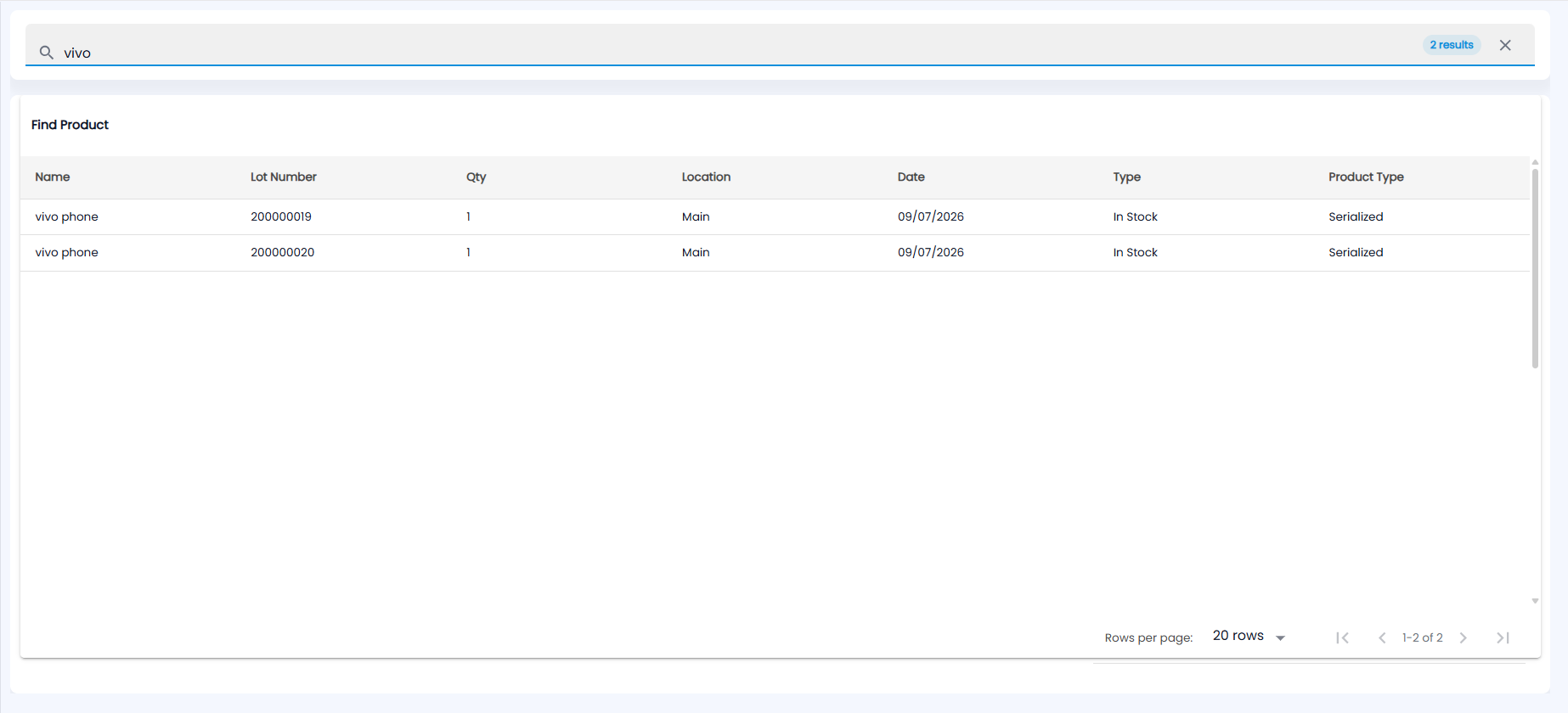
Type in the search bar at the top (Search by product name, SKU or lot number...). The search runs a moment after you stop typing — a small spinner shows while it waits — and a chip on the right shows how many lots match, for example 2 results. Press Esc or click the × to start again. If nothing matches at the location, you see No products found with a Clear search button.
What do the results show?
| Column | Description |
|---|---|
| Name | Product name |
| Lot Number | The lot or serial number |
| Qty | Stock in the lot. A serialized item shows 1 per serial number. |
| Location | Where the stock is |
| Date | Date of the lot |
| Type | In Stock (available) or Ordered (already tied to a sale or order) |
| Product Type | Serialized or Non-Serialized |
Each row is one lot, so a serialized product such as a phone shows one row per serial number, each with Qty 1. You can export the results and show 20, 50 or 100 rows per page.