
Where can I see all sales made at the counter?
Open Point Of Sale → POS Report. It lists every counter sale with its invoice number, payment mode, date, customer, products, tax and total, and shows the Grand Total at the top. Use the month chips, search and Filter to narrow the list, click an invoice number to see the invoice PDF, or click a row to open the sale and cancel it if needed.
What does the POS Report show?
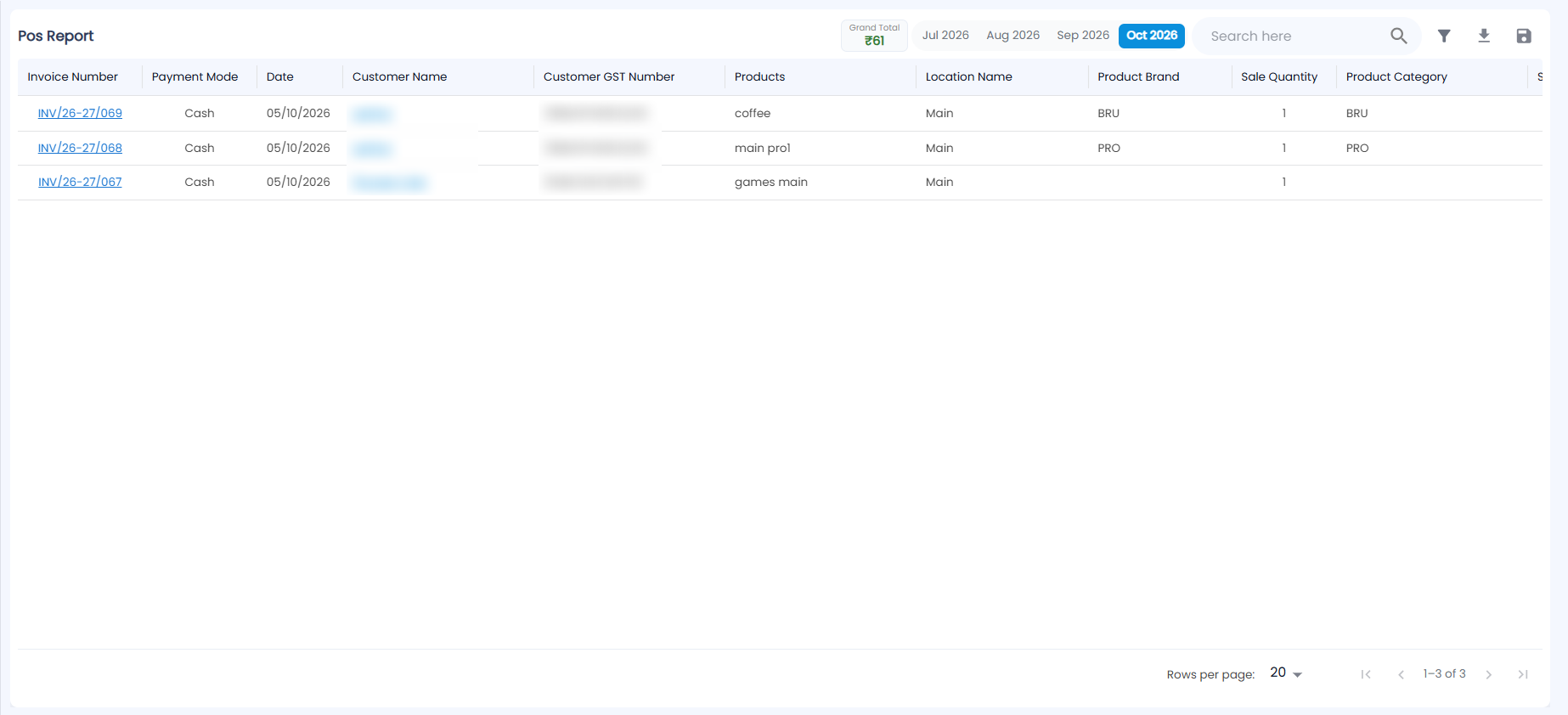
The header shows Pos Report and the Grand Total of the sales in view. Chips for the current month and the three before it (for example Jul 2026 to Oct 2026) switch the list to that month; the current month is selected when you open the page. Then come Search here and three icons — filter, download (export CSV) and save (remember the columns you show).
| Column | Description |
|---|---|
| Invoice Number | Click it to open the invoice PDF |
| Payment Mode | How the bill was paid |
| Date | Time of sale |
| Customer Name | Click it to see the customer's sales |
| Customer GST Number | The customer's GSTIN, if any |
| Products, Product Brand, Product Category, Sale Quantity, Serial Number | What was sold |
| Location Name | The counter's location |
| Sale Tax Amount, Tax Category, Sale Total Amount, Total | GST and amounts |
| Remarks, Product Info, Reference, Type, Note | What the cashier entered on the payment page |
How do I filter and export the report?
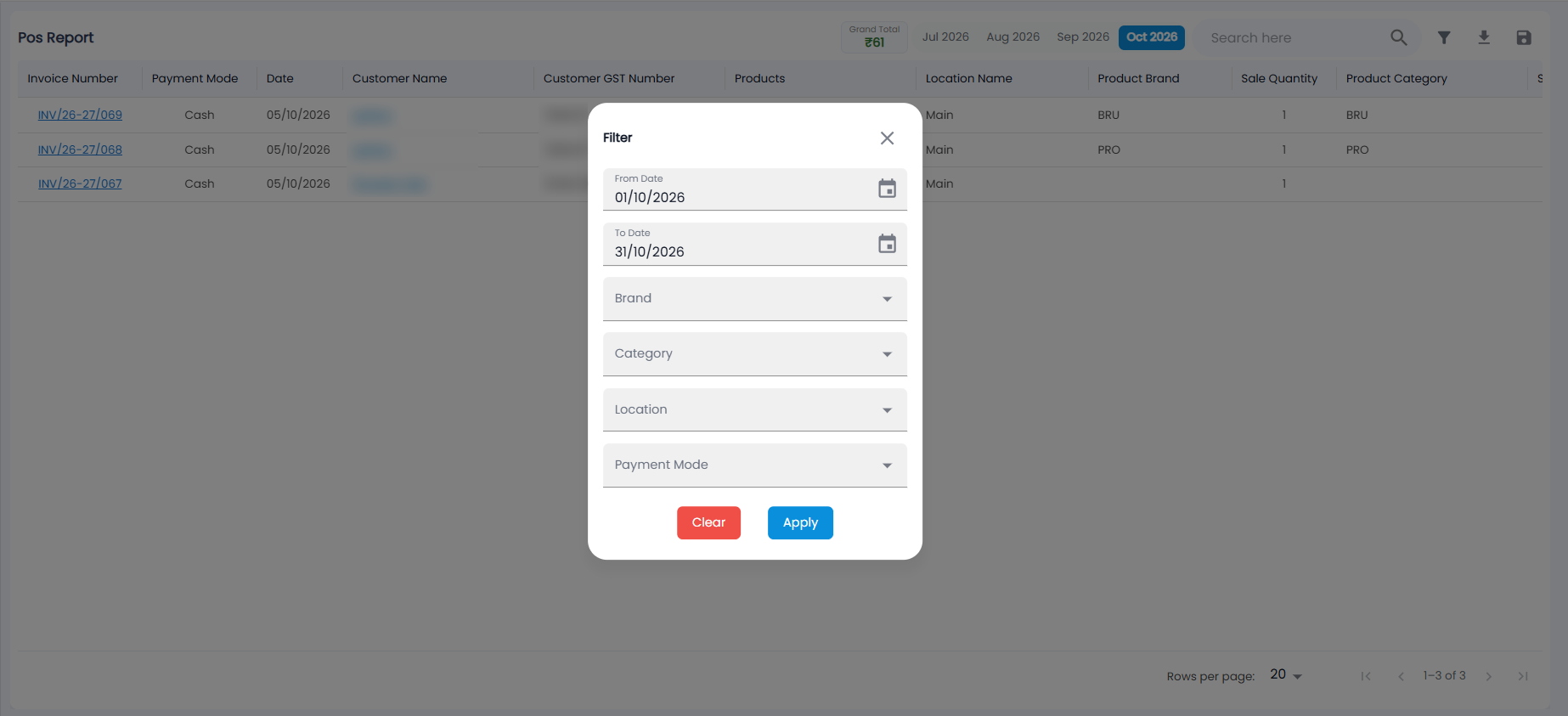
Use the search box, or click the filter icon. The Filter dialog opens with From Date and To Date set to the selected month; change them if you need to and choose a Brand, Category, Location and Payment Mode, then click Apply (or Clear to remove the filters). The download icon exports the list as CSV, and the save icon remembers which columns you show. Choose 20, 50 or 100 rows per page at the bottom.
What is on the sale detail?
Click a row. The sale opens with tiles for Amount Received, Tendered, Change Issued and Items, followed by Customer (name, contact, address, product info, reference, type), Payment Mode, Denomination Tendered and Change Issued (when cash was counted), the Items and the Note. Use Previous and Next to move between sales.
How do I cancel a counter sale?
- Select a single location in the header (not all locations).
- Open the sale and choose Cancel Sale.
- Under How should this sale be refunded?, choose Add store credit to customer or Create payout entry.
- For a payout, choose the Payment mode and Cash Box, check the Amount and add a Note. A cash payout is rounded to the rupee, and if the cash box counts denominations you count the notes paid out.
- Confirm.
For the full day's cash position, see the Daily Report. Invoices from all channels are in Invoices.