
Overview
A payment records money you have paid to a vendor. Open Purchases > Payments.
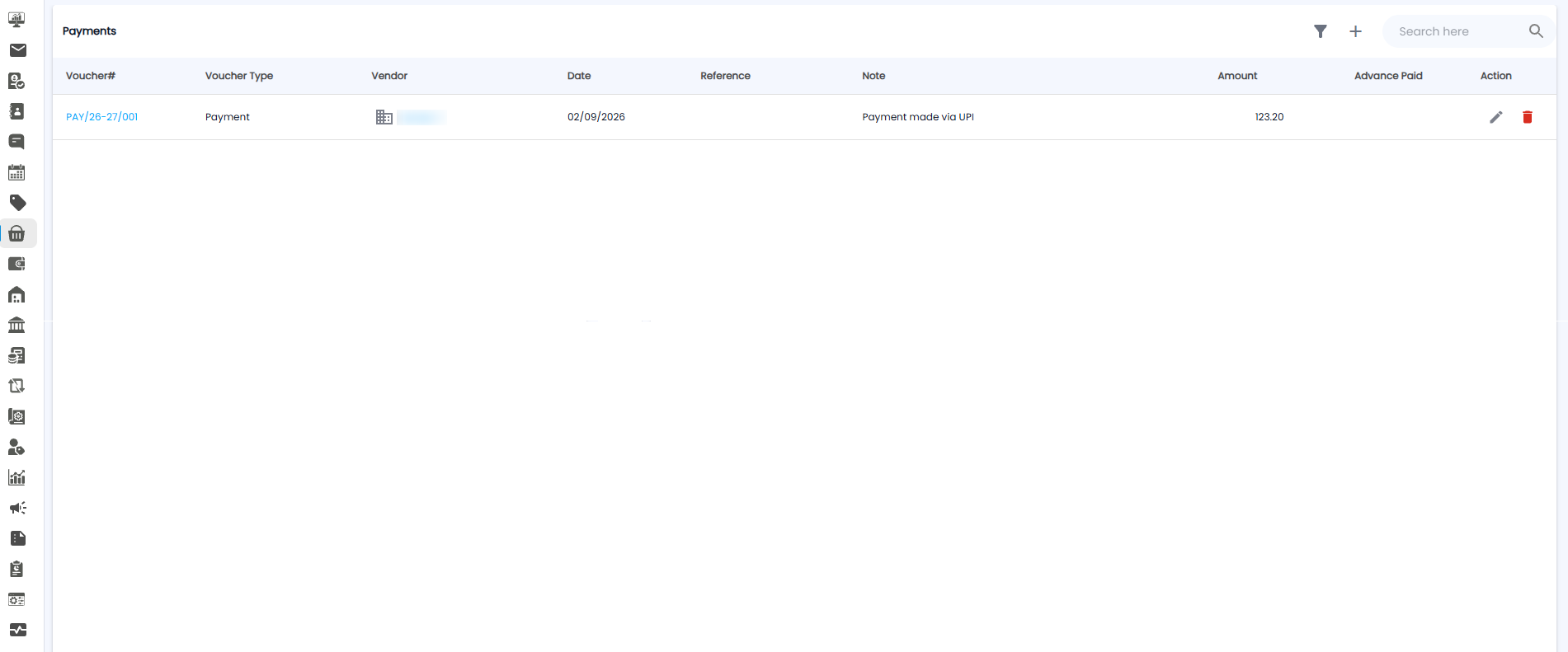
The Payments List
| Column | What it shows |
|---|---|
| Voucher# | The payment number, for example PAY/26-27/001 |
| Voucher Type | For example Payment |
| Vendor / Date | Who you paid, and when |
| Reference / Note | Any reference, and how it was paid, for example Payment made via UPI |
| Amount / Advance Paid | How much you paid, and any part paid in advance |
| Action | Edit (pencil) or delete (bin) |
Recording a Payment
Click + to open the Payment Voucher.
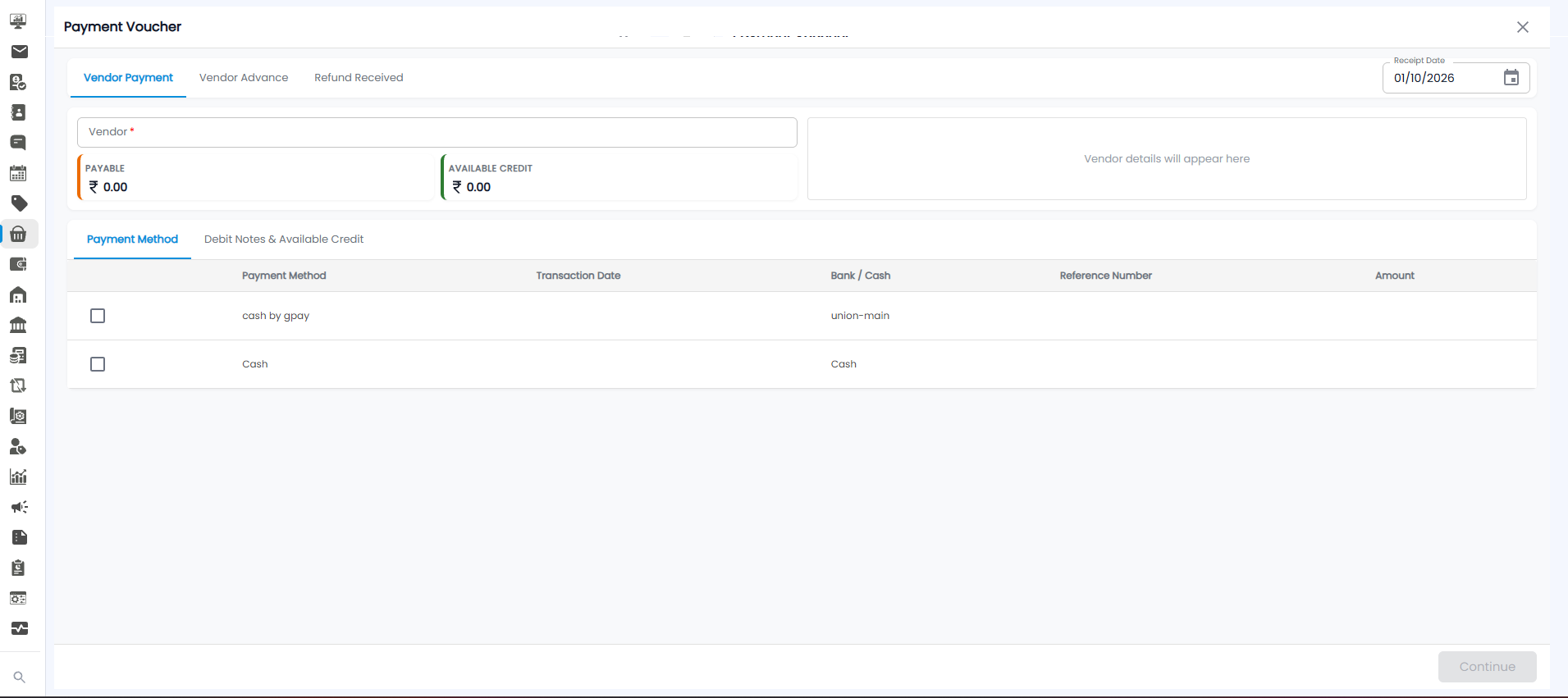
Choose the kind of payment from the tabs at the top:
- Vendor Payment — paying a vendor against what you owe
- Vendor Advance — paying before the bill arrives
- Refund Received — money a vendor paid back to you
- Check the date at the top right (today by default)
- Pick the Vendor. Their Payable (what you owe) and Available Credit appear below, with their details on the right
- On the Payment Method tab, tick how you paid — for example cash by gpay from union-main, or Cash — and fill in the Transaction Date, Reference Number, and Amount
- On the Debit Notes & Available Credit tab, use any credit you already have with the vendor
- Click Continue. It stays greyed out until a vendor and payment are filled in
Tip: Use any available debit notes before paying — it reduces what you need to send the vendor.