
How do I post a journal entry in Tazk POS?
Open Accounts → Journal Entry and click +. Pick the Transaction Date, add one row per ledger with its debit or credit amount, enter a reference number and note, and click Submit. Submit stays disabled until total debit equals total credit.
What does the Journals list show?
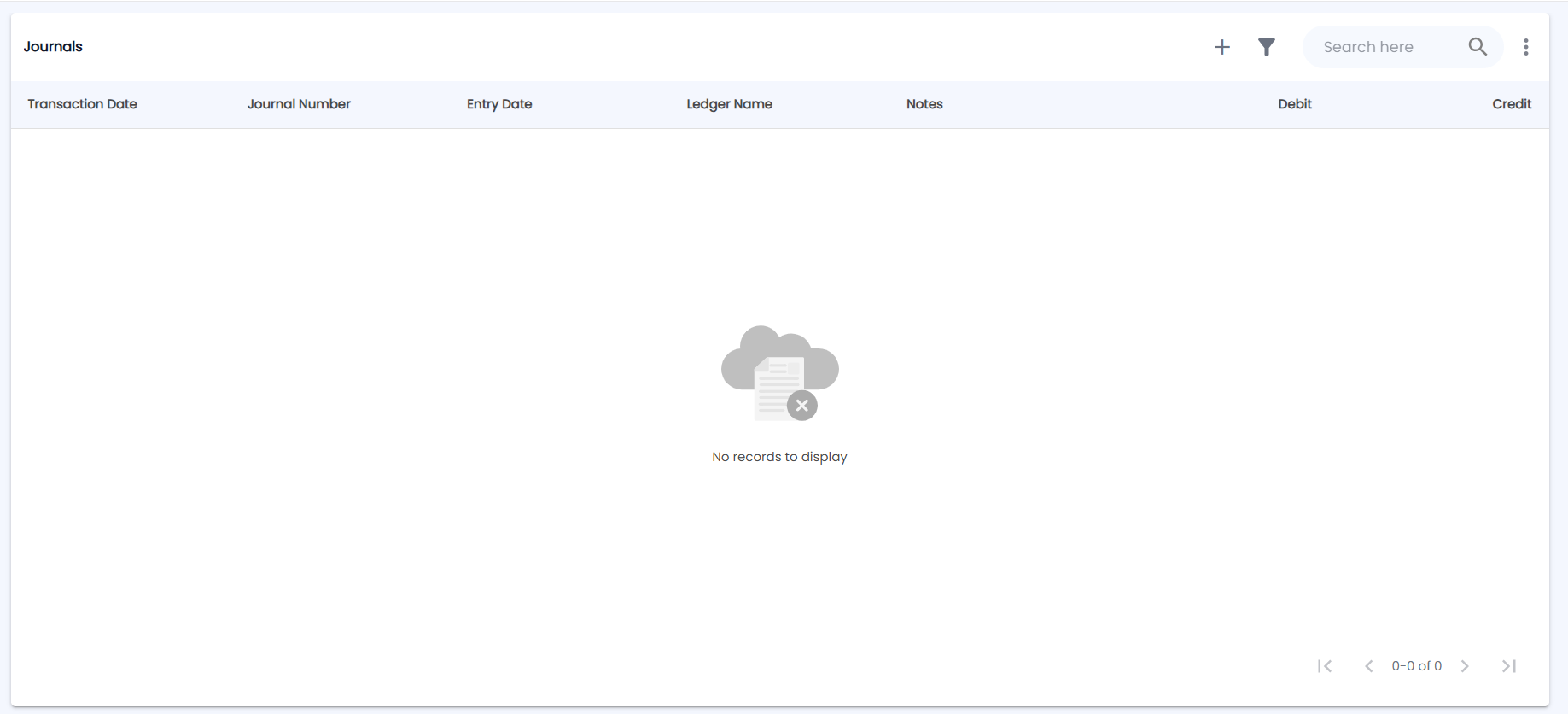
Go to Accounts → Journal Entry. The list is titled Journals; the toolbar has +, the filter icon, Search here and a ⋮ menu.
| Column | Description |
|---|---|
| Transaction Date | Accounting date of the voucher |
| Journal Number | Voucher number |
| Entry Date | When it was entered in the system |
| Ledger Name | Ledgers on the voucher |
| Notes | Narration |
| Debit / Credit | Amounts |
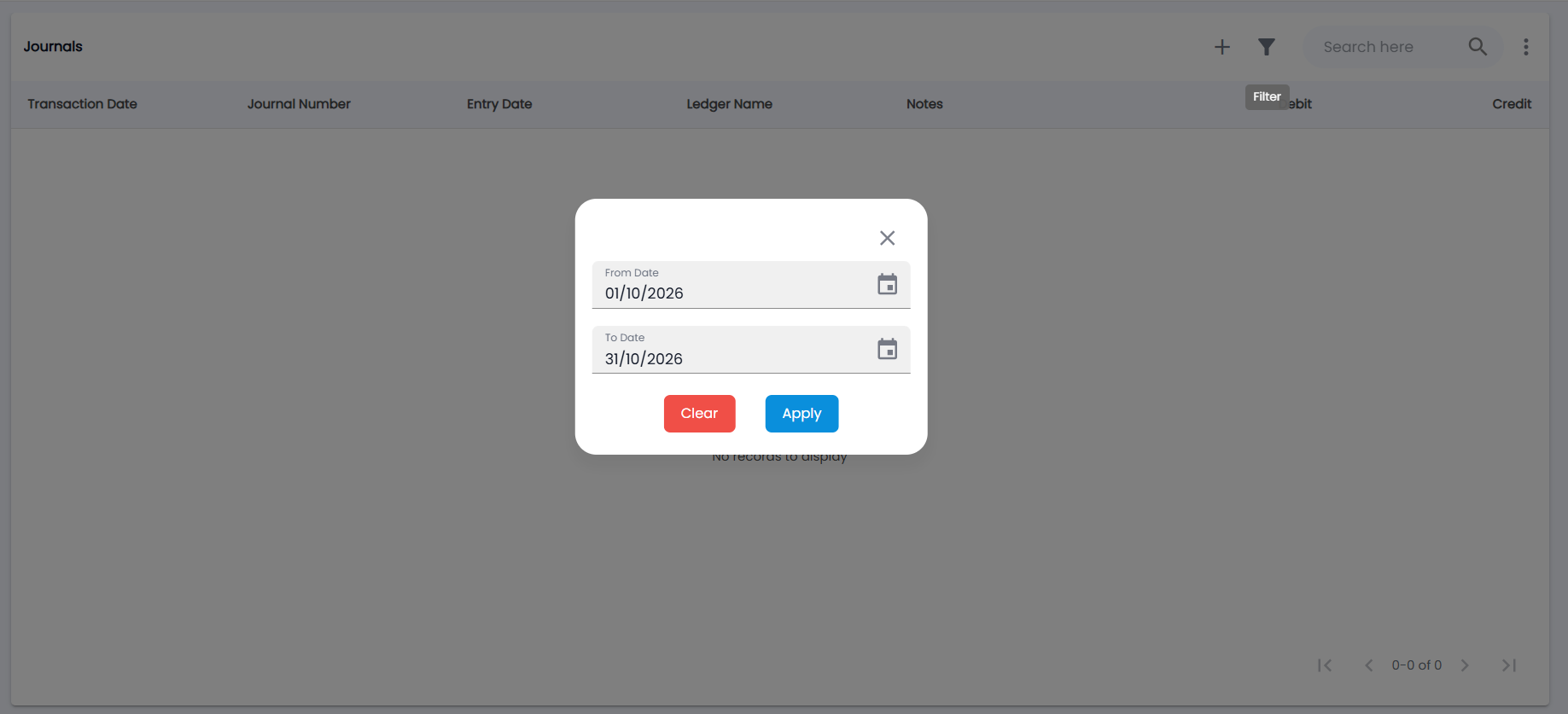
Search, or click the filter icon to set a From Date and To Date — the current month by default — then Apply or Clear. The ⋮ menu has Export PDF and Export CSV.
How do I create a journal?
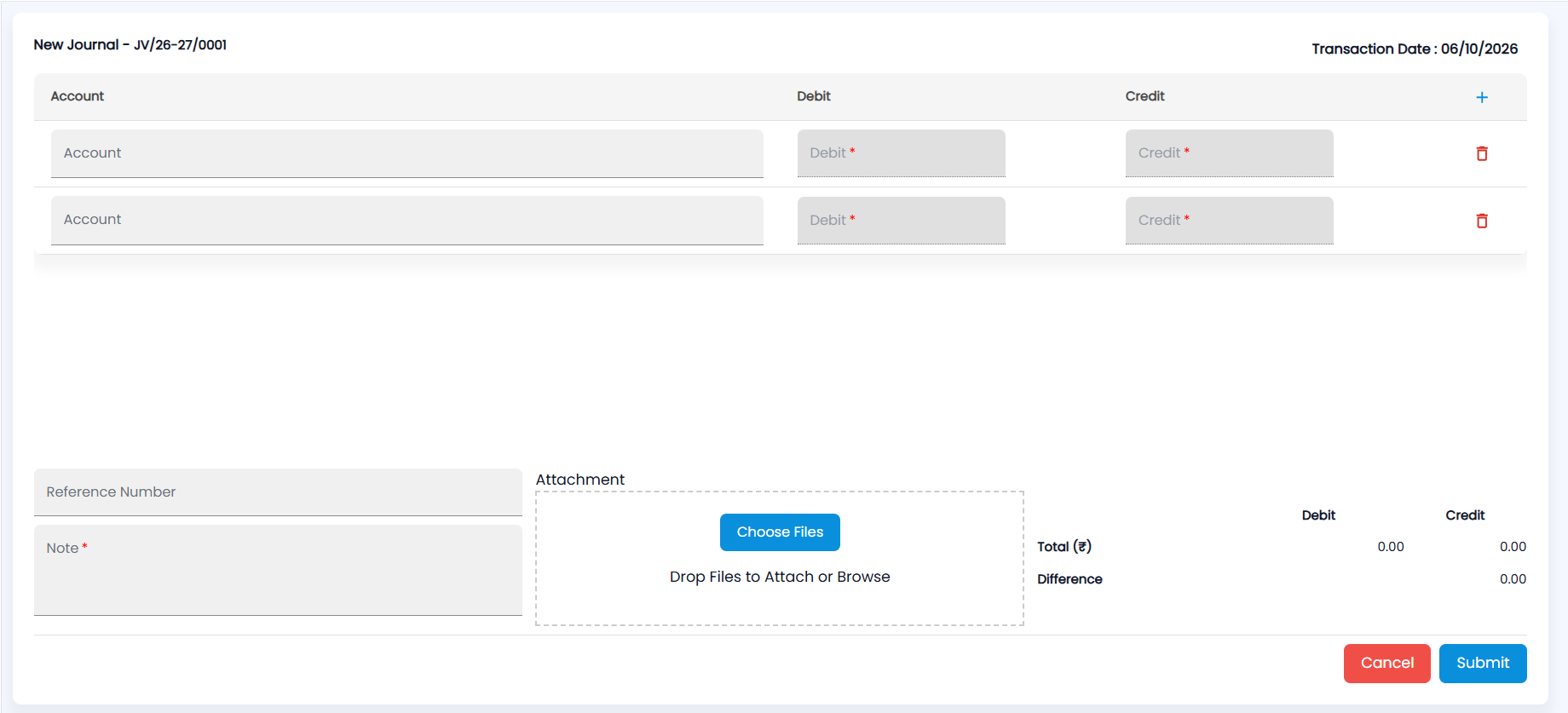
- Click +. New Journal opens with the next voucher number (for example JV/26-27/0001) and the Transaction Date at the top right.
- The form starts with two rows. In each, pick the Account (ledger) and enter either a Debit or a Credit amount. Click + at the end of the header row to add a row, or the red bin to remove one.
- Enter a Reference Number (optional) and a Note (required), and attach supporting files under Attachment with Choose Files, or drop them there.
- Check the totals panel — Total (₹) for Debit and Credit, and the Difference. When the difference is zero, click Submit (or Cancel).
How do I view, edit or delete a journal?
Click a row to open the journal voucher. It shows the Transaction Date, System Entry Date, Reference Number and Notes, the ledger lines with their account group and parent, the debit and credit totals, and a timeline. Use the Actions (3-dot) menu for Edit or Delete.
Journals appear in the Ledgers of every account they touch, and in the accounts reports under Reports.