
Overview
The Code Registry lists every barcode and QR code you have generated, whether from the Generate tab or Bulk Generate. Open it from Codes > Code Registry.
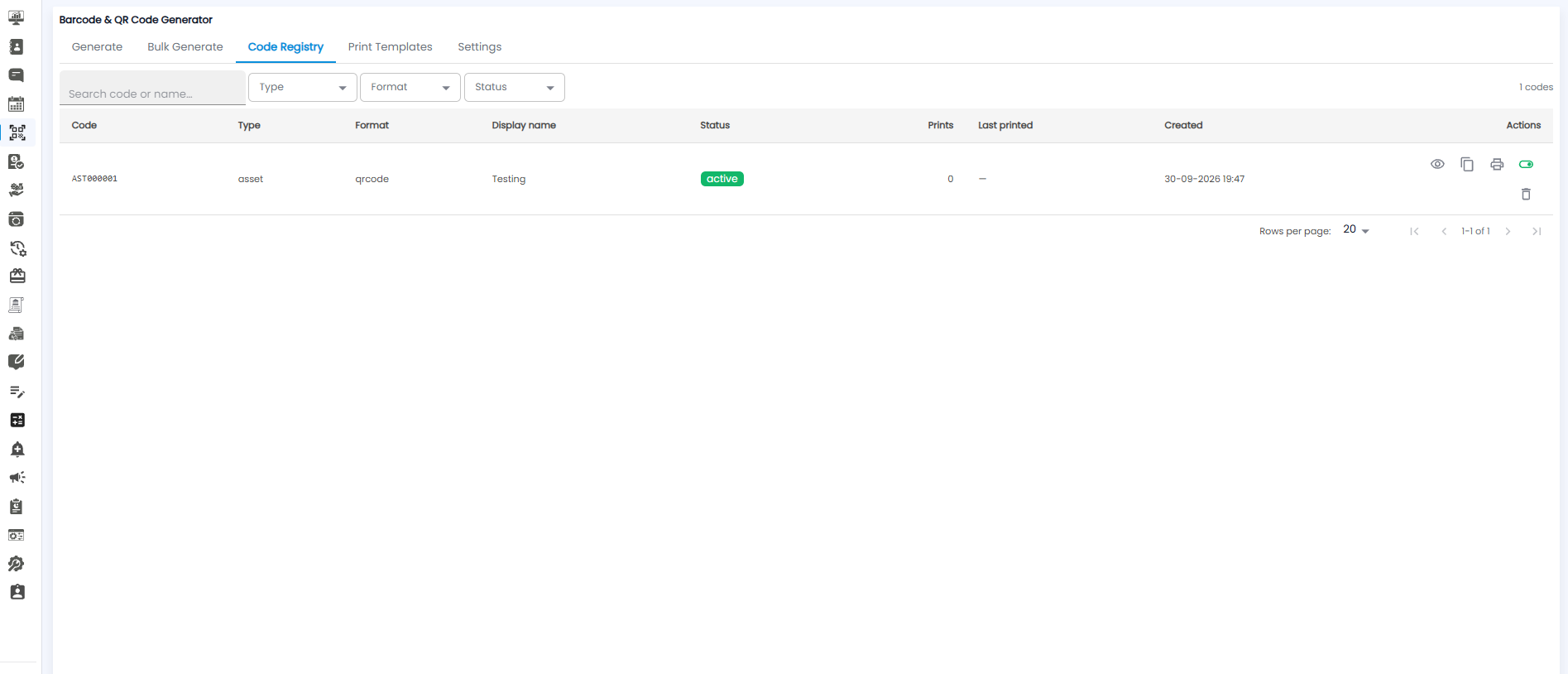
Searching and Filtering
- Search code or name — find a code by its value or display name
- Type — show one kind of code, for example asset
- Format — show QR codes or barcodes
- Status — show active or inactive codes
The count at the top right shows how many codes match, for example 1 codes.
Table Columns
| Column | What it shows |
|---|---|
| Code | The code value, for example AST000001 |
| Type | What the code is for, for example asset |
| Format | For example qrcode |
| Display name | The name printed on the label |
| Status | For example active |
| Prints | How many times the label has been printed |
| Last printed | When it was last printed, or — if never |
| Created | When the code was generated |
Actions
| Icon | What it does |
|---|---|
| Eye | View the code |
| Copy | Copy the code value |
| Printer | Print the label again |
| Toggle | Switch the code between active and inactive |
| Bin | Delete the code |
The list shows 20 rows per page by default. Change this with Rows per page and move between pages with the arrows at the bottom right.
Tip: Switch a code to inactive instead of deleting it if the label is still stuck on something — you keep its history.