
Opening the My Account Menu
Click your name and profile icon at the top right of the screen to open a small menu with three options:
- My account — Opens your account page where you can edit your details.
- Activity — Shows activity linked to your account.
- Logout — Signs you out of Tazk Sales.
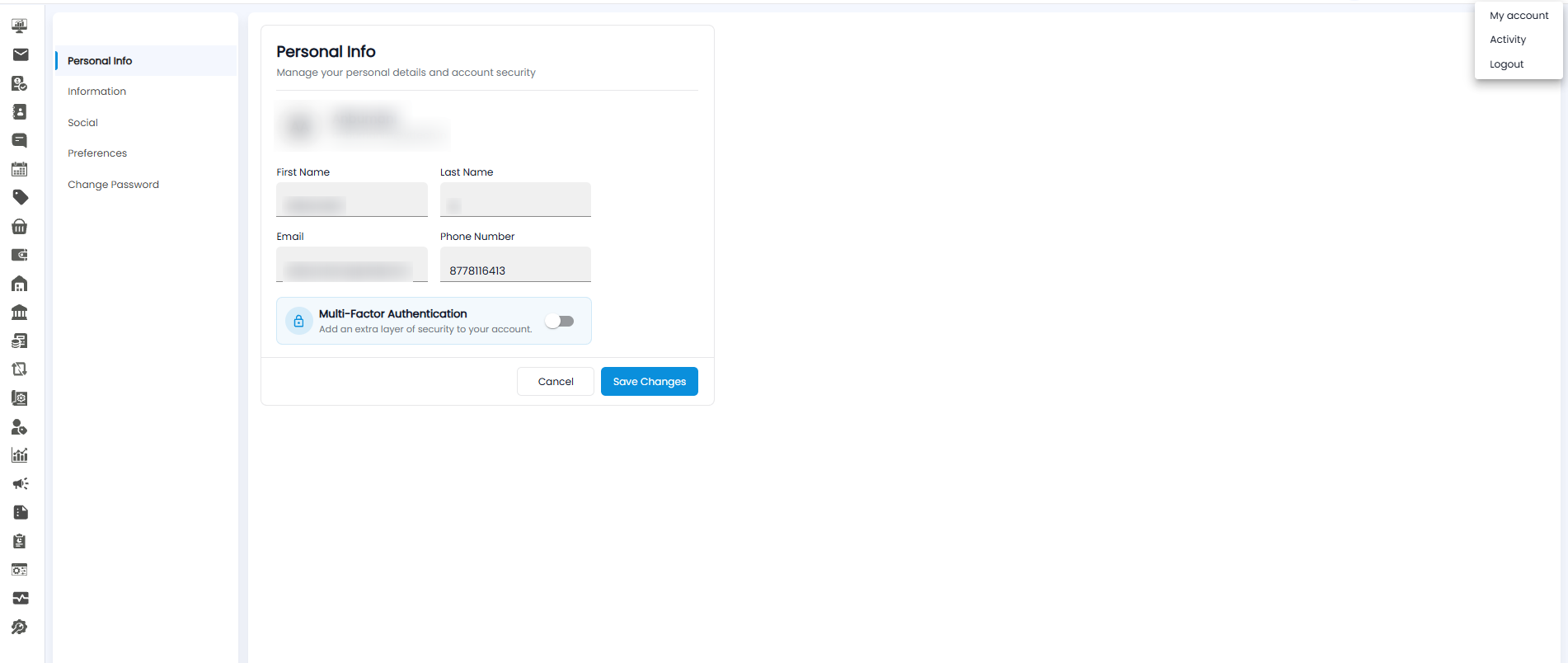
Account Page Sections
Once you open My account, the left panel shows five sections you can switch between:
| Section | What it is for |
|---|---|
| Personal Info | Your personal details and account security. |
| Information | Additional information linked to your profile. |
| Social | Social profile details. |
| Preferences | Personal preferences for the application. |
| Change Password | Update the password you use to sign in. |
Updating Your Personal Info
The Personal Info section lets you manage your personal details and account security. At the top you can see your initials, your name, and the email address linked to your account. The form below contains:
- First Name
- Last Name
- Phone Number
Edit any field you want to update, then click Save Changes. Click Cancel to leave without saving.
Enabling Multi-Factor Authentication
Below the form is the Multi-Factor Authentication toggle, which adds an extra layer of security to your account. Turn it on, then click Save Changes so the setting is applied.
Tip: Use the Logout option from the profile menu whenever you finish working on a shared or public computer.
Important: Keep your email and phone number up to date — they are used to recover your account if you ever forget your password.