
Your Main Navigation
The sidebar on the left of the screen is the main way you move around Tazk Sales. It stays visible on every page so you can jump between modules at any time.
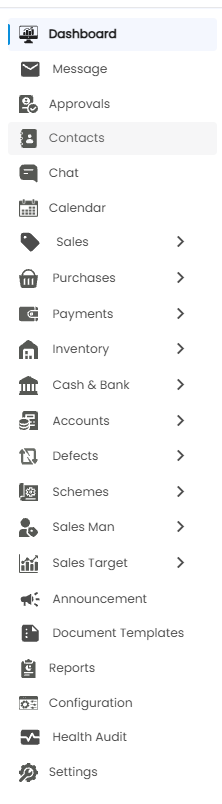
Menu Items
The sidebar lists the following items, from top to bottom:
| Menu Item | What it opens |
|---|---|
| Dashboard | The home screen with KPI cards, Profit & Loss, and charts. |
| Message | Your messages. |
| Approvals | Requests waiting for approval. |
| Contacts | Your customer, vendor, and other contact records. |
| Chat | Internal messaging between team members. |
| Calendar | A calendar view of upcoming dates and events. |
| Sales | Expandable group for selling to your customers. |
| Purchases | Expandable group for buying from your vendors. |
| Payments | Expandable group for payments made and received. |
| Inventory | Expandable group for your stock. |
| Cash & Bank | Expandable group for cash and bank accounts. |
| Accounts | Expandable group for your books of accounts. |
| Defects | Expandable group for defective goods. |
| Schemes | Expandable group for sales schemes and offers. |
| Sales Man | Expandable group for your salesmen. |
| Sales Target | Expandable group for setting and tracking sales targets. |
| Announcement | Broadcast messages to your team. |
| Document Templates | Templates for the documents you print and send. |
| Reports | Reports generated from your data. |
| Configuration | Settings for how the application works. |
| Health Audit | A check-up of your data. |
| Settings | Company info, users, roles, and preferences. |
Expandable Groups
Ten menu items show an arrow (>) on their right: Sales, Purchases, Payments, Inventory, Cash & Bank, Accounts, Defects, Schemes, Sales Man, and Sales Target. Click the arrow to expand the group and see its sub-menu; click it again to collapse it.
Sales
- Sales Orders
- Invoices
- Delivery Challans
- Receivables
- Delivery Tracking
- Receipts
- Credit Notes
- Quotation
- Customer Price List
- Delivery Planning
- OEM Activations
Purchases
- Purchase Orders
- Bills
- Payables
- Payments
- Debit Notes
- Vendor Price List
Payments
- Analytics
- Pay In / Pay Out
- Expenses
Inventory
- Stocks
- Lot Traceability
- Product Master
- Stock Transfer
- Stock Receive
- Stock Reconcilate
- Sync Inventory
Cash & Bank
- Cash In Hand
- Loan Accounts
- Cheques
- Bank Reconciliation
Accounts
- Ledgers
- Journal Entry
- Chart of Accounts
- GST Returns
Defects
- Collect Defects
- Issue Replacement
- Send Defects
- Collect Replacement
Schemes
- DashBoard
- New Schemes
- Schemes Receivables
Sales Man
- DashBoard
- Customer Mapping
- Visits
- Fuel Allowance
- Travel History
- Incentives
- Daily Collections
- Customer Shelf Stock
- DC Aging
- DC Reconciliation
- My Beat
Icons-Only View
When the sidebar is narrow, only the icons are shown. Hover over an icon to see its name, or click it to open that module.
Tip: The page you are on is marked with a blue bar on the left of its menu item, so you always know where you are in the app.