
Overview
Send Defects records defective items you send back to the vendor you bought them from, so the vendor can replace them. Open Defects > Send Defects. The page is titled Send Defect.
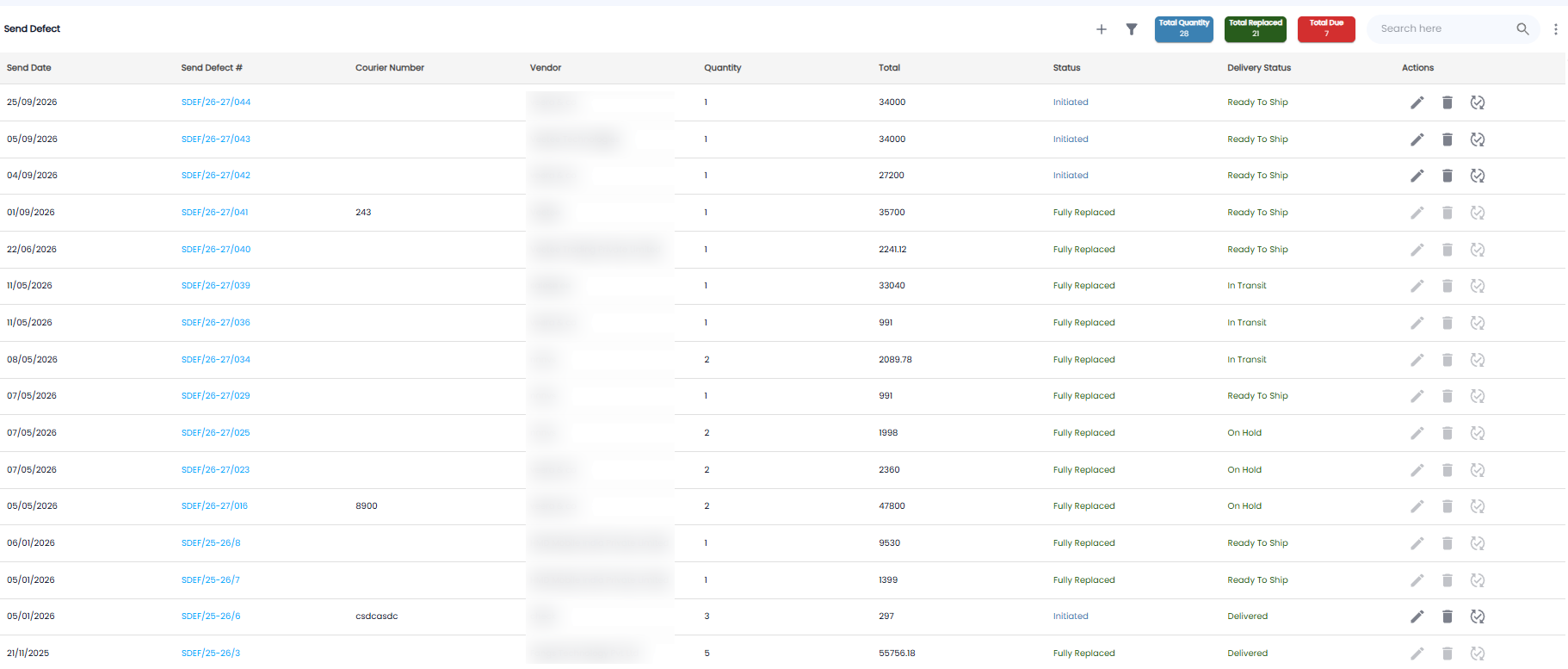
Summary Figures
| Figure | What it shows |
|---|---|
| Total Quantity | All items sent to vendors |
| Total Replaced (green) | Items the vendors have replaced |
| Total Due (red) | Items still waiting for a replacement |
The Send Defect List
| Column | What it shows |
|---|---|
| Send Date | When the items were sent |
| Send Defect # | For example SDEF/26-27/044. Click it to open it |
| Courier Number | The courier tracking number, if you entered one |
| Vendor | Who the items went to |
| Quantity / Total | How many items, and their value |
| Status | Initiated until the vendor replaces the items, then Fully Replaced |
| Delivery Status | Ready To Ship, In Transit, On Hold, or Delivered |
| Actions | Edit (pencil), delete (bin), and the circular-arrows icon. They are greyed out once the items are fully replaced |
Use + to send defects, the filter icon to narrow the list, Search here to find one, and ⋮ for more options.
Sending Defects to a Vendor
Click +. The form opens with the next number, for example Send Defects - SDEF/26-27/045.
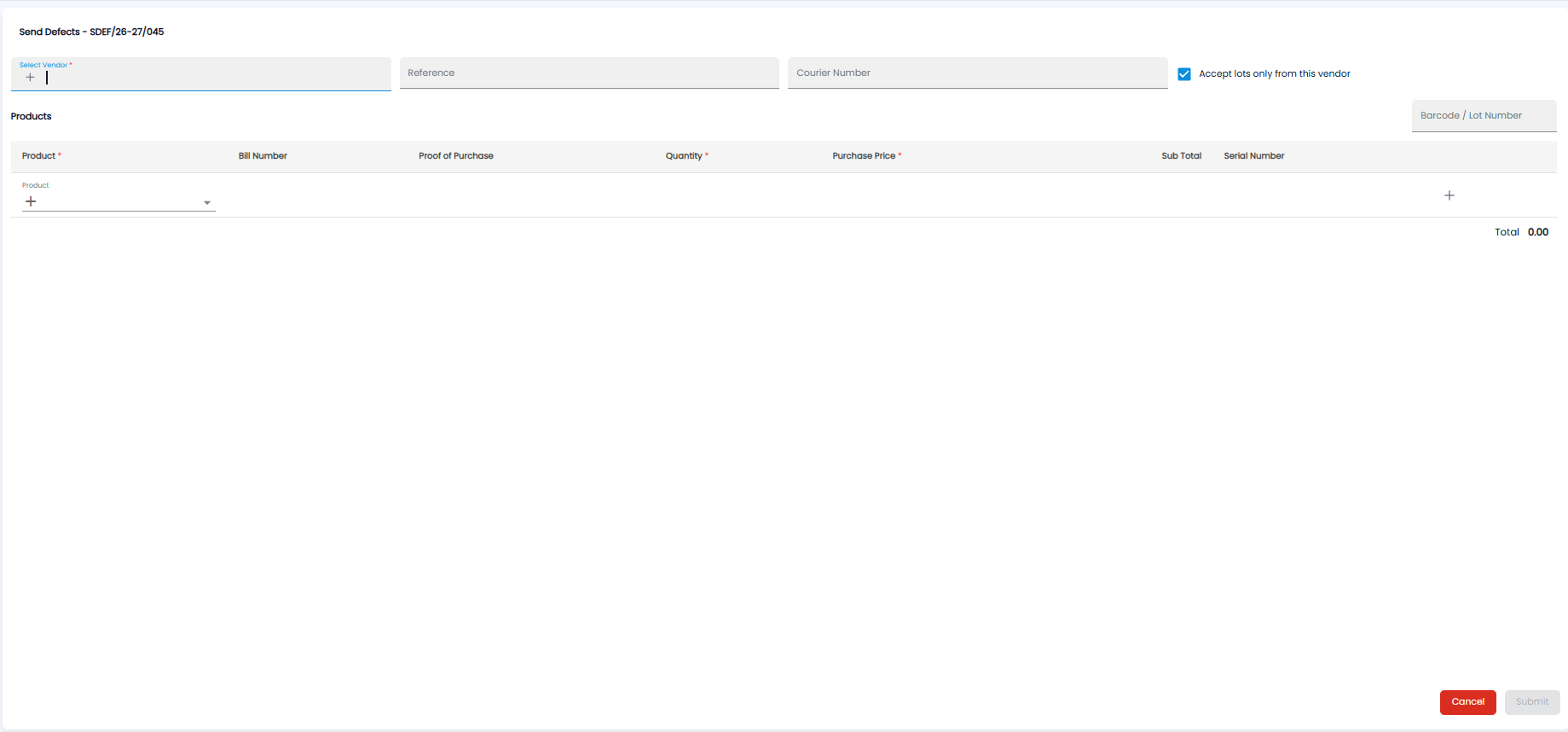
- Pick the vendor under Select Vendor*. Click + to add a new vendor
- Add a Reference and the Courier Number if you have one
- Leave Accept lots only from this vendor ticked so only items you bought from this vendor can be added
- Add the items under Products — scan or type a Barcode / Lot Number, or pick the Product*. Click + to add another row
- For each item, fill in the Bill Number you bought it on, the Proof of Purchase, the Quantity*, the Purchase Price*, and the Serial Number. The Sub Total and Total are worked out for you
- Click Submit, or Cancel
Tip: Keep an eye on Total Due — it is the number of defective items your vendors still owe you.