
Overview
Once you have collected a defective item from a customer (see Collect Defects), use Issue Replacement to give them a replacement. Open Defects > Issue Replacement.

The Issue Replacement List
| Column | What it shows |
|---|---|
| Replacement Date | When the replacement was given |
| Replacement # | For example CDEF/26-27/001. Click it to open the replacement |
| Type | CUSTOMER |
| Customer / Vendor Name | Who received the replacement |
| Action | Edit (pencil) or delete (bin) |
Use + to issue a replacement, the filter icon to narrow the list, and Search here to find one.
Issuing a Replacement
Click +. The Replacement Date is shown at the top right.
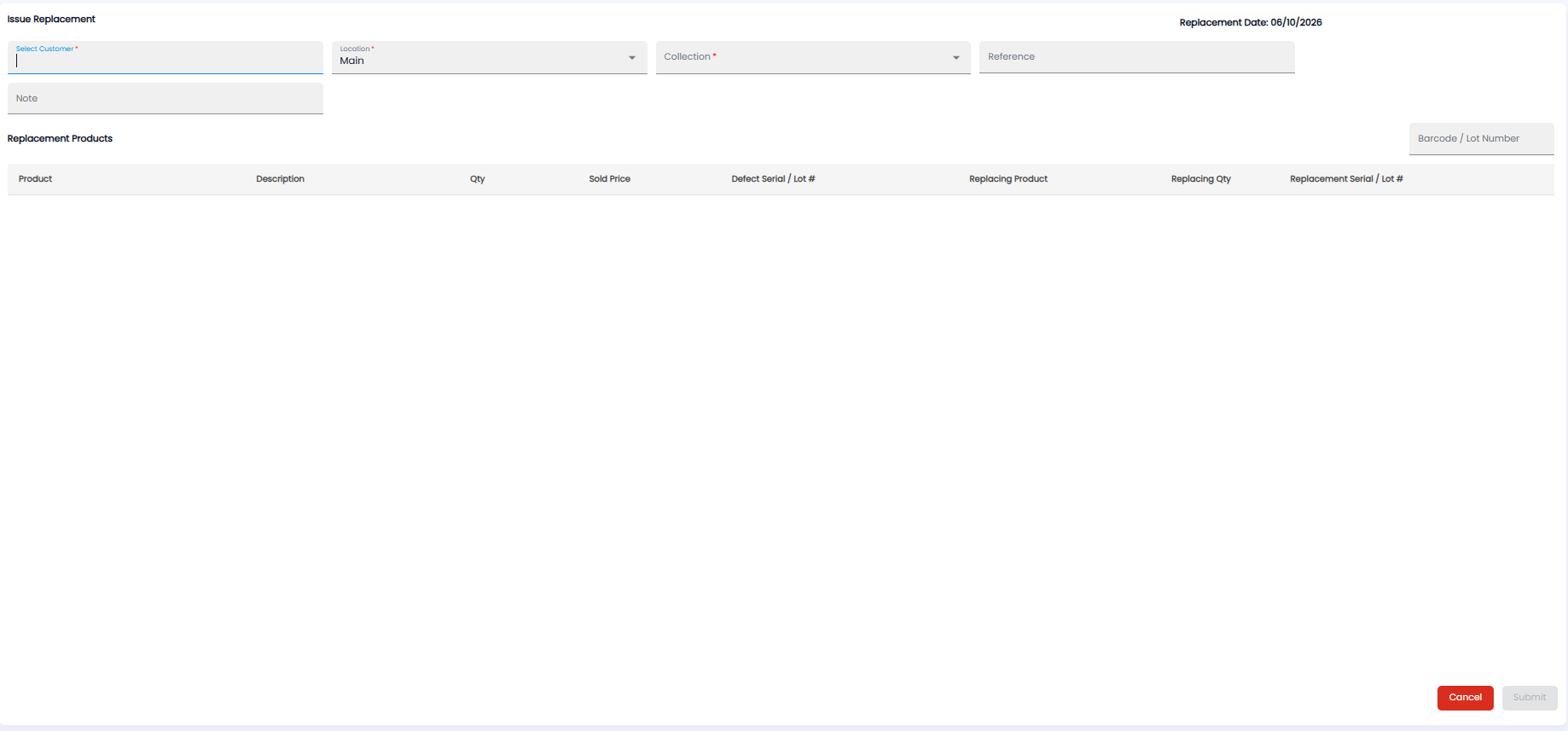
- Pick the customer under Select Customer*
- Check the Location* the replacement goes from (Main by default)
- Pick the Collection* — the defect collection you are replacing
- Add a Reference and a Note if needed
- Under Replacement Products, check each defective item — Product, Description, Qty, Sold Price, and Defect Serial / Lot # — and fill in what you are giving instead: the Replacing Product, Replacing Qty, and Replacement Serial / Lot #. You can scan the replacement with Barcode / Lot Number
- Click Submit, or Cancel
Note: The replacement comes out of the stock at the location you pick, so check it is available there on Inventory > Stocks first.