
Overview
Chat lets you message your colleagues one-to-one without leaving Tazk Sales — handy for a quick question about an order, a payment, or an approval. Click Chat in the sidebar to open it.
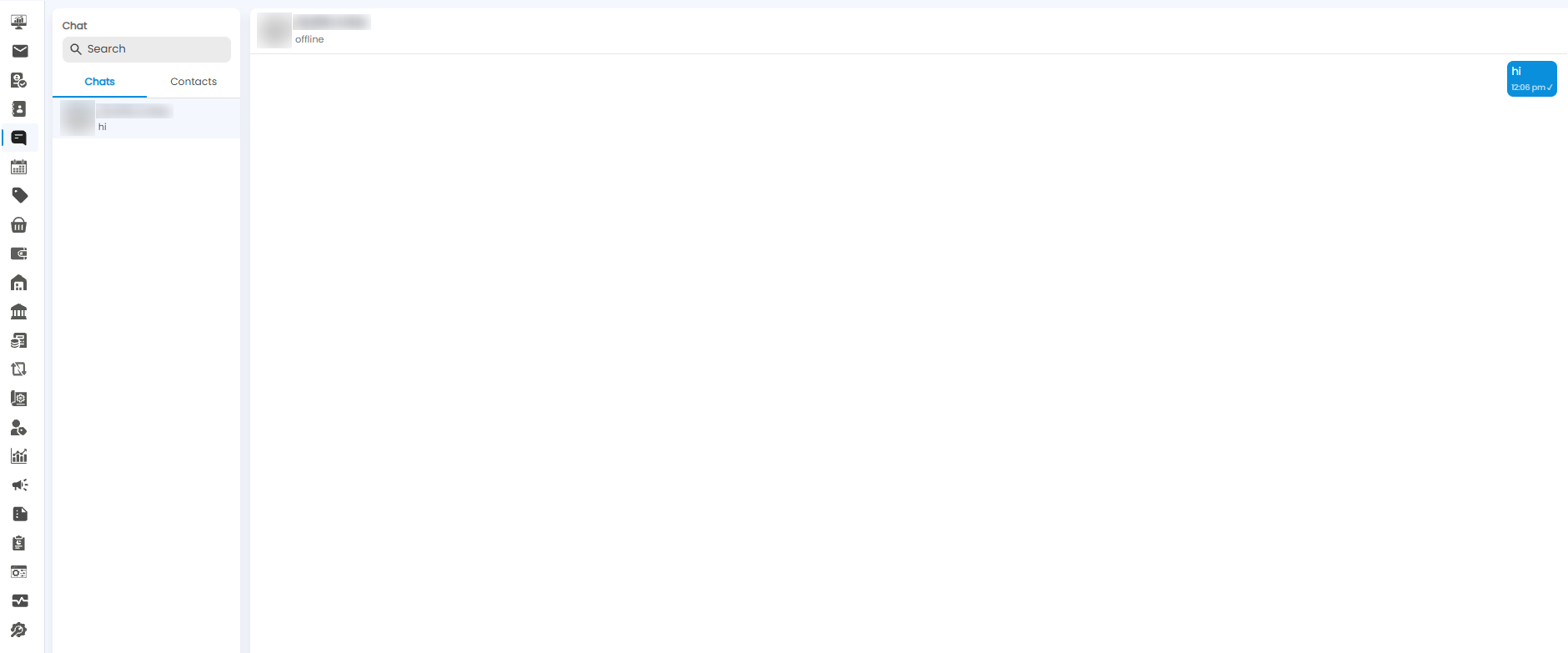
The Chat Screen
The screen has two parts:
- Left panel — your conversations and contacts, with a Search box at the top
- Right panel — the conversation you have open
Chats and Contacts
| Tab | What it shows |
|---|---|
| Chats | The conversations you have already started. Each shows the person's name and the last message, for example Kavitha Anbu — hi |
| Contacts | Everyone you can chat with |
Type in Search to find a person or a conversation by name.
Starting a Chat
- Click Chat in the sidebar
- Click the Contacts tab
- Click the person you want to message
- Type your message and send it
The conversation then appears under Chats, so you can pick it up again later.
Reading a Conversation
- Header — the top of the conversation shows the person's name and whether they are online or offline.
- Your messages — appear in blue on the right, with the time you sent them (for example 12:06 pm) and a tick (✓) once sent.
- Their messages — appear on the left.
Tip: Check whether someone is online in the conversation header before sending an urgent message — if they are offline, a phone call may be quicker.