
The Accounts Menu
Click Accounts in the sidebar to expand it. It has four sub-menus, each covered by its own article:
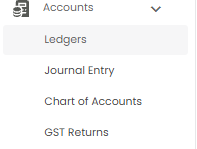
| Sub-menu | What it is for |
|---|---|
| Ledgers | Every account in your books, with its balance (this article) |
| Journal Entry | Book entries that move amounts between ledgers without cash changing hands |
| Chart of Accounts | All your ledgers arranged in groups, with totals |
| GST Returns | Filing your monthly GST returns |
The General Ledger
A ledger is one account in your books — for example a bank account, a customer's account, Sales - Main, or CGST Payable. Open Accounts > Ledgers. The page is titled General Ledger.
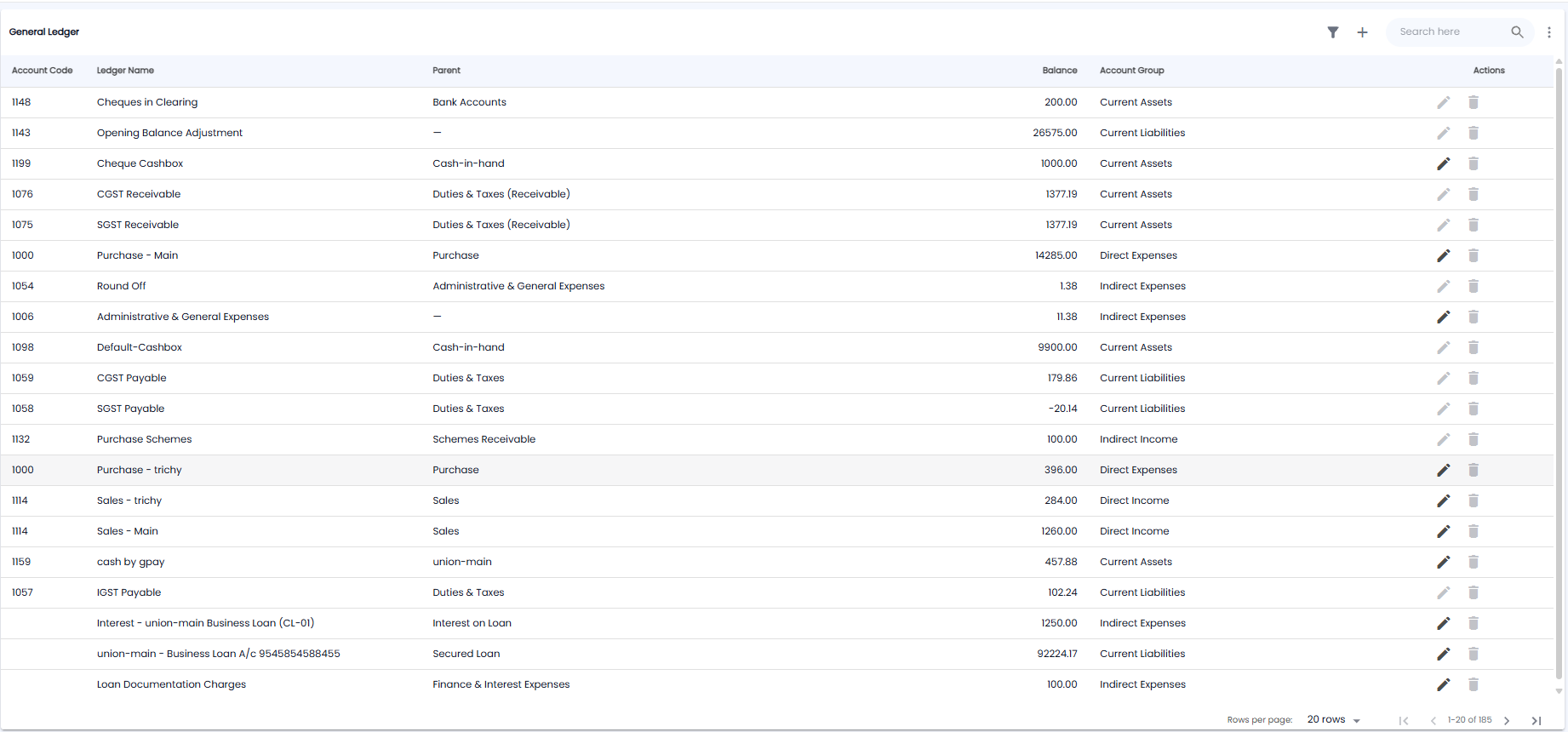
| Column | What it shows |
|---|---|
| Account Code | The ledger's code, for example 1098. Some ledgers have none |
| Ledger Name | For example Default-Cashbox |
| Parent | The ledger it sits under, for example Cash-in-hand. A dash means it is a top-level ledger |
| Balance | The ledger's current balance |
| Account Group | For example Current Assets, Current Liabilities, Direct Income, or Indirect Expenses |
| Actions | Edit (pencil) or delete (bin). They are greyed out on ledgers Tazk manages for you, such as the GST ledgers |
Use + to add a ledger, the filter icon to narrow the list, Search here to find one, and ⋮ for more options. The list shows 20 rows per page.
Note: Some ledgers are created for you — for example, adding a loan on Cash & Bank > Loan Accounts creates the loan account and its interest ledger.
Adding a Ledger
Click + to open New Ledger. Choose Ledger for an account you post entries to, or Parent Ledger for a heading that groups other ledgers. Fields marked * are required.
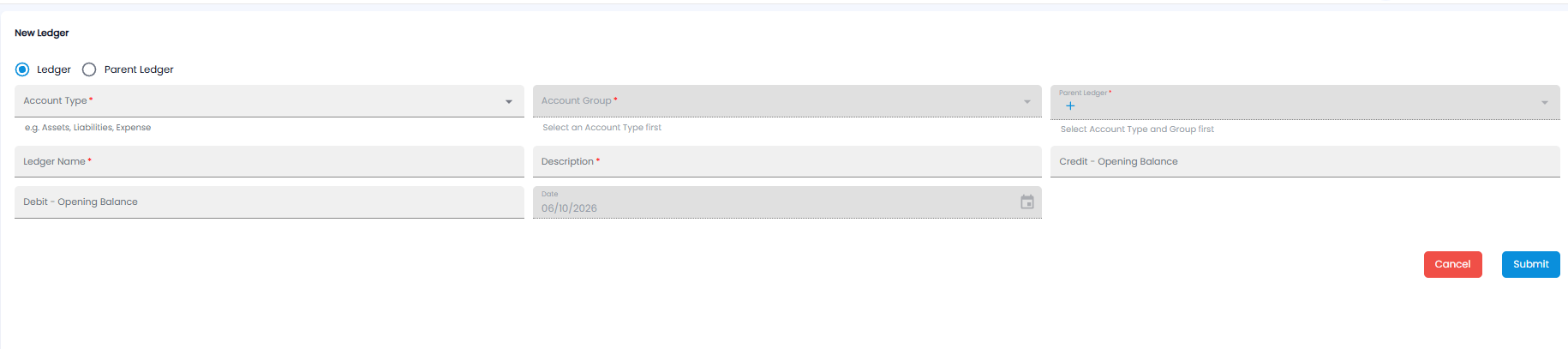
| Field | Required | Description |
|---|---|---|
| Account Type | Yes | The broad type, for example Assets, Liabilities, or Expense. Pick this first |
| Account Group | Yes | The group within that type, for example Current Assets |
| Parent Ledger | Yes | The ledger this one sits under. Pick the type and group first. Click + to add a new parent |
| Ledger Name | Yes | The name you will see in lists and reports |
| Description | Yes | What the ledger is for |
| Debit - Opening Balance / Credit - Opening Balance | No | The balance the ledger starts with, on the debit or credit side |
| Date | — | The opening balance date, filled in for you |
Click Submit to save the ledger, or Cancel to leave without saving.
Tip: Check the Chart of Accounts before adding a ledger — the account you need may already exist under a different name.