
Overview
Users lists everyone who can sign in to Tazk Projects. Open Settings > Users.
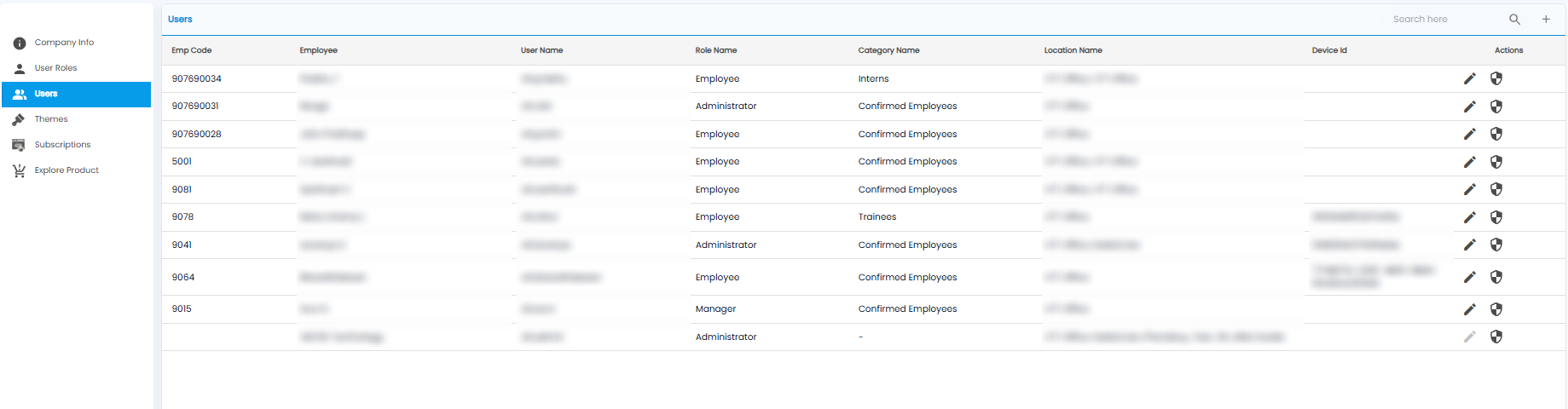
| Column | What it shows |
|---|---|
| Emp Code / Employee | The employee code and name |
| User Name | The name they sign in with |
| Role Name | Their role — see User Roles |
| Category Name | For example Confirmed Employees, Interns, or Trainees |
| Location Name | The locations they work from |
| Device Id | The device they use, where recorded |
| Actions | Edit (pencil), and the shield icon |
Use Search here to find a user.
Adding a User
Click + to open New User. It has three steps: Personal Info, Application Info, and Payroll Info.
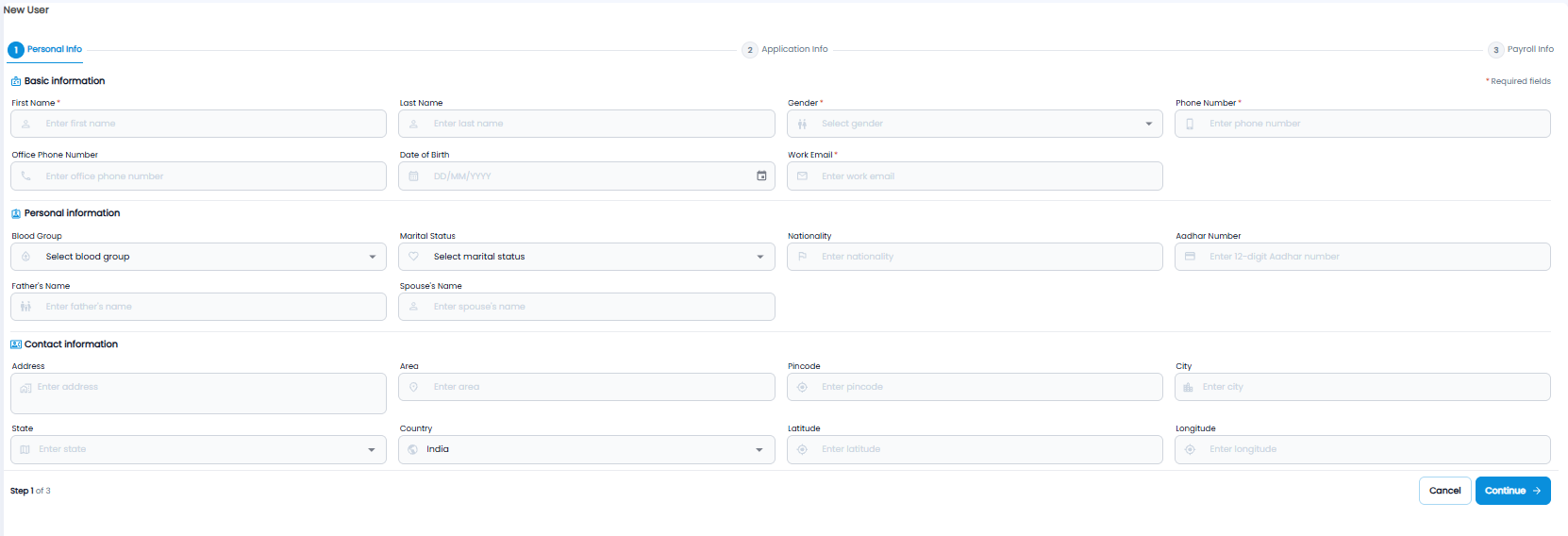
Step 1 asks for Basic information (First Name*, Last Name, Gender*, Phone Number*, Office Phone Number, Date of Birth, Work Email*), Personal information (Blood Group, Marital Status, Nationality, Aadhar Number, Father's Name, Spouse's Name), and Contact information (Address, Area, Pincode, City, State, Country, Latitude, Longitude). Click Continue, or Cancel.
Note: This is the same form as Create Contact — see Employee Directory.