
Overview
A role is a set of permissions shared by everyone who does the same job — for example Administrator, Manager, or Employee. Open Settings > User Roles.
- The roles are listed on the left. Click one to work on it; its name is shown at the top
- Click + next to User Roles to add a role
- The tabs set different kinds of permission: Menu Access, Dashboard, Notifications, Data Scope, and Field Visibility
Menu Access
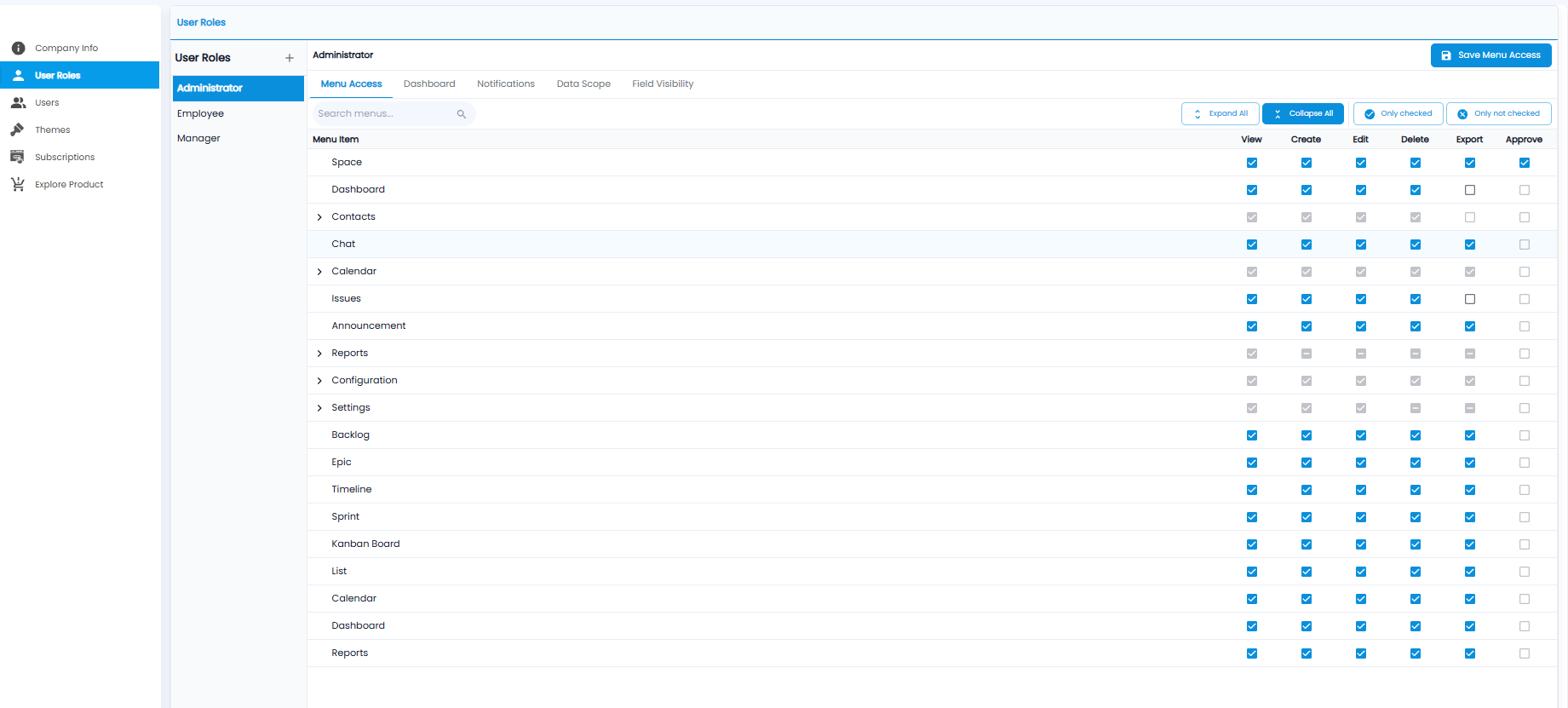
Sets which menus the role can open and what it can do in each — for example Space, Issues, Backlog, Sprint, or Kanban Board.
| Permission | Allows |
|---|---|
| View | Opening the page |
| Create / Edit / Delete | Adding, changing, and deleting records |
| Export | Downloading lists and reports |
| Approve | Approving requests |
Menus with an arrow (for example Contacts or Settings) have sub-menus — click the arrow to set each one. A dash in a box means only some sub-menus are ticked. Use Expand All / Collapse All, Only checked / Only not checked, and Search menus. Click Save Menu Access.
Dashboard
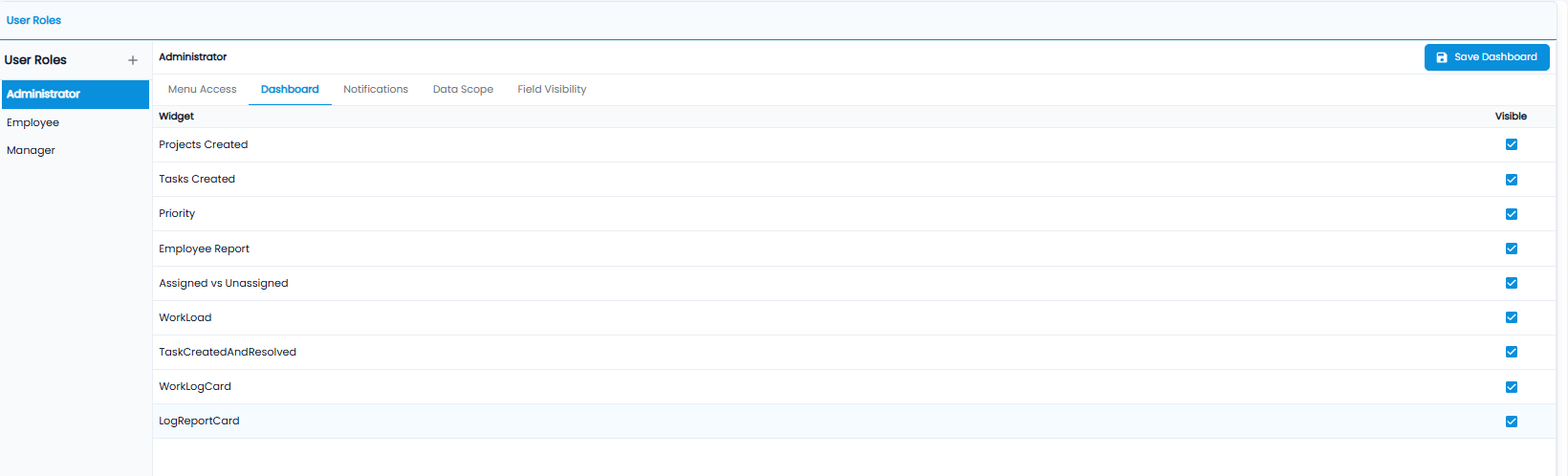
Tick Visible for each dashboard widget the role should see — for example Projects Created, Priority, Employee Report, Assigned vs Unassigned, or WorkLoad. Click Save Dashboard.
Notifications
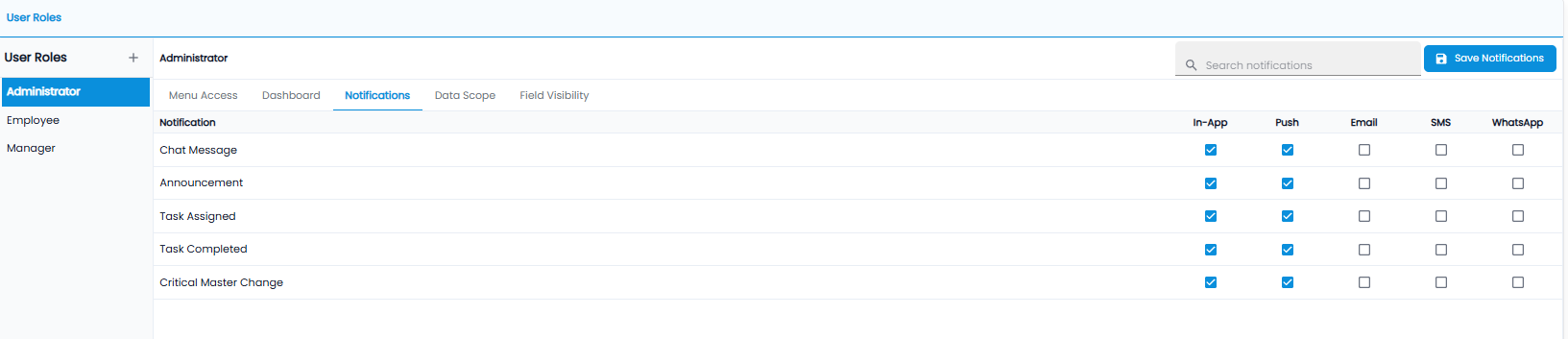
Sets which notifications the role receives and how. Each notification — Chat Message, Announcement, Task Assigned, Task Completed, and Critical Master Change — can go In-App, by Push to the mobile app, or by Email, SMS, or WhatsApp. Click Save Notifications.
Data Scope
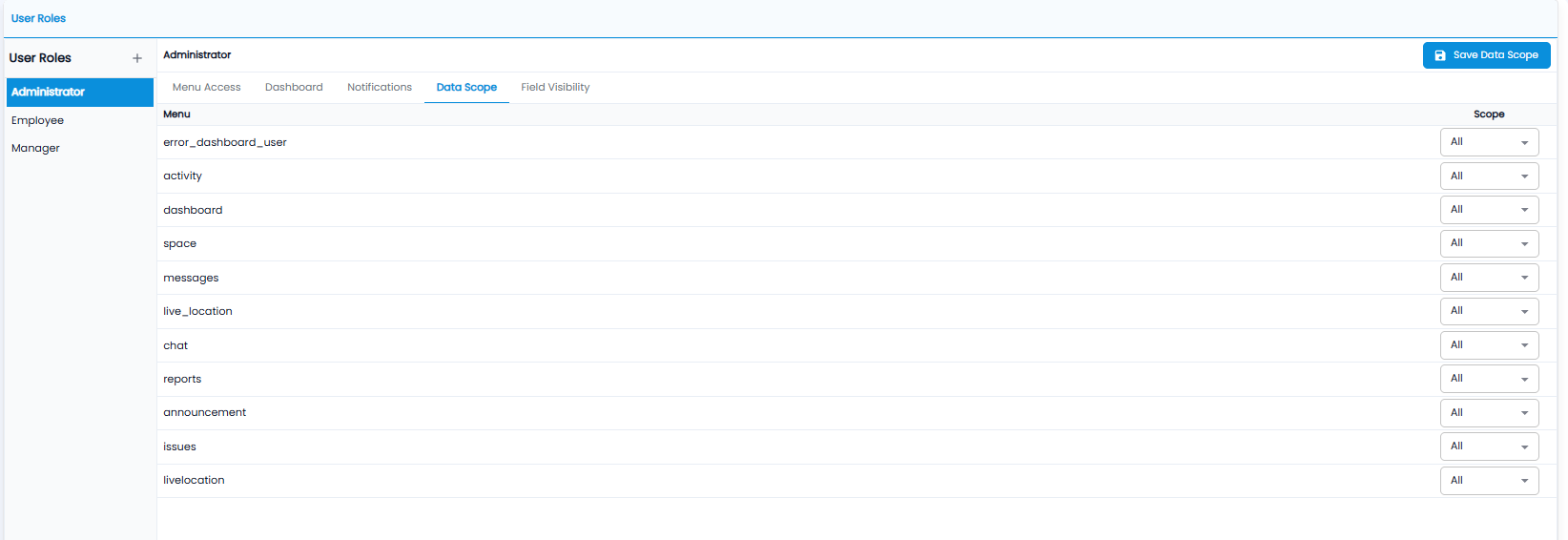
Sets how much of the data on each page the role can see. Each menu is listed by its internal name — for example space, issues, or reports — with a Scope drop-down. All shows every record. Click Save Data Scope.
Field Visibility
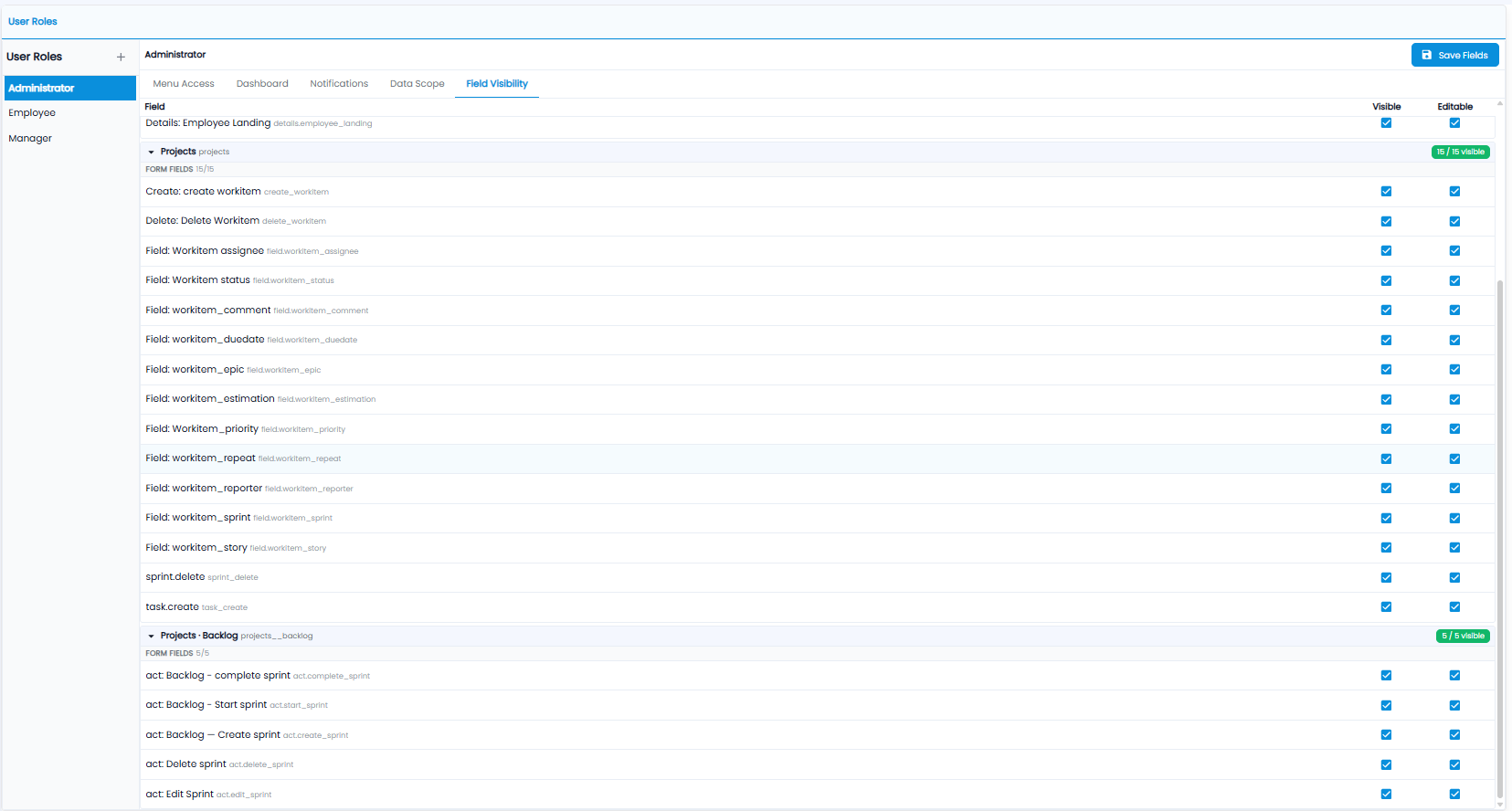
Sets which fields and actions the role can see and change, screen by screen. Fields are grouped by screen — for example Projects and Projects · Backlog — with a badge showing how many are visible (for example 15 / 15 visible).
- Visible — the role can see the field or action
- Editable — the role can change it
Examples include the work item's assignee, status, due date, and priority, and actions such as Create sprint, Complete sprint, and Delete sprint. Click Save Fields.