
How do I create a scheme in Tazk POS?
Open Schemes → New Schemes and click the + icon. Enter the scheme name and scheme ID, pick the vendor and brand, set the From and To dates and choose Each or Total. Then tick the brand's products in the ProductList and give each one its Quantity/Value basis, From Target, To Target and Scheme Award. Click Submit. The scheme appears in the Schemes list and on the Schemes Dashboard.
What is a scheme?
A scheme is a vendor (brand) offer that pays you an award for selling a target quantity or value of certain products between two dates. In Tazk you record the scheme against the vendor, attach the products it covers, and track how much has sold on the Schemes Dashboard.
What does the Schemes list show?
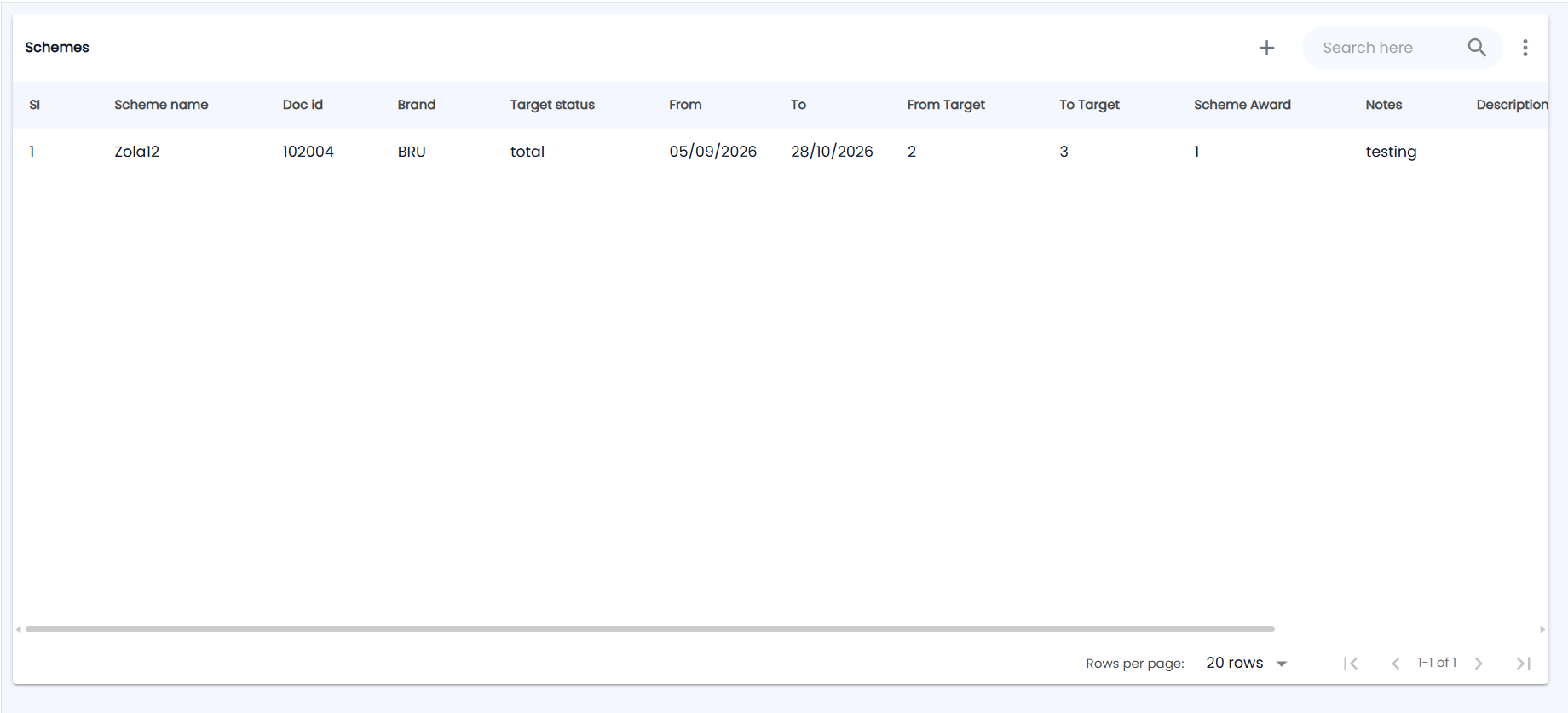
Open Schemes → New Schemes. The page is titled Schemes and lists every open scheme, 20, 50 or 100 rows per page. The toolbar has +, Search here and a ⋮ menu; the list is wide, so scroll right for the remaining columns.
| Column | What it shows |
|---|---|
| SI | Running serial number |
| Scheme name / Doc id | The scheme's name and the scheme ID you entered |
| Brand | The brand the scheme covers |
| Target status | each or total |
| From / To | Scheme dates |
| From Target / To Target / Scheme Award | The target range and award of the scheme's first product line |
| Notes / Description | Free text from the form |
| Vendor name | The vendor offering the scheme |
Search by typing in the search box. The More actions menu has Export PDF and Export CSV (they export all schemes, not just the page); Import is marked "Coming soon".
How do I create a scheme?
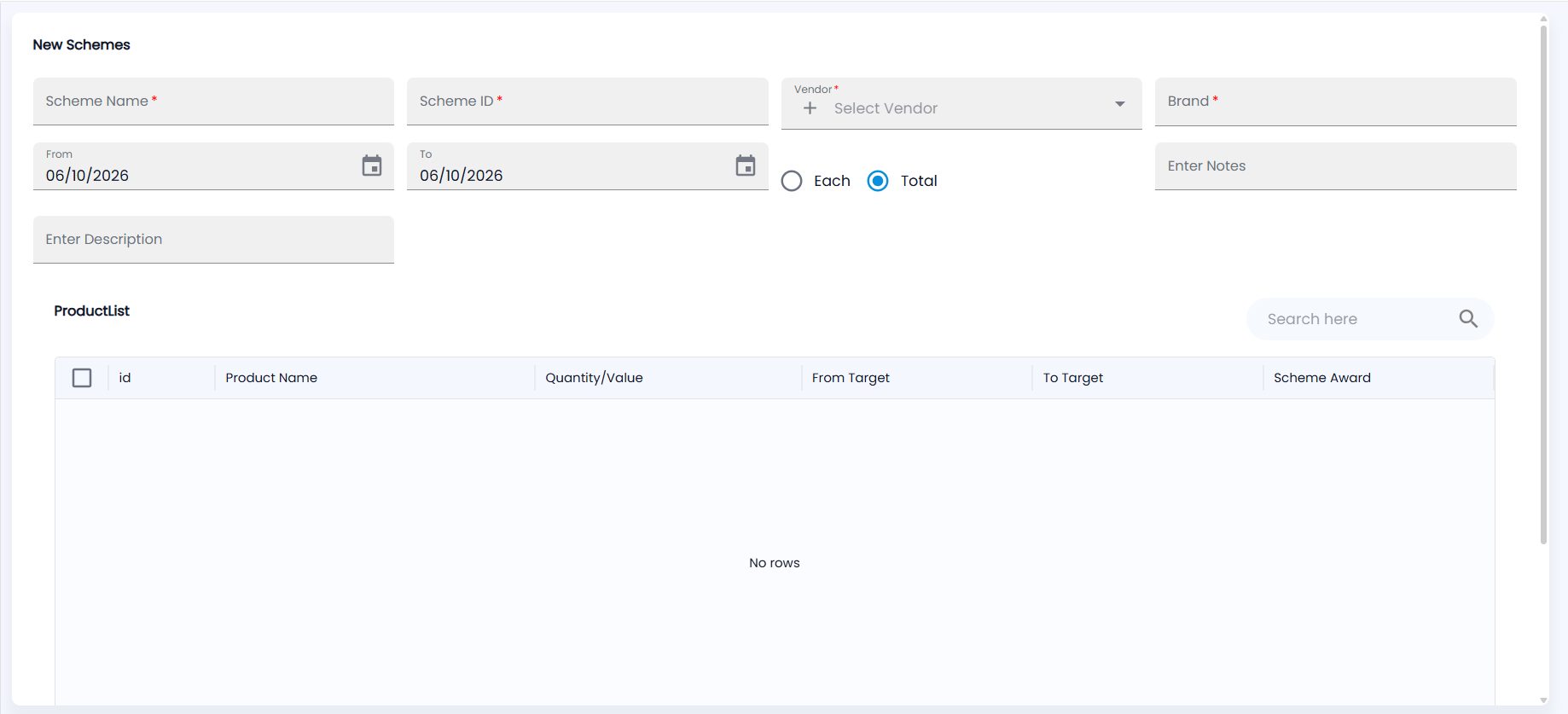
- Click the + icon. The New Schemes form opens; From and To start as today and Total is selected.
- Enter the Scheme Name and the Scheme ID (the vendor's reference).
- Pick the Vendor. Type to search, or click + in the field to add a vendor that is not in Vendor Contacts yet.
- Choose the Brand. The product list below fills with that brand's products.
- Set the From and To dates. To cannot be before From.
- Choose Each or Total — whether the target applies to each product or to the products together.
- Add Enter Notes and Enter Description if you need them.
- In ProductList (columns id, Product Name, Quantity/Value, From Target, To Target and Scheme Award), search and tick the products the scheme covers; the box in the header ticks them all. For each ticked row set Quantity/Value (Quantity or Value), From Target, To Target and Scheme Award.
- Click Submit.
Scheme Name, Scheme ID, Vendor, Brand, From, To and Each/Total are required, and you must tick at least one product ("Select any one products!"). Two open schemes cannot have the same name.
How do I edit or delete a scheme?
- Edit — click the pencil on the row. The form opens as Edit Scheme with the saved values; change them and click Submit.
- Delete — click the bin and confirm. The scheme is closed: it leaves this list and the dashboard.
Click Cancel to leave the form; if you have changed something you are asked before your changes are discarded.