
What does the Shift Overview show in Tazk Payroll?
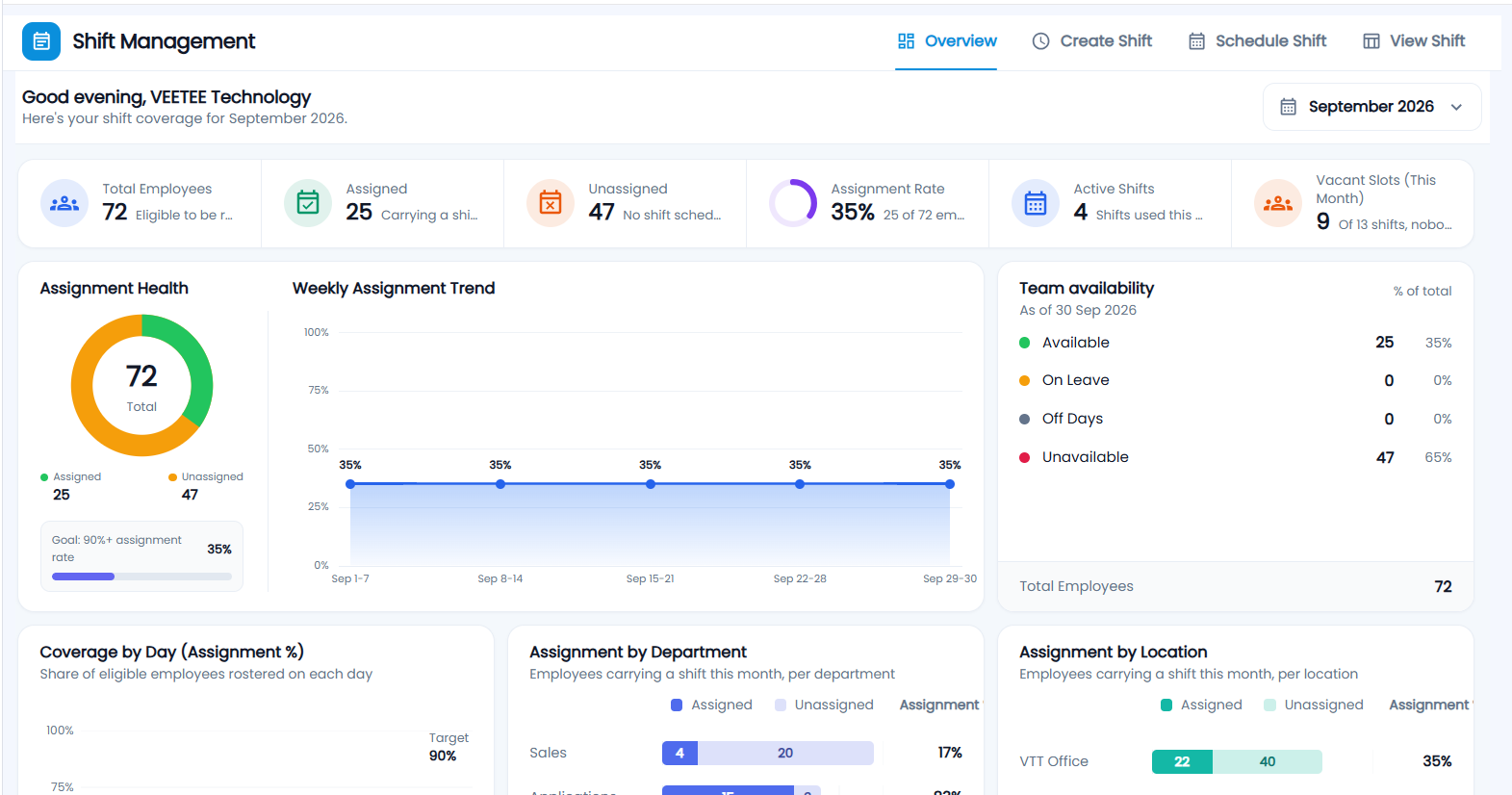
Shift Overview is the first tab of Shift Management. For the month you pick, it shows how many eligible employees carry a shift and how many do not, the assignment rate against a 90% goal, which shifts are in use or vacant, today's team availability (available, on leave, off, unavailable), coverage for the last 7 days, assignment by department and location, and a list of unassigned employees with an Assign Shift button.
How do I open the Shift Overview?
Click Shifts in the sidebar. Shift Management opens on the Overview tab, next to Create Shift, Schedule Shift and View Shift. The greeting says "Here's your shift coverage for" the month — change it with the month picker on the right. Managers see only their own departments.
What do the cards at the top mean?
Every figure counts eligible employees: active employees who have joined by that month and have not been relieved, excluding Administrator and Front Desk logins.
| Card | What it counts |
|---|---|
| Total Employees | Employees eligible to be rostered |
| Assigned | Eligible employees with a shift on at least one day this month |
| Unassigned | Eligible employees with no shift scheduled yet. Click it to jump to the list of unassigned employees. |
| Assignment Rate | Assigned as a % of Total Employees (for example "25 of 72 employees") |
| Active Shifts | Shifts that have at least one employee rostered this month |
| Vacant Slots (This Month) | Shifts defined in Create Shift that nobody is assigned to this month |
What are Assignment Health and the Weekly Assignment Trend?
- Assignment Health — a donut of assigned (green) and unassigned (amber) employees, with a bar towards the Goal: 90%+ assignment rate.
- Weekly Assignment Trend — the average share of employees rostered in each week of the month (Sep 1-7, Sep 8-14 and so on).
What does Team availability show?
Where everyone stands on one day — today for the current month, otherwise the last day of the month ("As of …"). Each employee is counted once, in this order:
| Row | Meaning |
|---|---|
| On Leave | Approved leave covers that day |
| Off Days | A company holiday, or the employee's weekly off from their leave policy |
| Available | A shift is rostered for them that day |
| Unavailable | Not on leave or off, but no shift is rostered that day |
Each row shows the count and its % of the total. A high Unavailable number means employees who should be working have no shift — schedule them.
How do I see coverage by day, department and location?
- Coverage by Day (Assignment %) — the share of eligible employees rostered on each of the last 7 days, against a 90% target. Hover a point for the number rostered.
- Assignment by Department — assigned and unassigned employees per department, with the assignment %. The four largest departments are shown and the rest grouped as Other.
- Assignment by Location — the same by each employee's primary location.
How do I assign a shift to employees who have none?
- Scroll to Unassigned Employees (or click the Unassigned card). It lists eligible employees with no shift this month, with their ID, department, location and when they were last active.
- Click Assign Shift on a row, or tick several rows and click Assign Selected.
- The Schedule Shift form opens with those employees already selected — choose the month and shift and click Assign Schedule.
Quick Actions at the bottom open Create Shift, the schedule form (Assign Employees) and View Schedule.