
Overview
The Service Due module tracks all maintenance and service obligations for your assets — including AMC (Annual Maintenance Contracts), Periodical Maintenance, and Warranty PMS.

Summary Counters
The badge next to the Service Due heading shows how many service records you have. The counters beside it break that down:
| Counter | Description |
|---|---|
| Total | All service records |
| Active | Services that are coming up |
| Due This Week | Services due in the current week |
| Overdue | Services whose due date has passed without being completed |
| Completed | Services that have been done |
| Total Amount | Total cost of all services (₹) |
The counter you are viewing is underlined — Total by default.
Table Columns
| Column | Description |
|---|---|
| Asset Name | The asset that needs servicing |
| Code | The asset's code |
| Title | The name of the service (e.g., "Performance Service") |
| Priority | How urgent the service is (e.g., Medium) |
| Due Date | When the service is due |
| Status | For example Overdue (red) when the due date has passed |
| Serviced | Whether the service has been done — Not yet until it is |
| Amount | The service amount (₹) |
| Service Type | The kind of service (see below) |
| Attachment | Uploaded documents, or – if none |
| ⋮ (three dots) | Actions for that record |
Maintenance Spend
Click the ₹ icon in the toolbar, between + and the filter icon, to open Maintenance Spend. It shows how much money has been spent keeping each asset running.
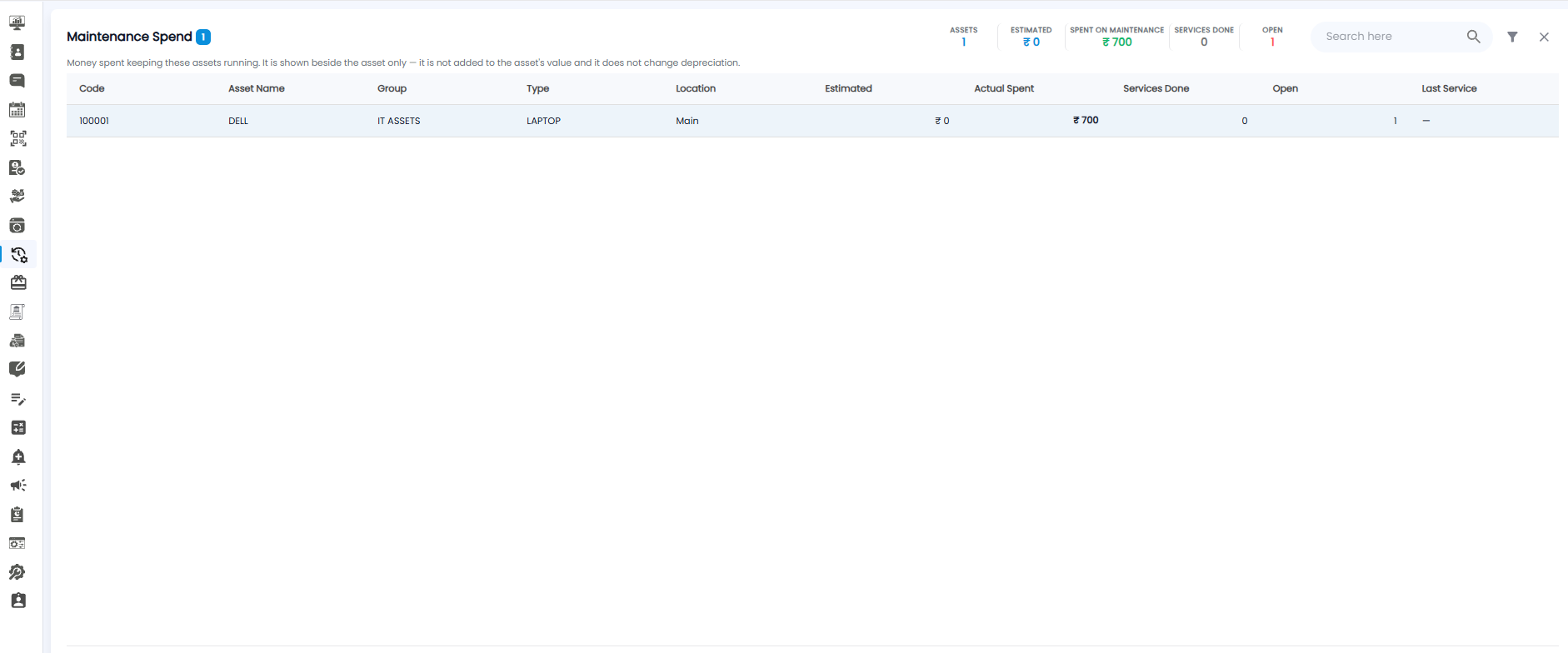
Summary Counters
| Counter | Description |
|---|---|
| Assets | The number of assets with service records |
| Estimated | The total estimated cost of their services (₹) |
| Spent on Maintenance | The total amount actually spent (₹) |
| Services Done | The number of services that have been completed |
| Open | The number of services still to be done |
Table Columns
| Column | Description |
|---|---|
| Code | The asset's code |
| Asset Name | The asset's name |
| Group / Type | The asset's group (e.g., IT Assets) and type (e.g., Laptop) |
| Location | Where the asset is kept |
| Estimated | The estimated cost of this asset's services (₹) |
| Actual Spent | The amount actually spent on this asset (₹) |
| Services Done | How many of its services have been completed |
| Open | How many of its services are still to be done |
| Last Service | The date of its most recent service, or — if none yet |
Use the Search here box or the filter icon to find an asset. Click the × at the top right to go back to the Service Due list.
Service Types
- AMC — Annual Maintenance Contract services
- Periodical Maintain — Regular scheduled maintenance
- Warranty PMS — Preventive maintenance under warranty
Adding a Service Due Record
- Navigate to Renewals > Service Due in the sidebar
- Click the + button at the top right
- Fill in the New Service Due form

Form Fields
Asset
| Field | Required | Description |
|---|---|---|
| Asset Name | Yes | Select the asset that requires servicing |
Basics
| Field | Required | Description |
|---|---|---|
| Title | Yes | The name of the service |
| Priority | No | How urgent the service is. Medium is selected by default |
| Due Date | Yes | When the service is due |
| Amount | Yes | The service amount (₹) |
| Description | No | Any extra detail about the service |
Attachment
Upload a service report, quote, or contract by clicking Choose Files or dragging the file into the attachment area.
Service Provider
Provider Name, Provider Email, Provider Contact, and Provider Address — all optional.
Service Details
| Field | Required | Description |
|---|---|---|
| Service Type | Yes | AMC, Periodical Maintain, or Warranty PMS |
| Service Interval Time | No | How often the service occurs |
| Estimated Cost | No | Expected service cost |
| Warranty Expiry | No | Relevant warranty expiry date |
| Last Service Date | No | When the asset was last serviced |
Setting Up Reminders
Before submitting, configure service reminders:
- Send Reminder Before — Select how long before the due date to send the reminder
- Repeat — Toggle to repeat the reminder at regular intervals
- Send Reminders Through — Tick one or more channels: Email, SMS, WhatsApp
Submitting the Form
Click Submit to save the service record, or Cancel to leave without saving.