
The Payments Menu
Click Payments in the sidebar to expand it. It has three sub-menus, each covered by its own article:
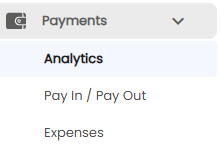
| Sub-menu | What it is for |
|---|---|
| Analytics | A picture of money coming in and going out (this article) |
| Pay In / Pay Out | Money in or out of your cash and bank that is not a customer receipt or vendor payment, and transfers between them |
| Expenses | Vendor bills that are not stock purchases — rent, services, repairs, or capital items |
Payments Analytics
Open Payments > Analytics. The line under the title shows the period you are looking at and when the figures were worked out, for example Showing Last 3 Months (2026-07-05 to 2026-10-05) · as on 2026-10-05 18:55:22 IST.
- Pick the period from the drop-down at the top right, for example Last 3 Months. Every tab follows it.
- Switch between the four tabs: Overview, Money In, Money Out, and Bank & Cheques.
Most cards compare the period with the previous period of the same length. When there is nothing to compare with, the card says no data for last period.
Overview
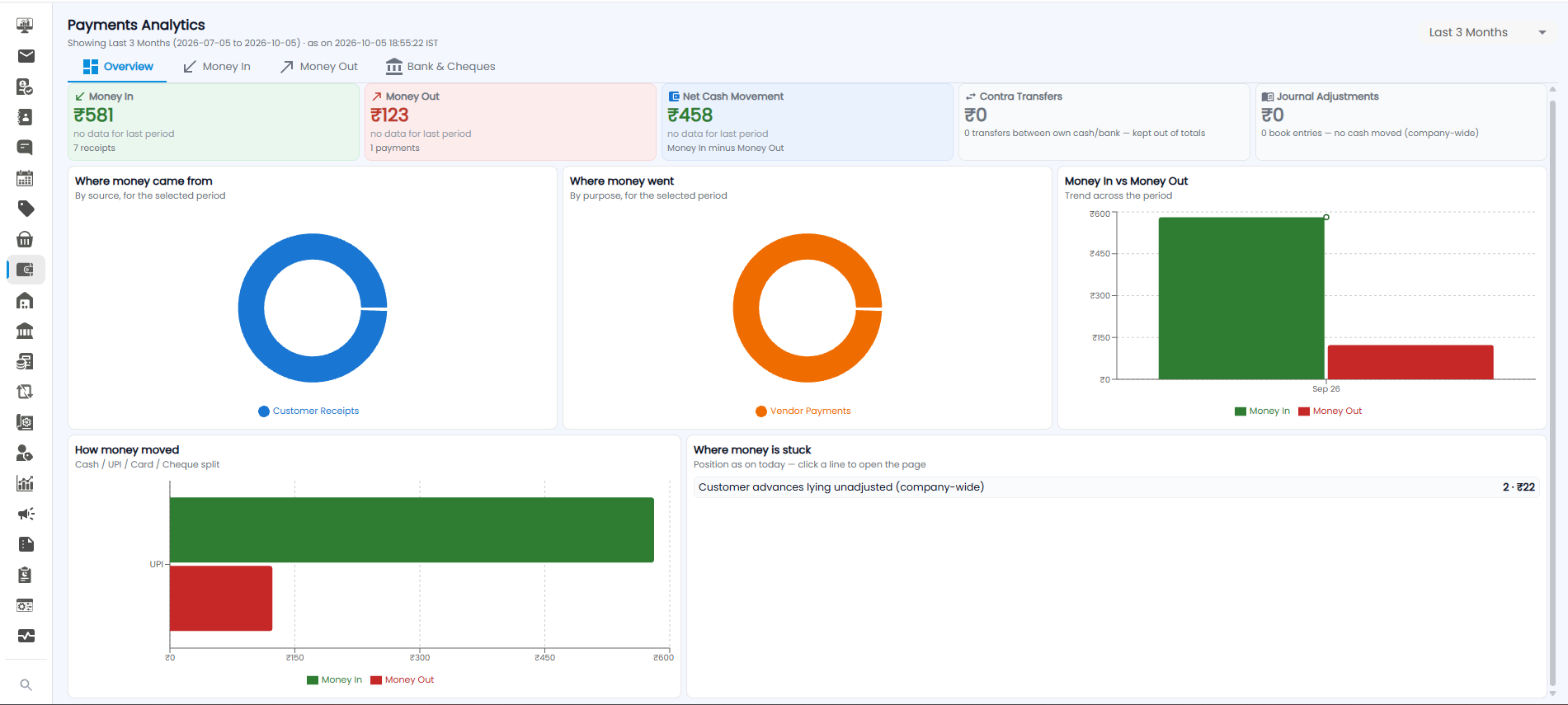
Cards
| Card | What it shows |
|---|---|
| Money In | All money received in the period, and how many receipts |
| Money Out | All money paid out in the period, and how many payments |
| Net Cash Movement | Money In minus Money Out |
| Contra Transfers | Transfers between your own cash and bank accounts. They are kept out of the totals, because no money entered or left the business |
| Journal Adjustments | Book entries where no cash moved, across the whole company |
Charts
| Chart | What it shows |
|---|---|
| Where money came from | Money In by source, for example Customer Receipts |
| Where money went | Money Out by purpose, for example Vendor Payments |
| Money In vs Money Out | Both side by side, month by month across the period |
| How money moved | The split by payment mode — Cash, UPI, Card, or Cheque |
| Where money is stuck | The position as on today, for example Customer advances lying unadjusted, with the count and amount. Click a line to open the page where you can deal with it |
Money In
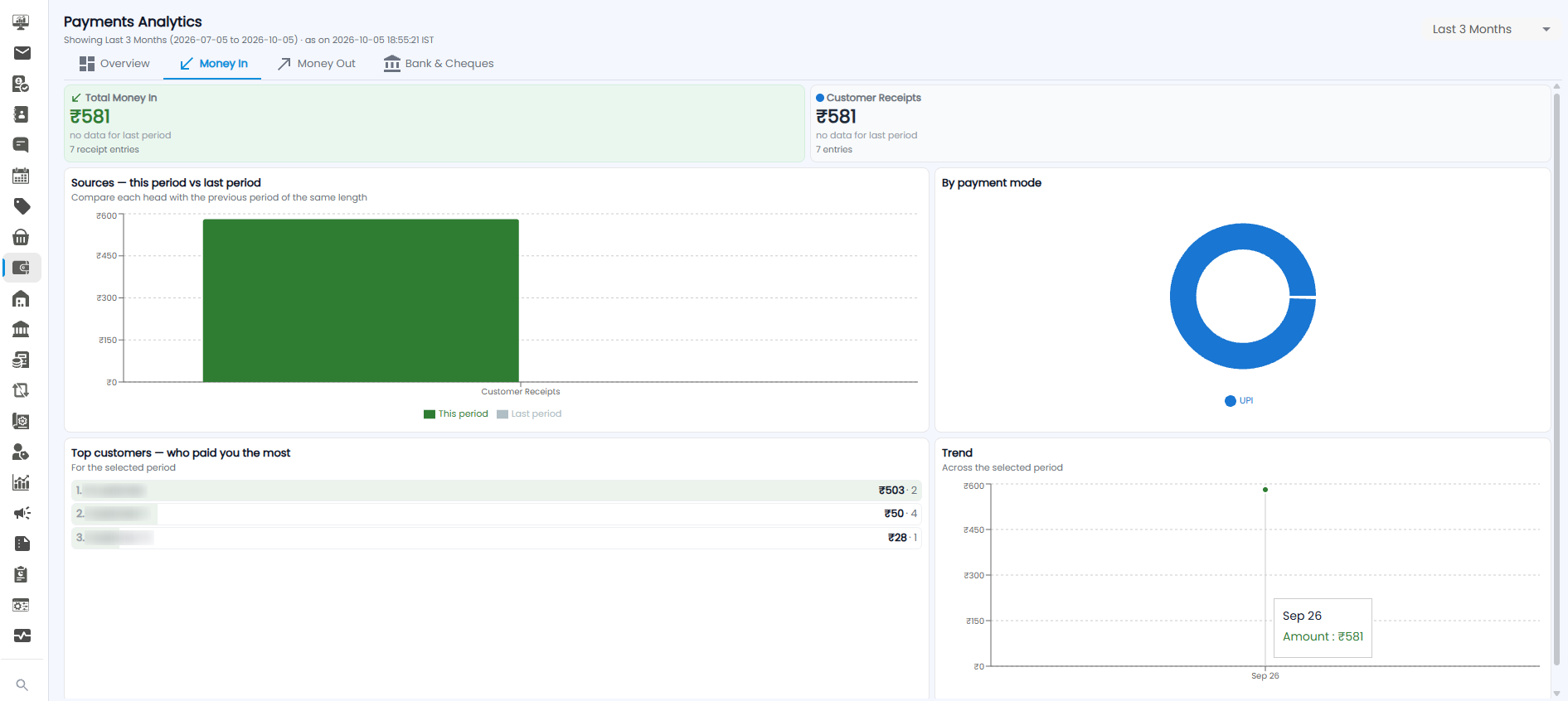
- Total Money In — everything received, and how many receipt entries. A card next to it shows each source, for example Customer Receipts.
- Sources — this period vs last period — each source compared with the previous period of the same length.
- By payment mode — how the money came in, for example UPI.
- Top customers — who paid you the most — customers ranked by amount, with the amount and the number of payments (for example ₹503 · 2).
- Trend — Money In across the period. Hover over a point to see the month and amount.
Money Out
| Card | What it shows |
|---|---|
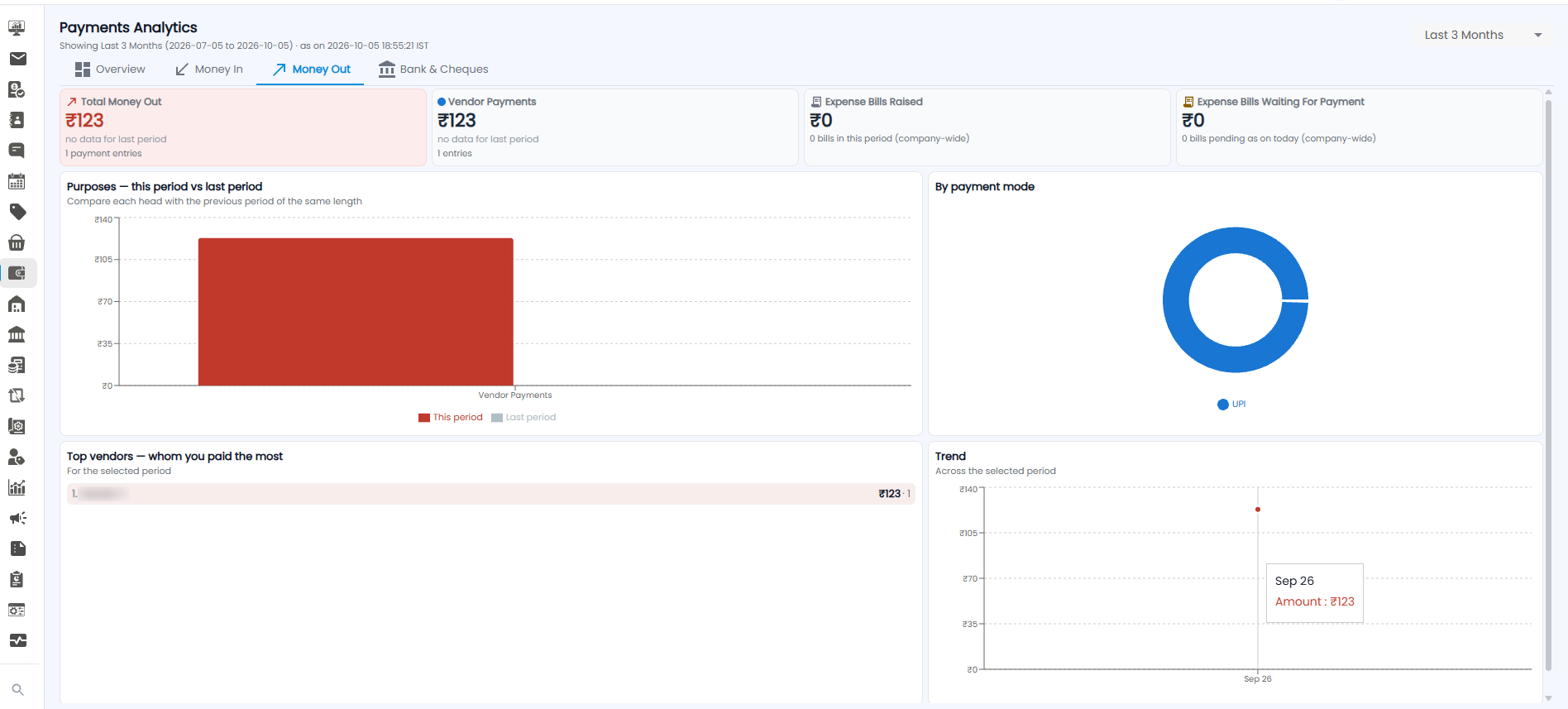
| Total Money Out | Everything paid out, and how many payment entries |
| Vendor Payments | Money paid to vendors |
| Expense Bills Raised | Expense bills recorded in the period, across the whole company |
| Expense Bills Waiting For Payment | Expense bills still unpaid as on today, across the whole company |
Below the cards: Purposes — this period vs last period, By payment mode, Top vendors — whom you paid the most, and a Trend line, which work the same way as on the Money In tab.
Bank & Cheques
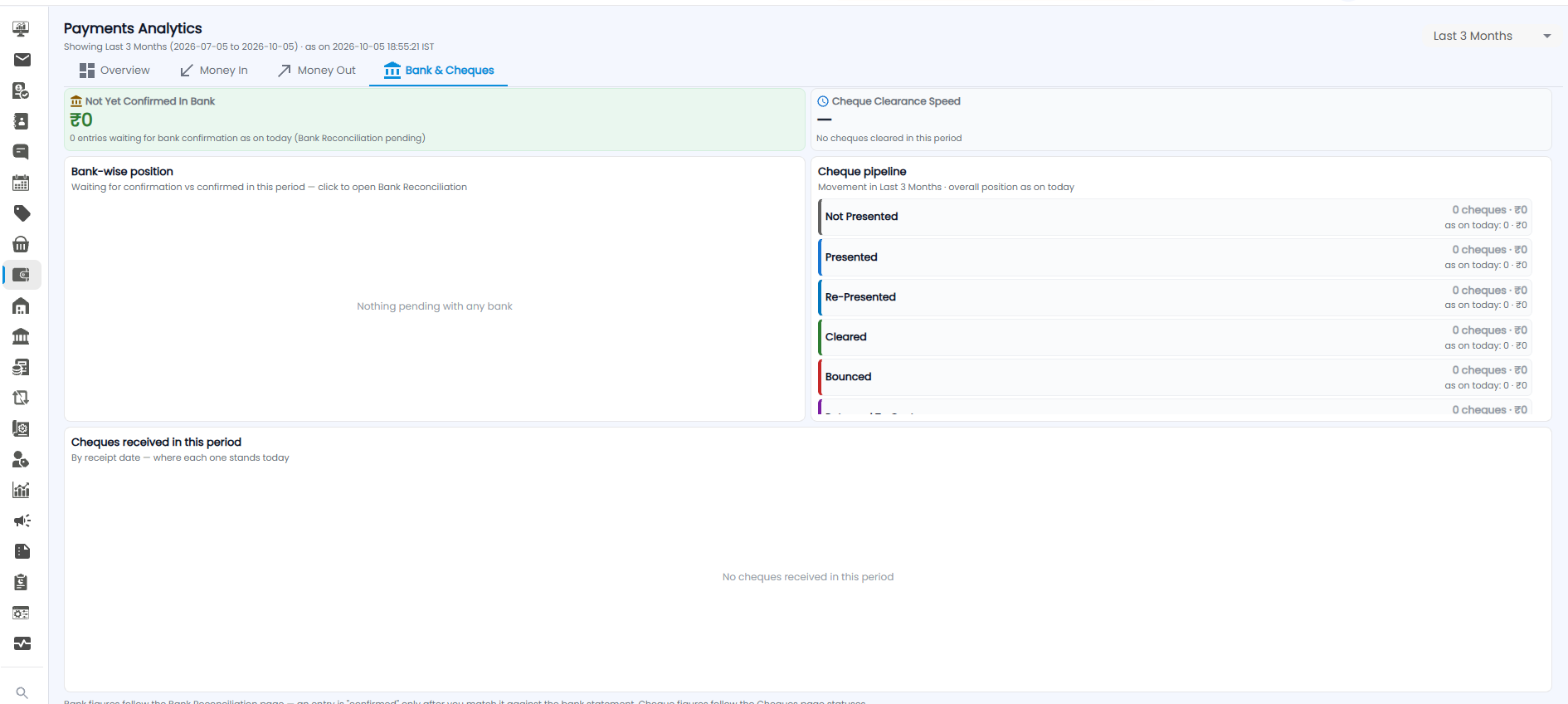
| Section | What it shows |
|---|---|
| Not Yet Confirmed In Bank | Entries still waiting for bank confirmation as on today — Bank Reconciliation is pending for them |
| Cheque Clearance Speed | How fast cheques clear. It shows a dash when no cheques cleared in the period |
| Bank-wise position | For each bank, what is waiting for confirmation and what was confirmed in the period. Click a bank to open Bank Reconciliation |
| Cheque pipeline | Cheques by status — Not Presented, Presented, Re-Presented, Cleared, Bounced, and more as you scroll. Each status shows the count and amount for the period, and the overall position as on today |
| Cheques received in this period | Cheques by receipt date, and where each one stands today |
Note: An entry counts as confirmed only after you match it against the bank statement on the Bank Reconciliation page. Cheque figures follow the statuses on the Cheques page.
Tip: Check Where money is stuck on the Overview tab every week — unadjusted customer advances and unconfirmed bank entries are easy to forget.