
Overview
Pay In / Pay Out records money that comes into or leaves your cash or bank and is not a customer receipt or a vendor payment — for example paying a tax, or moving cash into the bank. Open Payments > Pay In / Pay Out.
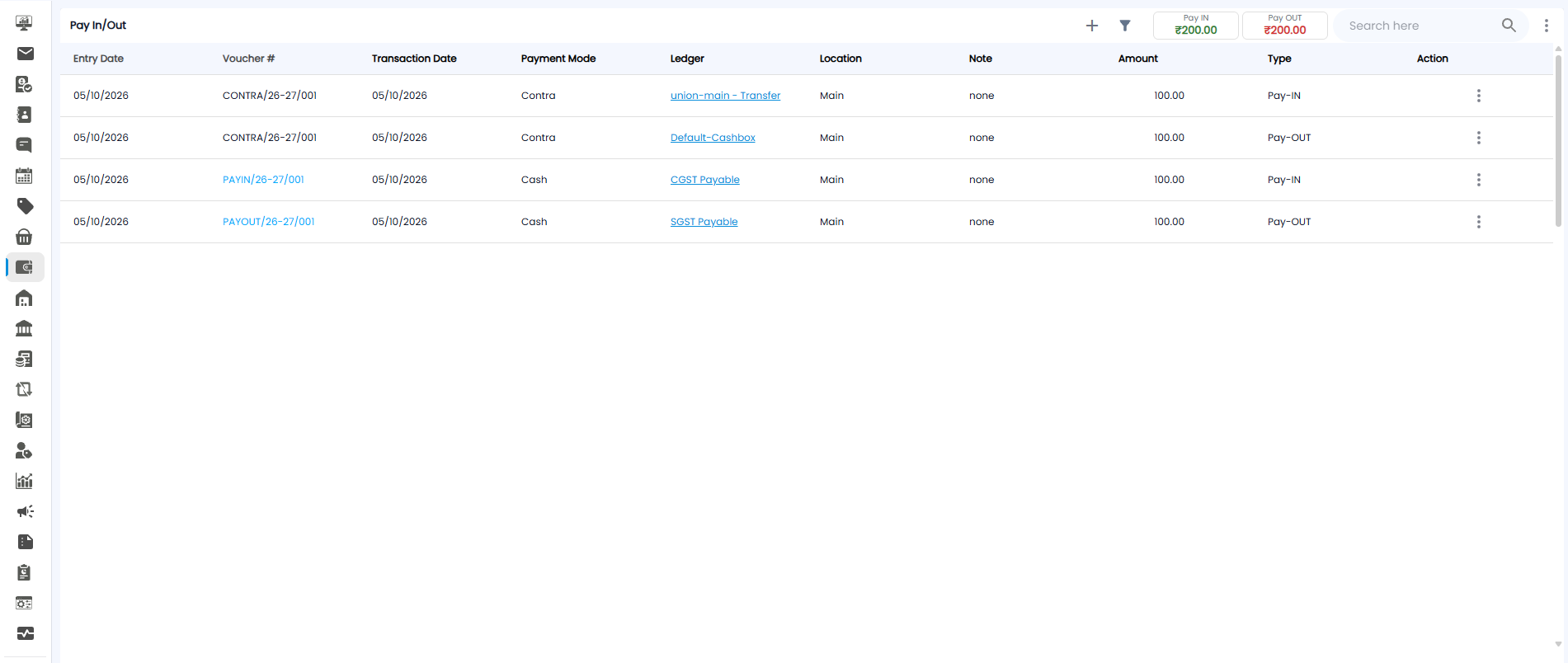
The Pay In/Out List
The Pay IN (green) and Pay OUT (red) boxes at the top show the totals of the entries in the list.
| Column | What it shows |
|---|---|
| Entry Date / Transaction Date | When the entry was made, and when the money actually moved |
| Voucher # | For example PAYIN/26-27/001, PAYOUT/26-27/001, or CONTRA/26-27/001. Click a Pay In or Pay Out number to open it |
| Payment Mode | For example Cash, or Contra for a transfer |
| Ledger | The ledger the money was posted to, for example CGST Payable. The name links to the ledger |
| Location / Note | For example Main, and any note |
| Amount / Type | How much, and whether it is Pay-IN or Pay-OUT |
| Action | ⋮ gives more actions |
A contra entry shows as two rows with the same voucher number: a Pay-OUT from the account the money left (for example Default-Cashbox) and a Pay-IN to the account it went to (for example union-main - Transfer).
Use + to add an entry, the filter icon to narrow the list, and Search here to find one.
Recording an Entry
Click +. The form opens with the next voucher number at the top right, for example PAYOUT/26-27/002. The ? icon next to it opens the full guide.
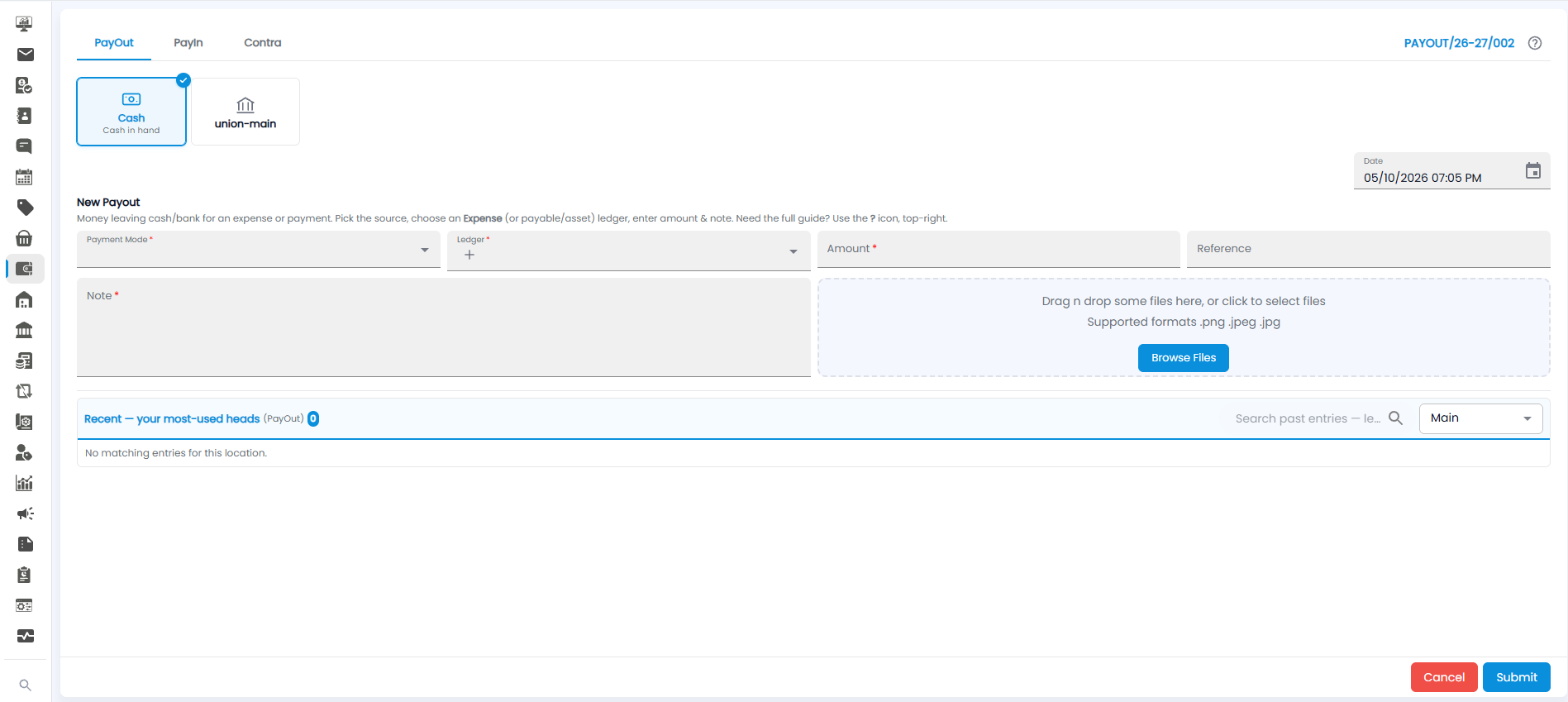
Choose the kind of entry from the tabs at the top:
- PayOut — money leaving cash or bank for an expense or payment
- PayIn — money coming into cash or bank
- Contra — moving money between your own cash and bank accounts
- Pick the source card — Cash (cash in hand) or one of your bank accounts, for example union-main. The selected card is ticked
- Check the Date at the top right (now by default)
- Fill in the fields below
- Click Submit, or Cancel to leave without saving
| Field | Required | Description |
|---|---|---|
| Payment Mode | Yes | How the money moved |
| Ledger | Yes | For a payout, an Expense ledger (or a payable or asset ledger). Click + to add a new ledger |
| Amount | Yes | How much |
| Reference | No | A bill number, cheque number, or transaction ID |
| Note | Yes | What the entry is for |
| Attachment | No | Drag a file onto the box, or click Browse Files. Supported formats: .png, .jpeg, .jpg |
Recent Entries
Below the form, Recent — your most-used heads lists the ledgers you use most for this kind of entry, with a count. Use Search past entries to find an earlier one, and the drop-down on the right (for example Main) to pick the location. It says No matching entries for this location until you have made some.