
How do I take payment for a repair?
Open the job card from Services → New Service and click Collect payment in the Billing panel. Choose how the customer is paying, enter the amount (or click Full balance), fill in the cashbox, reference or cheque details and click Collect. Every payment then appears on Services → Payment with the job ID, customer, payment type, date and amount.
How do I collect a payment?
- Open the job card and click Collect payment in Billing. It is disabled once the job is settled.
- The dialog shows the customer and the ESTIMATE, COLLECTED and BALANCE, and what has already been collected.
- Step 1 — How is the customer paying? Choose a payment method.
- Step 2 — Amount. Enter the amount in whole rupees, or click Full balance. It must be more than zero and cannot be more than the balance outstanding.
- Step 3 — details. For cash choose the Cashbox; for UPI or NEFT enter the Reference / UTR number; for a cheque enter the Cheque number, Cheque date and Bank. Add Remarks (optional).
- Click Collect ₹….
What does the Payment page show?
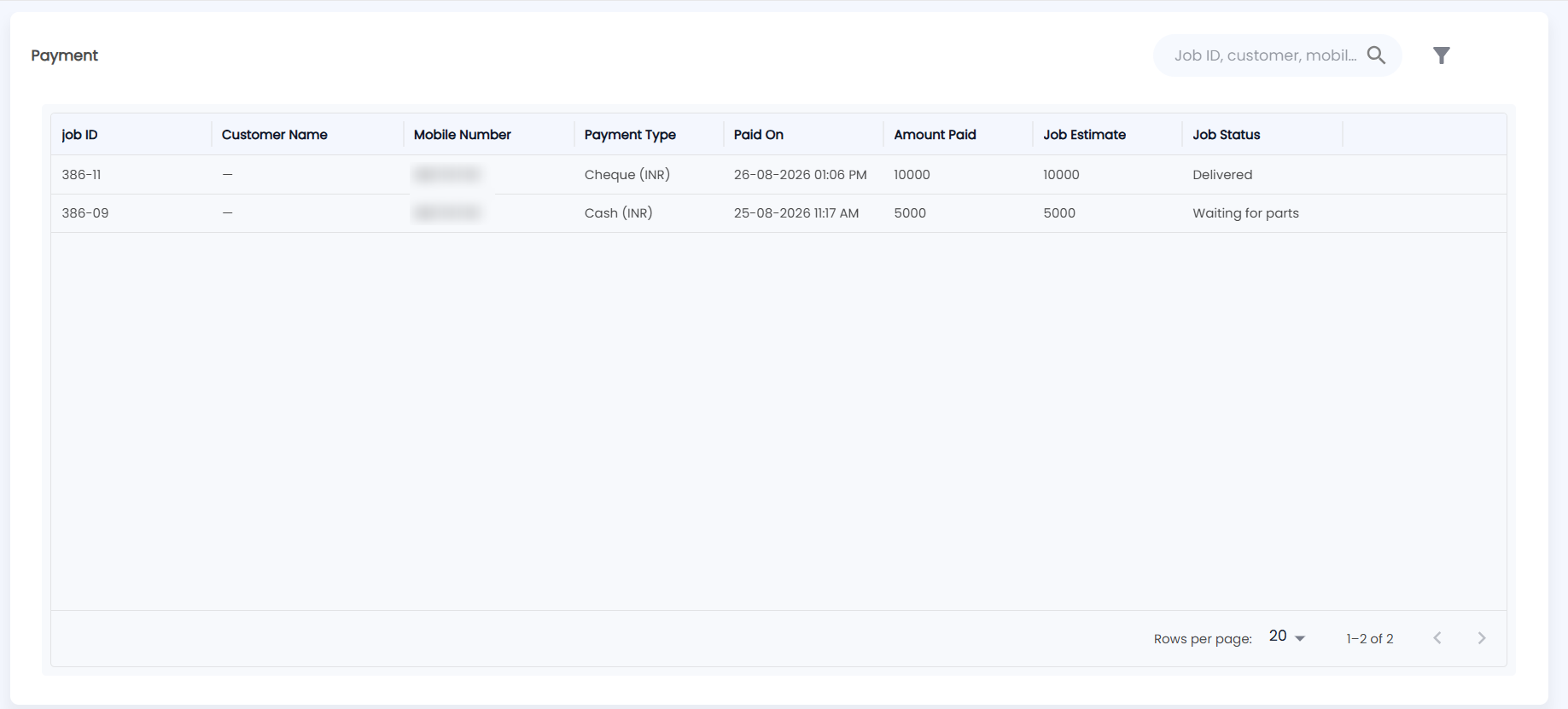
Open Services → Payment. The list shows every payment taken against job cards, 20 per page by default:
| Column | Description |
|---|---|
| job ID | The job card the payment is for |
| Customer Name / Mobile Number | Who paid |
| Payment Type | The method used, for example Cash (INR) or Cheque (INR) |
| Paid On | Date and time of the payment |
| Amount Paid | This payment's amount |
| Job Estimate | The job card's estimate |
| Job Status | The job card's current status |
How do I filter payments?
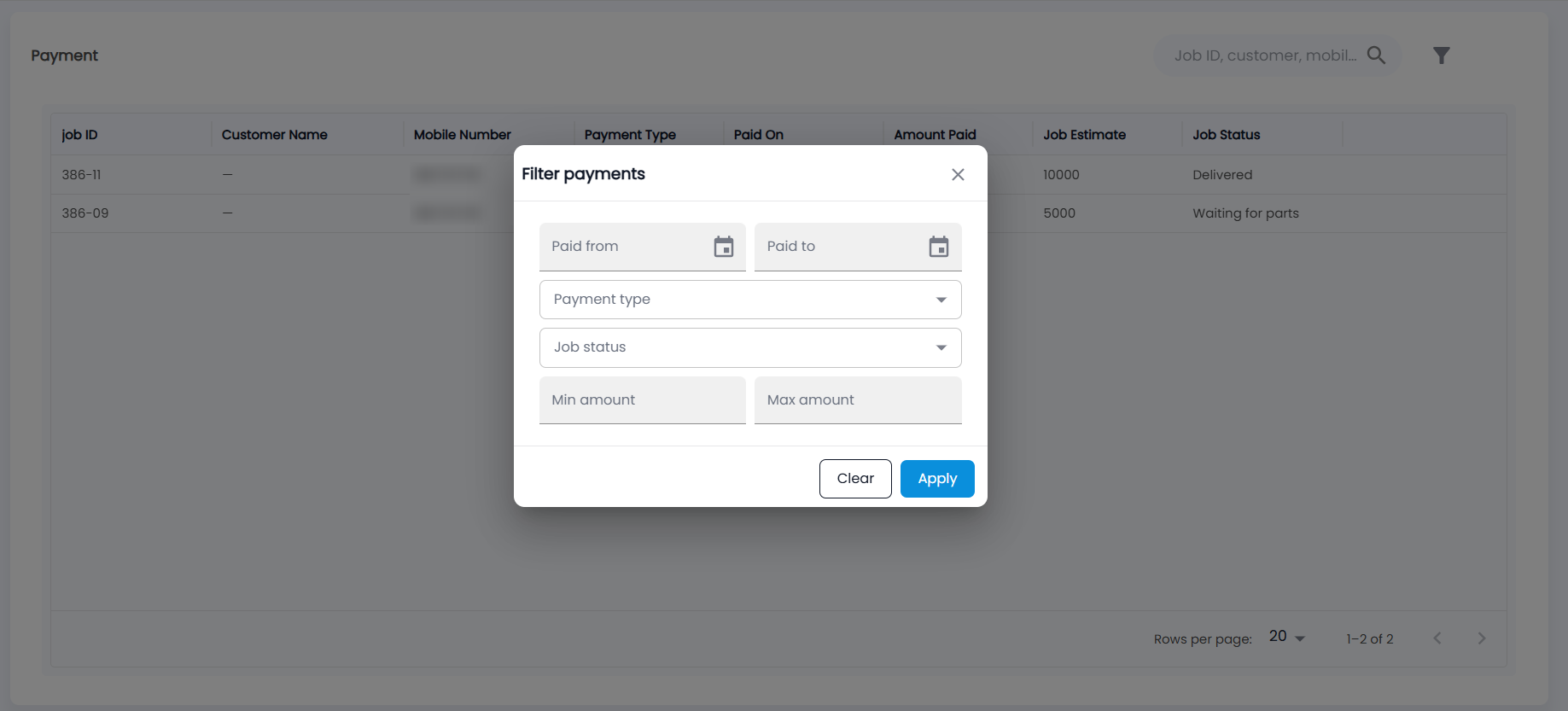
Search by job ID, customer or mobile number (Job ID, customer, mobile…), or click the filter icon to open Filter payments: Paid from, Paid to, Payment type, Job status, Min amount and Max amount. Click Apply. Each active filter shows as a chip above the list — remove one with its ×, or click Clear all.
Related: New Service and Service Dashboard.