
The Projects Menu
The sidebar on the left takes you to every part of Tazk Projects:
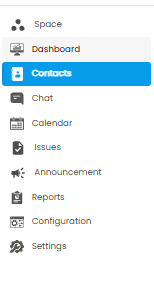
| Menu | What it is for |
|---|---|
| Space | Your projects and their work |
| Dashboard | Everything you need at a glance (this article) |
| Contacts | Your employee directory |
| Chat | Messaging your team |
| Calendar | Dates and deadlines |
| Issues | Work items to track and resolve |
| Announcement | Messages to your team |
| Reports | Reports on projects and people |
| Configuration / Settings | How Tazk Projects works for your company |
The Dashboard
Click Dashboard in the sidebar. It greets you by name and shows today's date at the top right.
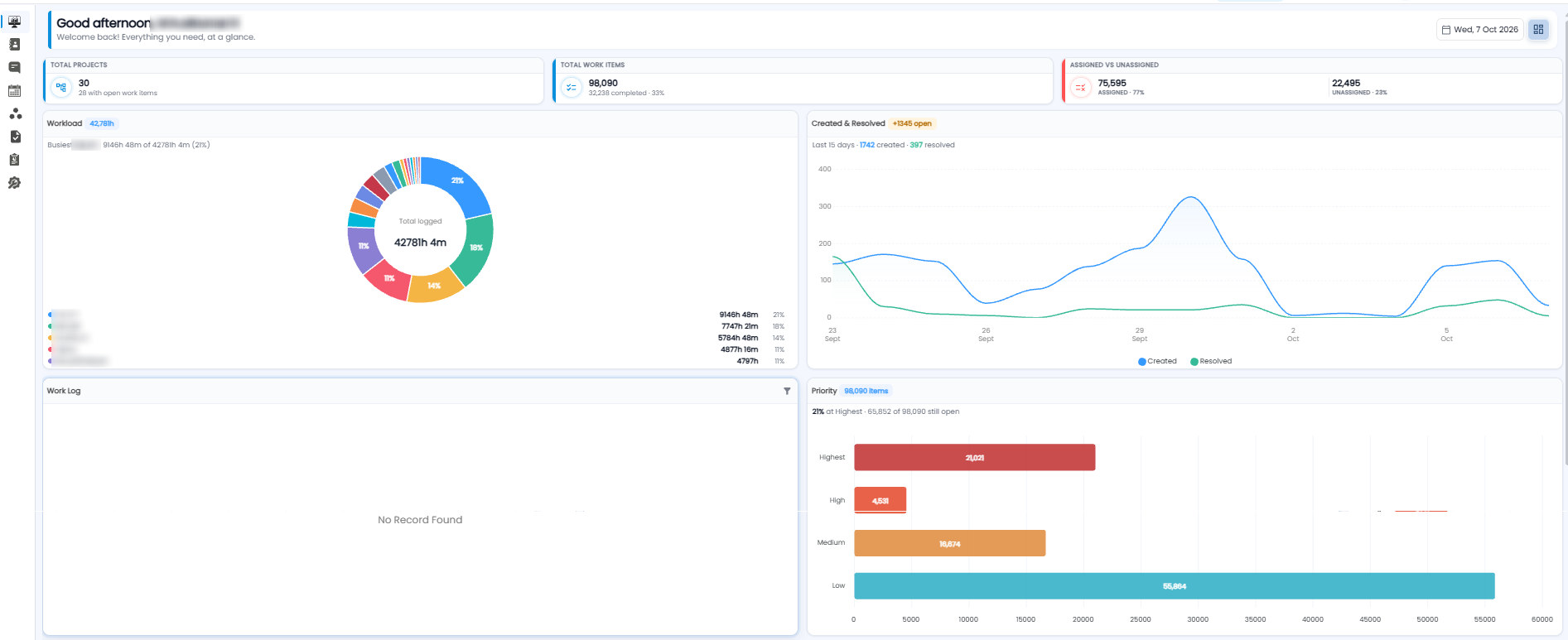
Tiles
| Tile | What it shows |
|---|---|
| Total Projects | All projects, and how many still have open work items |
| Total Work Items | All work items, and how many are completed (with the percentage) |
| Assigned vs Unassigned | Work items that have someone assigned, and those that do not, with the share of each |
Workload
The total time logged across your team, shown as a ring split by person. The line above it names the busiest person and their share. Below, each person is listed with their hours and percentage.
Created & Resolved
Work items created and resolved each day over the last 15 days — Created in blue, Resolved in green. The badge shows how many more were created than resolved, still open. When the blue line stays above the green, work is piling up.
Work Log
Time logged against work items. Use the filter icon to narrow it. It says No Record Found when nothing has been logged.
Priority
Work items by priority — Highest, High, Medium, and Low — with the share at Highest and how many are still open.
Employee Report

The badges show how many people are listed and how many work items are overdue. Each row shows an employee with a bar for their load, and their Assigned, Open, Completed, and Overdue work items.