
Overview
Contacts holds your Employee Directory — everyone in your organisation. Click Contacts in the sidebar. The count next to Employee on the left is the number of employees.
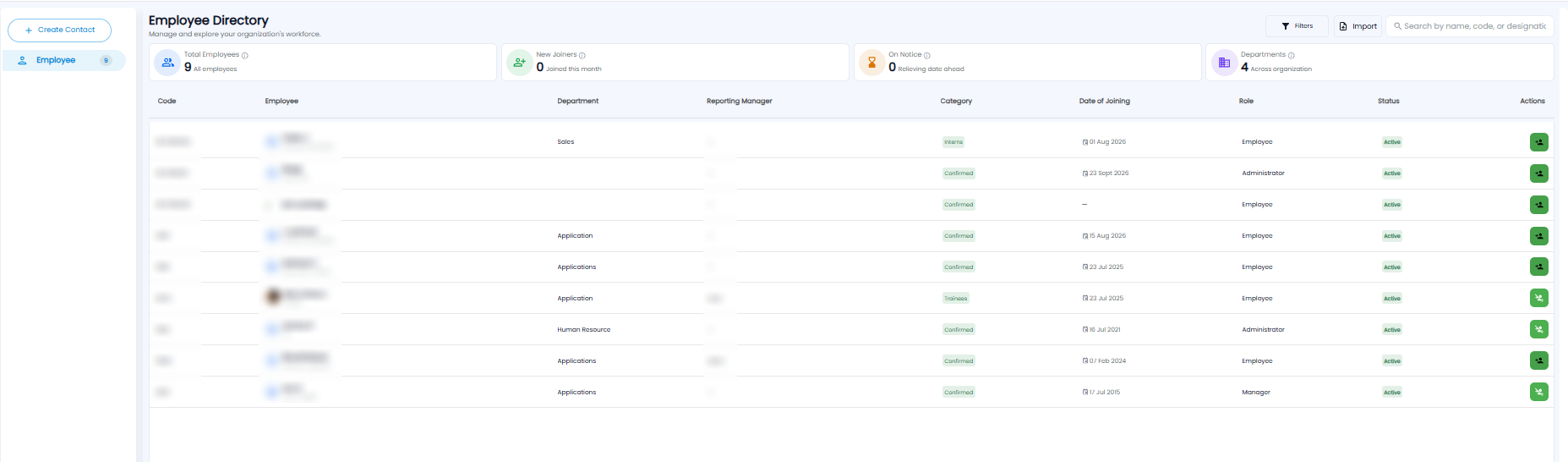
Tiles
| Tile | What it shows |
|---|---|
| Total Employees | All employees |
| New Joiners | Employees who joined this month |
| On Notice | Employees with a relieving date ahead |
| Departments | How many departments there are across the organisation |
The Employee List
| Column | What it shows |
|---|---|
| Code | The employee code |
| Employee | Name and designation |
| Department / Reporting Manager | Where they work, and who they report to |
| Category | For example Confirmed, Interns, or Trainees |
| Date of Joining | When they joined |
| Role | Their role in Tazk, for example Employee, Manager, or Administrator |
| Status | For example Active |
| Actions | The green button opens actions for the employee |
Use Search to find someone by name, code, or designation, Filters to narrow the list, and Import to add many employees from a file.
Adding an Employee
Click + Create Contact to open New Employee. It has three steps: Personal Info, Application Info, and Payroll Info. Fields marked * are required.
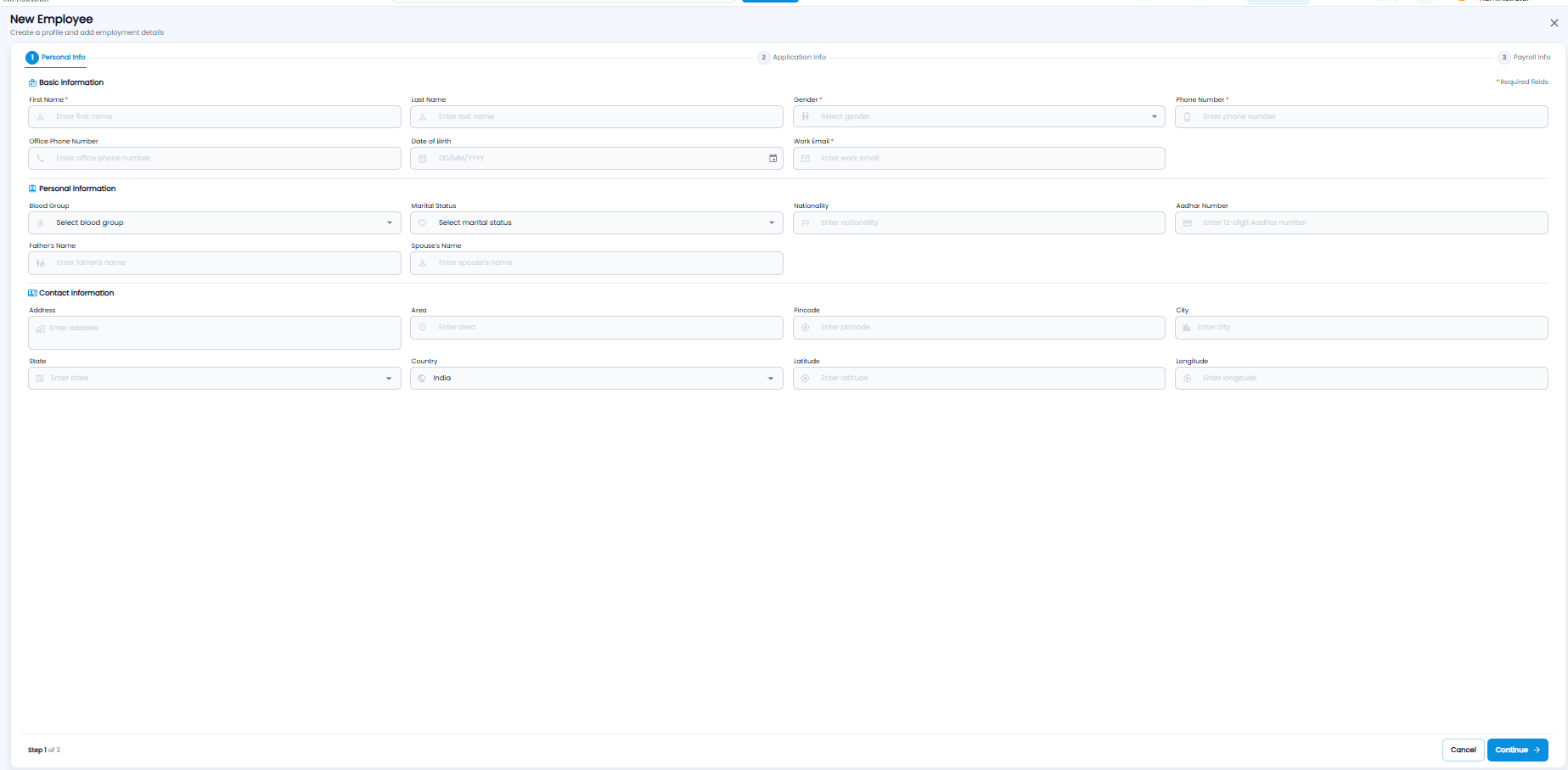
| Section | Fields |
|---|---|
| Basic information | First Name*, Last Name, Gender*, Phone Number*, Office Phone Number, Date of Birth, Work Email* |
| Personal information | Blood Group, Marital Status, Nationality, Aadhar Number (12 digits), Father's Name, Spouse's Name |
| Contact information | Address, Area, Pincode, City, State, Country (India by default), Latitude, Longitude |
Click Continue to go to the next step, or Cancel (or ×) to leave without saving.
Note: Employees are who you assign work items to, so add your team here before you start a project.