
Overview
Chat lets you message your colleagues one-to-one without leaving Tazk Projects. Click Chat in the sidebar.
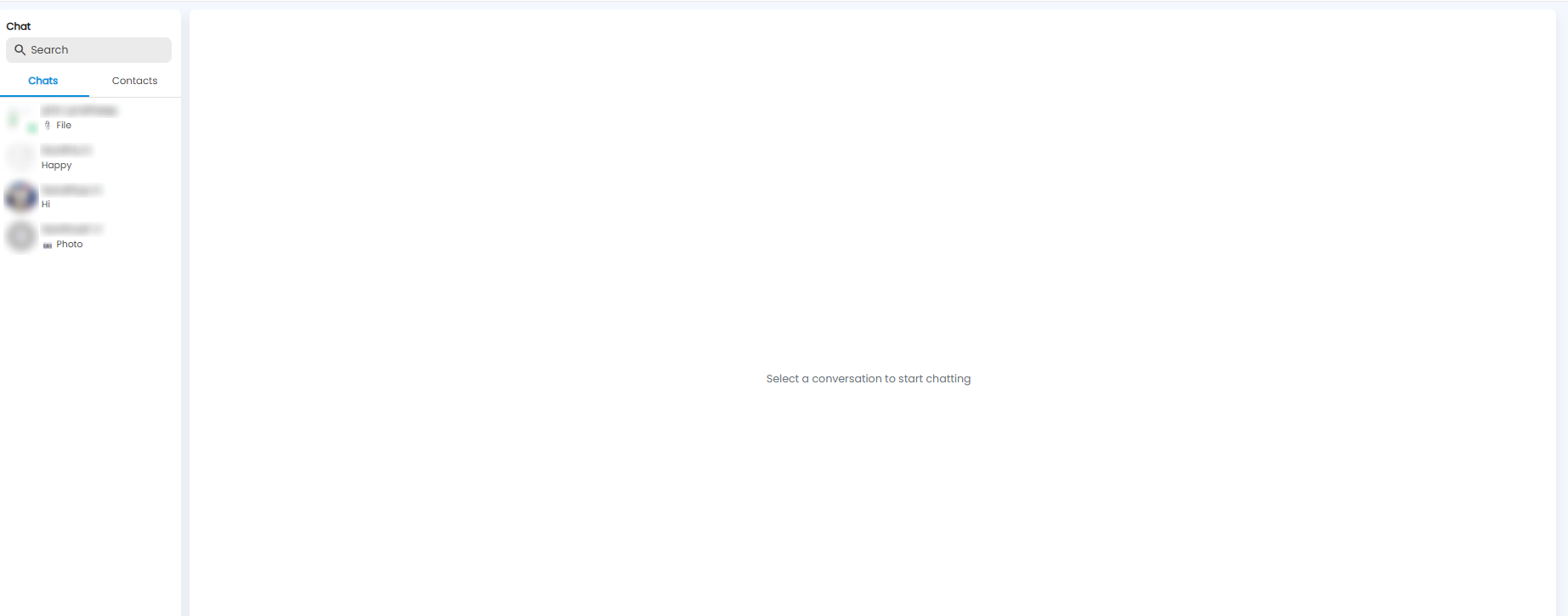
The page has two parts: your conversations on the left, and the open conversation on the right. Until you pick one, the right side says Select a conversation to start chatting.
Chats and Contacts
- Chats — the people you have talked to, most recent first. Each shows the person's name and picture and the last message — text such as Hi, or File or Photo when an attachment was sent. A green dot on the picture means the person is online
- Contacts — everyone you can chat with. Click a name to start a new conversation
Use Search at the top to find a person or conversation.
Having a Conversation
- Click a conversation on the Chats tab, or a person on the Contacts tab
- The conversation opens on the right, with your earlier messages
- Type your message and send it
Tip: Use Chat for quick questions about a work item — it keeps the conversation inside Tazk, next to the work.