
Overview
The Claims page is where you manage employee claims and reimbursements — money an employee has spent and wants paid back, backed by a bill. Click Claims in the sidebar to open it.
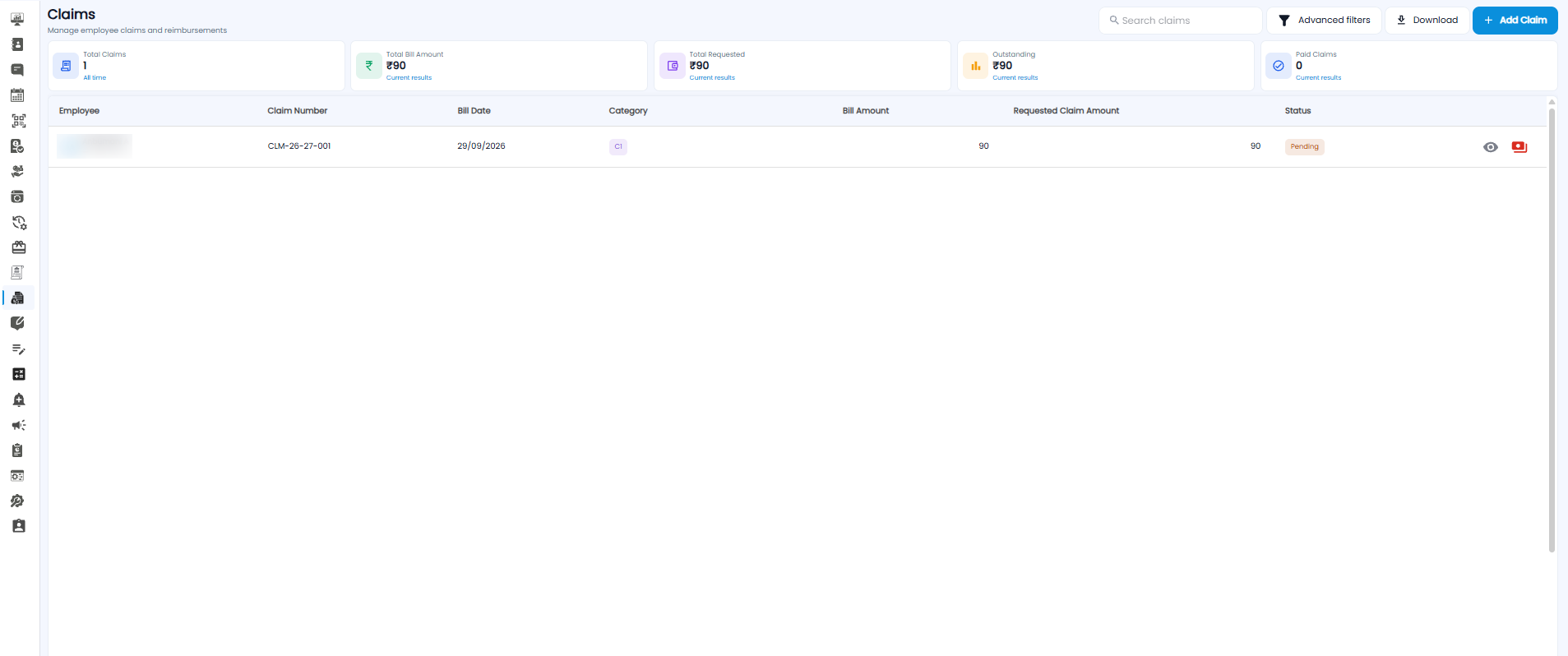
Summary Cards
| Card | What it shows |
|---|---|
| Total Claims | The number of claims, for all time |
| Total Bill Amount | The total of the bills behind the claims shown (₹) |
| Total Requested | The total amount employees have asked to be paid (₹) |
| Outstanding | The amount still to be paid (₹) |
| Paid Claims | How many claims have been paid |
Cards marked Current results add up only the claims currently shown, so they change when you search or filter.
Table Columns
| Column | What it shows |
|---|---|
| Employee | Who raised the claim |
| Claim Number | The claim's reference number, for example CLM-26-27-001 |
| Bill Date | The date on the bill |
| Category | The kind of claim |
| Bill Amount | The total on the bill |
| Requested Claim Amount | The amount the employee is claiming |
| Status | Where the claim is, for example Pending |
Click the eye icon at the end of a row to view the claim. The red icon next to it gives another action on the claim — hover over it to see what it does.
Searching, Filtering, and Downloading
- Search claims — find a claim quickly.
- Advanced filters — narrow the list, for example by status or date.
- Download — download the claims shown.
Adding a Claim
- Click + Add Claim at the top right
- The New Requests form opens on the Claims tab
- Fill in the claim details
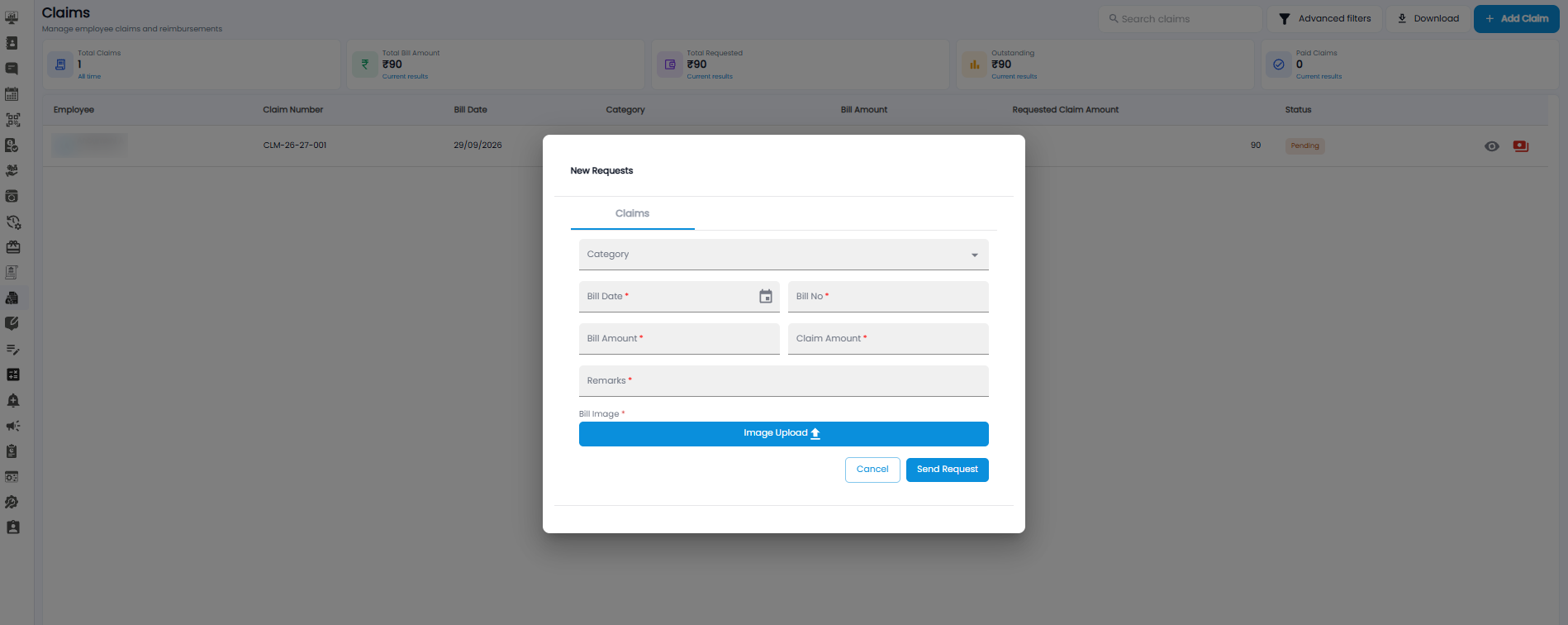
Form Fields
| Field | Required | Description |
|---|---|---|
| Category | No | The kind of claim. Pick one from the dropdown |
| Bill Date | Yes | The date on the bill. Click the calendar icon to pick it |
| Bill No | Yes | The number printed on the bill |
| Bill Amount | Yes | The total amount on the bill |
| Claim Amount | Yes | The amount you are claiming |
| Remarks | Yes | A short explanation of the claim |
| Bill Image | Yes | A photo or scan of the bill. Click Image Upload to add it |
Sending the Claim
Click Send Request to submit the claim, or Cancel to close the form without sending. The new claim appears in the list with the status Pending.
Note: You can also raise a claim from the Claims tab of Approvals, which uses a similar form.
Tip: Upload a clear image of the bill — the Bill Image is required, and it lets whoever reviews the claim check the amounts.