
Overview
The Bills page keeps a record of the bills your company receives from vendors — for example rent, repairs, or purchases. Click bills in the sidebar to open it.
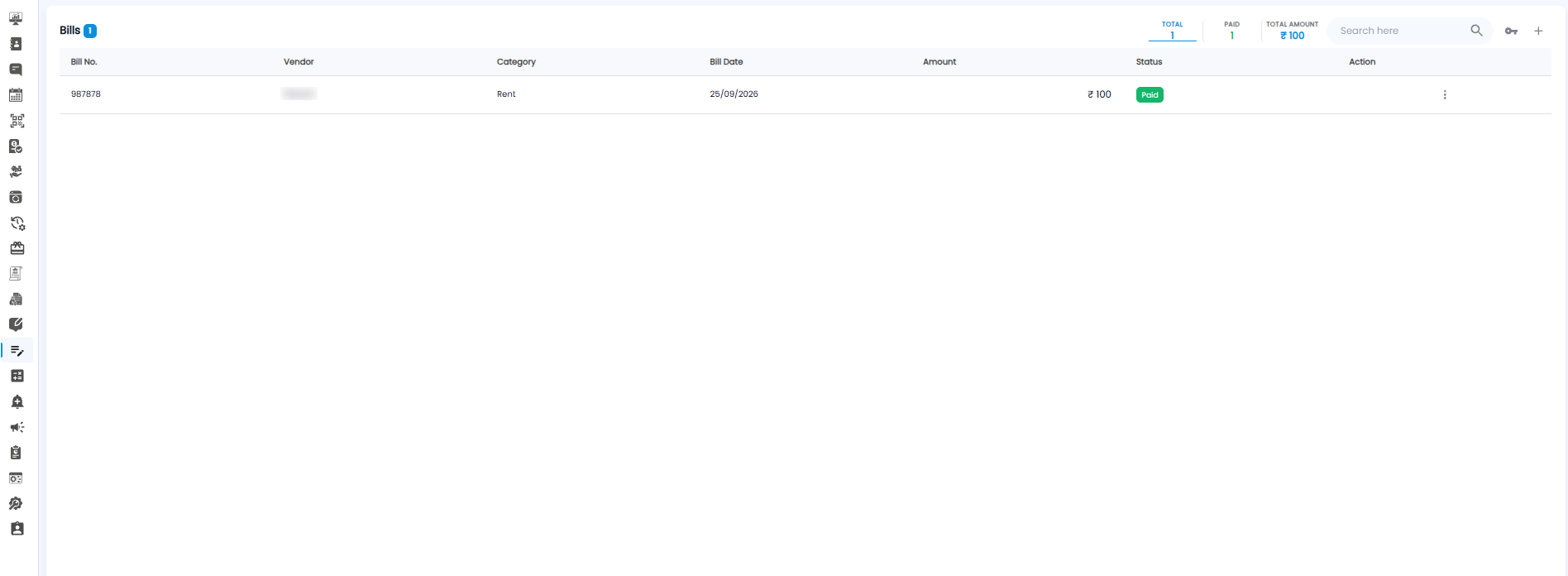
Summary Counters
The badge next to the Bills heading shows how many bills you have. The counters beside it break that down:
| Counter | What it shows |
|---|---|
| Total | All bills |
| Paid | Bills that have been paid |
| Total Amount | The total of all bills (₹) |
The counter you are viewing is underlined — Total by default.
Table Columns
| Column | What it shows |
|---|---|
| Bill No. | The number on the bill |
| Vendor | Who the bill is from |
| Category | What the bill is for, for example Rent |
| Bill Date | The date on the bill |
| Amount | The bill amount (₹) |
| Status | For example Paid |
| Action | Click the ⋮ (three dots) for that bill's actions |
Adding a Bill
- Click the + button at the top right
- The New Bill form opens
- Fill in the four sections of the form
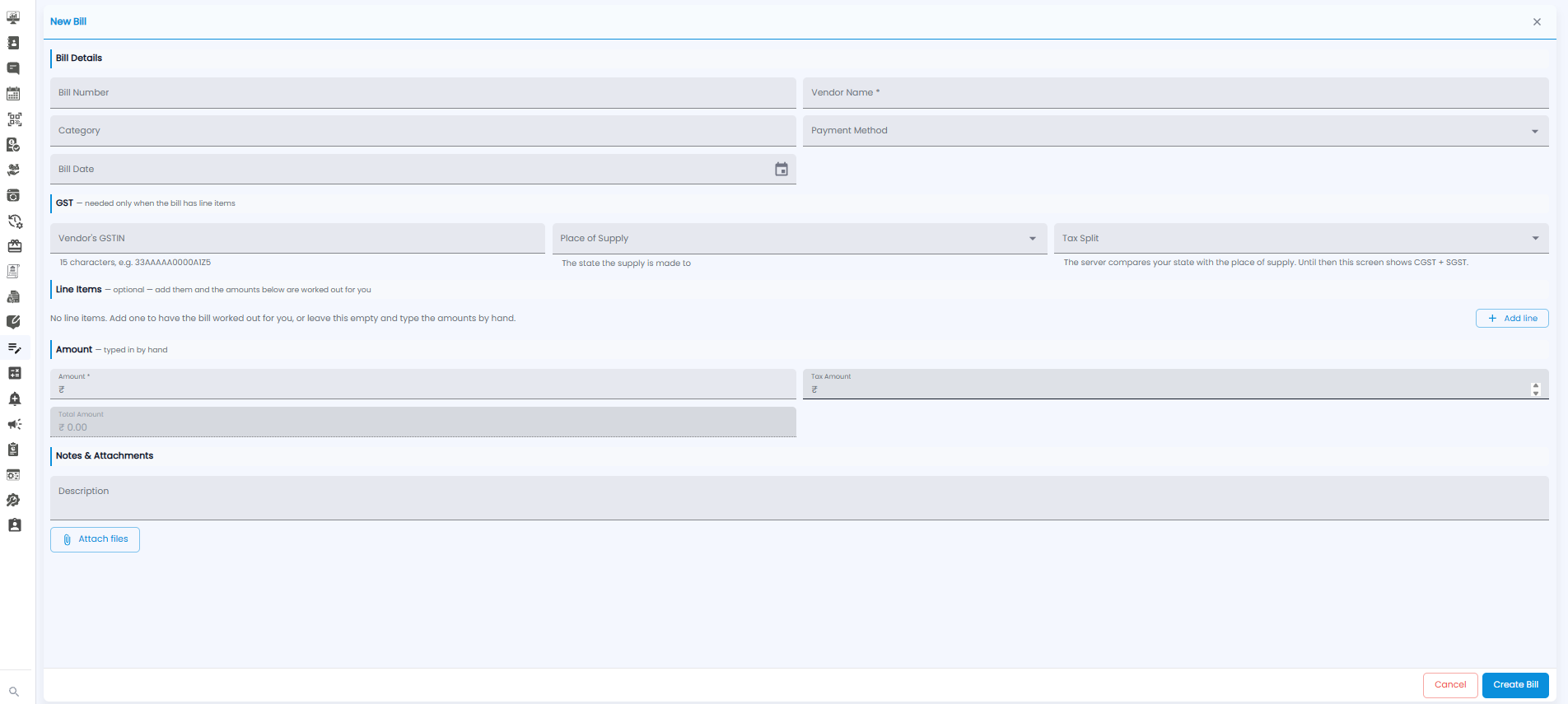
Bill Details
| Field | Required | Description |
|---|---|---|
| Bill Number | No | The number printed on the bill |
| Vendor Name | Yes | Who the bill is from |
| Category | No | What the bill is for, for example Rent |
| Payment Method | No | How the bill was or will be paid |
| Bill Date | No | The date on the bill. Click the calendar icon to pick it |
GST
Fill in this section only when the bill has line items.
| Field | Description |
|---|---|
| Vendor's GSTIN | The vendor's 15-character GST number, for example 33AAAAA0000A1Z5 |
| Place of Supply | The state the supply is made to |
| Tax Split | How the tax is split. Tazk compares your company's state with the place of supply to work this out; until it does, the form shows CGST + SGST |
Line Items (Optional)
Click + Add line to add each item on the bill. When you add line items, the amounts below are worked out for you. If you leave this empty, type the amounts in by hand instead.
Amount
| Field | Required | Description |
|---|---|---|
| Amount (₹) | Yes | The bill amount before tax |
| Tax Amount (₹) | No | The tax on the bill |
| Total Amount | Auto | Amount plus tax, worked out for you |
Notes & Attachments
Add a Description if you need one, and click Attach files to upload a copy of the bill.
Creating the Bill
Click Create Bill at the bottom right to save it, or Cancel (or the × at the top right) to leave without saving. The new bill appears in the Bills list.