
How do I process salary for the month in Tazk Payroll?
Open Salary Process and click New Salary Process. Step 1, choose the month and year, upload a deductions file if needed, pick the employees and click Continue. Step 2 shows each employee's calculated salary. Step 3, send it for approval (if your company uses approval) and click Confirm payroll to lock it. Step 4, release the payslips and export the bank report. Each run is listed in Salary Process History.
What does the Salary Process page show?
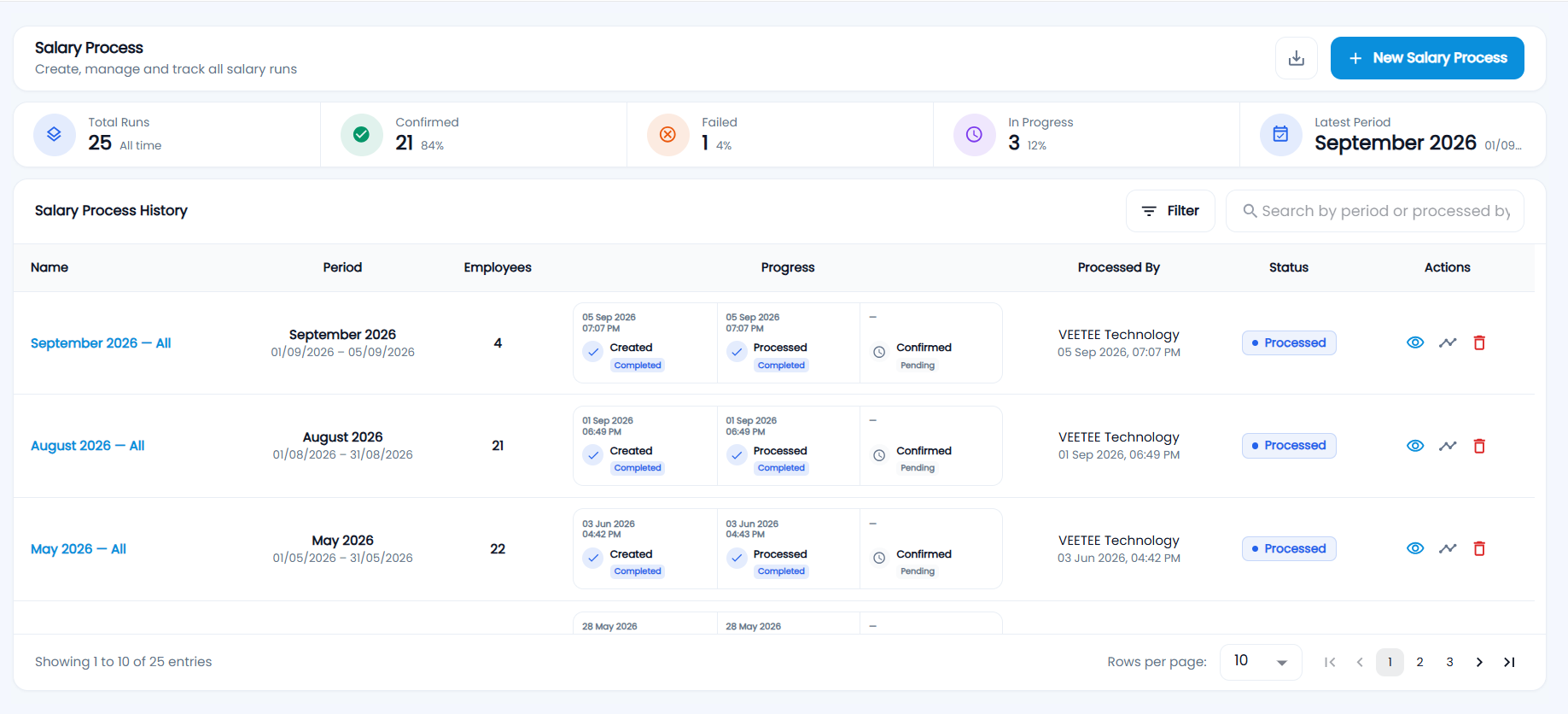
"Create, manage and track all salary runs". The cards count Total Runs, Confirmed, Failed and In Progress (any run not yet confirmed or failed), and show the Latest Period with its cycle dates. Click a card to filter the list by that status.
| Column | Description |
|---|---|
| Name | The run — for example "September 2026 — All", or the scope it covers. Click to open it. |
| Period | Month and the attendance cycle dates |
| Employees | Employees in the run |
| Progress | Three stages — Created, Processed, Confirmed — each with its date and time, or Pending |
| Processed By | Who ran it, and when |
| Status | In Progress, Processed, Confirmed or Failed, plus the approval state (Awaiting approval, Approved, Sent back…) |
| Actions | View details, Run timeline (audit log and processing events), Reopen run (confirmed runs) and Delete run |
Use Filter (month, year, category, department, location) or search by period or processed by. The download icon exports the list to Excel. A run cannot be deleted while processing or once confirmed — reopen it first. Deleting a run removes its processed salary so the period can be processed again.
Step 1: Setup & Attendance
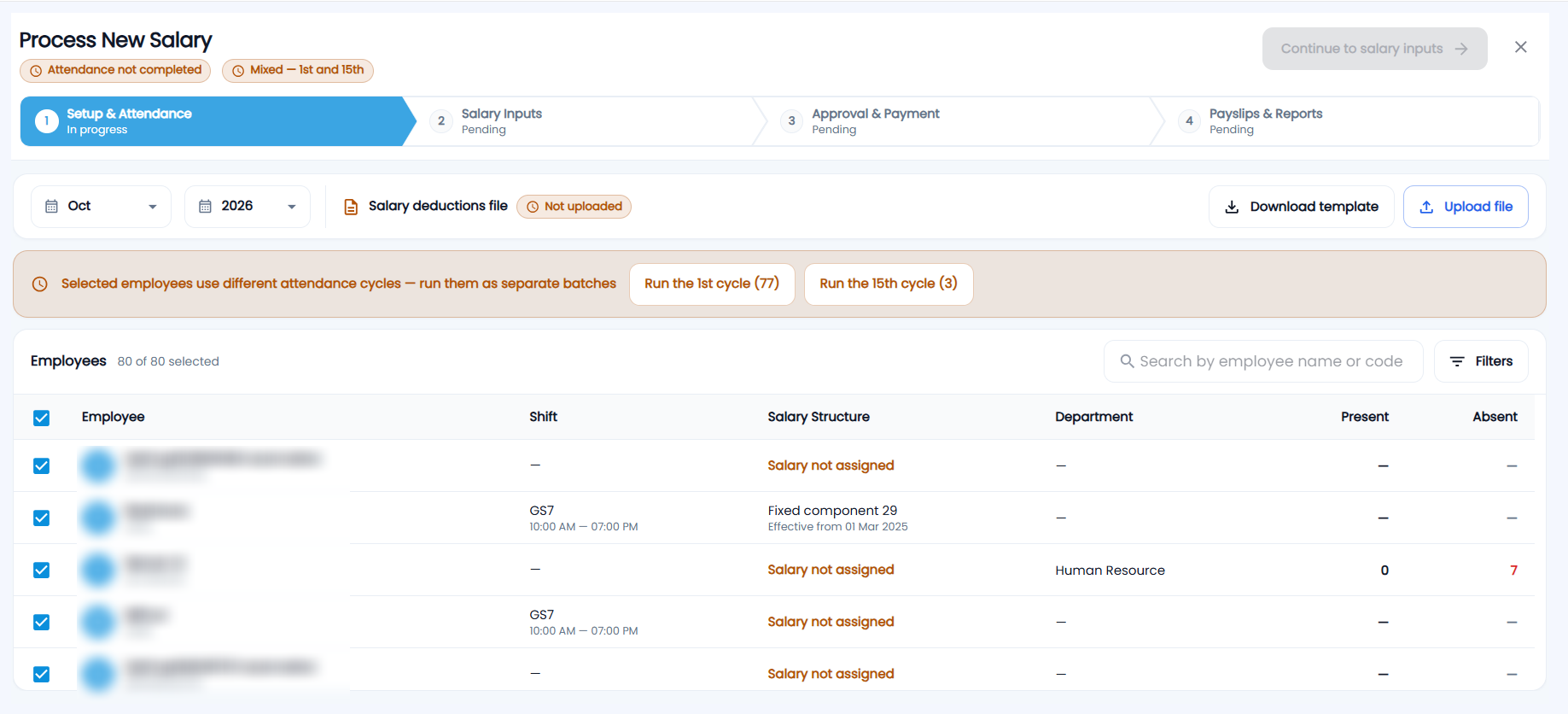
- Click New Salary Process. Process New Salary opens with four steps: Setup & Attendance, Salary Inputs, Approval & Payment, Payslips & Reports.
- Choose the month and year. The chips at the top show the attendance cycle and whether attendance is processed — Attendance not completed means the period's attendance cycle has not ended yet.
- Optional — Salary deductions file: click Download template (employee code and name, component name, earning, deduction, reason), fill in any one-off earnings such as incentives or deductions, and Upload file (.xlsx).
- In Employees, use Filters to choose the Category and Location (required) and optionally Department. Everyone in scope is ticked; untick anyone to leave out. Each row shows the shift, salary structure (or Salary not assigned), department, and present and absent days.
- If employees are on different attendance cycles, a warning asks you to run them as separate batches — click Run the 1st cycle or Run the 15th cycle to select one group.
- Click Continue to salary inputs, check the confirmation (selected employees, shift assigned, no salary structure), and click Proceed. Processing runs in the background.
Step 2: Salary Inputs
A read-only table of each employee's salary: joining date, pay days, paid leave balance, leave encashment, structure allowances, the period's earnings, earned gross, each deduction (EPF, ESI, PT and others), net pay and TDS. Use Filters to show or hide column groups and Export to download it. A warning lists employees with 0 pay days — check their attendance. Click Continue to approval.
Step 3: Approval & Payment
- Check the Payroll summary — employees, gross pay, total deductions, net pay and employer contributions.
- If your company uses salary approval, click Send for approval, add an optional note and Send. The approver and verifier (from Configuration) can Verify, Approve or Send back with a reason; follow it in the Approval timeline. You can Withdraw request while it waits.
- When it is approved (or if no approval is required), tick I have reviewed the approved payroll and am ready to confirm and click Confirm payroll. The run's amounts are locked.
A confirmed run can be reopened with a reason if a correction is needed; the reason is recorded in the run timeline.
Step 4: Payslips & Reports
- Payslip release — tick employees and click Release payslips to make their payslips available, or Withdraw to take them back. Each row shows Released, Ready to release or Awaiting confirm, and Preview opens the PDF payslip.
- Bank report — Export the bank-format salary register (standard, HDFC, ICICI, SBI, Axis or Kotak layout, set in Configuration). Employees without a bank account or with nothing to pay are left out and listed in a warning.
Click Done to finish.