
How do employee loans work in Tazk Payroll?
An employee raises a loan from Loans → Add Loan with the reason, amount, tenure, when deductions should start and how it will be repaid. The request goes to their approver in Approvals. Once approved, the loan appears on the Loans page with its EMI (amount ÷ tenure), which is deducted from salary each month, or repaid manually. Open a loan to record a payment, close it, or write it off.
What does the Loans page show?

Click Loans in the sidebar ("Manage employee loan requests and repayments"). The page lists approved loans — requests waiting for a decision are in Approvals.
| Card | What it shows |
|---|---|
| Total Loans | Number of approved loans |
| Total Requested | Total amount of those loans |
| Total Outstanding | Amount still to be repaid (written-off loans excluded) |
| Total Deduction | Amount already repaid |
| Active Loans | Loans with an outstanding balance today |
The cards show All time figures, or Filtered when a search or filter is on.
| Column | Description |
|---|---|
| Employee | Name and employee code |
| Loan Number | For example LS/26-27/061 |
| Requested At | Date of the request |
| Payment Method | Auto Deduction From Salary or Manual Repayment |
| Repay From | The month repayment starts |
| Requested Amount / Outstanding / Total Deduction | Loan amount, what is left, and what has been repaid |
| Tenure | Number of monthly instalments |
| Status | Active, Closed (fully repaid) or Written off |
Use Search loans, or Advanced filters for employee, a from / to date and status (All, Active, Closed, Written off). Download saves the filtered list as loans.csv. Choose 20, 50 or 100 rows per page.
How do I request a loan?
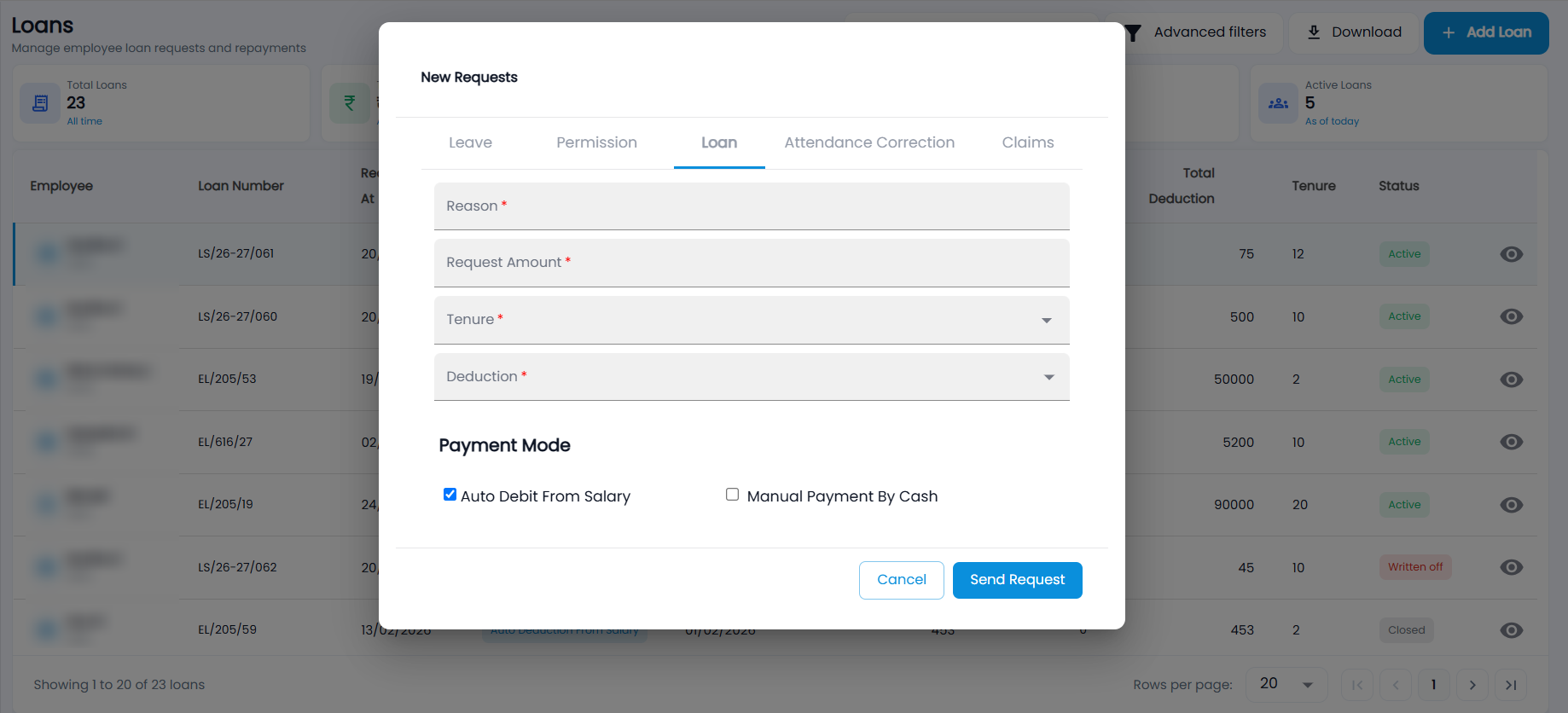
- Click Add Loan. The New Requests dialog opens on the Loan tab (employees also see their verifier and approver).
- Enter the Reason and the Request Amount.
- Choose the Tenure — the number of months, from the options your company has set up.
- Choose Deduction — when repayment starts: Current Month Onwards or Next Month Onwards.
- Under Payment Mode, tick Auto Debit From Salary (default) or Manual Payment By Cash.
- Click Send request.
The loan is requested for the person signed in. The EMI is the amount divided by the tenure. An employee can have only one loan waiting for approval at a time.
What is on the loan detail page?
Click the eye icon. The header shows the loan number, employee and status, with Make Payment, an Actions menu, and Previous / Next. Below are the Total Loan Amount, EMI Amount, Tenure and Due; Loan Information (approved by and when, reason, repayment method and start month, requested date); the Transactions table (date, amount, location, payment type); and an Activity Timeline — requested, approved, each payment, written off or closed.
How do I record a repayment or close a loan?
- Open the loan and click Make Payment. Loan Repayment shows the loan's workflow, summary, outstanding and next repayment.
- Under Record Repayment, choose Manual Payment to record part of the amount, or Close Loan to settle the whole outstanding.
- Enter the date, the amount (it cannot be more than the outstanding) and an optional note, and click Submit Payment.
The loan is Closed automatically when nothing is outstanding. Salary deductions are recorded each month when the salary is processed.
How do I write off a loan?
Open the loan, choose Actions → Write Off, confirm, and enter the reason. The remaining amount is no longer recovered and the status becomes Written off. A written-off or closed loan cannot be written off again.