
Overview
Messages brings your approvals and announcements together in one place. Approval requests — such as credit approvals and quotation approvals — arrive here, so you can see what needs your attention, what has been approved, and who did what. Click Message in the sidebar to open it.
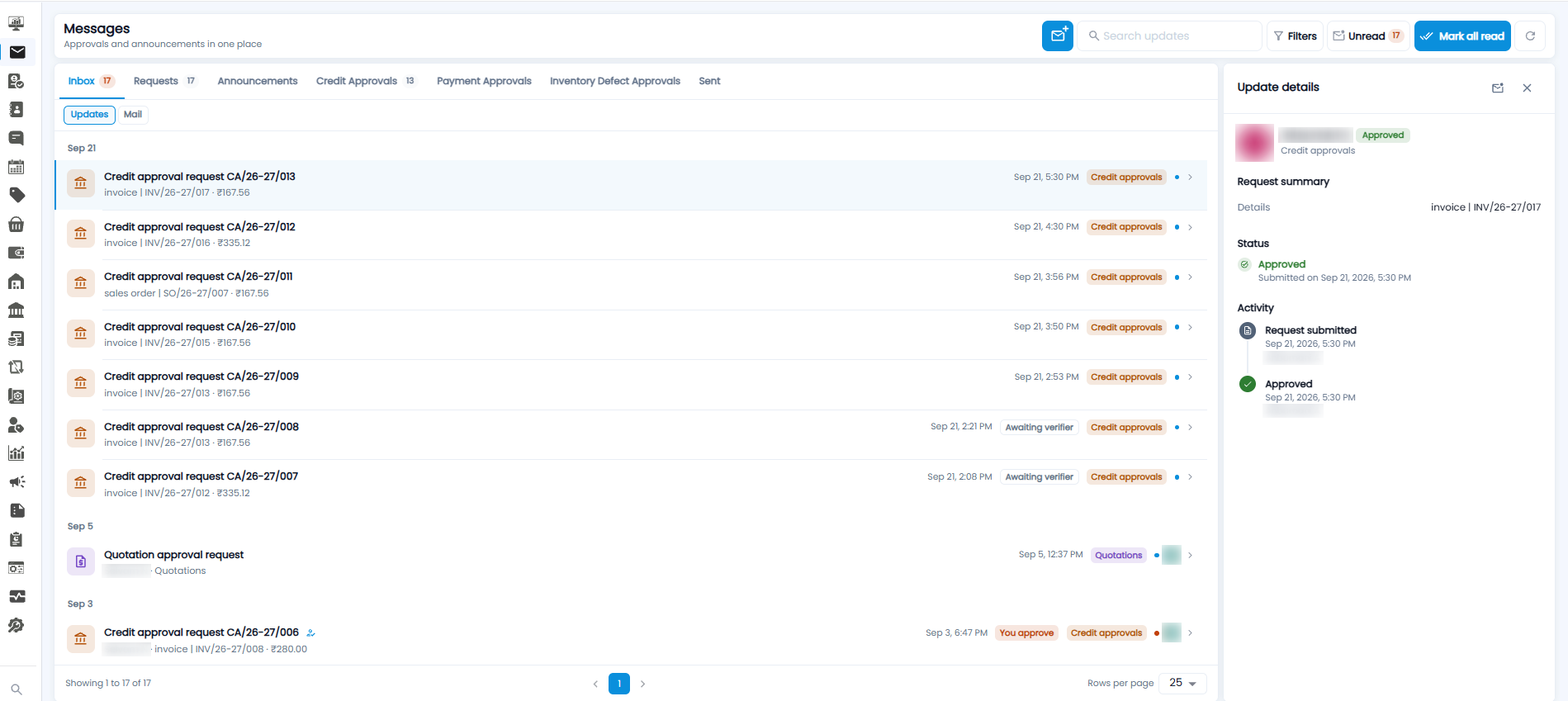
The Toolbar
| Button | What it does |
|---|---|
| Compose (blue envelope icon) | Write a new message |
| Search updates | Find a message by its title or reference number |
| Filters | Narrow the list further |
| Unread | Show only unread messages. The badge shows how many there are, for example 17 |
| Mark all read | Mark every message as read |
| Refresh icon | Reload the list |
Tabs
The tabs along the top sort your messages. A number next to a tab shows how many messages it has.
| Tab | What it shows |
|---|---|
| Inbox | Everything that has come to you |
| Requests | Approval requests |
| Announcements | Announcements sent to your team |
| Credit Approvals | Requests to approve credit on an invoice or sales order |
| Payment Approvals | Requests to approve payments |
| Inventory Defect Approvals | Requests to approve defective stock |
| Sent | Messages and requests you have sent |
Under the tabs, switch between Updates (approval and announcement updates) and Mail (mail messages).
The Message List
Messages are grouped by date, newest first (for example Sep 21, Sep 5). Each row shows:
- Title — what the message is, with its reference number, for example Credit approval request CA/26-27/013
- Details — the document it is about and its amount, for example invoice | INV/26-27/017 · ₹167.56. If someone else raised it, their name comes first, for example Selvam N
- Date and time it arrived
- Status badge, when action is still needed — for example Awaiting verifier (waiting for the verifier to check it) or You approve (waiting for your approval)
- Type badge — for example Credit approvals or Quotations
- A dot that marks the message as unread, and the initials of the person who sent it
At the bottom, Showing 1 to 17 of 17 tells you how many messages are listed. Use the page numbers to move between pages, and Rows per page to show more or fewer (25 by default).
Update Details
Click a message to open its Update details on the right.
| Section | What it shows |
|---|---|
| Header | Who raised the request, its current status (for example Approved), and its type (for example Credit approvals) |
| Request summary | The document the request is about, for example invoice | INV/26-27/017 |
| Status | The current status and when the request was submitted |
| Activity | A timeline of every step — for example Request submitted and then Approved — each with the date, time, and the person who did it |
Use the icons at the top right of the panel to open the message in a larger view, or × to close the panel.
Acting on a Request
- Open the Inbox, or the tab for the kind of request, for example Credit Approvals
- Look for rows marked You approve — these are waiting for you
- Click the row to open its Update details
- Check the request summary, then approve or reject it
Once a request is approved, its status changes and the step is added to the Activity timeline.