
Overview
Click Reports in the sidebar. Reports are grouped into three sections; click a report's name to open it.

| Section | Report | What it shows |
|---|---|---|
| Custom Report | Custom Report | Status, progress, and priority across your projects |
| Task | Task Summary | Every task with its person, project, status, and estimate |
| Logs | Detailed Log Report | Time logged, by project and work item |
| Deleted Log | Records that were deleted, and by whom | |
| overall log report | Time logged by every employee, day by day |
Custom Report
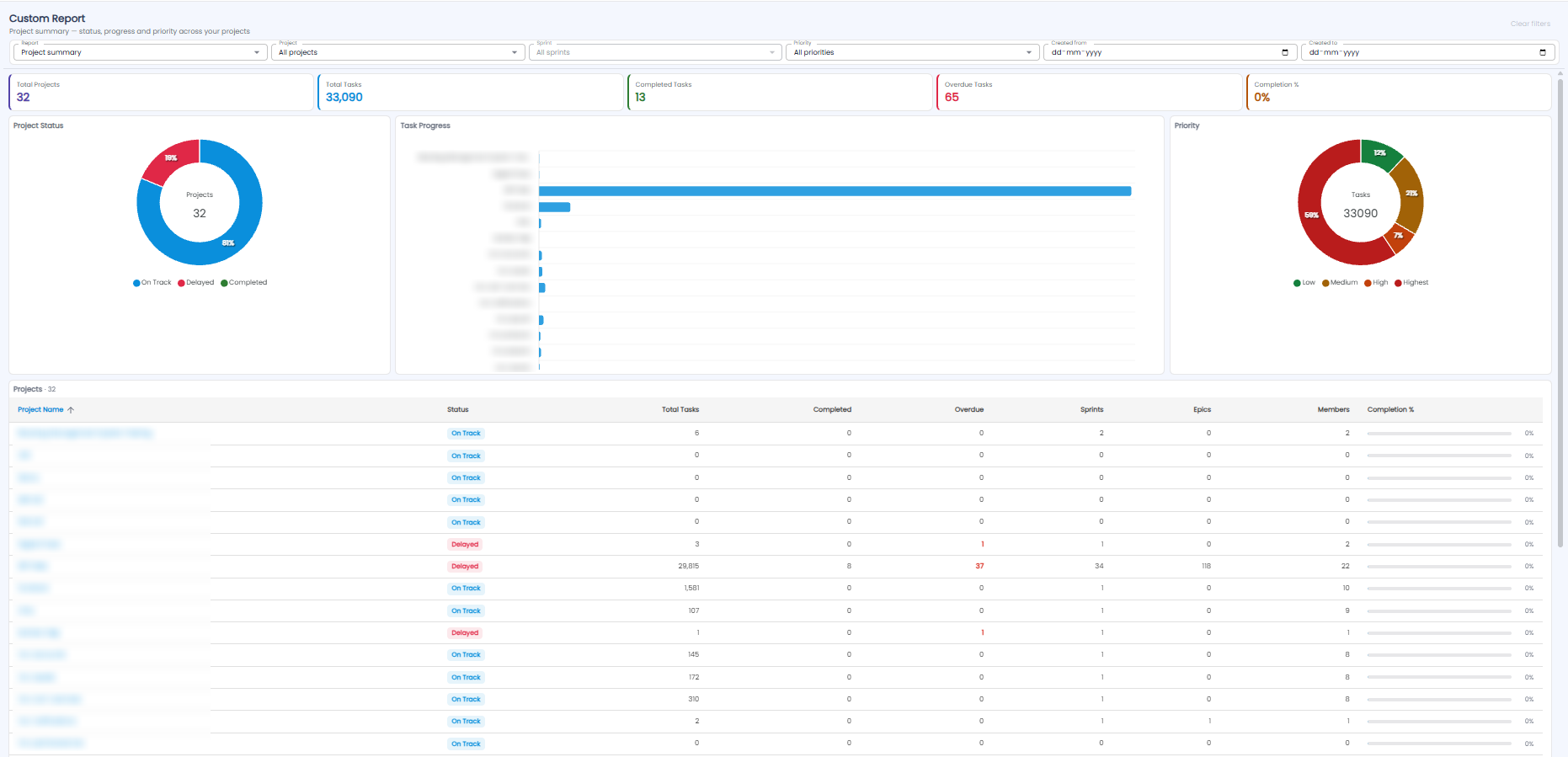
Pick the Report (for example Project summary), and narrow it by Project, Sprint, Priority, and Created from / Created to. Clear filters resets them.
- Tiles — Total Projects, Total Tasks, Completed Tasks, Overdue Tasks, and Completion %
- Project Status — projects that are On Track, Delayed, or Completed
- Task Progress — tasks in each project
- Priority — tasks by Low, Medium, High, and Highest
The Projects table lists each project with its Status, Total Tasks, Completed, Overdue (in red), Sprints, Epics, Members, and Completion %. Click a column heading to sort.
Task Summary
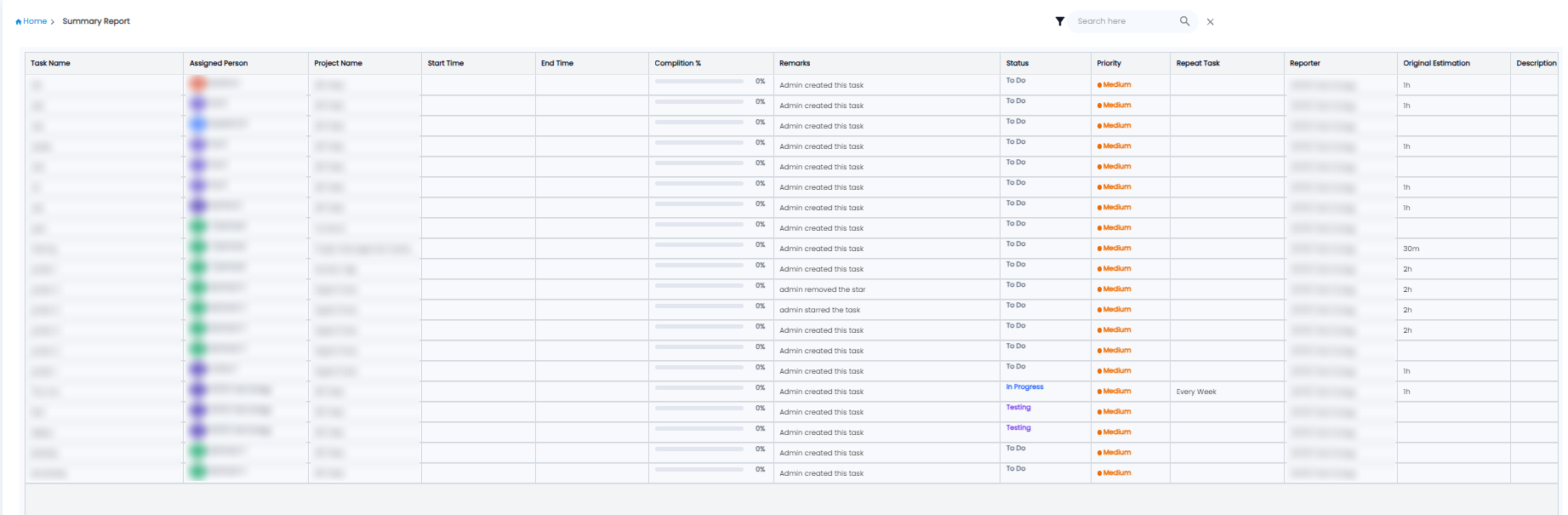
Every task in one table: Task Name, Assigned Person, Project Name, Start Time / End Time, Completion %, Remarks (the latest activity, for example Admin created this task), Status, Priority, Repeat Task, Reporter, Original Estimation, and Description. Use the filter icon and Search here to narrow it.
Detailed Log Report
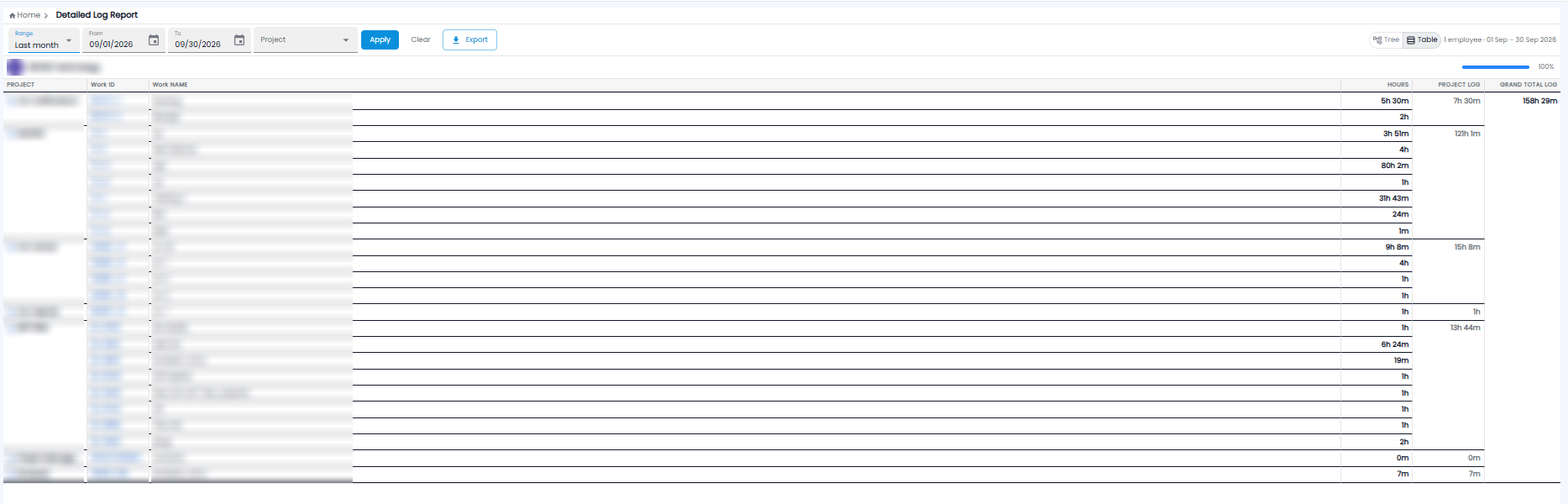
- Pick a Range (for example Last month) or set From and To dates, and a Project if needed
- Click Apply. Clear resets the filters, and Export downloads the report
The report is grouped by employee. Each row shows the Project, Work ID, Work Name, and Hours, with the Project Log (total for the project) and Grand Total Log. Switch between Tree and Table at the top right.
Deleted Log
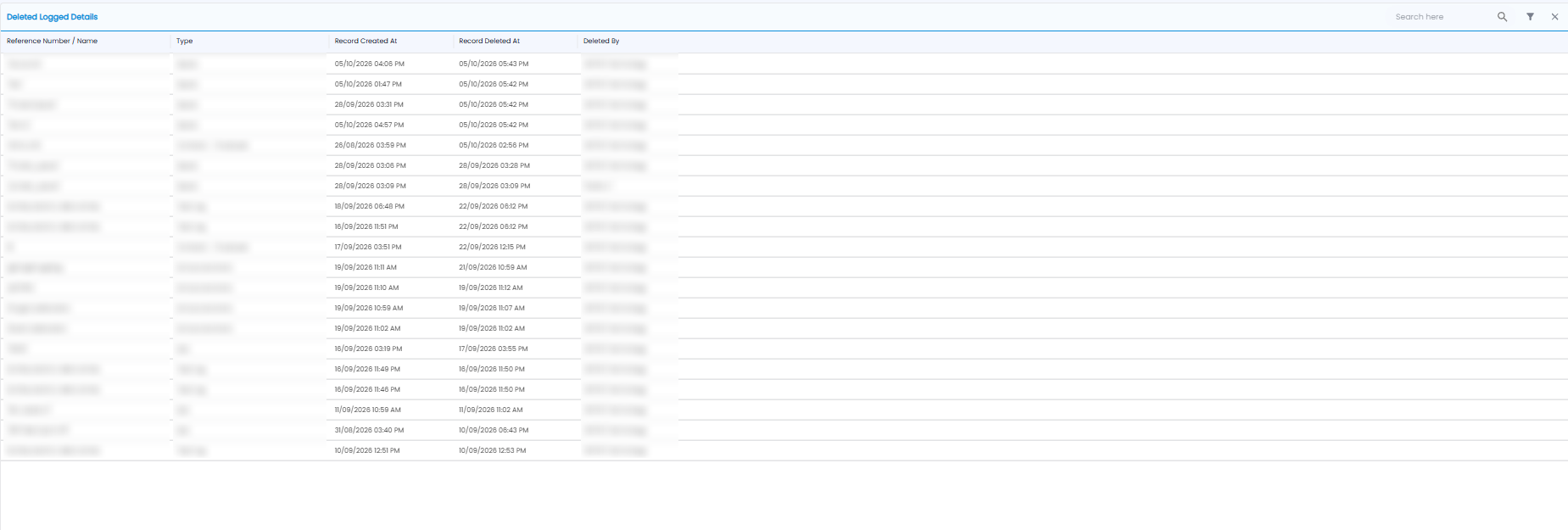
A record of everything deleted: the Reference Number / Name, the Type (for example Space, Epic, Task Log, Announcements, or Contacts - Employee), Record Created At, Record Deleted At, and Deleted By. Use search and the filter icon to find one.
Overall Log Report
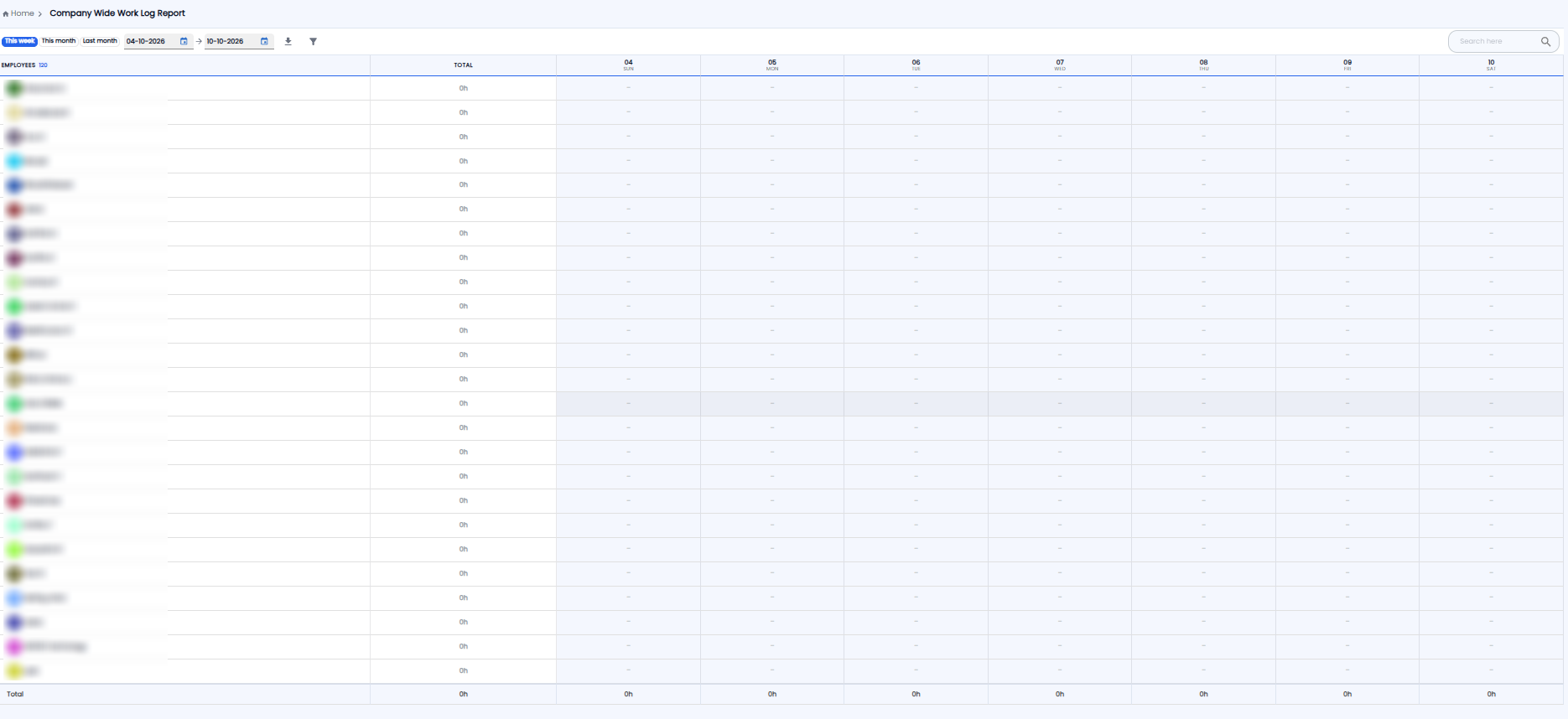
The Company Wide Work Log Report shows every employee's hours for each day of the period, with their total and a Total row at the bottom. Pick This week, This month, or Last month, or set the dates. Use the download icon to export, and search to find a person.