
Overview
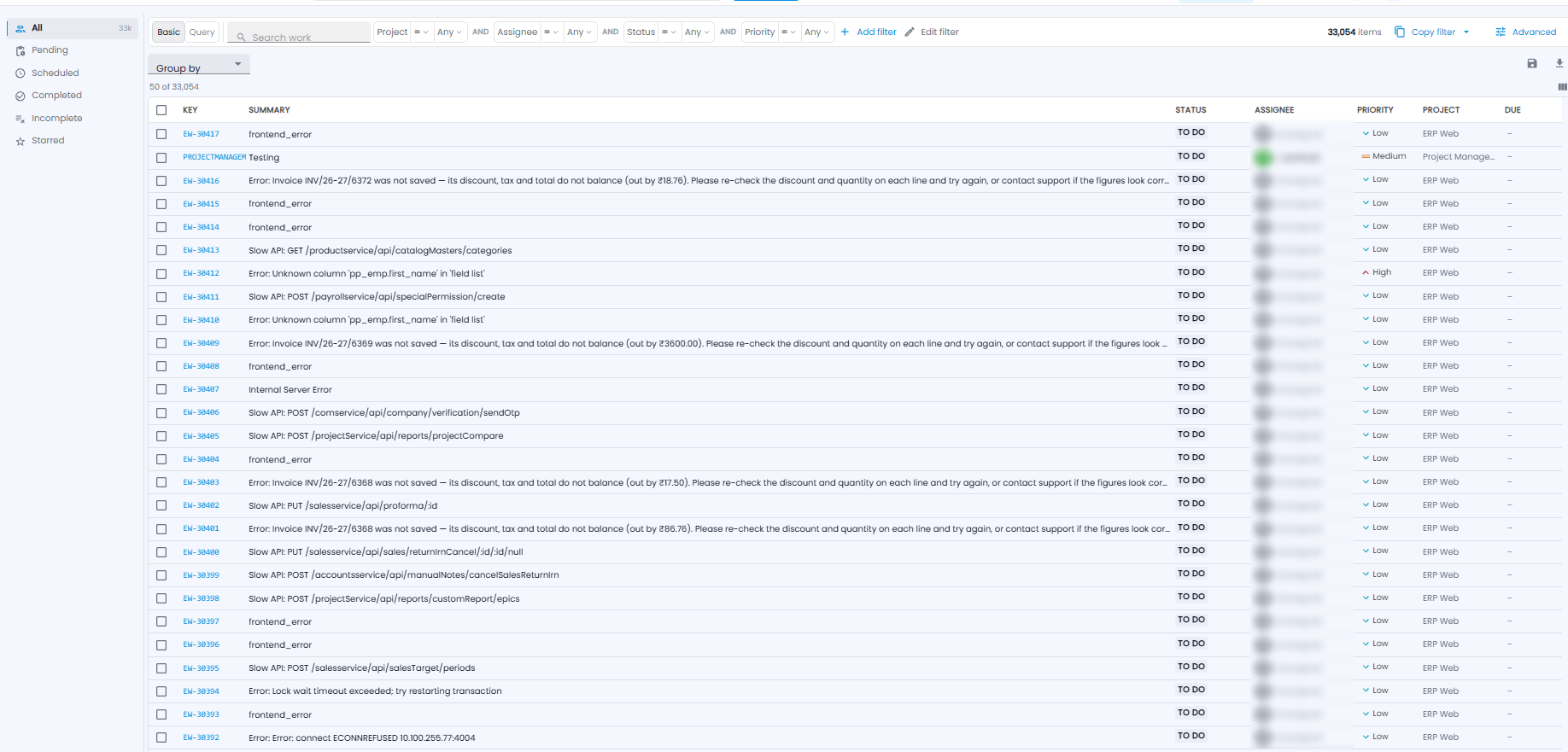
Issues lists every work item across all your projects — tasks, bugs, stories, and more — in one place. Click Issues in the sidebar.
Views
The views on the left are ready-made filters. The number next to the open view is how many items it holds.
| View | Shows |
|---|---|
| All | Every work item |
| Pending | Items still to be done — Status is To Do or another open status |
| Scheduled | Items that have dates and someone assigned |
| Completed | Items with Status Completed or another finished status |
| Incomplete | Items that have dates but no work logged against them |
| Starred | Items you have starred |
Opening a view fills in its filter, so you can see exactly what it shows and change it.
The List
| Column | What it shows |
|---|---|
| Key | The item's number, starting with its project's code — for example EW-30417. Click it to open the item |
| Summary | The item's title |
| Status | For example TO DO, IN PROGRESS, TESTING, or COMPLETED |
| Assignee | Who is working on it, or Unassigned |
| Priority | Highest, High, Medium, or Low |
| Project / Due | The project, and the due date |
- The line above the list shows how many are on screen out of the total, for example 50 of 33,054
- Group by groups the list, for example by status or assignee
- The icons at the top right save the current view, download the list, and choose which columns to show
Basic Filter
With Basic chosen at the top left, the filter bar shows a chip for each field — for example Project, Assignee, Status, and Priority. Each chip has a comparison (for example =) and a value (Any until you pick one). The chips are joined with AND, so an item must match all of them. Use Search work to search by text.
| Button | What it does |
|---|---|
| + Add filter | Adds a chip for another field |
| Edit filter | Chooses which field chips are shown |
| Save filter | Saves the filter to use again |
| Clear all | Removes every filter |
| Copy filter | Copies the filter, for example to share it |
| Advanced | Opens the Advanced filter panel (see below) |
The count at the top right shows how many items match, for example 33,054 items.
Add Filter
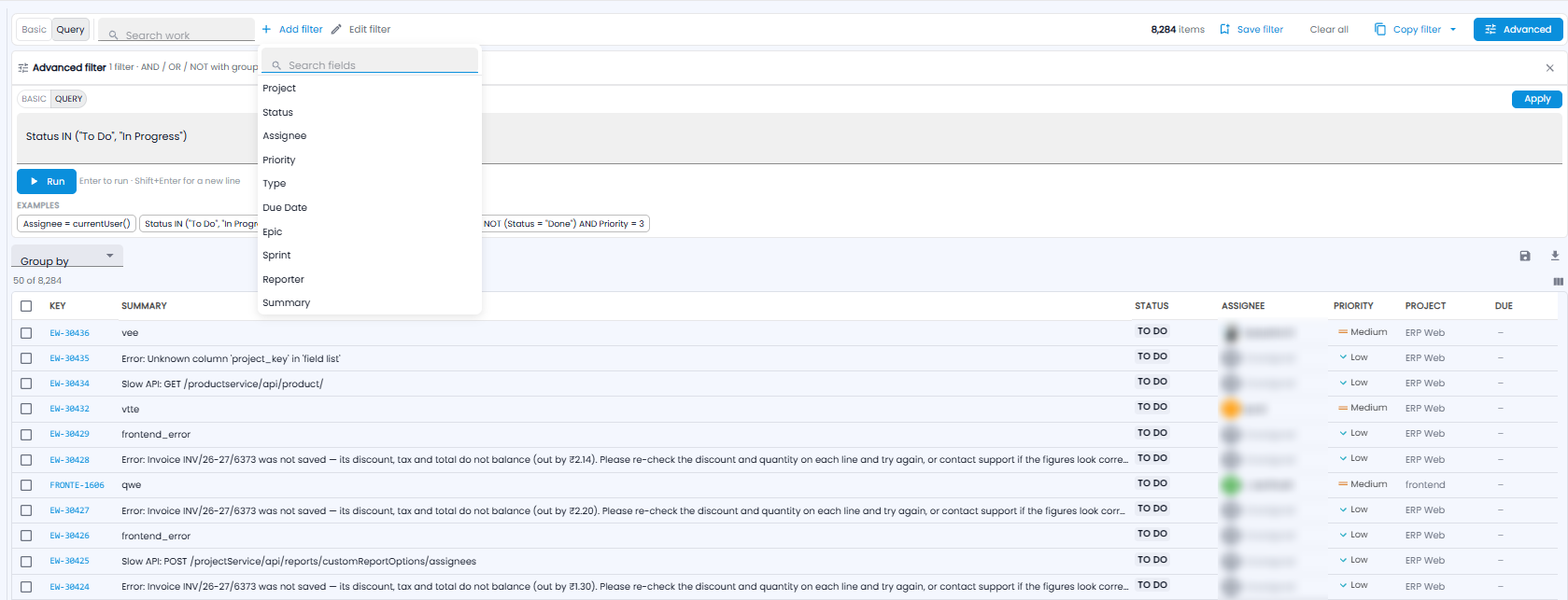
Click + Add filter and pick a field: Project, Status, Assignee, Priority, Type, Due Date, Epic, Sprint, Reporter, or Summary. Use Search fields to find one.
Edit Filter
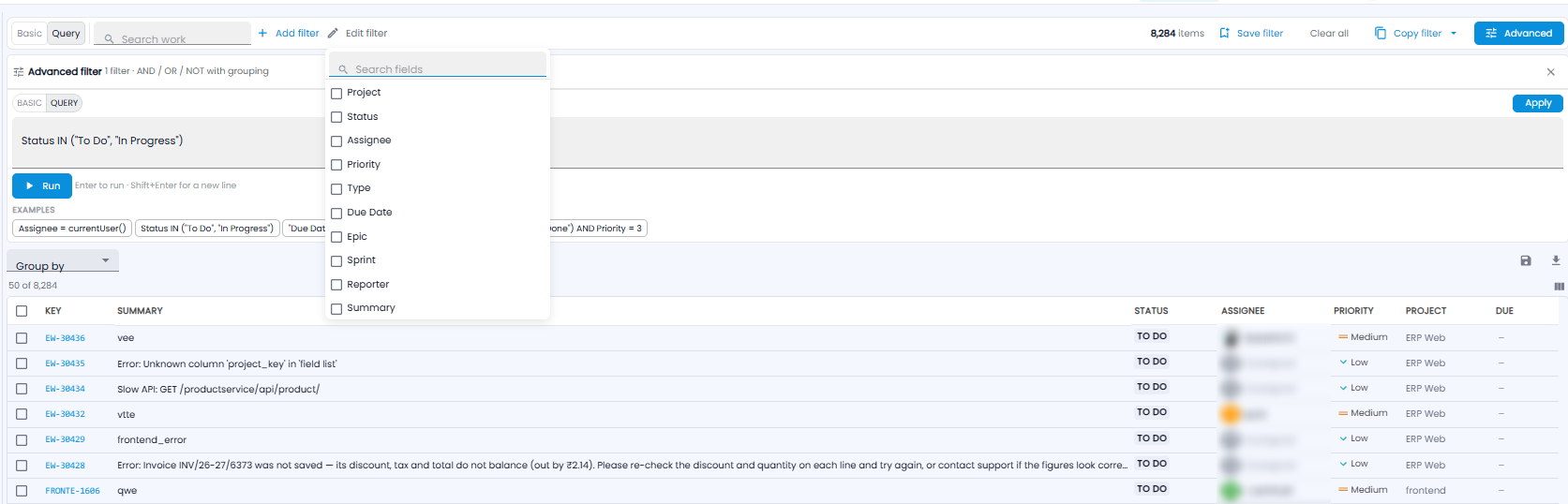
Click Edit filter and tick the fields you want as chips in the filter bar, or untick the ones you do not need.
Query Filter
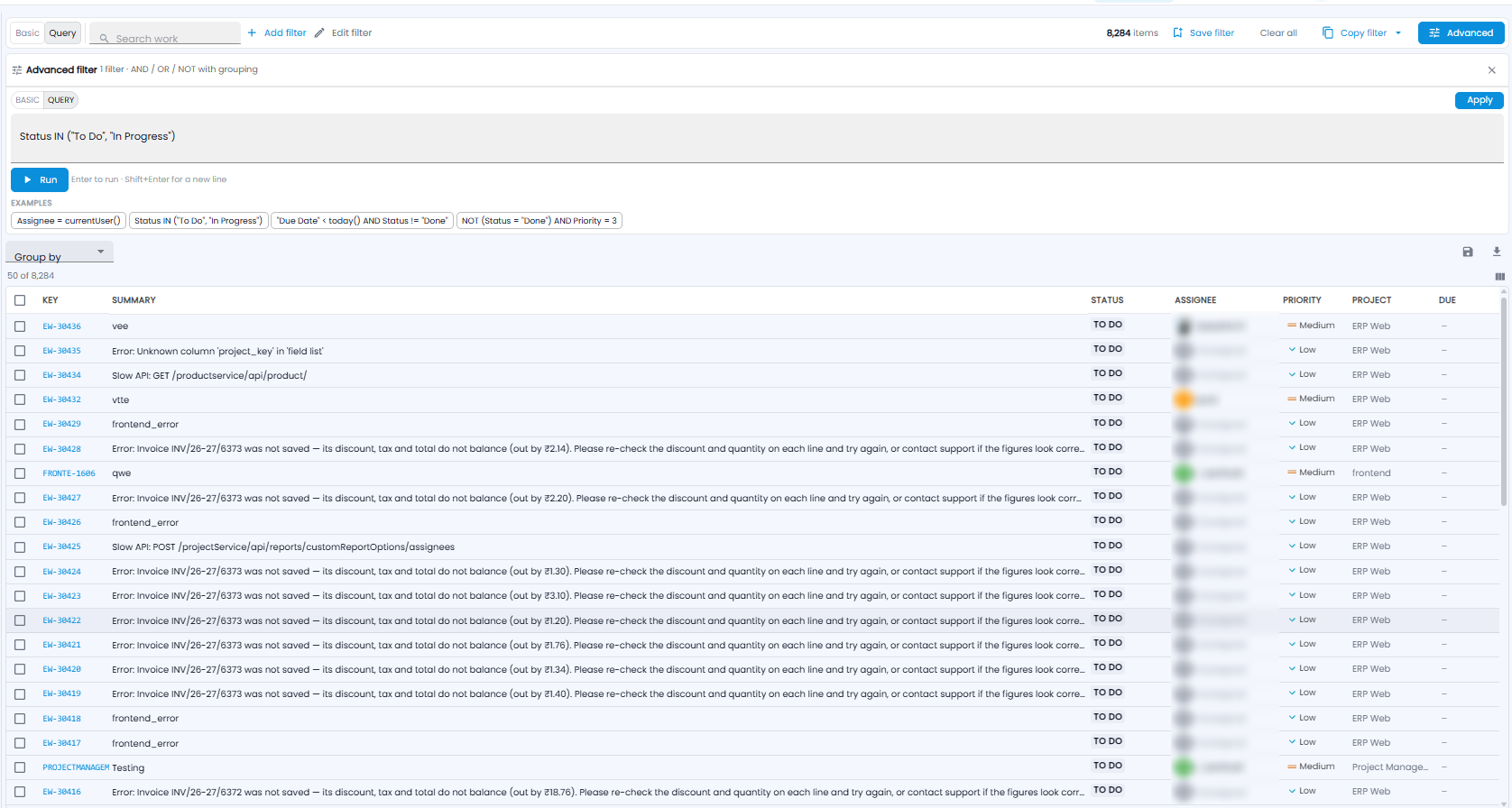
Click Query at the top left to type a filter instead of picking it. Write the query in the box — for example Status IN ("To Do", "In Progress") — and click Run or press Enter. Press Shift+Enter for a new line. Click Apply to keep the filter.
The Examples under the box are a good starting point — click one to use it:
| Query | Finds |
|---|---|
| Assignee = currentUser() | Items assigned to you |
| Status IN ("To Do", "In Progress") | Items that are to do or in progress |
| "Due Date" < today() AND Status != "Done" | Overdue items that are not done |
| NOT (Status = "Done") AND Priority = 3 | Items not done with priority 3 |
Combine conditions with AND, OR, and NOT, and use brackets to group them.
Advanced Filter
Click Advanced at the top right to build a filter step by step, with AND, OR, and NOT and groups. The heading shows how many filters are set. With none, it says No conditions — showing all work items.
Add Filter

Click + Add Filter to add a condition. Pick the field (for example Project), the comparison (for example is any of or is not empty), and the value. Click × at the end of a row to remove it. Conditions on separate rows are joined with AND.
Add Group

Click + Add Group to add a group of conditions in a box. Use OR to match any of the group's conditions instead of all of them, and NOT to exclude what the group matches. A group has its own Add Filter and Add Group, and the bin deletes it. The links below the box add another filter or group at the top level.
Click Apply to filter the list, or × to close the panel.
Changing Many Items at Once
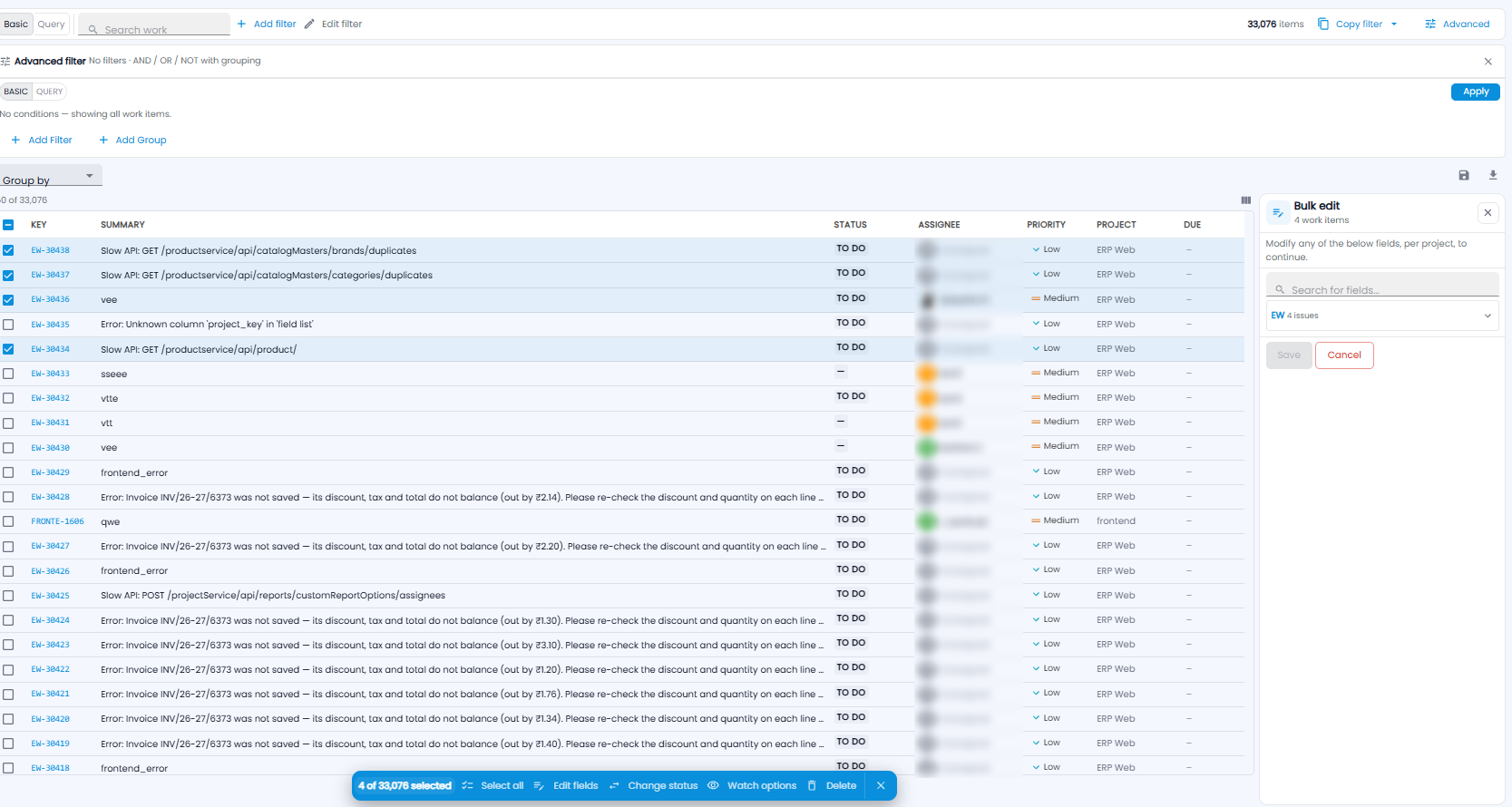
Tick the box next to each item you want to change, or the box in the heading for the whole page. A bar appears at the bottom showing how many are selected (for example 4 of 33,076 selected):
- Select all — select every item that matches the filter, not just this page
- Edit fields — open the Bulk edit panel on the right
- Change status — move all the selected items to a new status
- Watch options — choose whether to get updates on the selected items
- Delete — delete the selected items
- × — clear the selection
In the Bulk edit panel, the selected items are grouped by project (for example EW 4 issues). Search for the fields to change, set the new values for each project, and click Save, or Cancel.
Each View
Pending
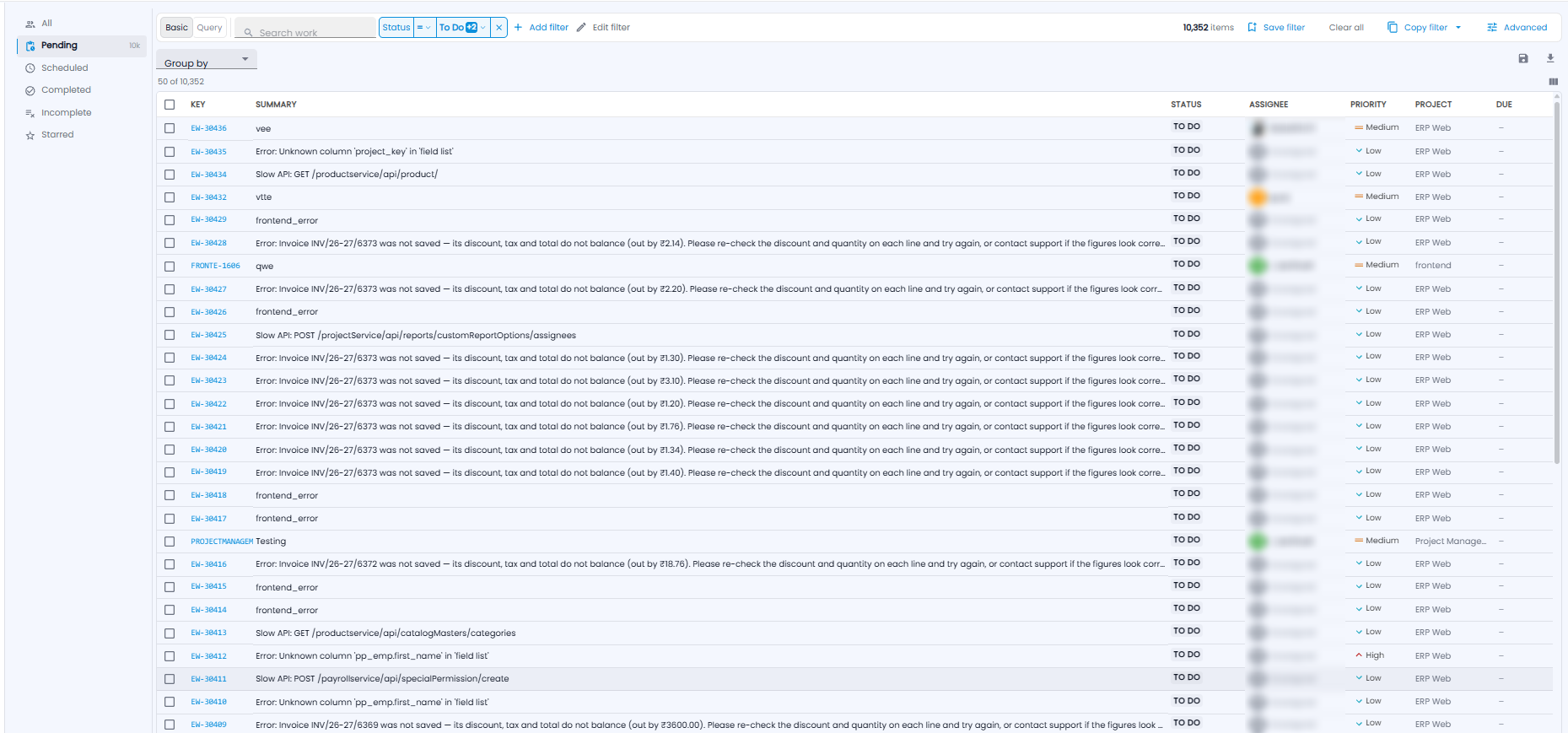
Filter: Status = To Do and other open statuses (shown as +2 on the chip).
Scheduled
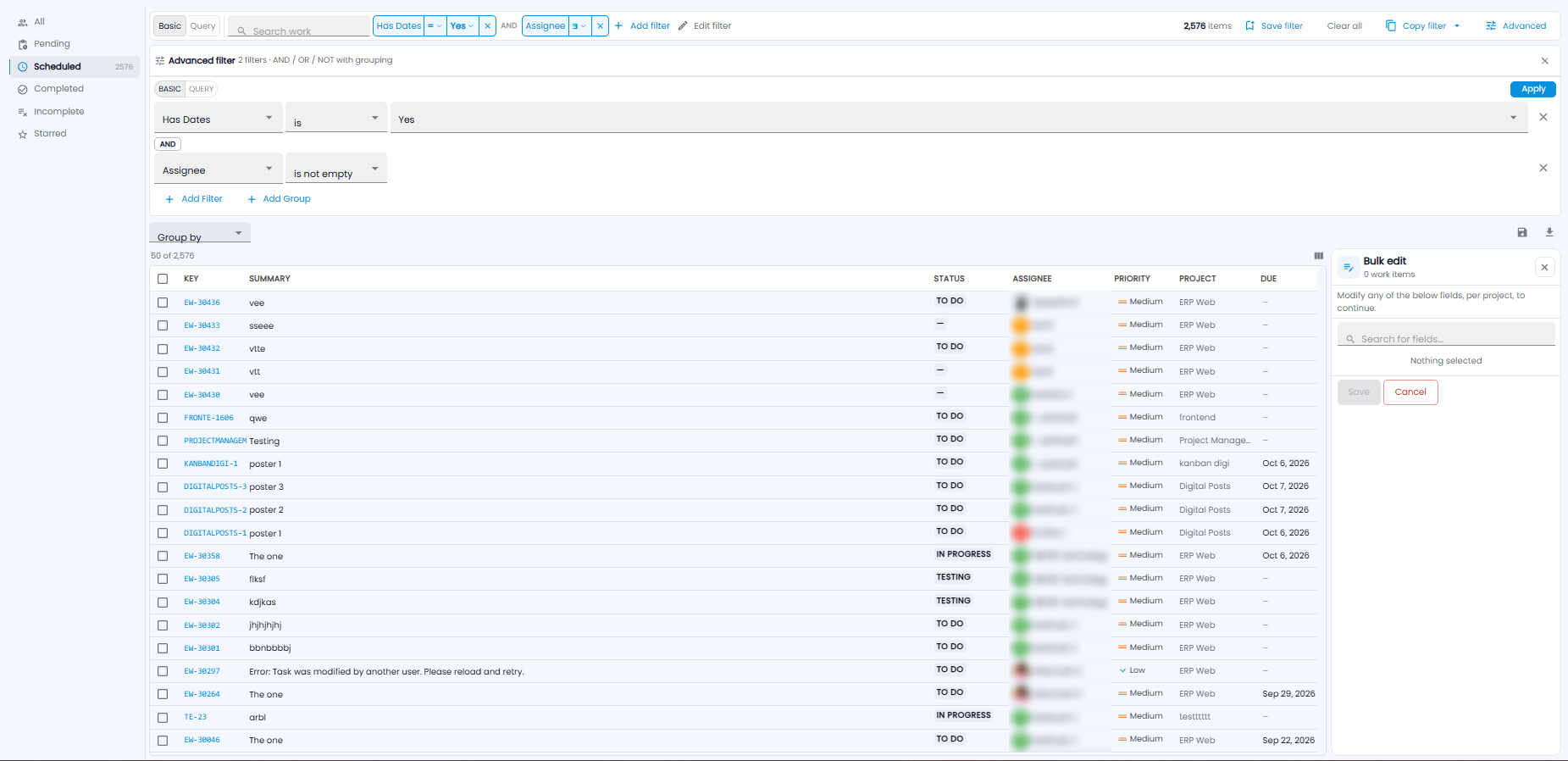
Filter: Has Dates is Yes AND Assignee is not empty.
Completed
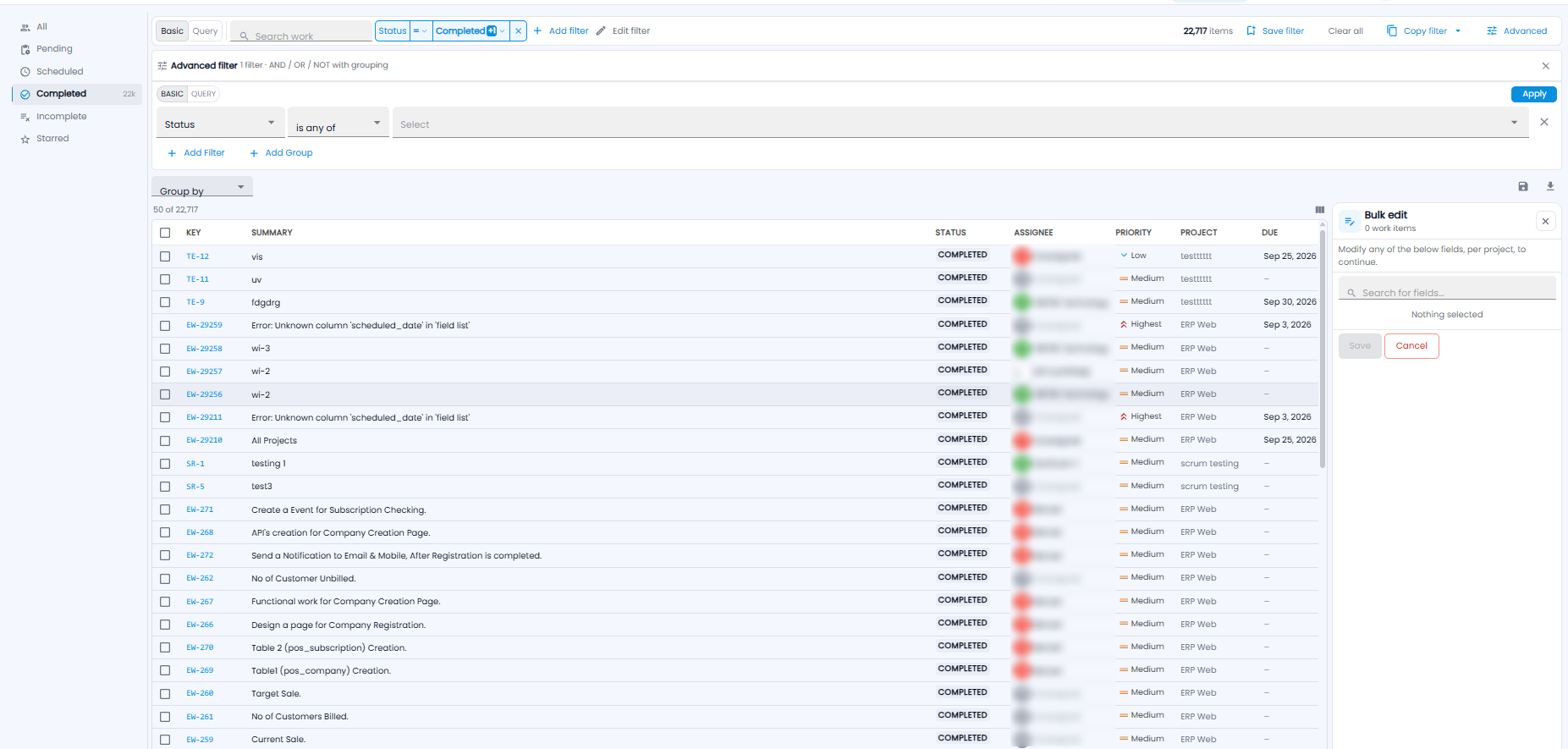
Filter: Status = Completed and other finished statuses.
Incomplete
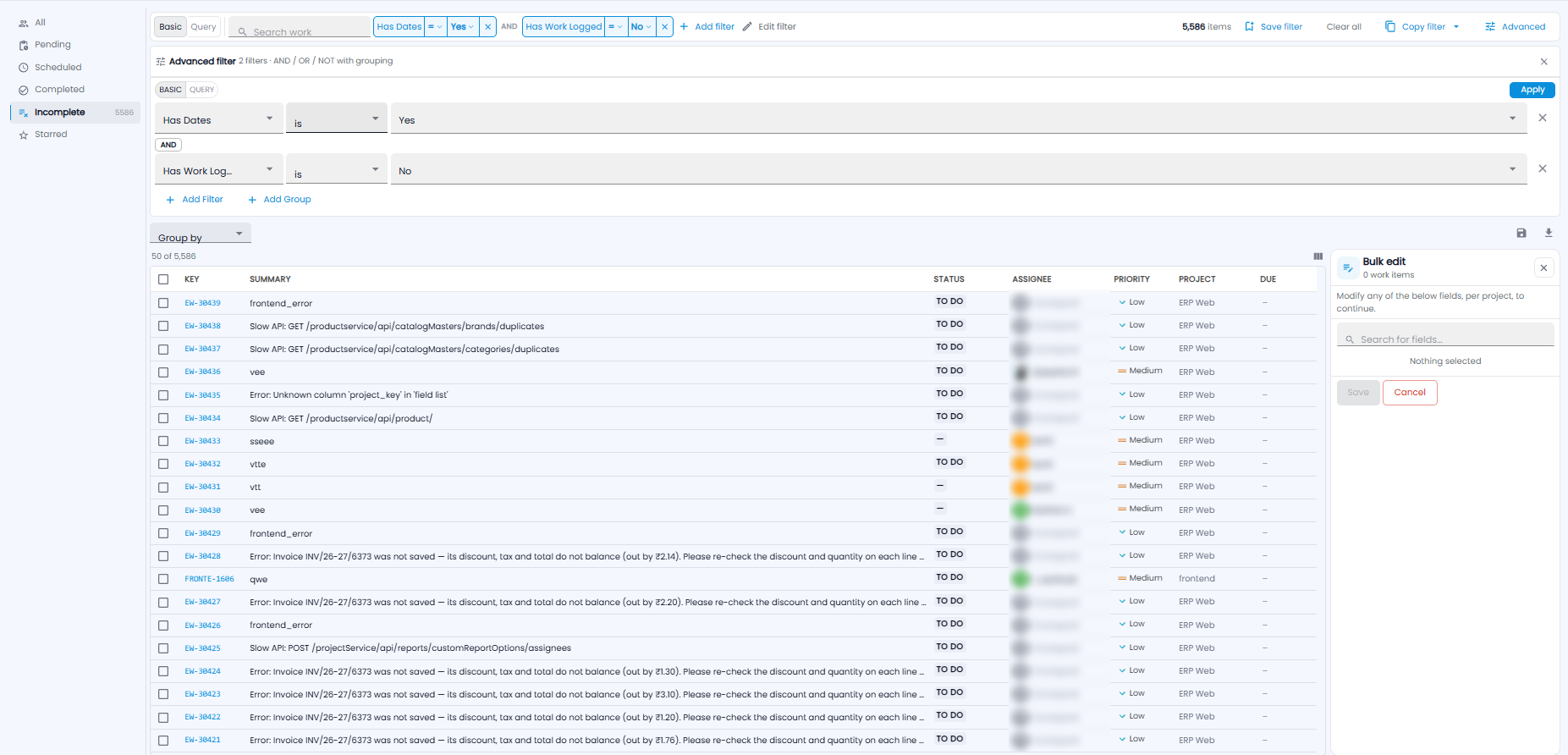
Filter: Has Dates is Yes AND Has Work Logged is No — scheduled items nobody has logged time on yet.
Starred
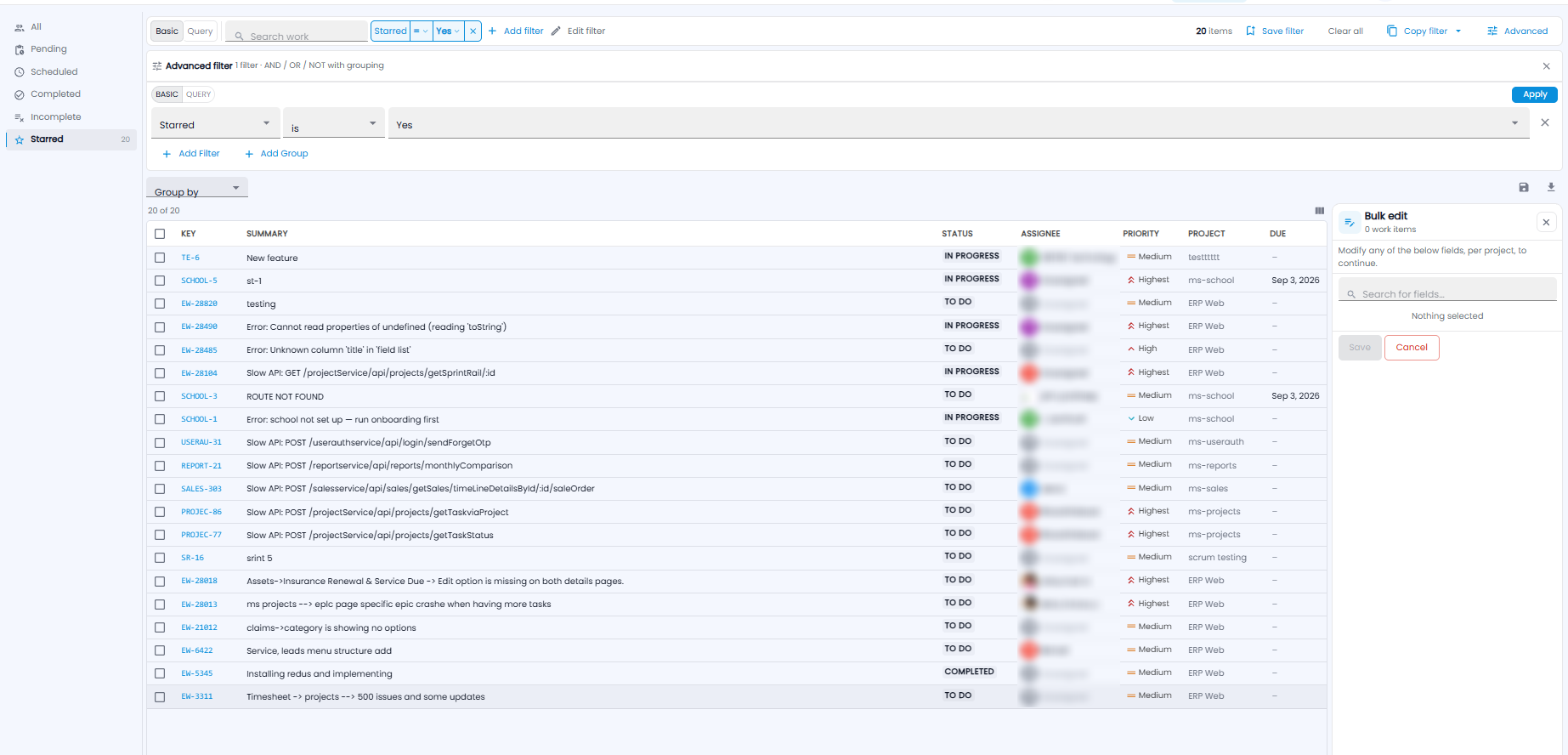
Filter: Starred is Yes — the items you have starred to keep an eye on.