
What is Customer Shelf Stock?
Customer Shelf Stock lets your sales team record a stock-take at a customer’s outlet: for each SKU, how much is on the shelf and in the back room, whether any is near expiry and the earliest expiry date. The form is prefilled with the SKUs you invoiced to that customer in the last 90 days, and shows the last take and how much was sold since, so you can see which products are moving.
What does the Customer Shelf Stock page show?
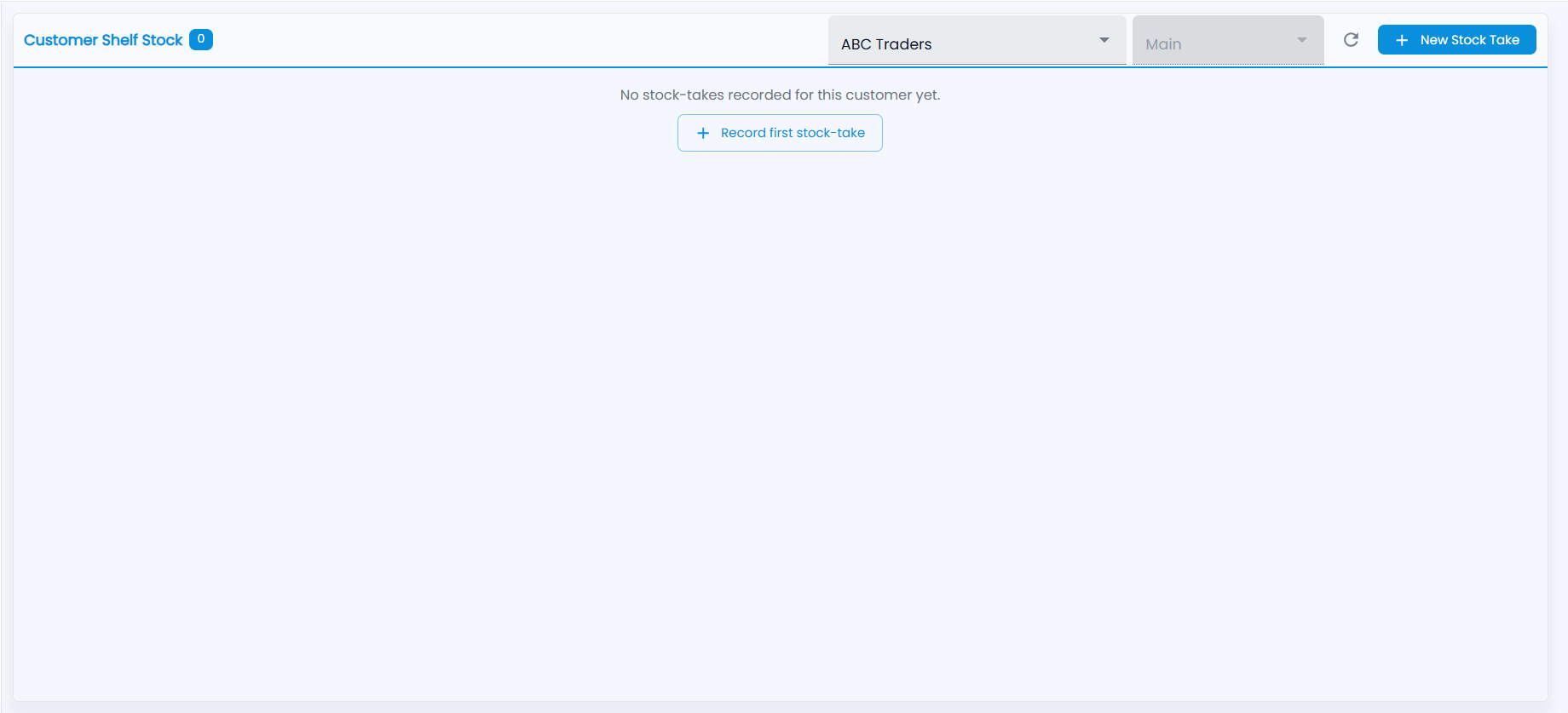
Click Customer Shelf Stock in the sidebar. At the top right, choose the customer in the first box (type to search) and a location in the second (or All locations); the refresh icon reloads the list. The number beside the title is how many stock-takes the customer has. The page lists that customer's past stock-takes, newest first — or, if there are none, says No stock-takes recorded for this customer yet. with a Record first stock-take button:
| Column | Description |
|---|---|
| Date / Time | When the take was done |
| Location | The location it was recorded against |
| Taken by | Who recorded it |
| Lines | Number of SKUs counted |
| Status | draft, submitted or cancelled |
| Notes | Any note on the take |
| Action | ⋮ menu: View / Edit, View activations (opens OEM Activations for this customer) and Delete |
How do I record a stock-take?
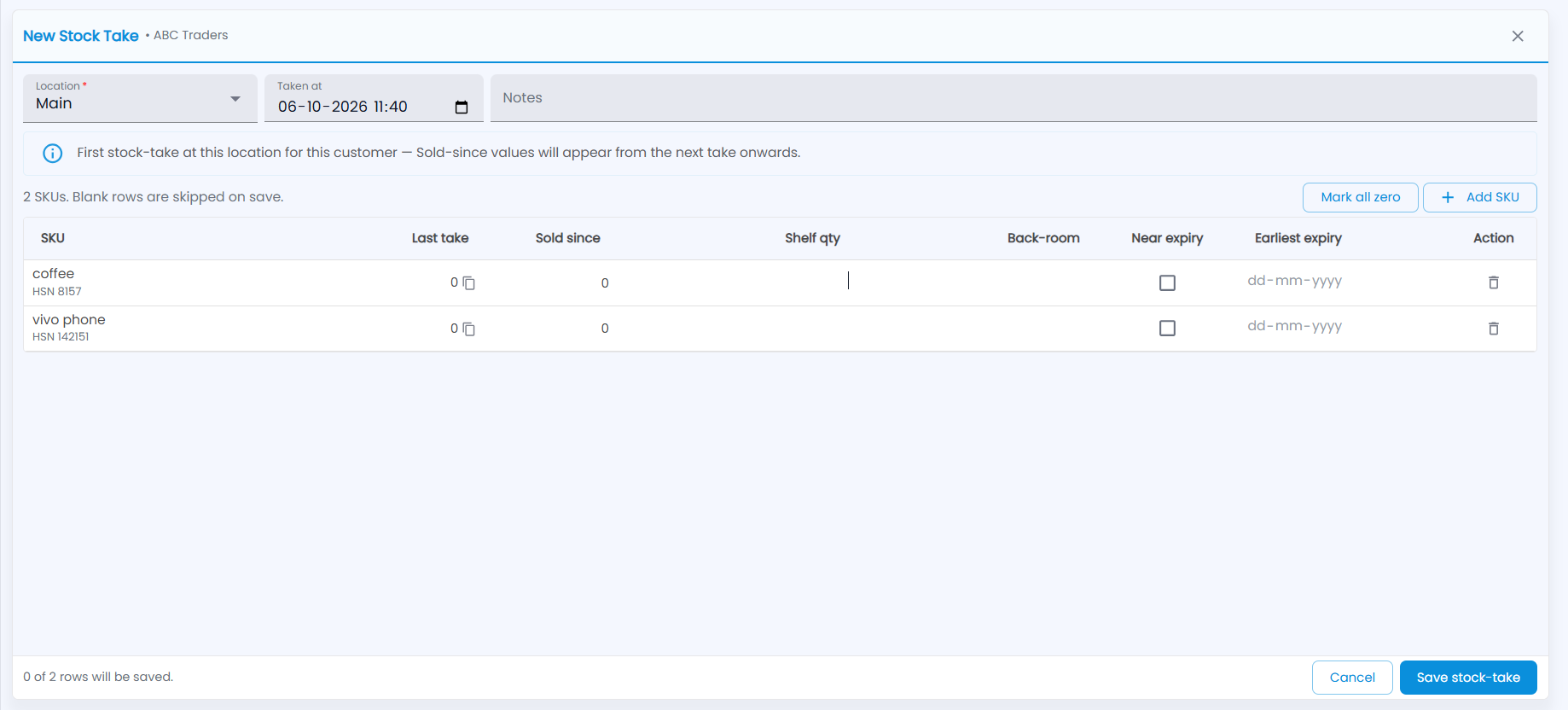
- Pick the customer and click New Stock Take (or Record first stock-take).
- The New Stock Take form opens with the customer’s name in its title. Check the Location (required) and the Taken at date and time (now, by default), and add Notes if needed.
- A banner shows when the last take was and the recommended re-take interval of 14 days — or, for the first take, First stock-take at this location for this customer — Sold-since values will appear from the next take onwards.
- For each SKU, enter the Shelf qty and Back-room qty, tick Near expiry if needed and set the Earliest expiry. The copy icon next to Last take copies that figure into Shelf qty.
- Use Add SKU for a product not on the list, or Mark all zero if the shelf is empty. Remove a row with its delete icon. Blank rows are skipped.
- The footer counts the rows that will be saved (for example 0 of 2 rows will be saved). Click Save stock-take, or Cancel.
What do Last take and Sold since mean?
| Column | Meaning |
|---|---|
| SKU | The product, with its HSN code underneath. A coloured dot shows how it moved since the last take. |
| Last take | Shelf plus back-room quantity at the previous take |
| Sold since | Net quantity invoiced to this customer since the last take (sales minus returns) |
The dot is red for no movement, orange for slow movement (less than a quarter of the last take sold) and green for healthy movement. Sold-since values start from the second take at a location.
Can I change a stock-take later?
Yes, within 24 hours. Open it with View / Edit and click Update stock-take. After 24 hours the take is Locked for everyone except administrators, and only they can delete it.
Related: Invoices and Customer Contacts.