
What is the Configuration screen in Tazk POS?
Configuration is where an administrator sets the rules the rest of the app follows: the general sales and delivery rules, discount and charge preferences, who must approve risky sales, cheque receipts and inventory defects, and the SMS, mail and WhatsApp accounts messages are sent from. Open it from Configuration in the sidebar. Each rule is a tab in the left rail, and you only see the tabs your plan and role allow.
How is the Configuration screen laid out?
Click Configuration in the sidebar (on some menus it sits under Settings). A rail on the left lists the configuration tabs. Click one to open it on the right. The first tab in the rail opens by default. On a typical POS account the rail shows General, Preferences, Ecom Config, Loyalty Points, Approvals, SMS, Mail, WhatsApp and Beat & Coverage.
- The tabs you see depend on your plan and role. A tab is only listed when its menu is granted to your role in User Roles. If you cannot find a tab described here, your plan does not include it or your role cannot see it.
- The order follows the sidebar order set for your company, so your rail may be in a different order from the one below.
- Most tabs are read-only until you click Edit. Change the values, then click Save changes (or Cancel). The approval tabs have a Save changes button in the title band instead.
Which tabs can I see, and what does each one do?
| Tab | What it controls |
|---|---|
| General | Company-wide sales, delivery and tax rules, such as delivery and payment OTPs, GPS shop restriction and invoice round-off |
| Preferences | Whether bills take a discount (none, per item or per transaction) and whether shipping or other charges can be added. Your role may also see a Voucher Config tab here |
| Approvals | Approval rules per department and request type, with the verifier and approver for each |
| Credit Enforcement | Holds sales to customers who are over their credit limit or have overdue invoices until they are signed off |
| Payment Approval | Holds a cheque receipt dated after the invoice due date until it is signed off |
| Inventory Defect Approval | Holds a Send Defect that uses stock from inventory until it is signed off |
| Custom Fields | Extra fields you define for your records |
| SMS / Mail / WhatsApp | The gateway, mail server and WhatsApp account each location sends messages through |
| Reminder Settings | Which reminders go to your customers and to you |
| Beat & Coverage | How a salesman's daily list of shops is built and when a shop is flagged |
| Loyalty Points | Your customer loyalty programme: earning, value, redemption limits and expiry |
| Ecom Config | Your online storefront's subdomain and custom domain |
| Fuel Allowance | Fuel allowance settings for field staff |
The sections below describe each tab. Tabs for payroll and attendance (Policy Management, Compliance, Device Attendance, Fraud Logs and so on) belong to Tazk Payroll and are not covered here.
What is on the General tab?
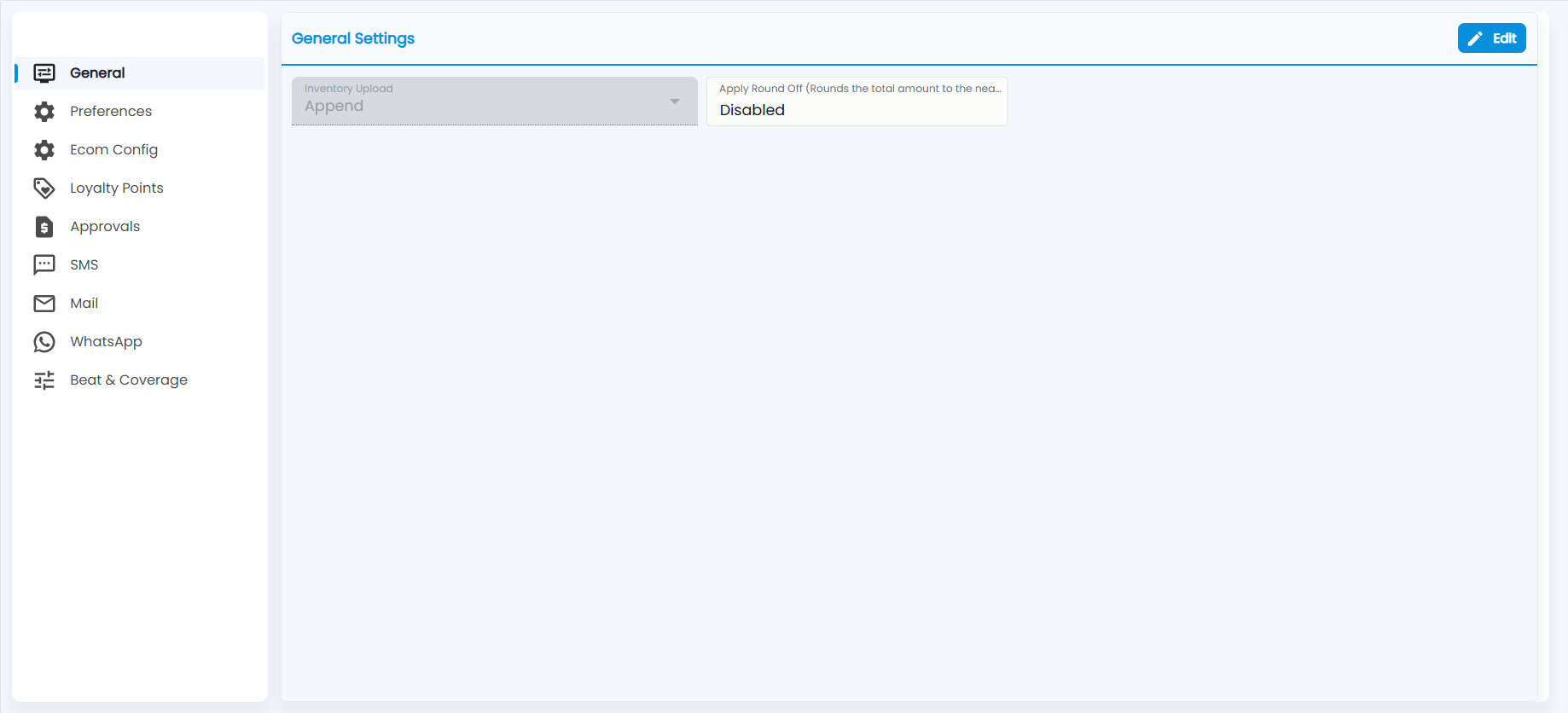
On a POS account the General tab is a small General Settings form. Click Edit to change it:
- Inventory Upload — Append to existing stock when you import, or Overwrite it.
- Apply Round Off — rounds the bill total to the nearest ₹1 (Disabled or Enabled). Cash box payments are always rounded.
What does the Preferences tab set?
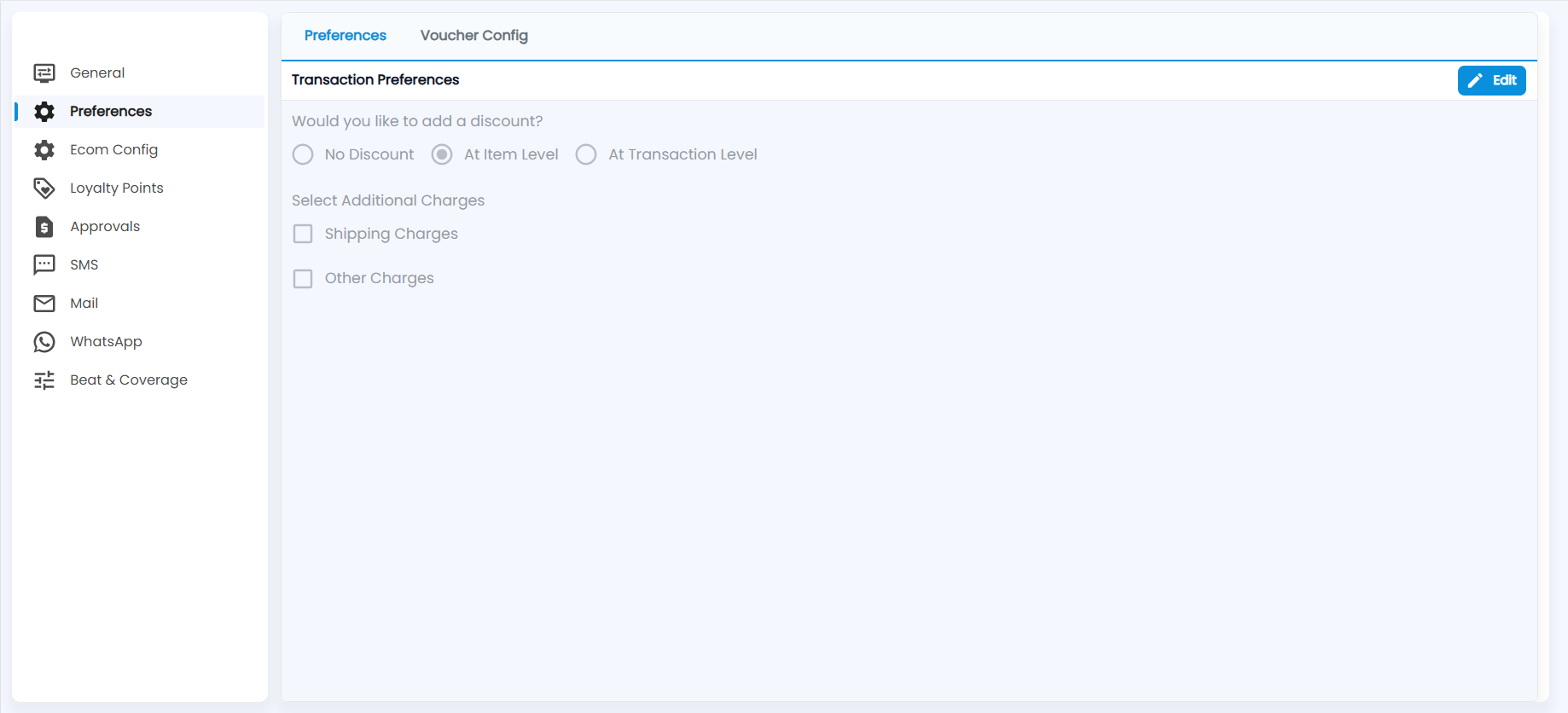
Transaction Preferences has two questions. Click Edit to change them:
- Would you like to add a discount?: No Discount, At Item Level (a discount on each line) or At Transaction Level (one discount on the whole bill).
- Select Additional Charges: tick Shipping Charges and/or Other Charges to add those fields to your sales documents.
If your role can see it, a second tab, Voucher Config, appears next to Preferences.
How do the approval tabs work?
Approvals, Credit Enforcement, Payment Approval and Inventory Defect Approval decide which transactions stop for a sign-off, and who signs off. Requests that are held show up in Approvals. All four are covered in detail in Approval Configuration.
How do I set up SMS, Mail and WhatsApp?
The SMS tab stores your SMS gateway (URL, sender header and token) for each location. Mail stores the outgoing SMTP account for each location. WhatsApp holds your credits, consent list, and your own Meta account and templates if you connect one. Reminder Settings chooses which reminders are sent. See SMS, Mail and WhatsApp Configuration for step-by-step instructions.
What does Beat & Coverage control?
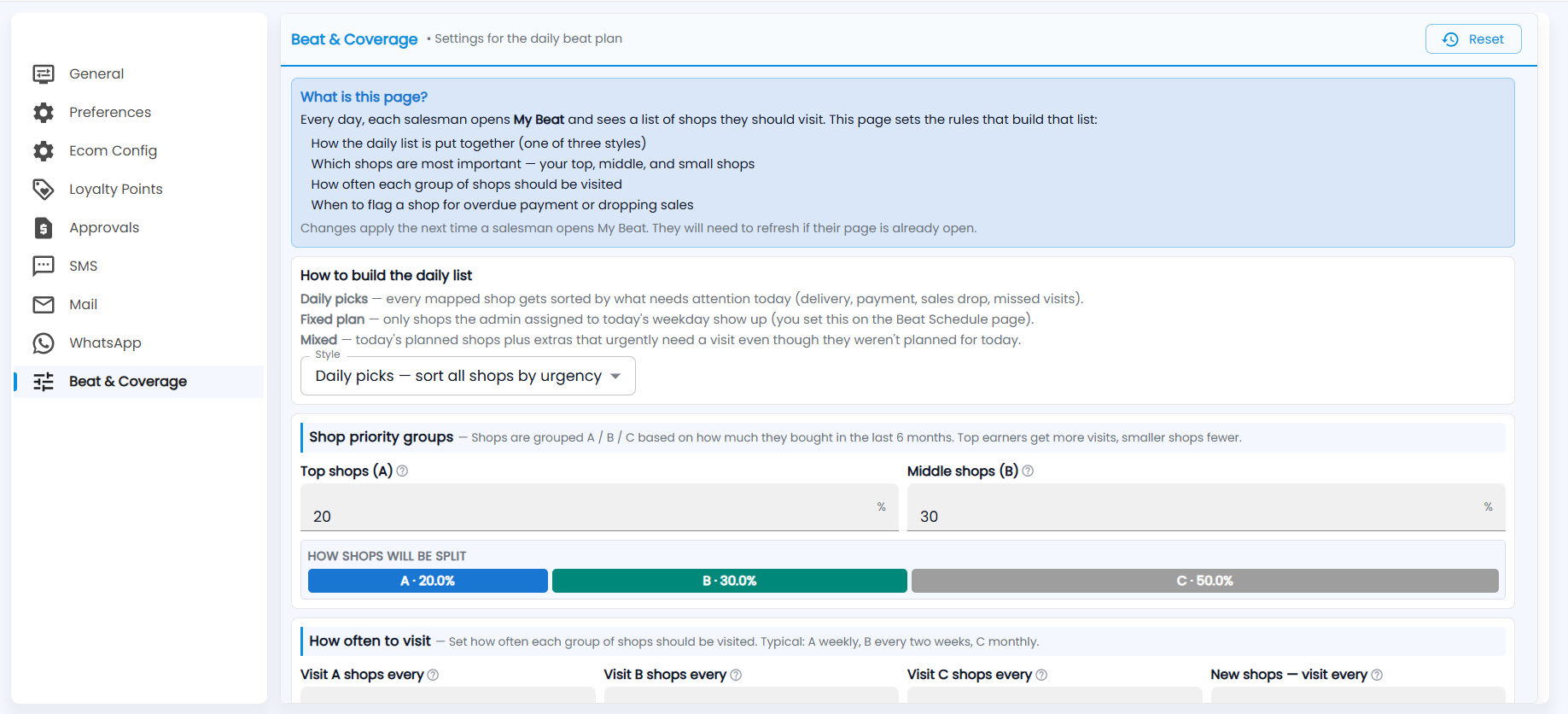
Beat & Coverage (Settings for the daily beat plan) sets how each salesman’s daily list of shops in My Beat is put together. A What is this page? box at the top explains it; changes apply the next time a salesman opens My Beat (they refresh if it is already open).
- How to build the daily list — the Style: Daily picks — sort all shops by urgency (every mapped shop sorted by what needs attention today: delivery, payment, sales drop, missed visits), Fixed plan (only the shops assigned to today’s weekday on the Beat Schedule page) or Mixed (today’s planned shops plus urgent extras).
- Shop priority groups — shops are grouped A / B / C by how much they bought in the last 6 months. Set the share of Top shops (A) and Middle shops (B) in %; the rest are C. How shops will be split shows the result, for example A · 20%, B · 30%, C · 50%.
- How often to visit — Visit A shops every, Visit B shops every, Visit C shops every and New shops — visit every (typical: A weekly, B every two weeks, C monthly).
- When to flag a shop for an overdue payment or falling sales, further down the page.
Click Reset at the top right to go back to the standard values.
What is the Loyalty Points tab?
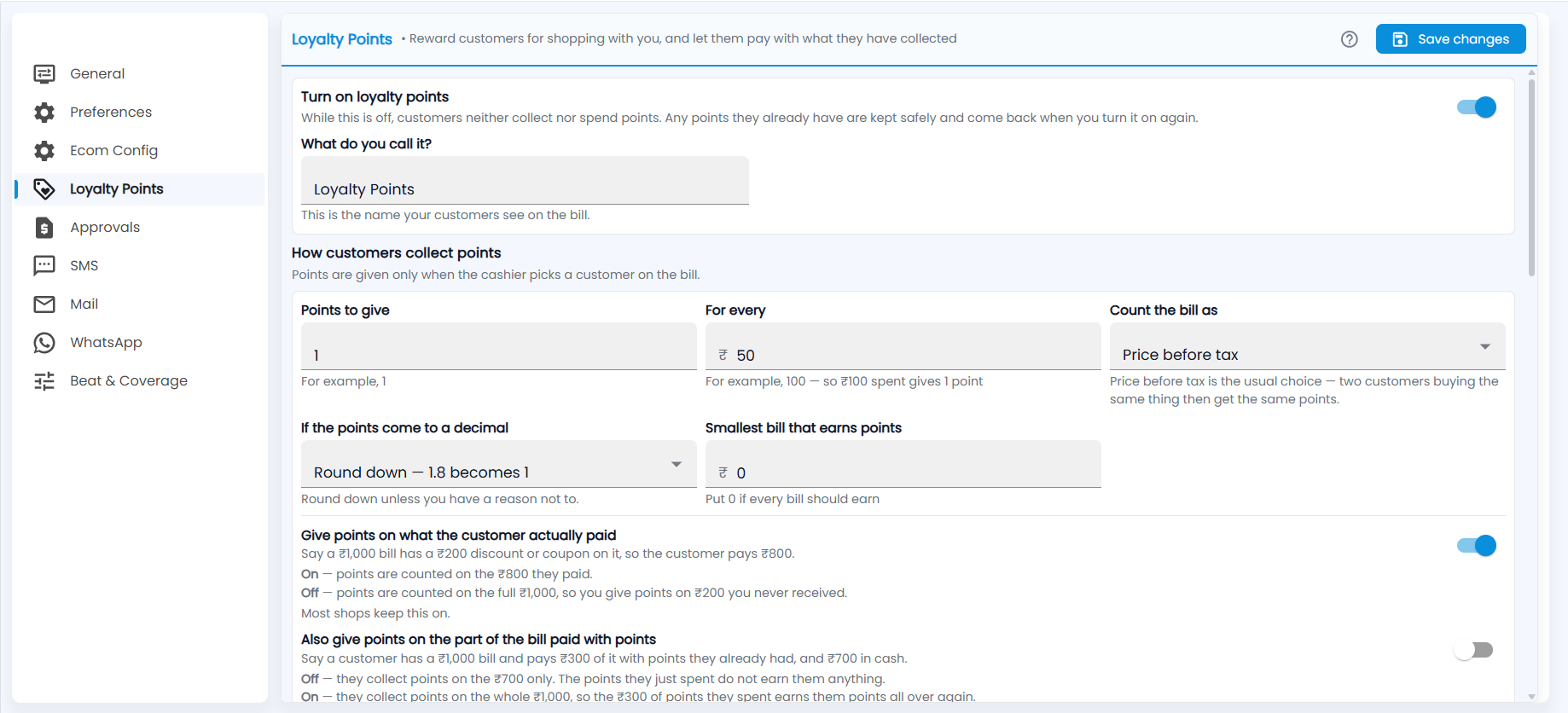
This is where you set up your customer loyalty programme (Reward customers for shopping with you, and let them pay with what they have collected). Customers collect points when they buy and later spend them like money, on goods only, never as cash. Switch on Turn on loyalty points — while it is off, customers neither collect nor spend points, and points they already have are kept — then set:
- What do you call it? — the name customers see on the bill (for example Loyalty Points);
- How customers collect points (only when the cashier picks a customer on the bill): Points to give For every ₹ amount (for example 1 point for every ₹50), Count the bill as (Price before tax, the usual choice), If the points come to a decimal (Round down — 1.8 becomes 1) and the Smallest bill that earns points (0 if every bill should earn); and two switches — Give points on what the customer actually paid (after discounts and coupons; most shops keep this on) and Also give points on the part of the bill paid with points;
- What a point is worth, and how it can be spent: its value in ₹, how much of a bill can be paid with points, and the smallest amount that can be redeemed at once;
- When unused points expire;
- How your books record it (points you owe customers are a liability);
- Which counters take part (all counters by default).
Points belong to a customer, so a walk-in sale with no customer selected earns nothing. Click the ? icon for the full explanation, and Save changes to apply.
What does Ecom Config set?
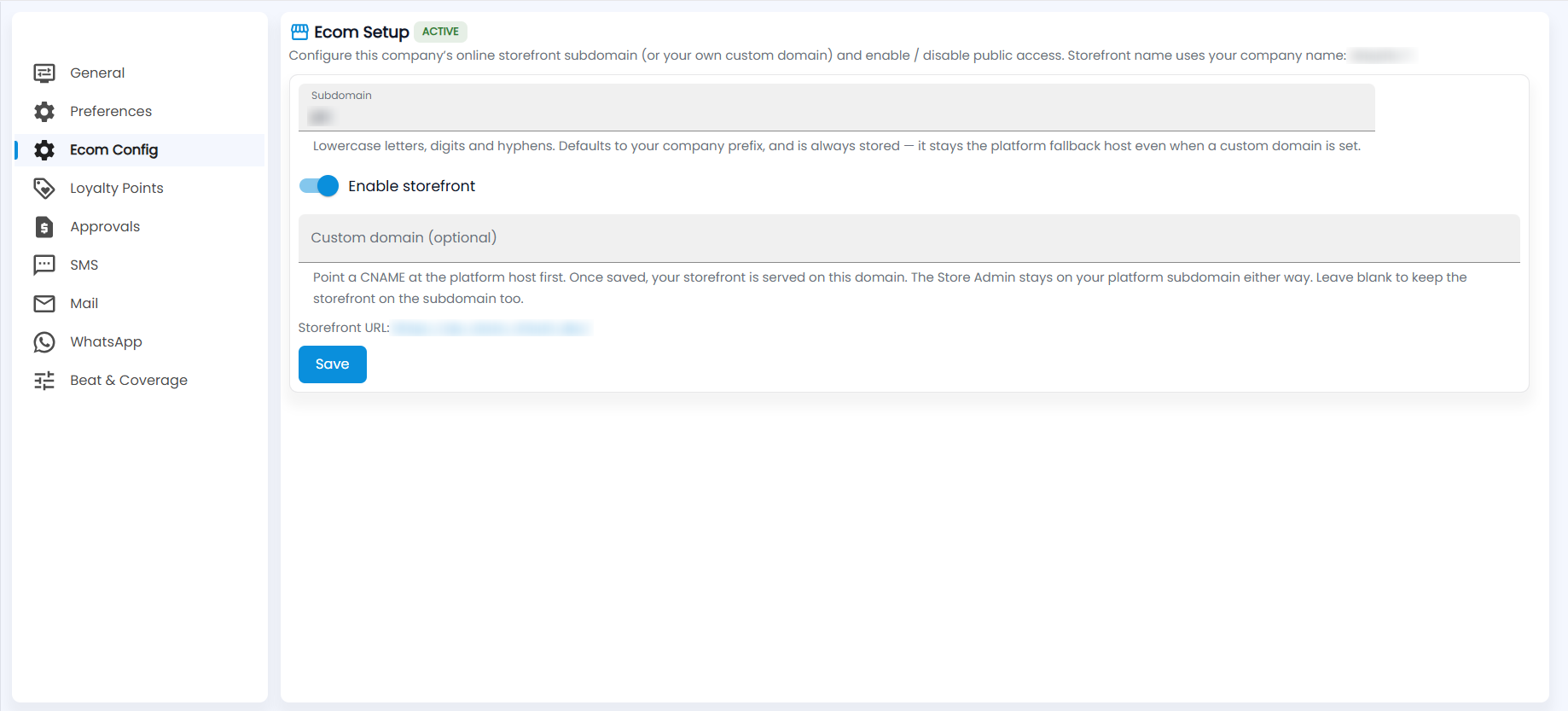
If you sell online, Ecom Config (Ecom Setup, with an ACTIVE chip once it is live) sets your storefront address; the storefront uses your company name. Subdomain takes lowercase letters, digits and hyphens, and defaults to your company prefix. Enable storefront switches the store on. Custom domain (optional) serves the store on your own domain, such as shop.example.com. Point a CNAME record at the platform host before you save it. The Store Admin always stays on your platform subdomain. The page shows the resulting Storefront URL; click Save to apply.
What are Custom Fields?
Custom Fields lists extra fields you have defined, with their Name, Type and Created On date. You can edit or delete each one from its row.