
What is the Messages page in Tazk Payroll?
Messages (Message in the sidebar) puts approvals, announcements, payslips and HR activity in one place. Tabs split the feed into Inbox, Requests, Payroll, Claims, Wishes, Announcements and Sent, with Appraisals, HR Policies, Training and Documents under More. Click an item to see its details on the right, where you can approve or reject a pending request, acknowledge a policy, upload a requested document or reply to a wish. The envelope button sends internal mail.
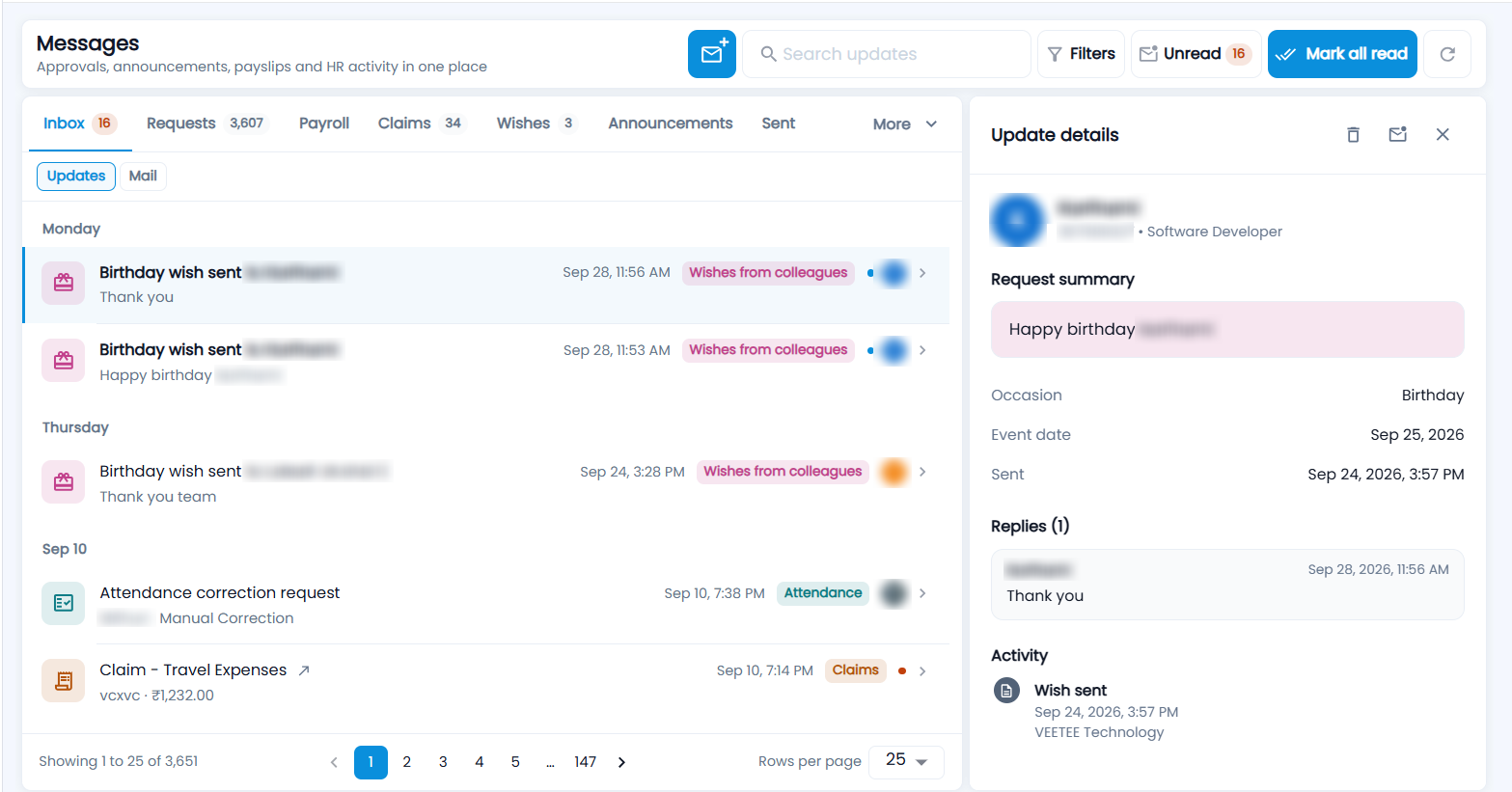
What is in each Messages tab?
| Tab | What it holds |
|---|---|
| Inbox | Everything addressed to you. Switch between Updates (HR activity) and Mail (mail sent to you, your department or your role). |
| Requests | Leave, permission, attendance correction and other requests, with their status. |
| Payroll | Payslips and payroll approvals. |
| Claims | Expense claims. |
| Wishes | Birthday and anniversary wishes, and the replies to them. |
| Announcements | Company announcements. |
| Sent | Mail you have sent, and where you write a new one. |
| More | Appraisals, HR Policies, Training and Documents. |
The tabs you see depend on your plan and role. The number beside a tab is its count (unread only, for Inbox).
How do I read the message list?
- Items are grouped by day — Today, Yesterday, the weekday, then the date.
- Each shows a title (bold when unread), a summary line, the time and a category chip such as Wishes from colleagues, Attendance or Claims.
- An orange dot means it is waiting for your decision; a blue dot means unread. An arrow icon marks a request you raised.
- Choose 10, 25, 50 or 100 rows per page at the bottom ("Showing 1 to 25 of …").
How do I filter messages?
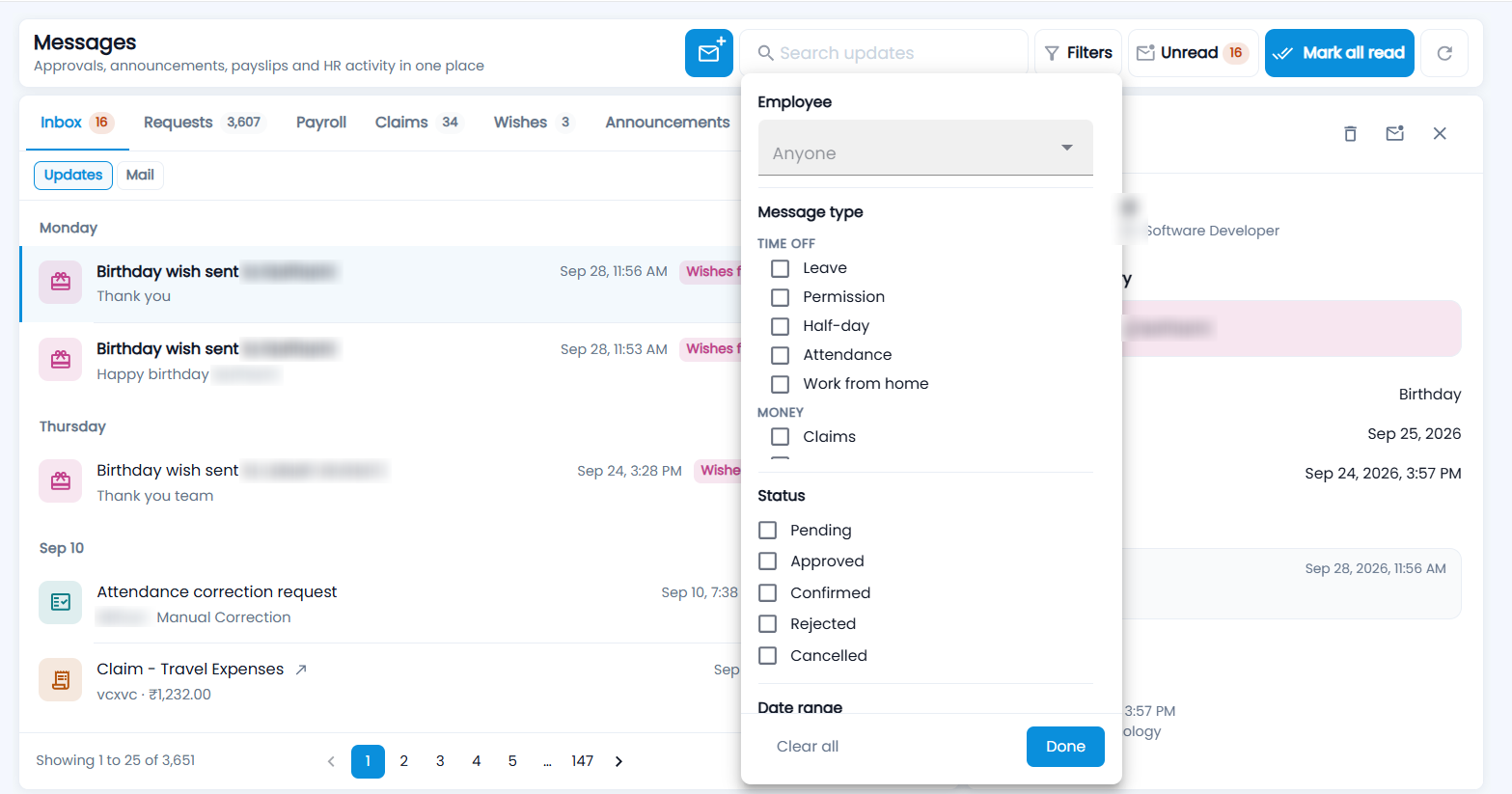
Click Filters at the top. The panel has four sections:
| Section | Options |
|---|---|
| Employee | Anyone, or one person. Shown when you can see other employees' messages; your own entry is marked (You). |
| Message type | Time off — Leave, Permission, Half-day, Attendance, Work from home. Money — Claims, Loans, Payroll. Approvals — Approvals, Profile, Onboarding, Training requests and more. HR — Announcements, Wishes, Wishes from colleagues, HR Policies, Training, Documents, Appraisals. |
| Status | Pending, Approved, Confirmed, Rejected, Cancelled |
| Date range | From and To dates |
Tick what you need — the list updates as you choose — and click Done. The Filters button shows how many sections are in use. Clear all removes every filter at once.
Next to Filters:
- Search updates — search the feed.
- Unread — show only unread items; the badge is the unread count.
- Mark all read — marks everything in the current tab and filters as read.
- The refresh button reloads the list.
Can I approve a request from Messages?
Yes. Open a pending request you approve or verify. The detail panel shows the requester, a request summary and the activity so far, with:
- Approve, Verify or Approve & Verify, depending on your step.
- Reject — add a reason (up to 250 characters); the requester sees it.
If you cannot act, the panel says why — for example "Waiting for your approver to act on this request." Other items offer their own action: Acknowledge a policy, Upload document for a document request, Open goal sheet for an appraisal, or Cancel request on your own request before anyone acts on it.
How do I reply to a birthday wish?
- Open the Wishes tab and click the wish. The panel shows the occasion, event date, when it was sent and any replies.
- Click a reaction emoji, type a reply ("Say thank you, or just react above"), or both.
- Click Send reply. The sender sees it in their Wishes tab.
Wishes are sent with Send wishes on the dashboard's Events card, or Send wish in the Calendar.
What do the icons on the detail panel do?
- Bin — delete the item, when allowed (for a wish, only the sender can delete it, which removes it and its replies for both people).
- Envelope — mark it unread again.
- × — close the panel.
How do I send a mail from Messages?
- Click the envelope-plus button (Send mail). A New message opens on the Sent tab.
- Under Recipients, set Location, Department and Role (each can be Any). The matching people are listed; untick anyone to leave them out, or use Search contacts to add someone.
- Enter the Subject and write the message. Attach up to 5 files, each under 2 MB.
- Click Send (it shows Send to N people), or the clock (Send later) and Schedule.
Recipients read it under Inbox → Mail and can Reply or Forward. Mail you sent is on the Sent tab.